ARMember Integration with AffiliatePress
How to Use Affiliate Addon with ARMember Pro Plugin
Overview
The ARMember and AffiliatePress integration is a plugin-level connection in which AffiliatePress tracks referrals and commissions for membership purchases created through ARMember.
In this integration, ARMember is responsible for handling membership-related functionality such as user registration, plan management, and access control, while AffiliatePress manages affiliate tracking, referral attribution, and commission generation.
It is important to note that this integration is configured and controlled entirely from the AffiliatePress plugin settings, and no direct configuration is required within ARMember.
Important Notes
AffiliatePress develops and maintains this integration, not ARMember. To use this feature, make sure you have:
Key Features
Automatic Affiliate Tracking
Referral visits and membership purchases are automatically tracked, ensuring that affiliates receive credit without requiring any manual setup.
Seamless Membership Integration
All ARMember membership plans become instantly eligible for affiliate tracking once the integration is enabled, without the need for additional configuration.
Flexible Commission Management
You can define commission structures using percentage or fixed amounts and optionally customize them for different membership plans.
Support for Recurring Earnings
Affiliates can earn commissions on both initial membership purchases and recurring subscription renewals, depending on your configuration.
Built-in Refund Handling
The system automatically adjusts or rejects commissions when a transaction is refunded or fails, helping maintain accurate affiliate records.
Integration Workflow (Step-by-Step Logic)
- An affiliate registers in AffiliatePress
- AffiliatePress generates a unique referral URL
- The visitor clicks the referral URL
- AffiliatePress stores referral data (typically via cookies)
- The visitor completes membership registration using ARMember
- ARMember processes the membership purchase
- AffiliatePress detects the completed transaction
- The commission is assigned to the affiliate
- Payout generated via admin and paid to the affiliate
Step 1: Install Required Plugins
Install and activate both AffiliatePress and ARMember on your WordPress website.
Step 2: Enable ARMember Integration in AffiliatePress
After activating both plugins, you need to enable the ARMember integration within AffiliatePress so that affiliate tracking works correctly with membership purchases.
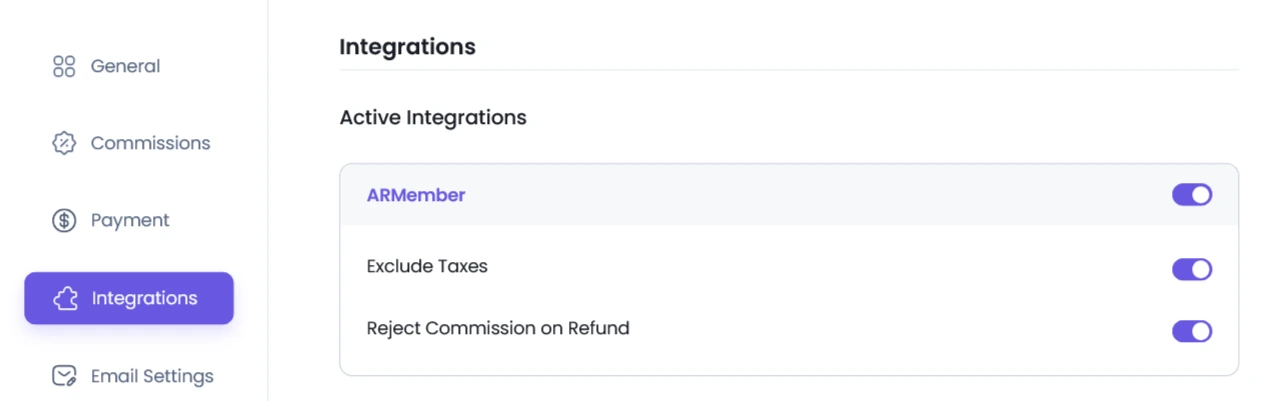
To do this, go to AffiliatePress ⇾ Settings ⇾ Integrations in your WordPress admin panel. From the available integrations list, locate ARMember Integration and enable it using the provided toggle or checkbox.
Once enabled, you may see additional settings such as excluding taxes from commission calculations or handling commissions for refunded or failed transactions. Configure these options based on your requirements. After this step, AffiliatePress will start tracking purchases made through ARMember and assign commissions accordingly.
Step 3: Disable Commissions for a Membership Plan
AffiliatePress automatically calculates commissions for all ARMember membership plans. If you want to exclude a specific plan from generating affiliate commissions, you can disable this setting for that plan.
Steps to Disable Commissions
- Log in to your WordPress admin dashboard.
- Go to
ARMember⇾Manage Plans. - Locate the membership plan you want to update.
- Click Edit for that plan.
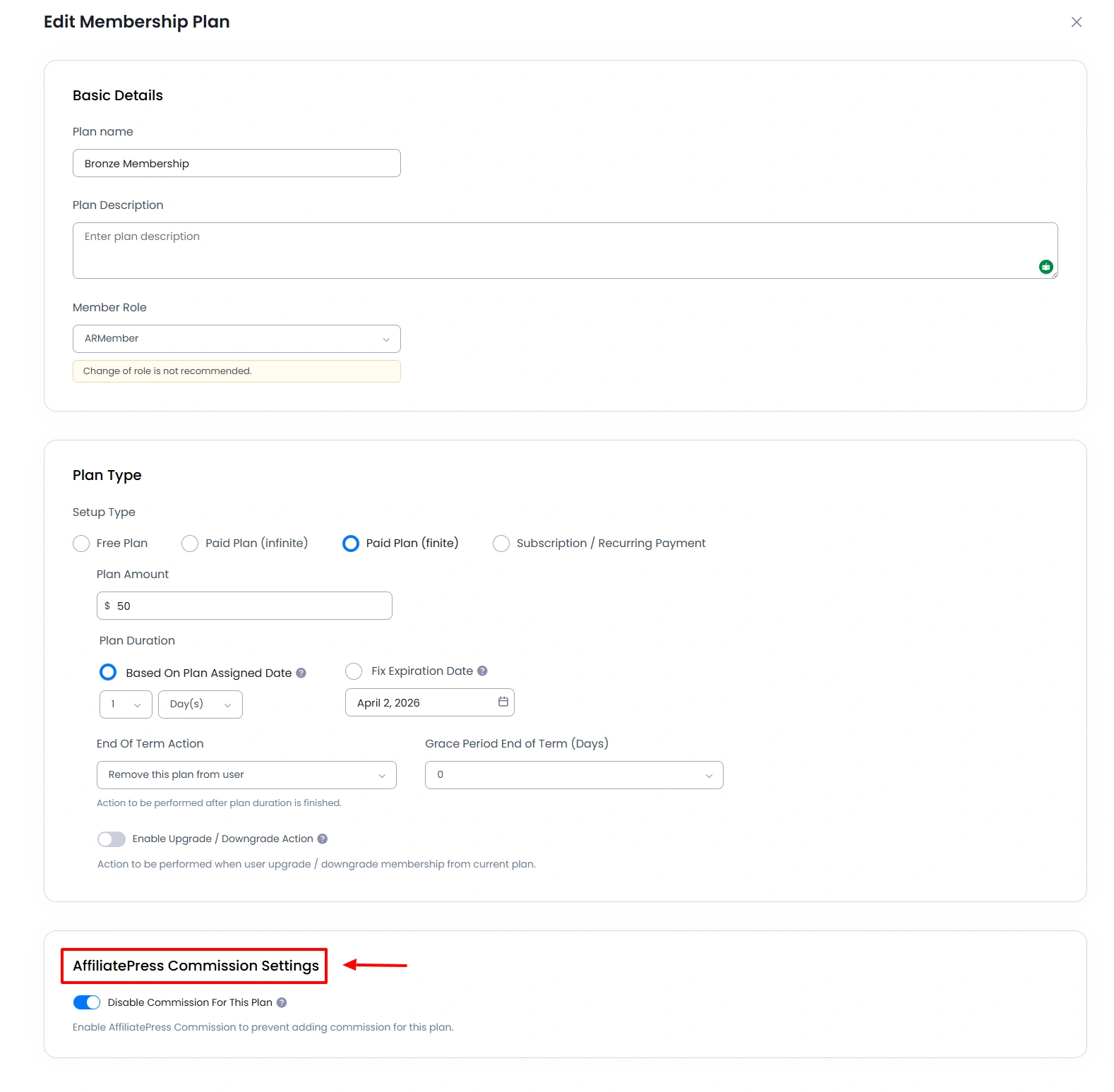
- Scroll down to the AffiliatePress Commission Settings section.
- Enable the option “Disable Commission For This Plan.”
- Click Save to apply your changes.
Step 4: Products Selection

How to Use Affiliate Addon with ARMember Pro Plugin
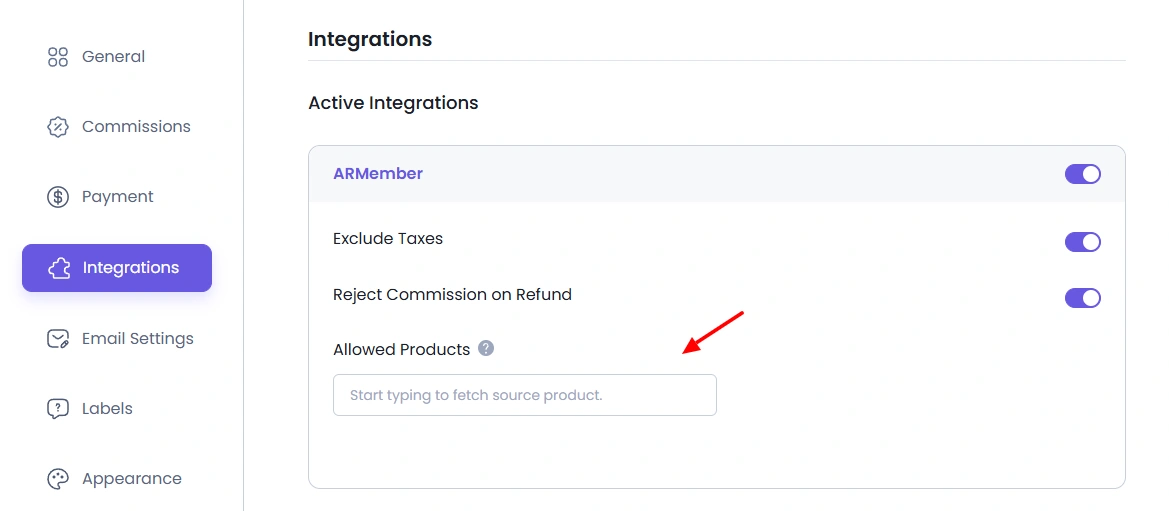
AffiliatePress offers a facility through which you can allow the commission to be applied to only selected products. This becomes handy when you have many membership plans and wish to allow the referrals to earn only on selected membership plans.
In order to explore this functionality, make sure to enable the add-on offered by the AffiliatePress plugin named Product Selection.

To activate this add-on, navigate to the Admin Panel ⇾ AffiliatePress ⇾ Addons page. After the add-on is activated, navigate to the AffiliatePress ⇾ Settings ⇾ Integrations, and here a new field will be visible that is Allowed Products. Selected products will be eligible for earning commissions.
Step 5: Product-Wise Commission

How to Use Affiliate Addon with ARMember Pro Plugin
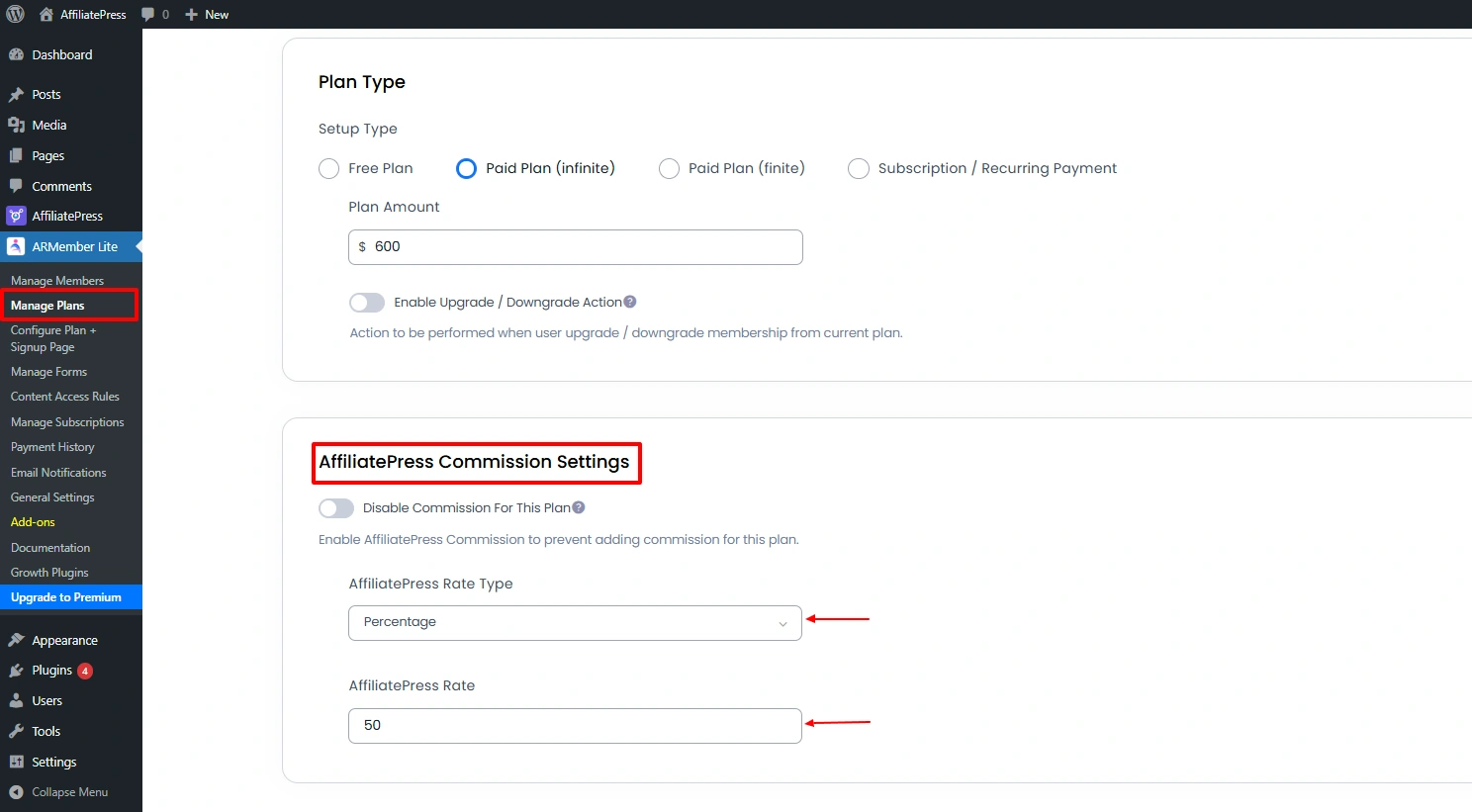
The Product Commission Rate Add-on in AffiliatePress allows you to assign custom commission rates to individual products.
In order to use this add-on, activate the Product Commission Rate Add-on from the Admin Panel ⇾ AffiliatePress ⇾ Addons page.

Furthermore, to add plan-wise commission, navigate to ARMember ⇾ Manage Plans ⇾ Add/Edit Plan, and set the AffiliatePress Rate Type and AffiliatePress Rate.
Step 6: Recurring Commission
The Recurring Commissions in AffiliatePress allow affiliates to earn commissions not just on the initial sale but also on subsequent recurring payments. This is especially valuable for subscription-based plugins like ARMember, where customers are billed repeatedly over time.
To use this add-on, activate the Recurring Commission Add-on from the Admin Panel ⇾ AffiliatePress ⇾ Addons page.

Firstly, one needs to enable the settings for the recurring commission. To enable this, navigate to the AffiliatePress ⇾ Settings ⇾ Commissions tab. Then you can set the recurring rate and limit.
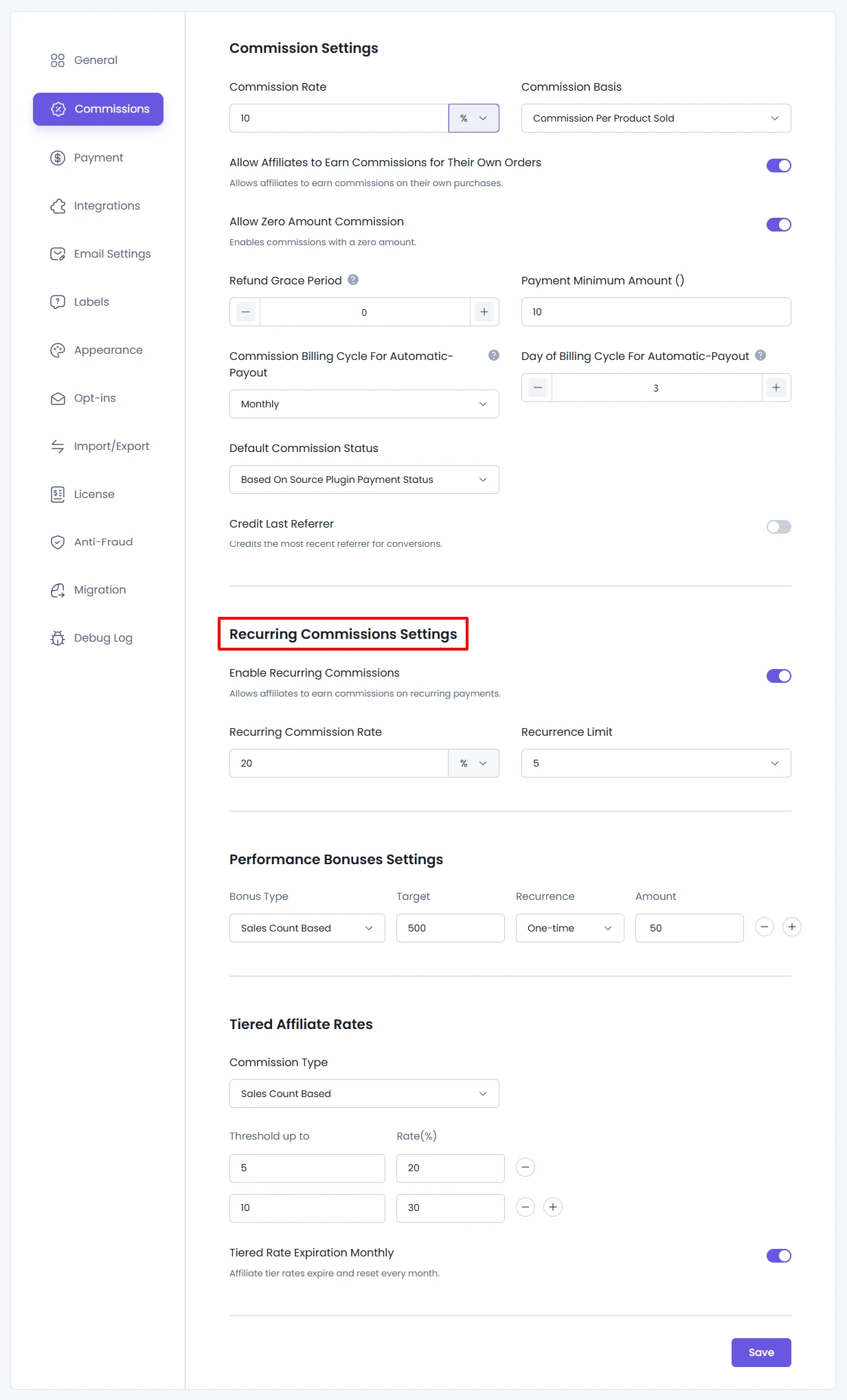
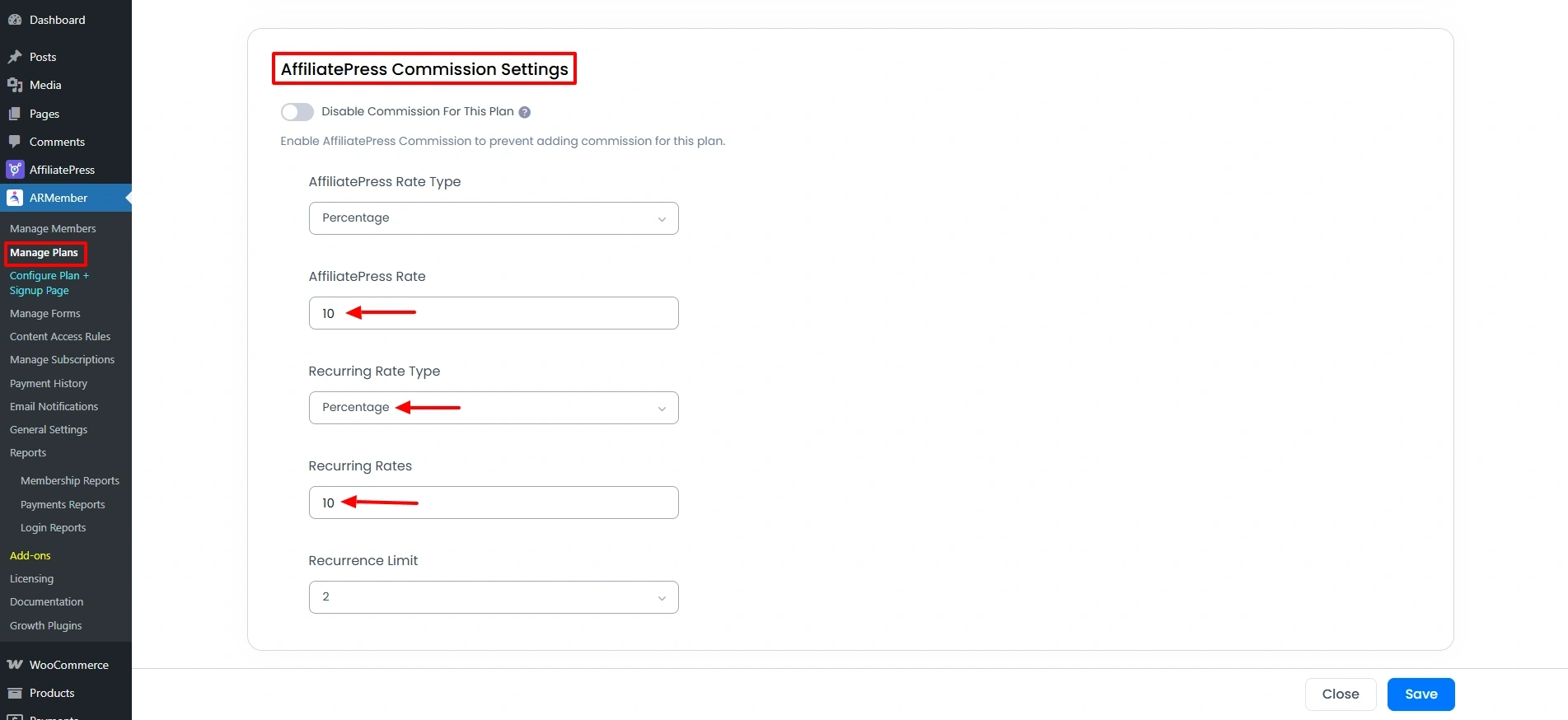
The AffiliatePress also allows setting the recurring commission rate and recurrence limit plan-wise, so to set this, go to the ARMember ⇾ Manage Plans ⇾ Add/Edit Plan and here at the bottom of the plan, locate the AffiliatePress Commission Settings and set the commission as per the desired requirements.
Step 7: Coupon Code Integration

How to Use Affiliate Addon with ARMember Pro Plugin
AffiliatePress coupon codes can be distributed and redeemed by customers without needing a traditional affiliate tracking link. When a customer enters a designated coupon at checkout, they receive the specified discount, and the system automatically credits the associated affiliate with the commission.
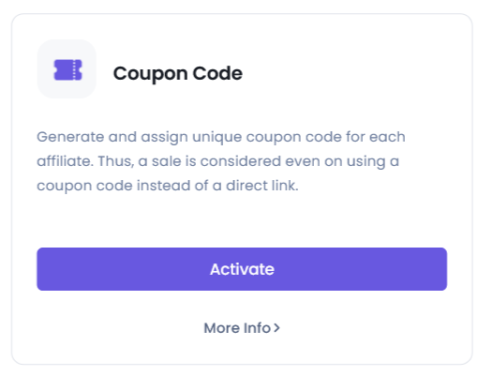
In order to use this make sure the AffiliatePress Coupon Code Addon is activated along with the ARMember Coupon Management only then the connection will be established.
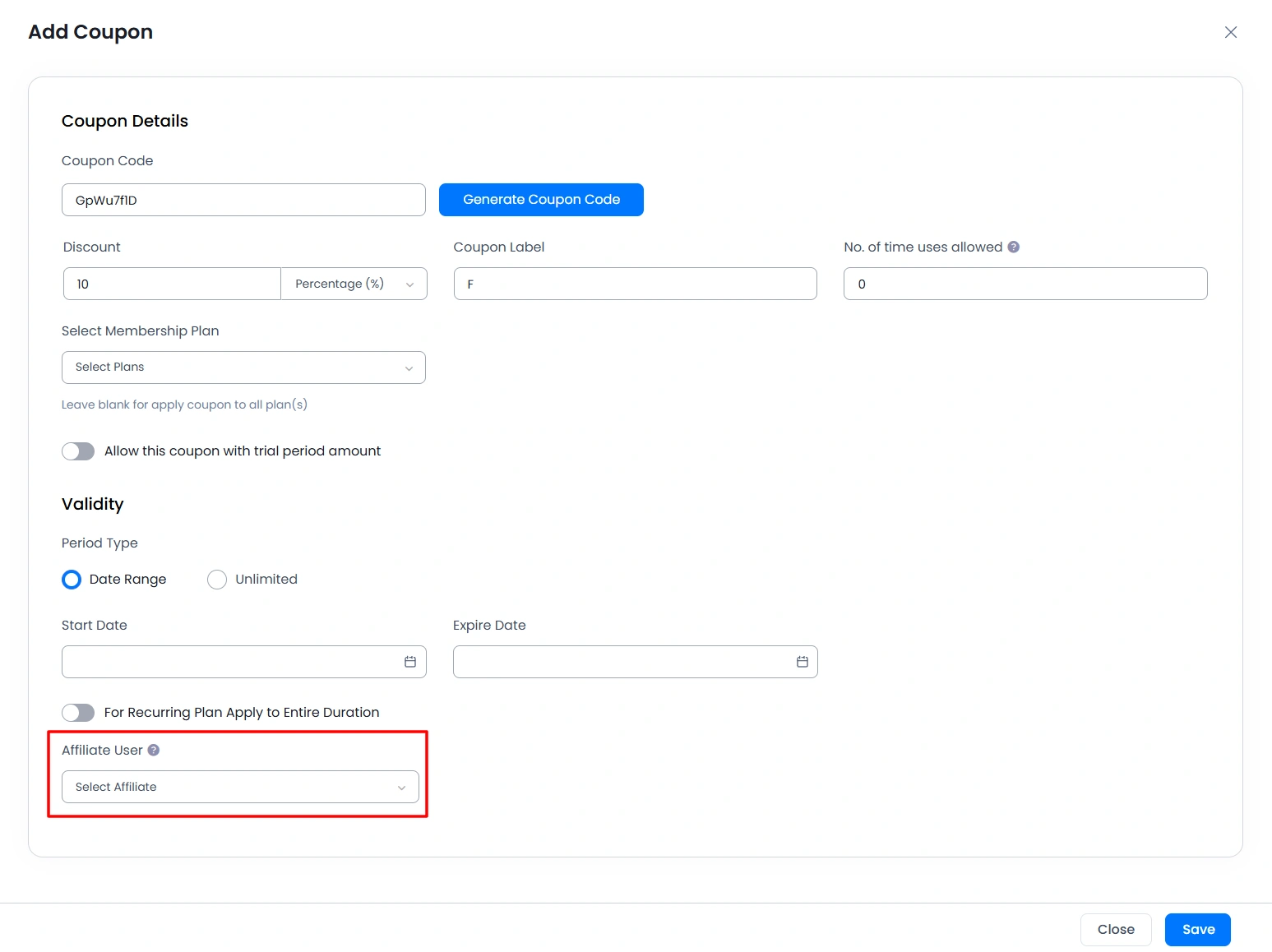
As AffiliatePress coupon code addon seamlessly integrates with ARMember ⇾ Coupon Management, it allows administrators to assign coupon codes directly to affiliate users. This linkage enables affiliate tracking and commission attribution through coupon usage. When editing or creating a coupon under Coupon Management, a new section titled Affiliate User appears select the affiliate user and when any referral uses this coupon to make a purchase at that time the commission will be captured for the selected affiliate user.
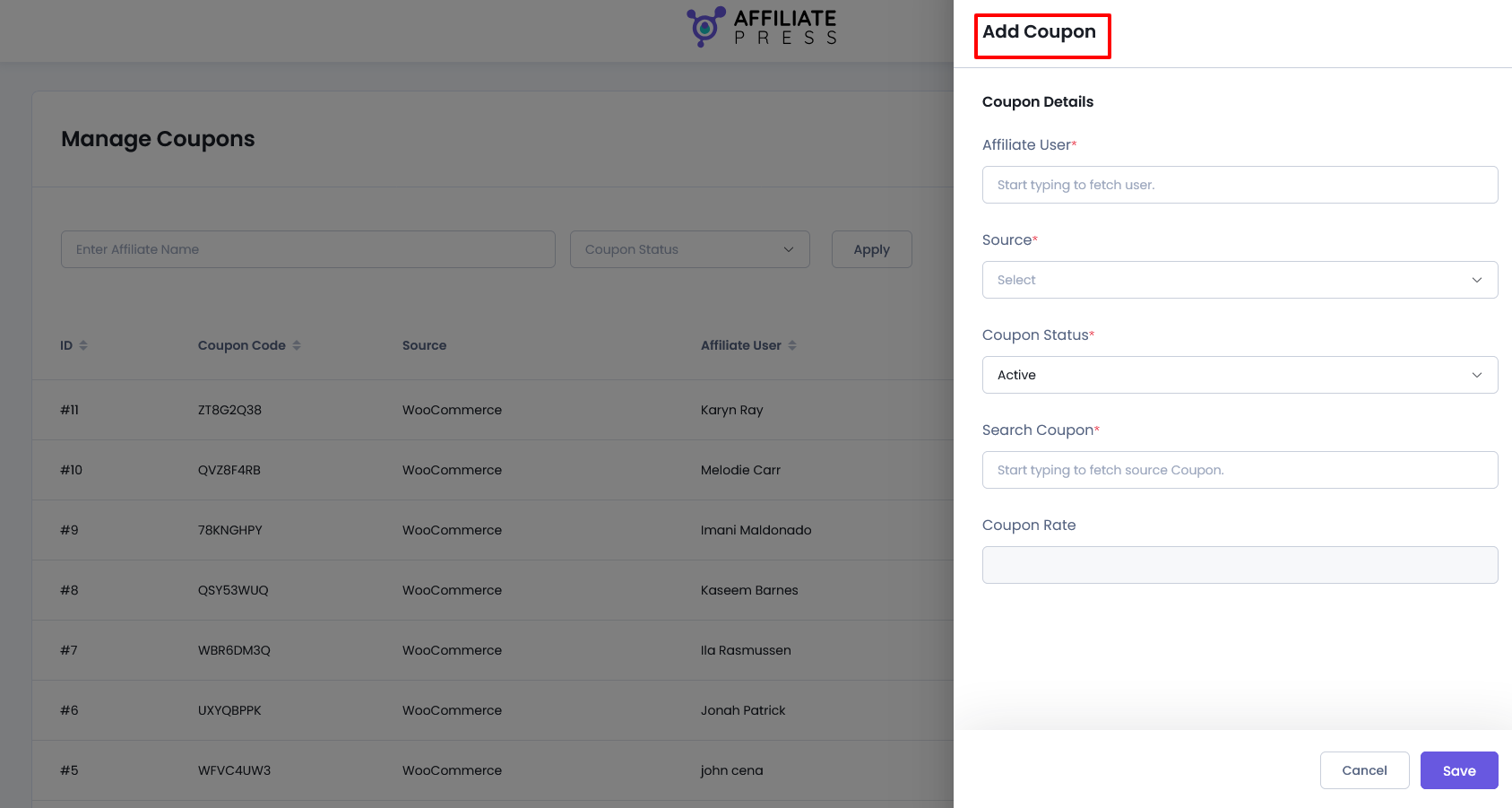
Also, once the coupon is created at the ARMember then you can link the same at the AffiliatePress ⇾ Manage Coupons page.
Step 8: Easy Migration

How to Use Affiliate Addon with ARMember Pro Plugin
AffiliatePress allows the easy migration via ARMember Individual Affiliate Addon. You can migrate data like Affiliates, Referral/Commission Data, Creative, Payout, Affiliate Groups, and Visits.
To migrate make sure that you have installed and activated the AffiliatePress Easy Migration Tool Addon.
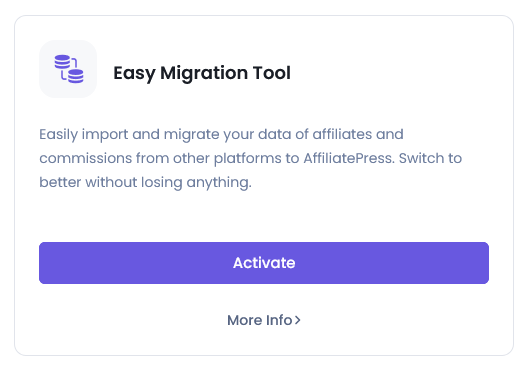
In order to migrate the data navigate to the AffiliatePress ⇾ Settings ⇾ Migration page and migrate the data to AffiliatePress.