

How to Customize Member Profile, Directory & Membership Card with ARMember Pro Plugin (Latest 2026)
To add user profiles and Member Directories to your website, activate the Social Feature add-on from ARMember → Add-ons. After activation, the Profiles & Directories section will become available.
ARMember provides 8 professionally designed Member Directory templates that help you create attractive member listings with ease. You can preview these templates on the front end by clicking here. In addition, every template is fully customizable, so you can easily match it with your website design and branding.
From the Members Directory Templates section, you can create, edit, preview, copy, and delete templates whenever required. As a result, you can manage multiple Member Directories for different purposes without any limitations.
Add Template
Click the Add Template box in the Members Directory Templates section to create a new Member Directory template.
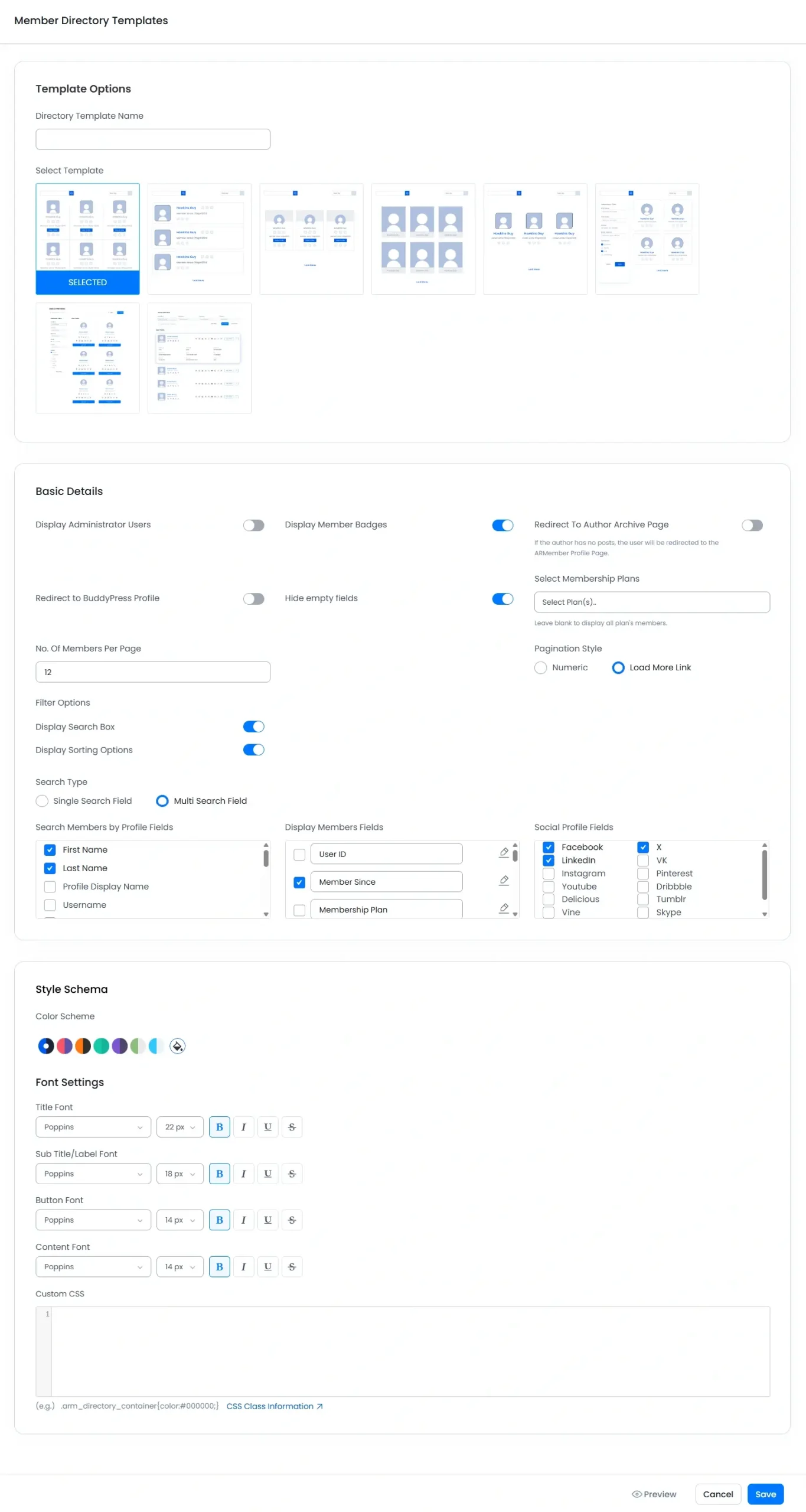
ARMember includes 8 ready-made Member Directory templates. Therefore, you can select the layout that best fits your website and then customize it according to your requirements.
Every template offers dynamic configuration options. For example, you can choose whether to display administrator users, member badges, author archive links, sorting options, search boxes, and many other settings.
You can also customize the template by selecting a color scheme, typography, membership plans, filters, pagination style, custom CSS, and additional display options.
If you enable the Hide Empty Fields option, profile fields without any value will not appear in the Member Directory. Consequently, your directory will look cleaner and more organized.
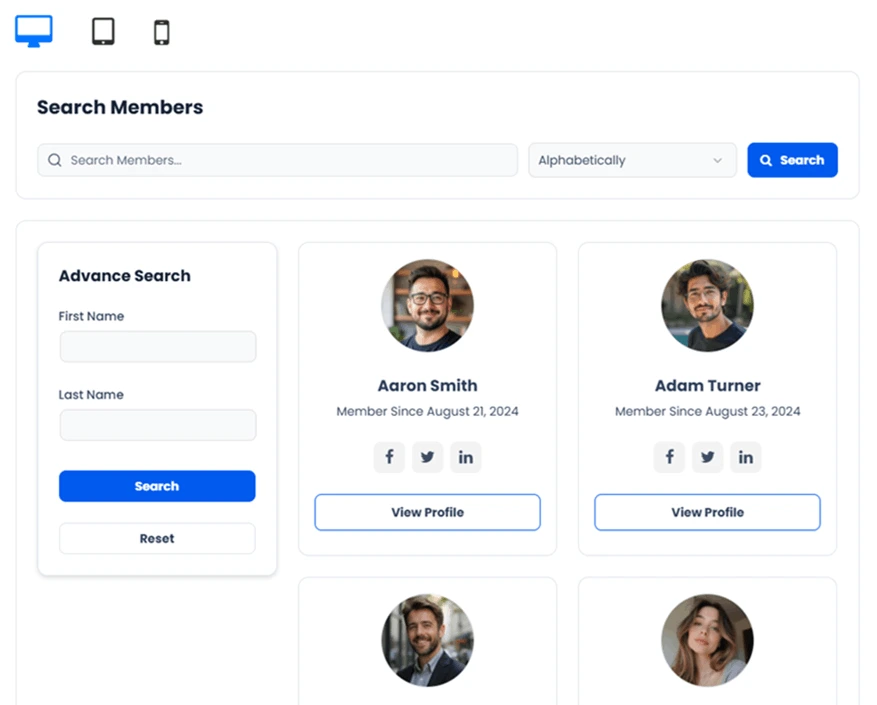
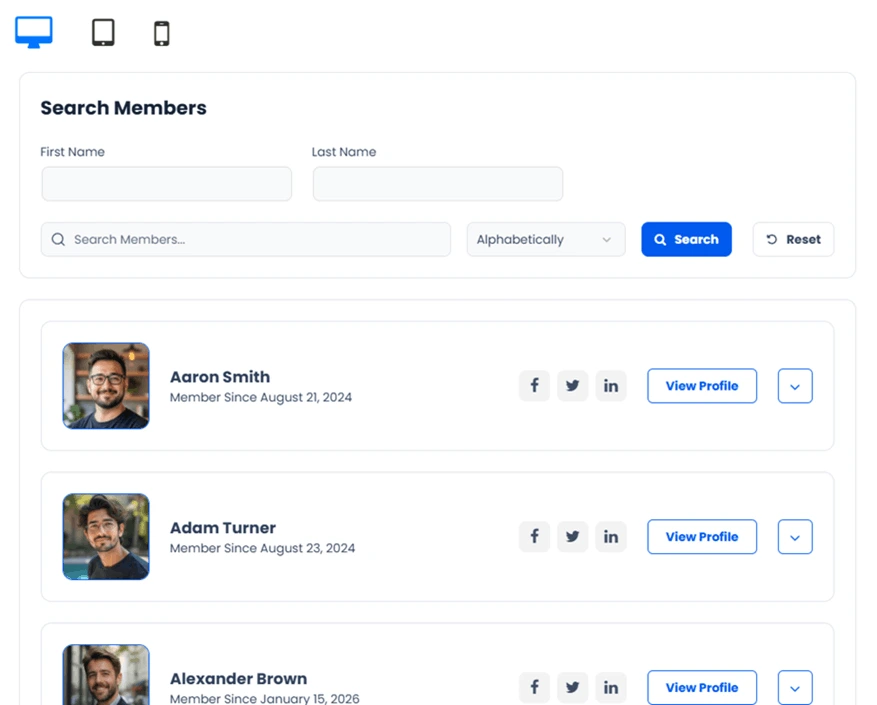
ARMember provides two search modes: Single Search Field and Multi Search Field. Therefore, you can choose the search experience that best suits your website.
If you select Single Search Field, only one search box will be displayed. Visitors can enter a keyword, and the directory will search members based on the configured searchable fields.

If you select Multi Search Field, multiple search fields will be displayed. As a result, visitors can filter members by using multiple search criteria at the same time.
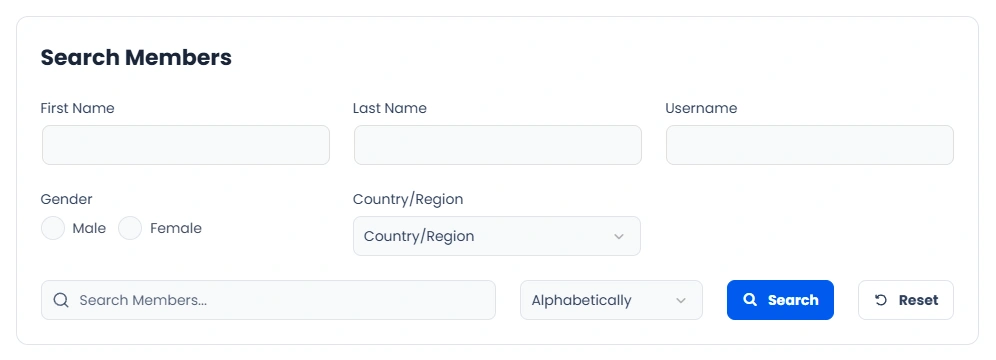
The following search parameters are available:
First Name (Selected by default), Last Name (Selected by default), Profile Display Name, Username, Email Address, Gender, Website (URL), Country/Region, Biography, Textarea, Dropdown, Radio Button, Date, Roles
Directory Options
Each Member Directory template provides four management options: Edit, Preview, Copy, and Delete. Simply hover over a template to access these options. As a result, you can efficiently manage multiple directories according to your website requirements.
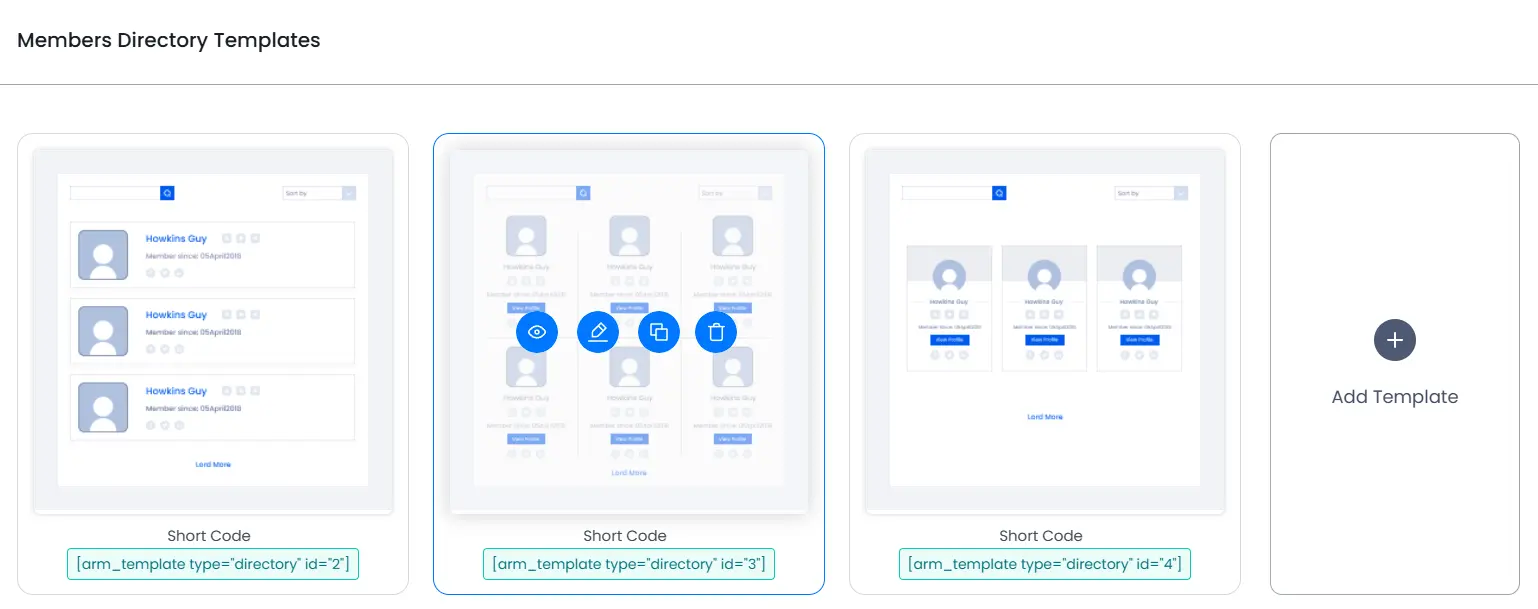
Edit Template
You can edit a Member Directory template at any time. Simply hover over the desired template and click the Edit icon to update its settings.
Copy Template
If you want to reuse an existing template, click the Copy icon. This option creates a duplicate of the selected template along with all of its settings. After that, you can modify the copied template without affecting the original one.
Delete Template
If a Member Directory template is no longer required, simply click the Delete icon to remove it from the template list.
Preview Template
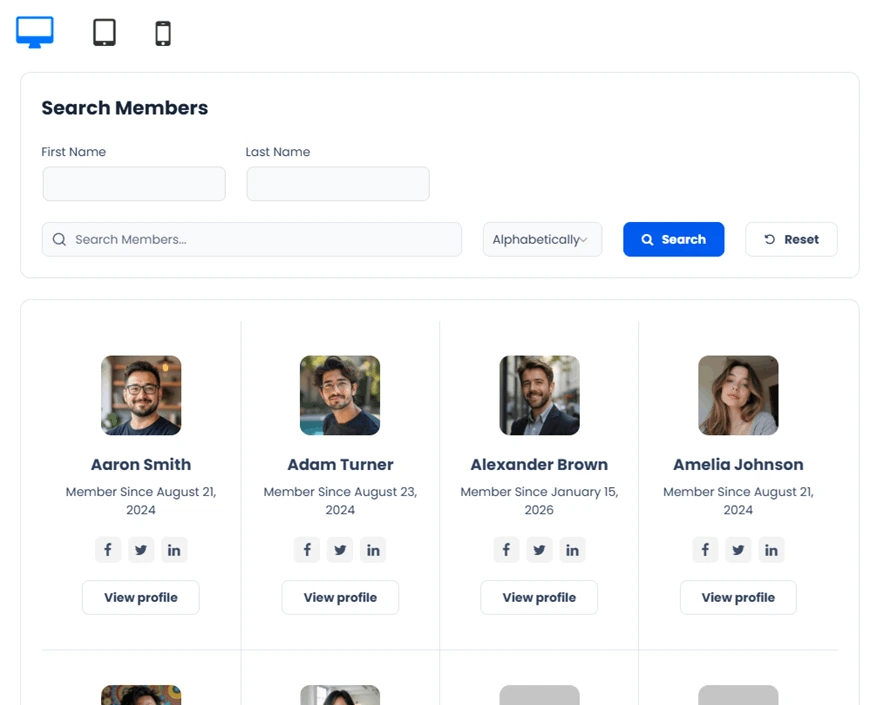
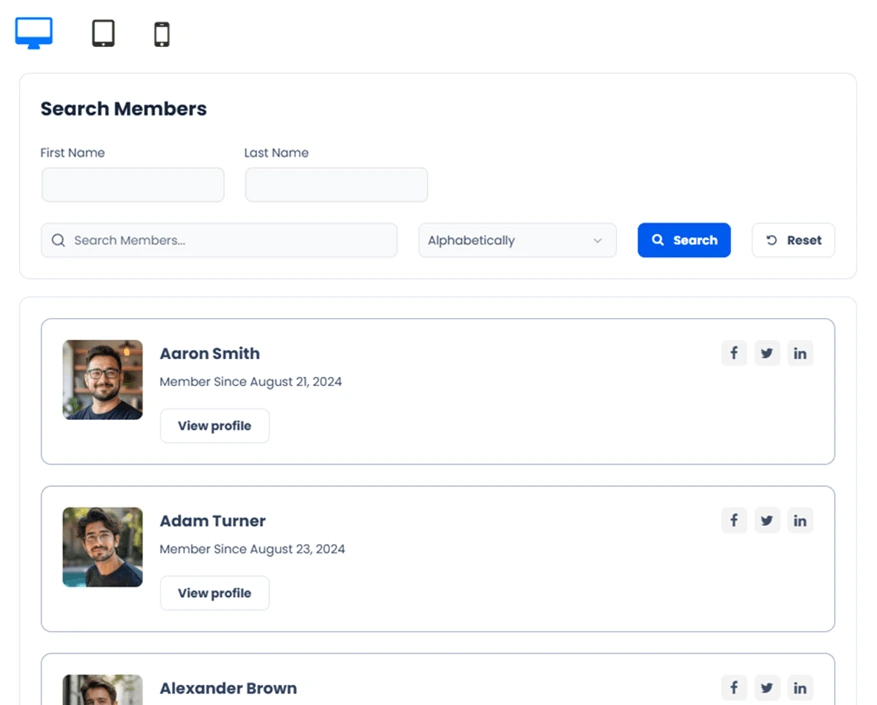
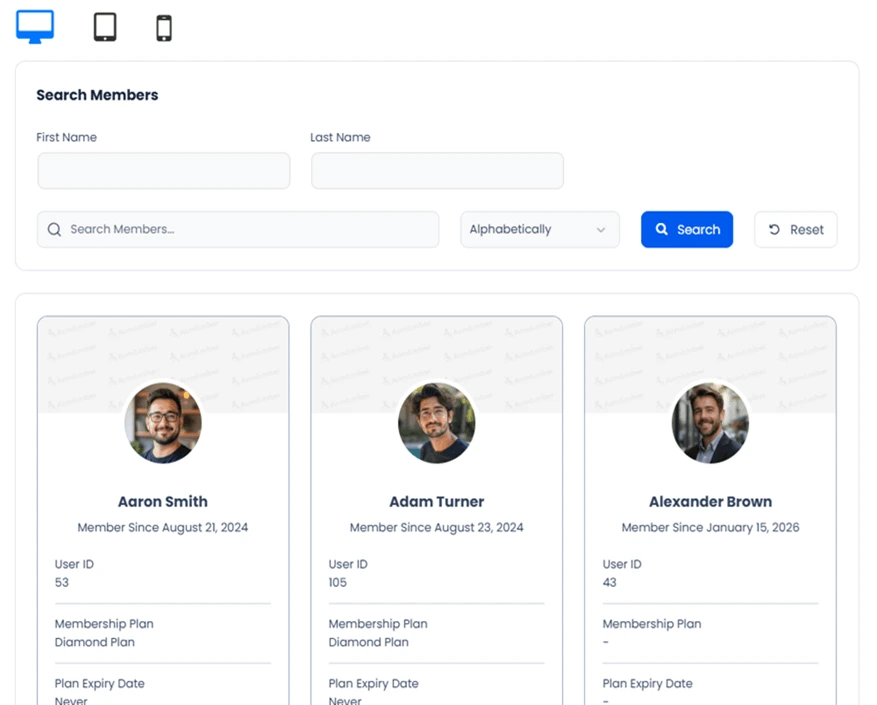
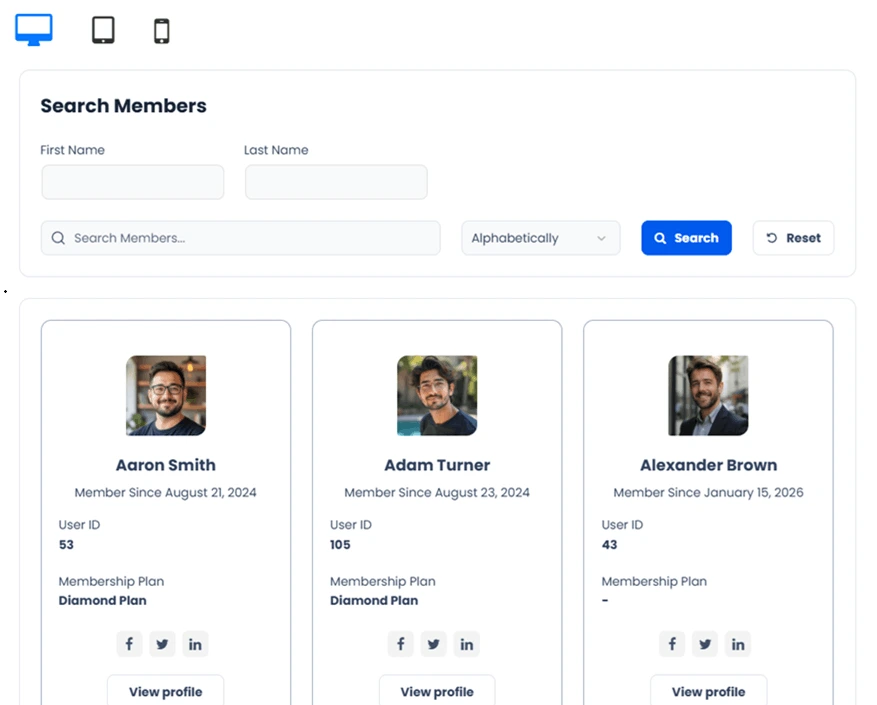
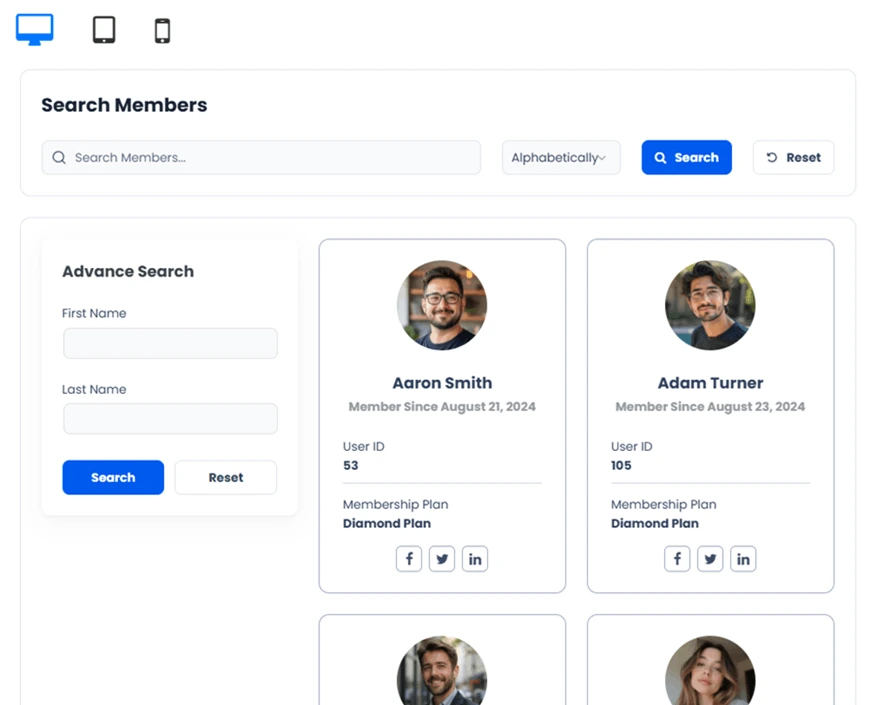
The Preview option allows you to view the Member Directory before publishing it. In addition, you can switch between desktop, tablet, and mobile views to verify the responsive layout.

How to Add Default Search Parameters?
Many websites require Member Directories that automatically display members matching a specific search condition. Therefore, ARMember provides two shortcode parameters that let you apply a default search filter whenever the directory is loaded.
The available shortcode parameters are default_search_field and default_search_value. Together, these parameters help visitors see filtered results immediately.
- default_search_field specifies the meta key that should be used for searching members.
- default_search_value specifies the value that should match the selected meta key.
Use the following shortcode format:
Shortcode:
[arm_template type="directory" id="DIRECTORY_ID" default_search_field="META_KEY" default_search_value="FIELD VALUE"]Replace DIRECTORY_ID, META_KEY, and FIELD VALUE with the appropriate values for your website.
For example, suppose your registration form contains a dropdown field named social_media_platforms, and one of its values is Instagram. If you want the Member Directory to display only members who selected Instagram, use the following shortcode:
Example
[arm_template type="directory" id="2" default_search_field="social_media_platforms" default_search_value="Instagram"]After you add this shortcode, the Member Directory will automatically display only those members whose social_media_platforms field contains the value Instagram.
How to Add Default sorting Parameters?
ARMember provides shortcode parameter that let you apply default sorting whenever the directory is displayed.
The available shortcode parameter is orderby. This parameter allow you to specify which field should be used for sorting and whether the results should be displayed in ascending or descending order.
orderby specifies the meta key that should be orderded by.
Use the following shortcode format:
Shortcode:
[arm_template type="directory" id="DIRECTORY_ID" orderby="META_KEY|ORDER"]Replace DIRECTORY_ID, META_KEY|ORDER with the appropriate values for your website.
META_KEY|ORDER Replace the META_KEY as the usermeta field meta key(exclude user_login, display_name and user_email) which you can get the field meta from ARMember -> General Settings page at Manage Preset Form Fields section, click on Edit Preset form fields
Replace ORDER with either ASC or DESC to specify the sorting order. If ORDER is not specified, the default sorting order will be ASC.
Suppose your registration form contains a preset field named first_name, and you want the Member Directory to display members alphabetically by their first name in ascending order. Use the following shortcode:
Example
[arm_template type="directory" id="2" orderby="first_name|ASC"]Note: The orderby parameter must contain a valid Usermeta field key and you can set order by sorting, example as if you want to order by first name as descending order then set the order by param value as “first_name|DESC” .