How to Use Kit Addon for Email Marketing (opt-in) with ARMember
Important Note: This Addon will only work if ARMember plugin is installed with version 6.9 or higher
Kit (ConvertKit) is a marketing automation platform designed to help businesses engage with their customers through personalized email campaigns.
The ARMember Kit Integration Addon will allow adding users, who will register from different sign-up forms used for different purposes, into a kit tag.
ARMember – Kit (ConvertKit) Addon Key Features:
- Easy Installation And Setup
- Easily create a contact in Kit when a new user registers using the ARMember registration form.
- Assign Different Tag to Users who will register using Different Sign-Up Forms
Steps For Installation And Activation
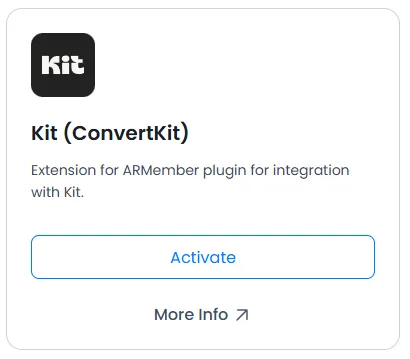
ARMember – Kit (ConvertKit) The add-on requires the ARMember plugin installed and active. You can install this add-on in the following two ways.
New install via FTP
- Download the addon and extract it. You will find a directory at armemberkit.
- In your WordPress installation directory, upload armemberkit to
wp-content/plugins/ - Activate it
ARMember - Kit Addonthrough thePluginsmenu from the WordPress admin panel.
New install via the WordPress Uploader
- Download the addon.
- Log in to your WordPress admin panel
- Go to
Plugins⇾Add New⇾Upload - Click on “choose file” and browse the download package. When the add-on uploads successfully, click on
Activate Plugin.
Steps to Set Up a Kit For Your Website
Let’s set up ARMember – Kit Addon for your website.
-
Once you activate the add-on, ARMember displays the Kit section in
ARMember⇾General Settings⇾Opt-ins.
-
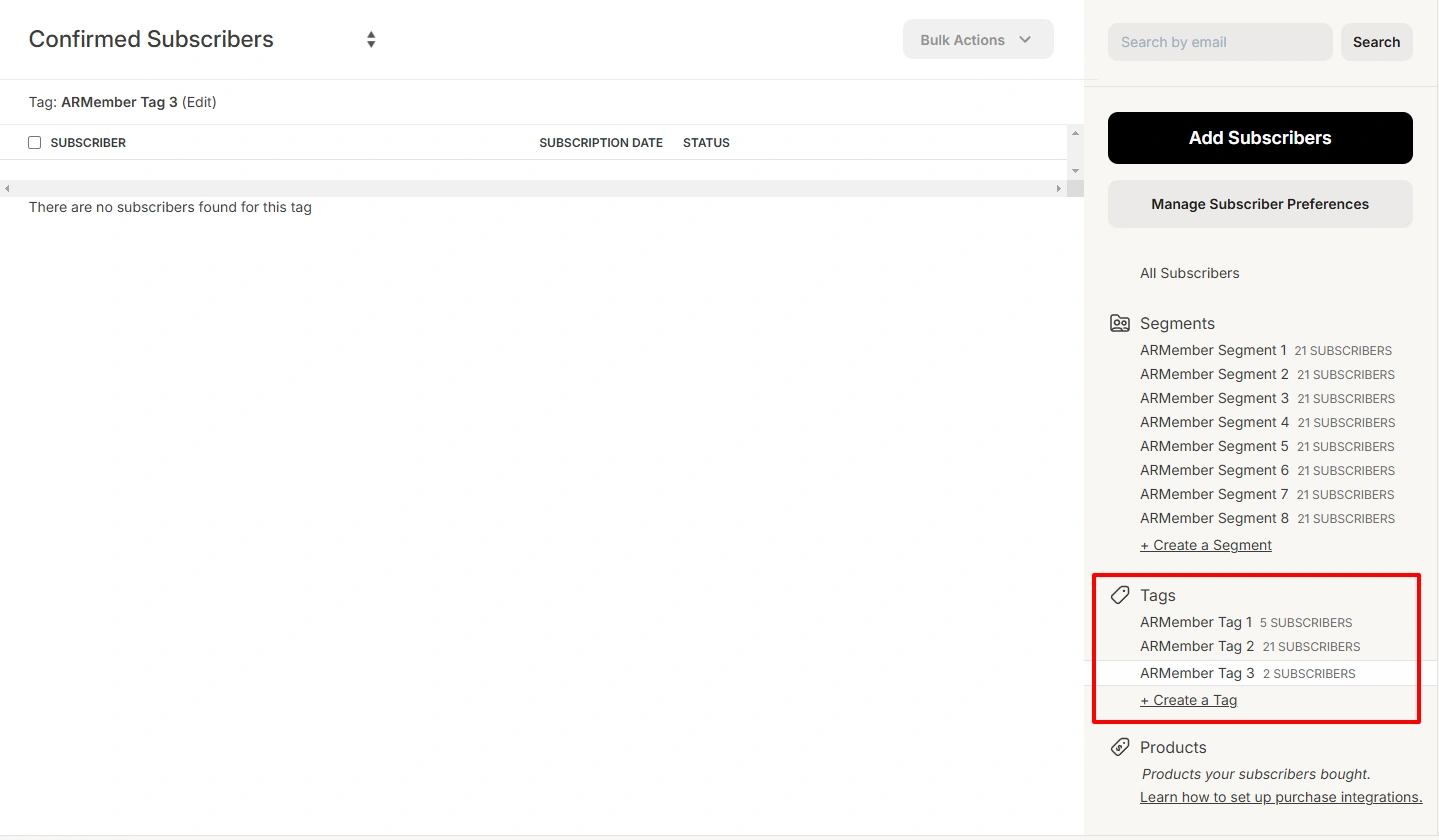
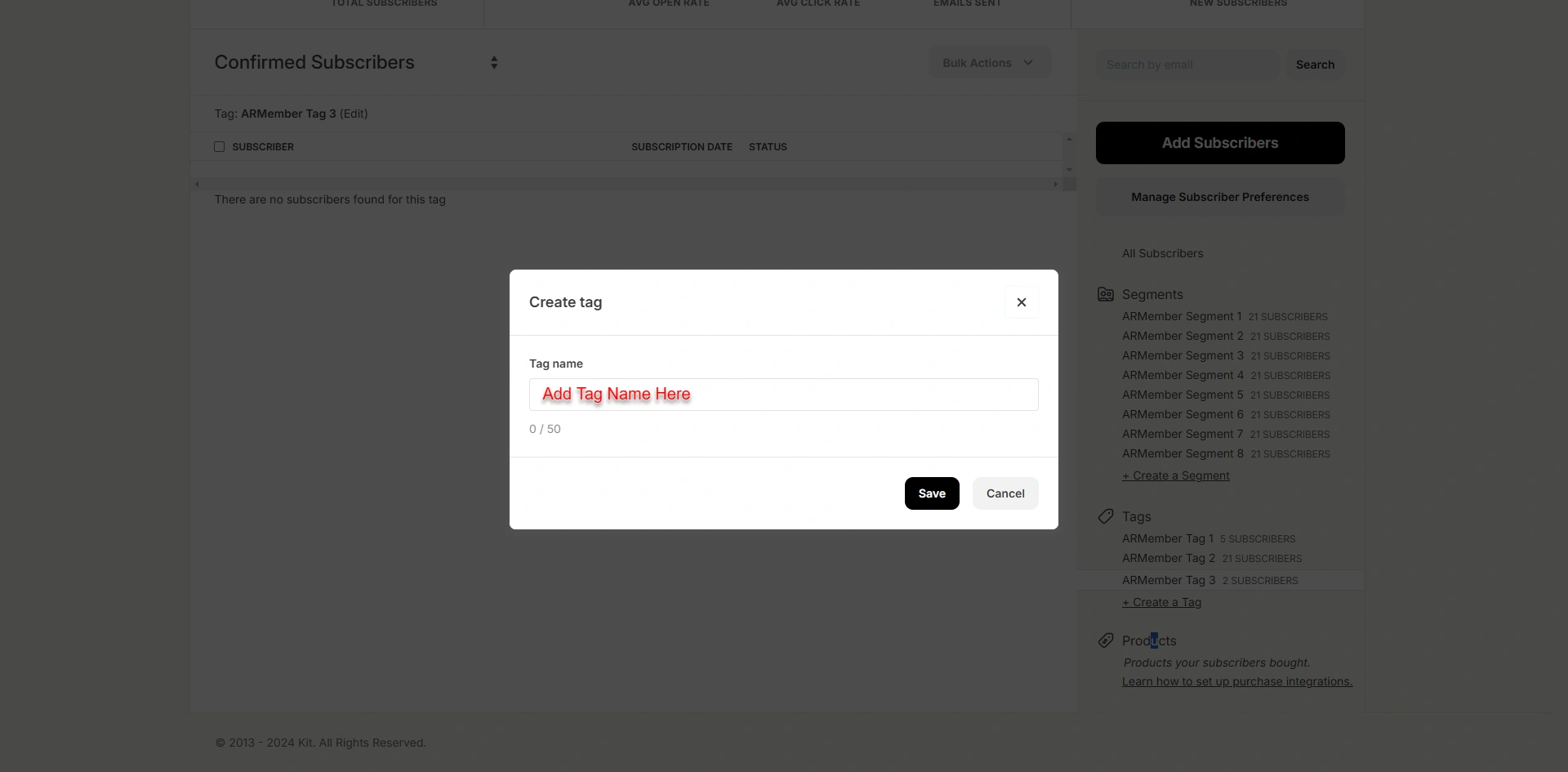
If you do not already have a Kit account, then you should first create one. To create it, click here. After that, create tags.


-
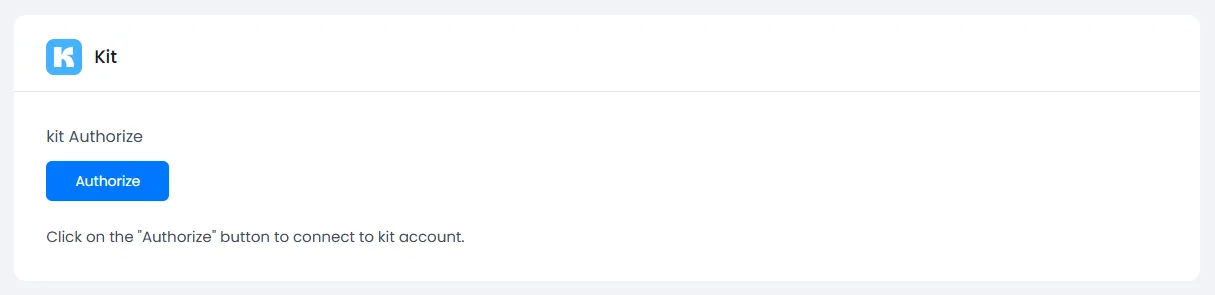
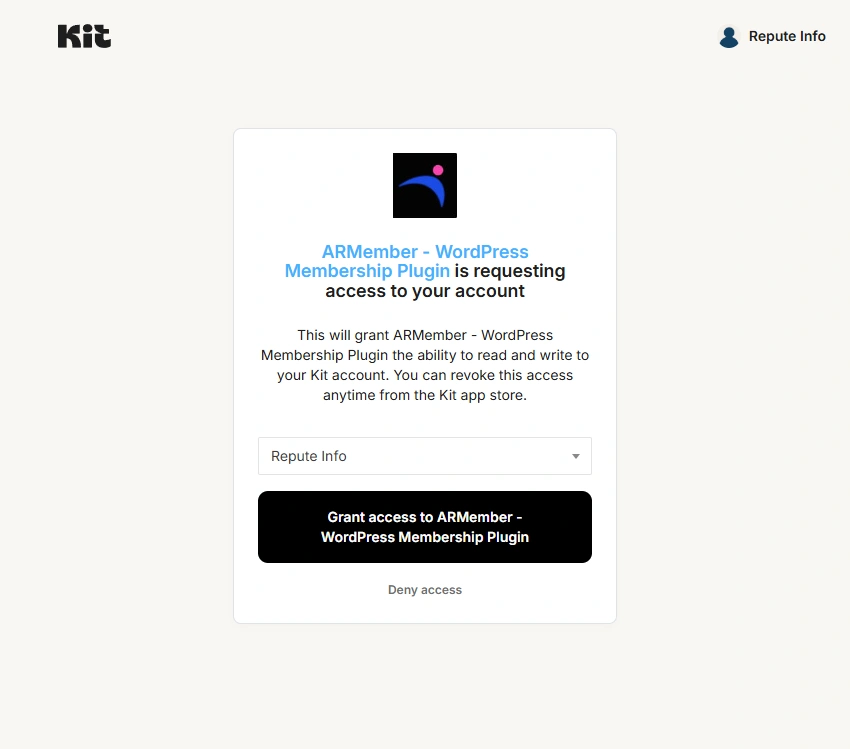
After that, click on the Authorize button to continue the integration process. Here you can click to grant access to ARMember – WordPress Membership Plugin.

-
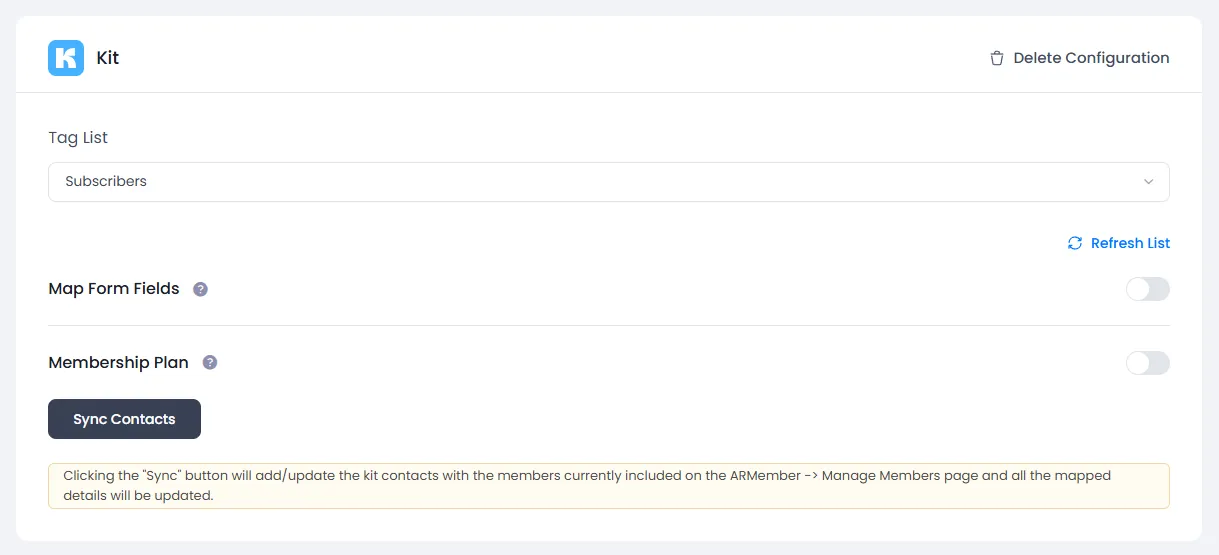
After successful verification, the system displays a success message and adds the Map Form Fields switch, Map Membership Plan switch, and Sync Contact button.

-
You can delete the kit configuration by clicking on Delete Configuration. After deleting the configuration, save the opt-ins configuration page. You can refresh the kit configuration by clicking on Refresh Tag.
-
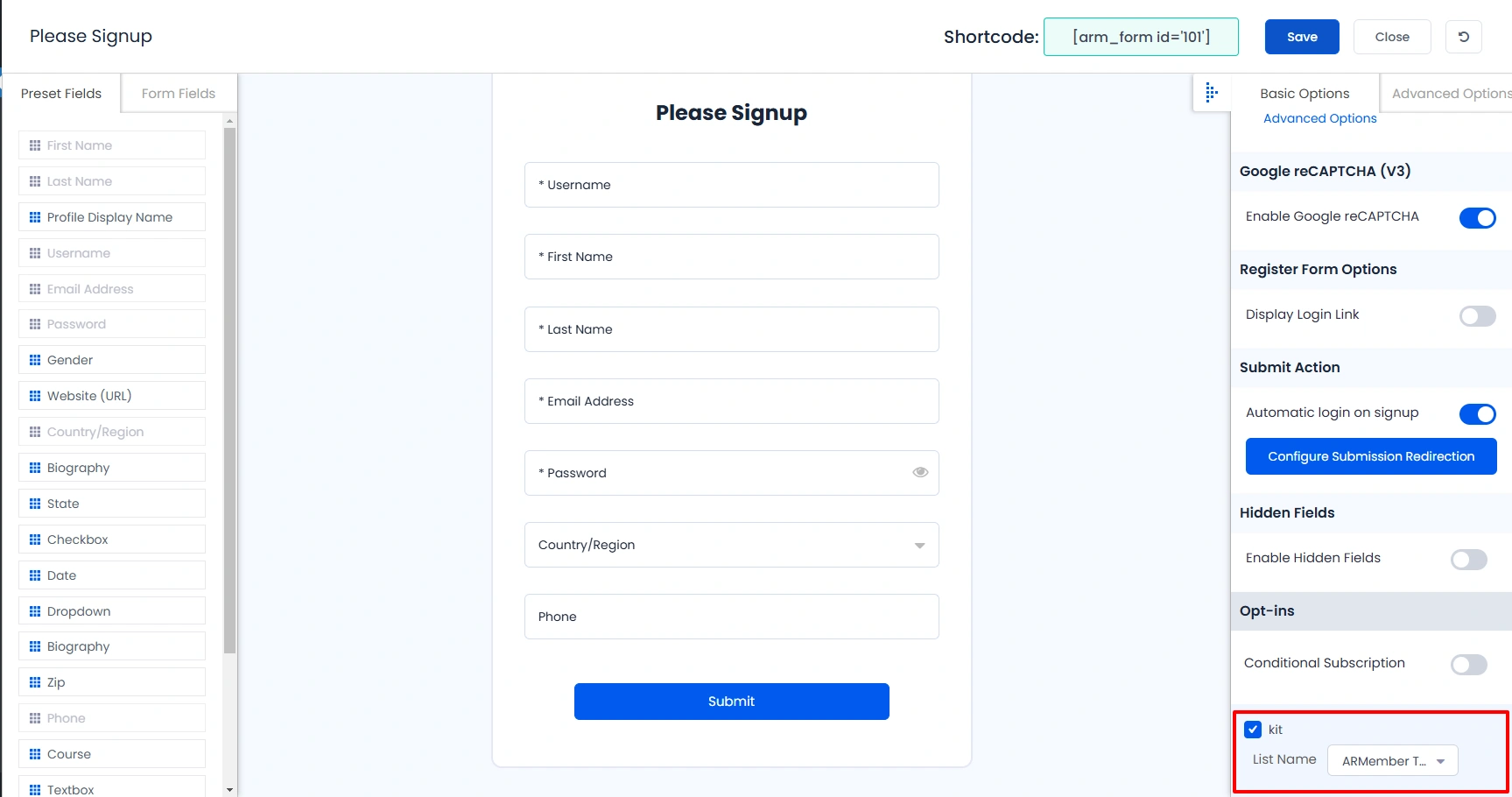
After setup completes, go to the Manage Forms page, then click on the edit link of your registration form. You can see the Kit checkbox under Opt-ins in the right panel.

Important Note: When you select both the register form list and the plan-wise list, the setup form overwrites the form list.
-
Finally, click the Save button. As a result, the Kit integration setup will be completed successfully. When a new user registers with the ARMember register form, contact will be added in Kit with email address and first name.
-
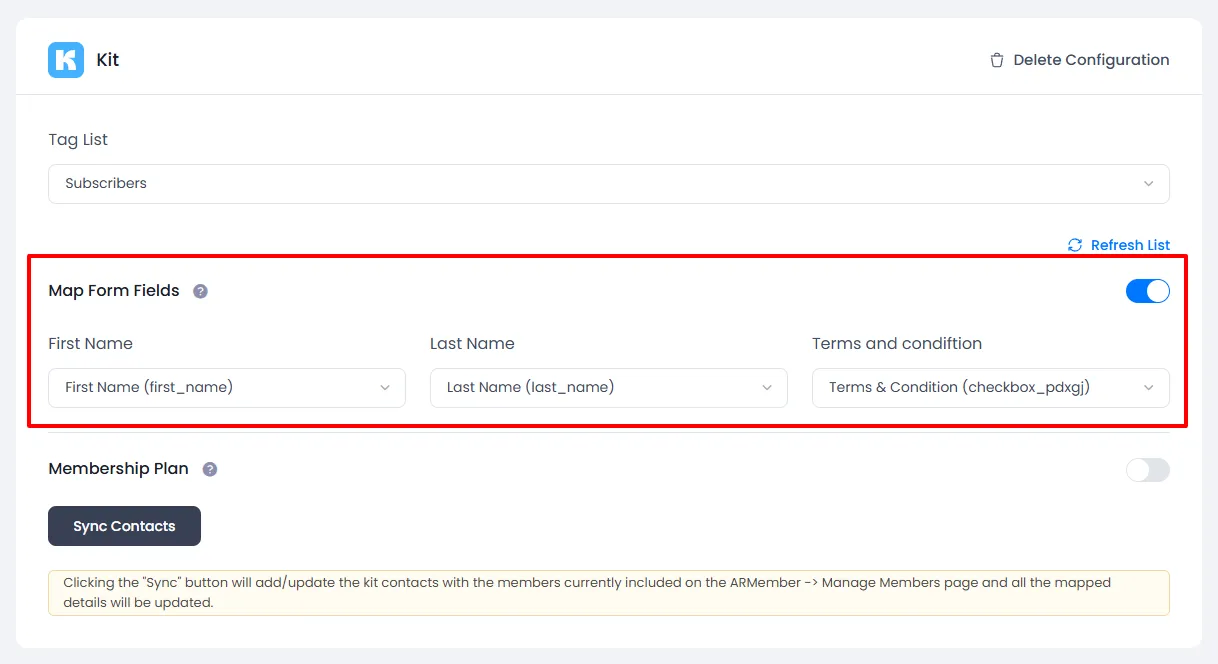
You can map a Kit field with ARMember form fields to store member data to Kit. Enable
Map Form Fieldsthe option in Kit opt-ins. Map a field as per your requirements.
-
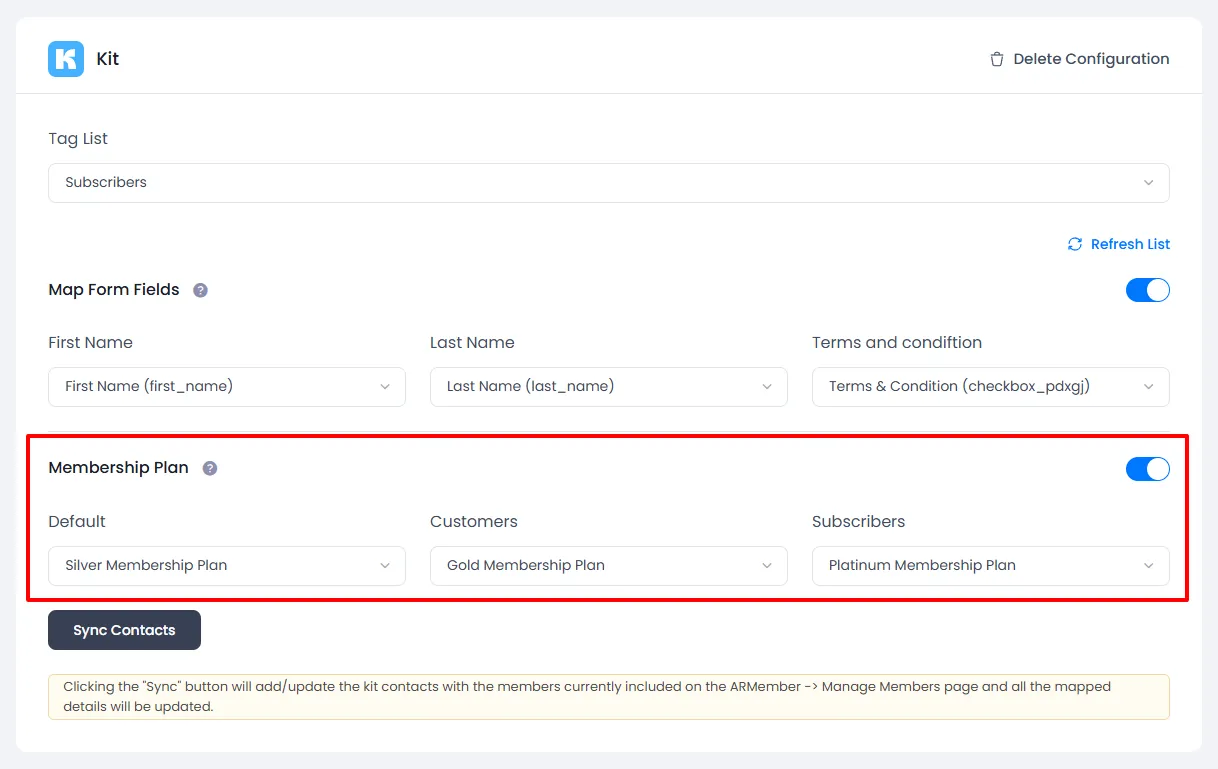
You can map a kit tag with an ARMember membership plan that the member purchased from ARMember. Enable
Membership Planthe option in Kit opt-ins, and after that select a membership plan, and the plan user will be added to specific tags.
-
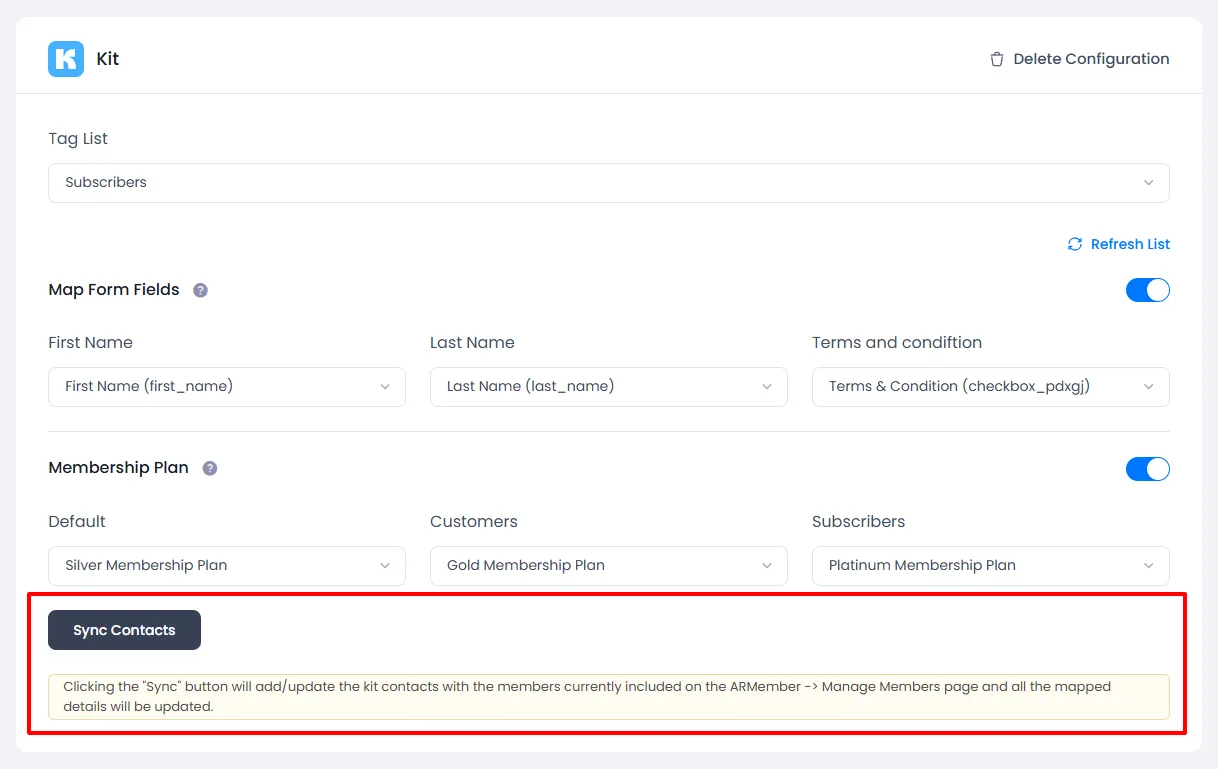
Additionally, you can sync all your ARMember members into Kit subscribers by using the Sync Contacts button. Also you can sync contact with custom field and tags if you have enabled the switch,
Map Form FieldandMembership Plan.Please see below screenshot
Opt-in data will be updated on the below-provided actions.
- On simple register form submission.
- On Purchase Membership Plan.
- On Cancel Membership Plan By Member or Admin.
- On Membership Plan End of Term.
- Membership plan suspended.
- On Membership Plan Change.
- On the Membership Plan Subscription, the next payment has failed.
- On the subscription plan, a recurring payment was received.
- Import users from ARMember.
- Admin can sync existing member data from the admin panel to opt-ins.
Debug Logs
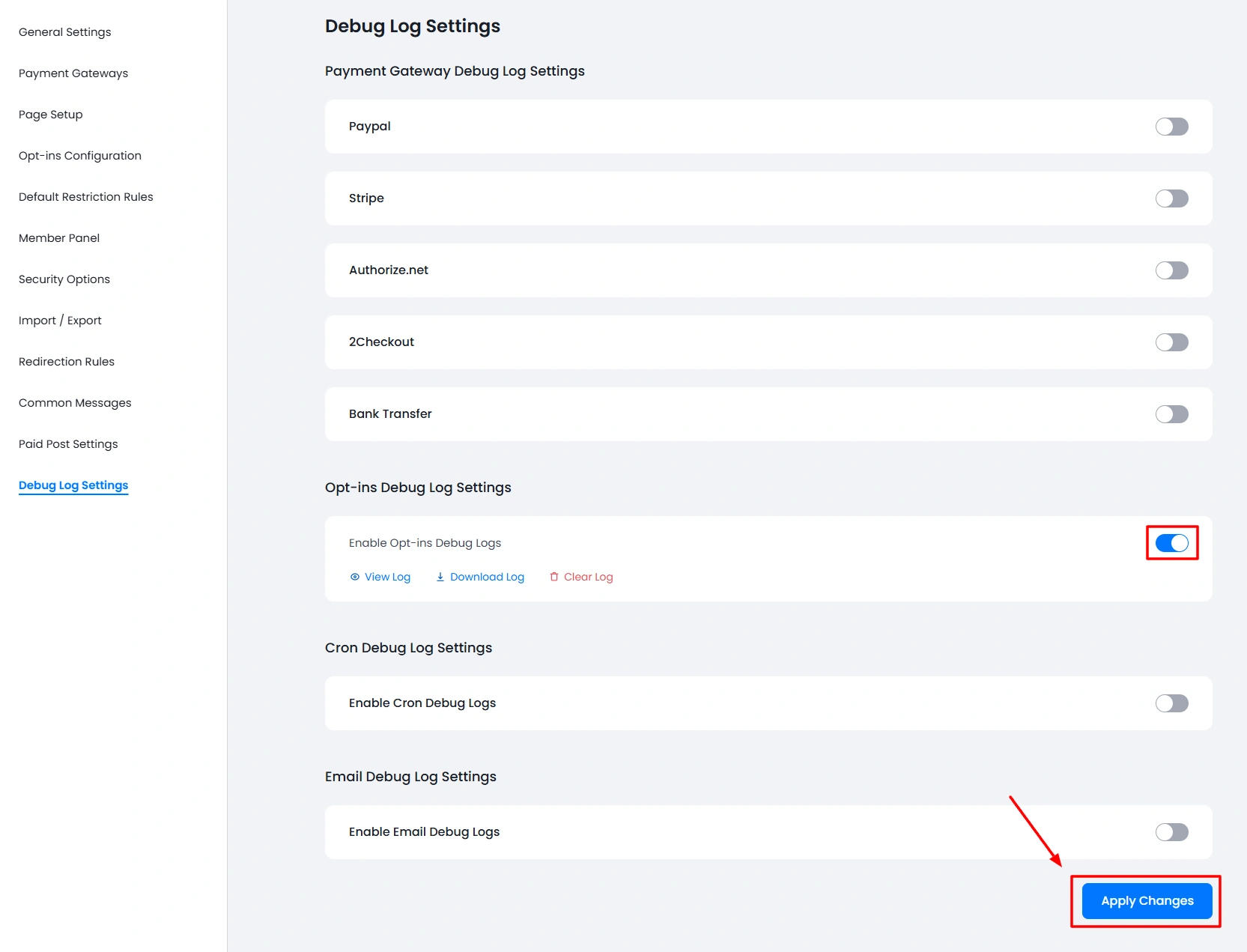
ARMember provides a built-in debug logging facility for opt-ins. With the debug logs enabled, you can easily monitor opt-in integration data for troubleshooting purposes. This helps administrators quickly identify and resolve issues related to the Kit Integration add-on and ensure smooth communication between ARMember and the connected opt-in service.
To enable the logs, navigate to the ARMember ⇾ General Settings ⇾ Debug Log Settings page, and here enable the logs for the opt-ins and save the page.