
How to Integrate PDF Creator Addon with the ARMember Pro Plugin
Steps For Installation And Activation
You can install the plugin in the following two ways. And the ARMember – PDF Creator Addon plugin requires the ARMember plugin to be installed and active.
New installation via FTP
-
Download the addon and extract it. You will find a directory at armemberpdfcreator.
-
In your WordPress installation directory, upload armemberpdfcreator to
wp-content/plugins/ -
Activate the
ARMember - PDF Creator Addonplugin through thePluginsmenu from the WordPress admin panel.
New installation via the WordPress Uploader
-
Download the plugin.
-
Log in to your WordPress admin panel.
-
Go to
Plugins⇾Add New⇾Upload -
Click on “choose file” and browse the download package. When the plugin uploads successfully, click on
Activate Plugin.
Steps to Set up PDF Creator Add-on for Your Website
Let’s set up ARMember – PDF Creator Addon for your website:
Important Note: This addon will only work if the ARMember plugin is installed and activated with version 4.6 or higher.
Important Note: The add-on is supported on PHP version 7.1 or higher. PHP mbstring and gd extensions have to be loaded at the website server.
Important Note: PDF document file CSS styles will be applied, which are supported by mPDF library.
How to use a membership card as PDF
-
When Addon is activated, PDF Creator addon
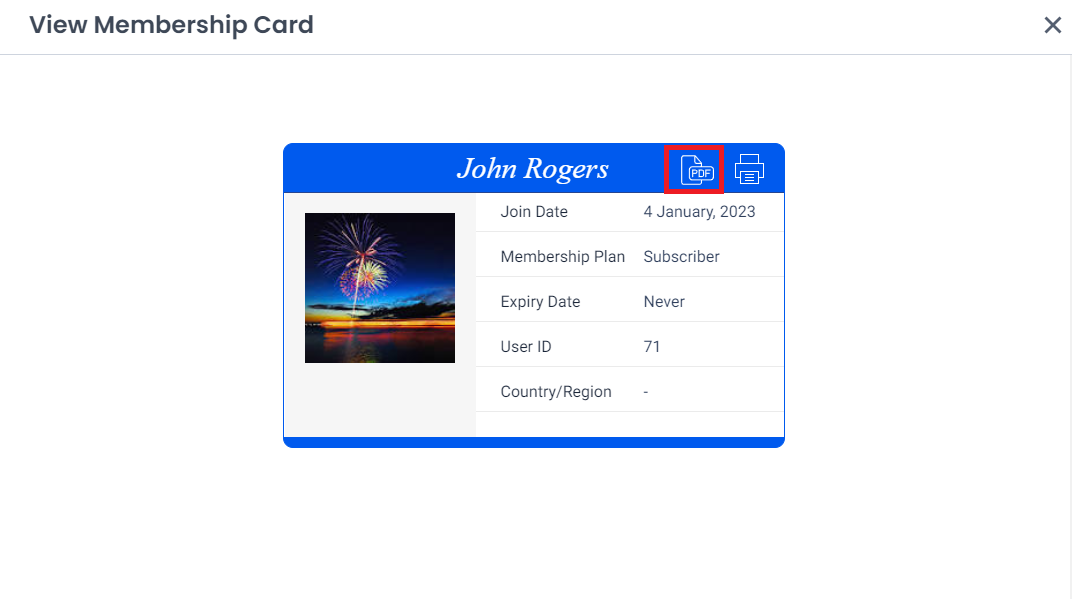
Membership Card Download Icon will be displayed inARMember⇾Manage Members⇾Member Details⇾View Membership CardPlease see the below screen.

You can download the card PDF file by clicking on the PDF icon.
-
The front-end membership card download icon will be displayed in
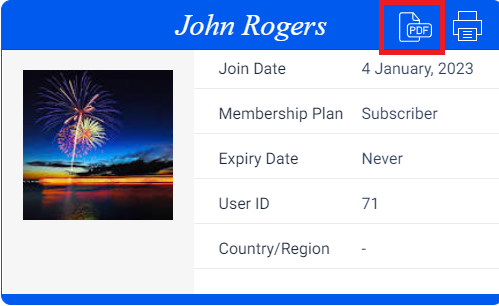
arm_membership_cardshortcode view.Please see the below screen.

You can download the card PDF file by clicking on PDF icon.
How to use the payment invoice as PDF
-
The back-end Invoice PDF Download Icon will be displayed in
ARMember⇾Payment History⇾View Invoice -
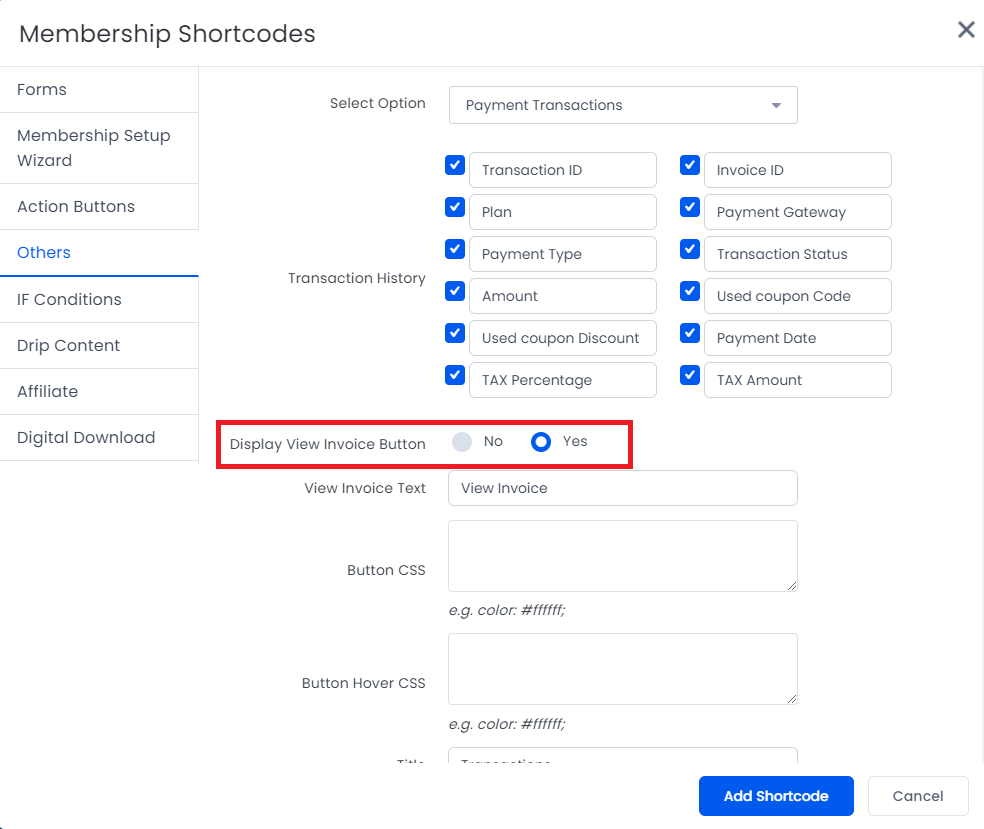
If you are unable to see the invoice link in the shortcode, then you can add the “View Invoice” by selecting “Yes” for the “Display View Invoice Button?” option from the WordPress Admin Panel ⇾ Add/Edit Post/Page above the editor. Click on ‘Membership Shortcodes’ OR, from the Gutenberg editor, the ‘Add Blocks’ ⇾ ‘ARMember Blocks’ ⇾ ‘Membership Shortcodes’ button. After that, select ‘Others’ from the left tab and select ‘Payment Transactions’ from the ‘Select Option’ dropdown. Please see the below screenshot for your reference.

The front-end invoice download icon will be displayed in the arm_member_transaction shortcode view. To get the preview of the shortcode, click on the “View Invoice” button on the screen.
Please see the below screen.
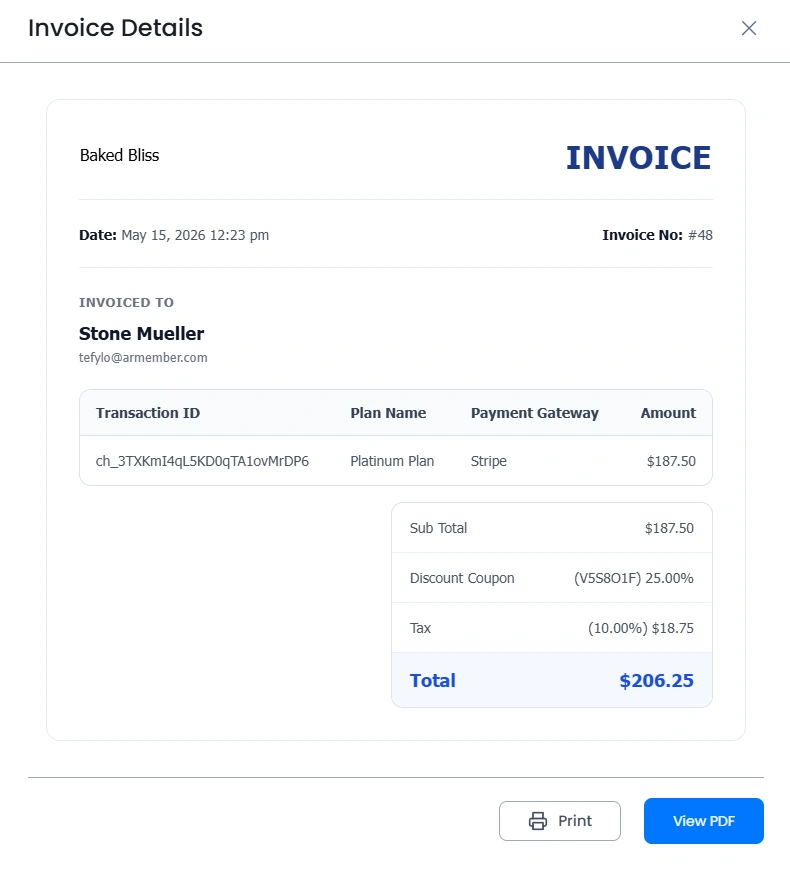
You can download the card PDF file by clicking on the PDF icon.
Email Notification Settings
- When Addon is activated, PDF Creator option will be displayed in
ARMember⇾Email Notification⇾Add New ResponsePlease see the below screen.

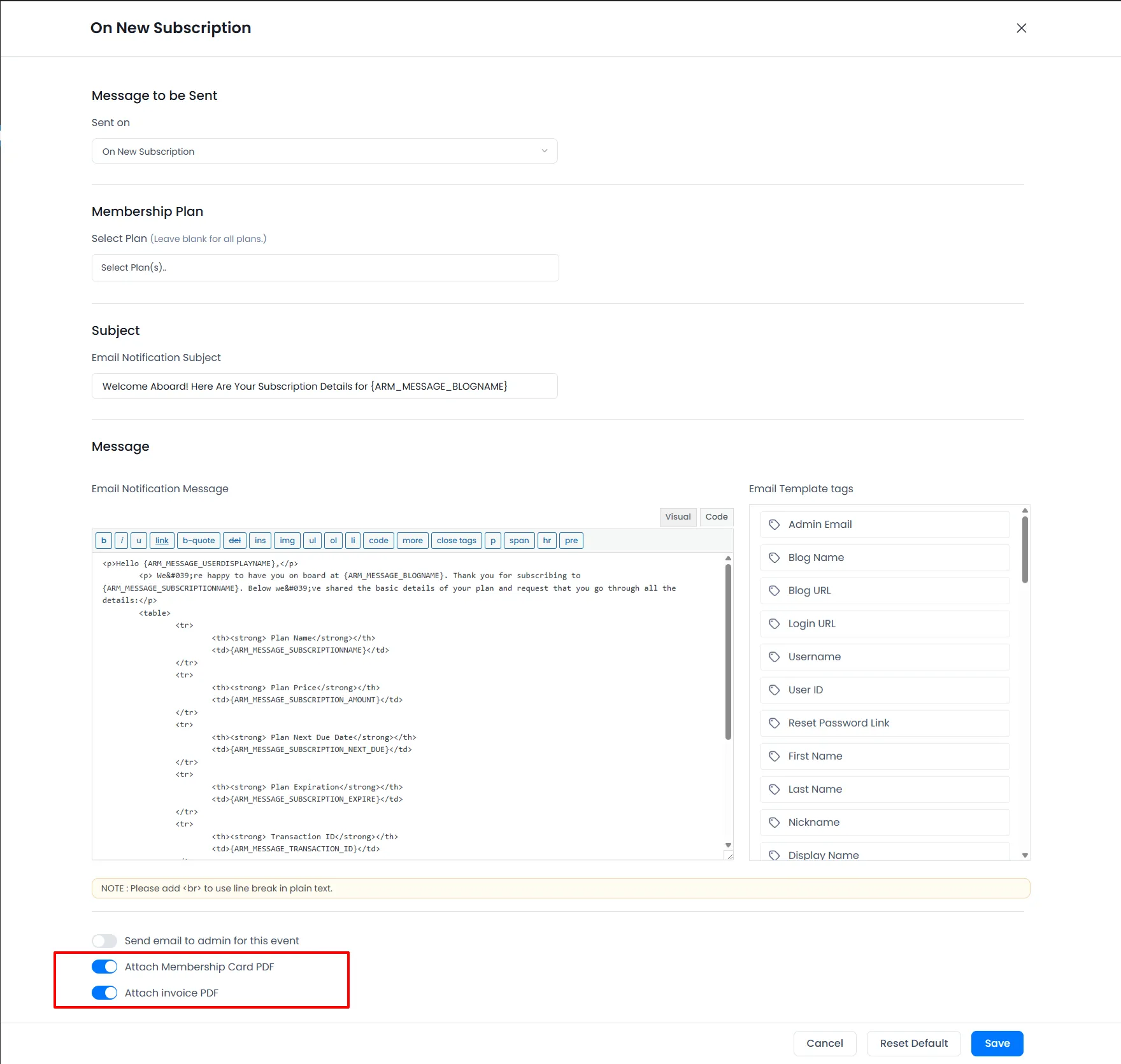
- If you have not seen the switches of “Attach Membership Card PDF” or “Attach Invoice PDF,” Please activate the “Social Feature” and “Invoice and Tax” modules from
ARMember⇾Add-onsPage. - Here is a list of email notification allowed “Attach Membership Card PDF” or “Attach Invoice PDF” attachment options.
- Signup Completed (With Payment) Notification To User
- On New Subscription
- On Change Subscription
- On Change Subscription By Admin
- On Renew Subscription
- On Recurring Subscription
- On new paid post-purchase
- On renew paid post-purchase
- On recurring paid post-purchase
-
After selecting the notification event, you can enable the switch for the “Attach Membership Card PDF” or “Attach Invoice PDF” option. Click on the Save Button.
-
If you enable the switch for the “Attach Membership Card PDF” option in the email notification, then you need to select a membership plan in the membership card templates.
And if you have not selected any plan in the membership card template, then ARMember will be looking for a membership card template that is created without selecting any plan in the Membership Card Template. And among them, the first created membership card template will be attached as a PDF in email notification.
How to use a certificate as PDF
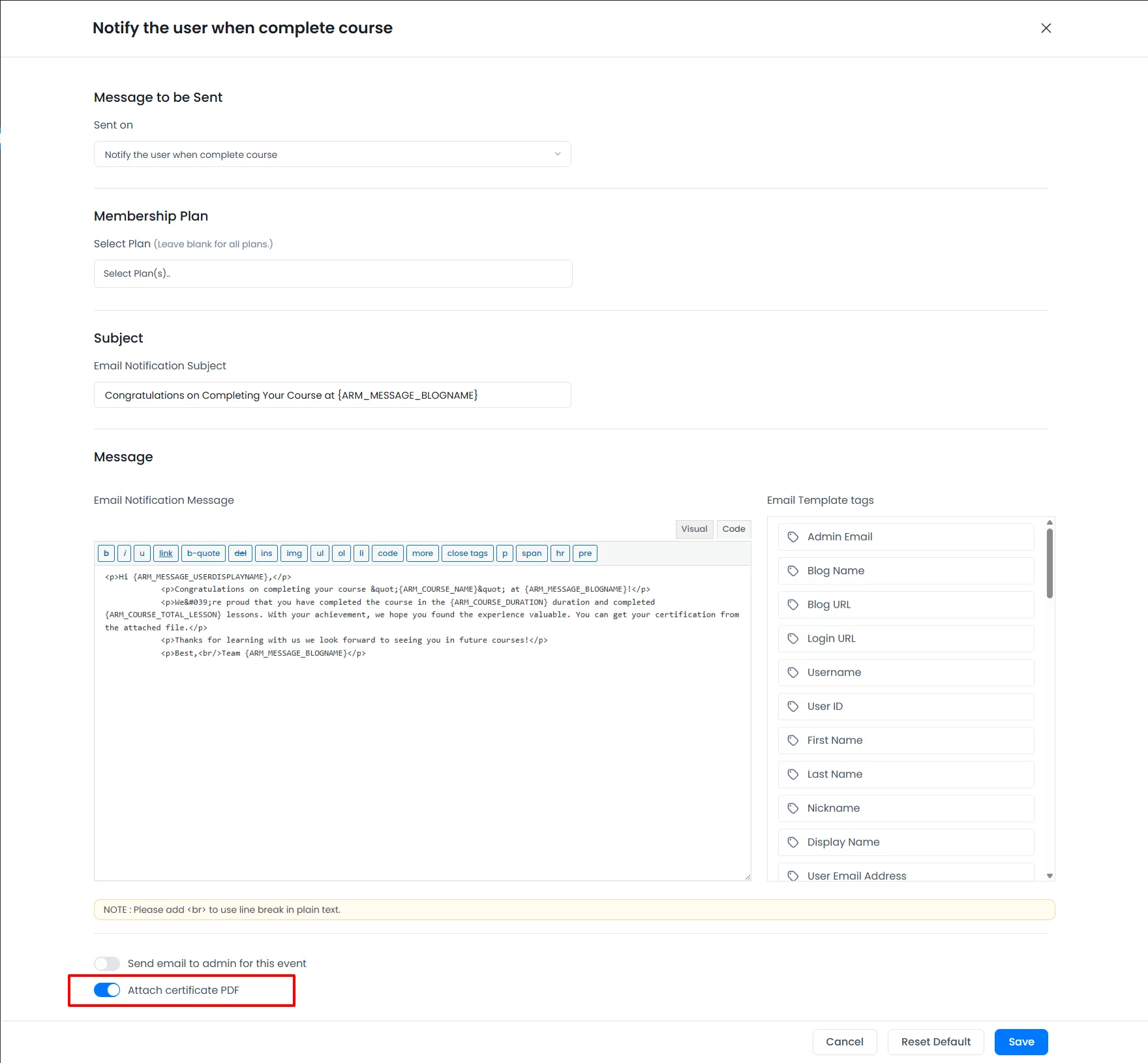
ARMember does provide a facility to attach the Certificate PDF to the email notification Notify the user when complete course. So if you are willing to send the email notification to the members when they complete the course, then you can configure this email notification along with the certificate attachment, and then you can enable the switch below at “Attach certificate PDF.”
PDF Font Settings
-
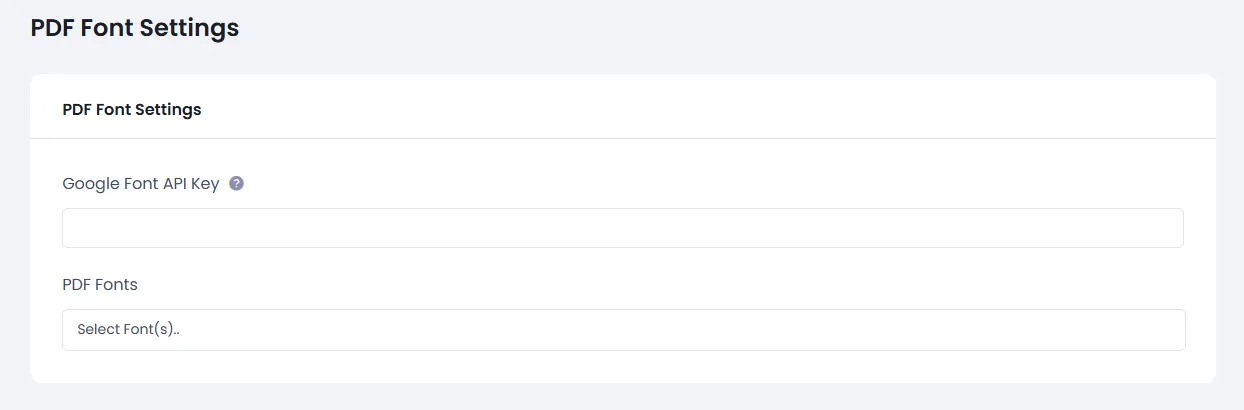
When Addon is activated, PDF Creator Settings will be displayed in
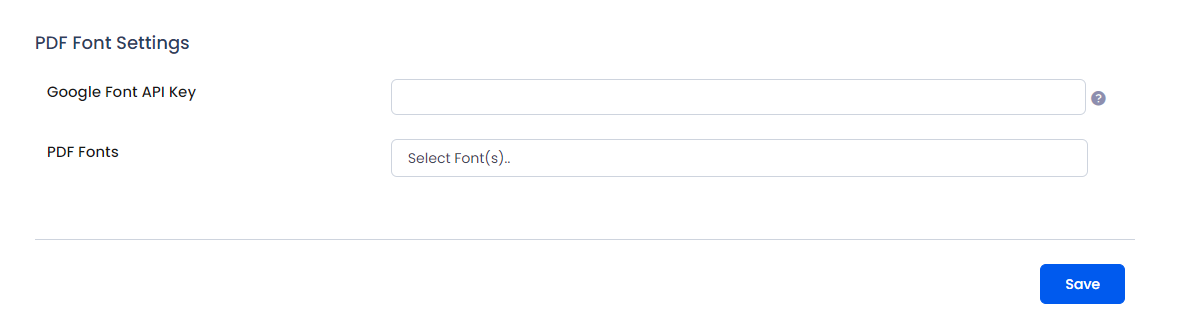
ARMember⇾General Settings⇾General Optionsin the PDF Font Settings section.Please see the below screen.

-
Above screen in “Google Font API Key” and “PDF Fonts” two option field view. “Google Font API Key” for the Google font use in PDF document and “PDF Fonts” in the default and Google font selection for PDF document.
-
if you need to use Google font firstly you need to get “Google Font API Key.”
-
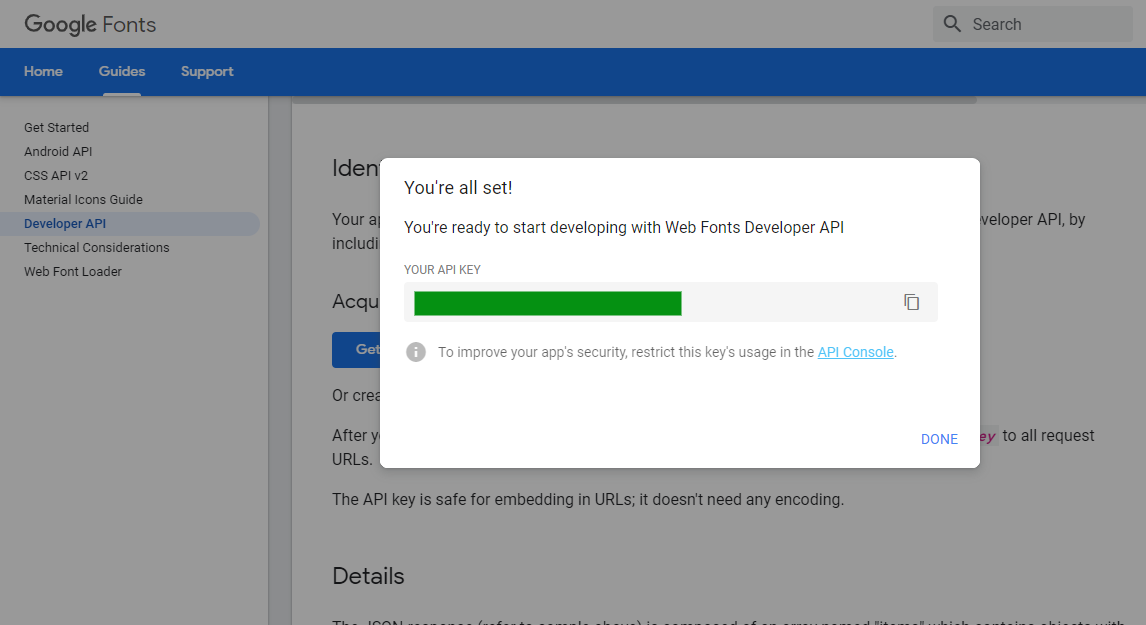
You can get Google Font API Key from your Google account. You can get a Google Font API key by clicking here. Please see the below screen.

Follow the instruction step and get the API key. See below screen.

After the copy the API key and insert it in “Google Font API Key” and save.
- Saved after you can select a Google font in the “PDF Fonts” list.
Important Note: The add-on is supported on PHP version 7.1 or higher.
Important Note: PDF document file CSS styles will be applied that are supported by the mPDF library.