Synchronization with WordPress users
ARMember Member Management provides a powerful and user-friendly member management system. It displays all site members, including users created in WordPress before installing the plugin.
When the ARMember plugin is installed, existing WordPress users will be treated as members at ARMember, except the administrators, as they tackle the admin panel and are not treated as members.
This saves the time to manually import the WordPress users to the system again.
Member Management
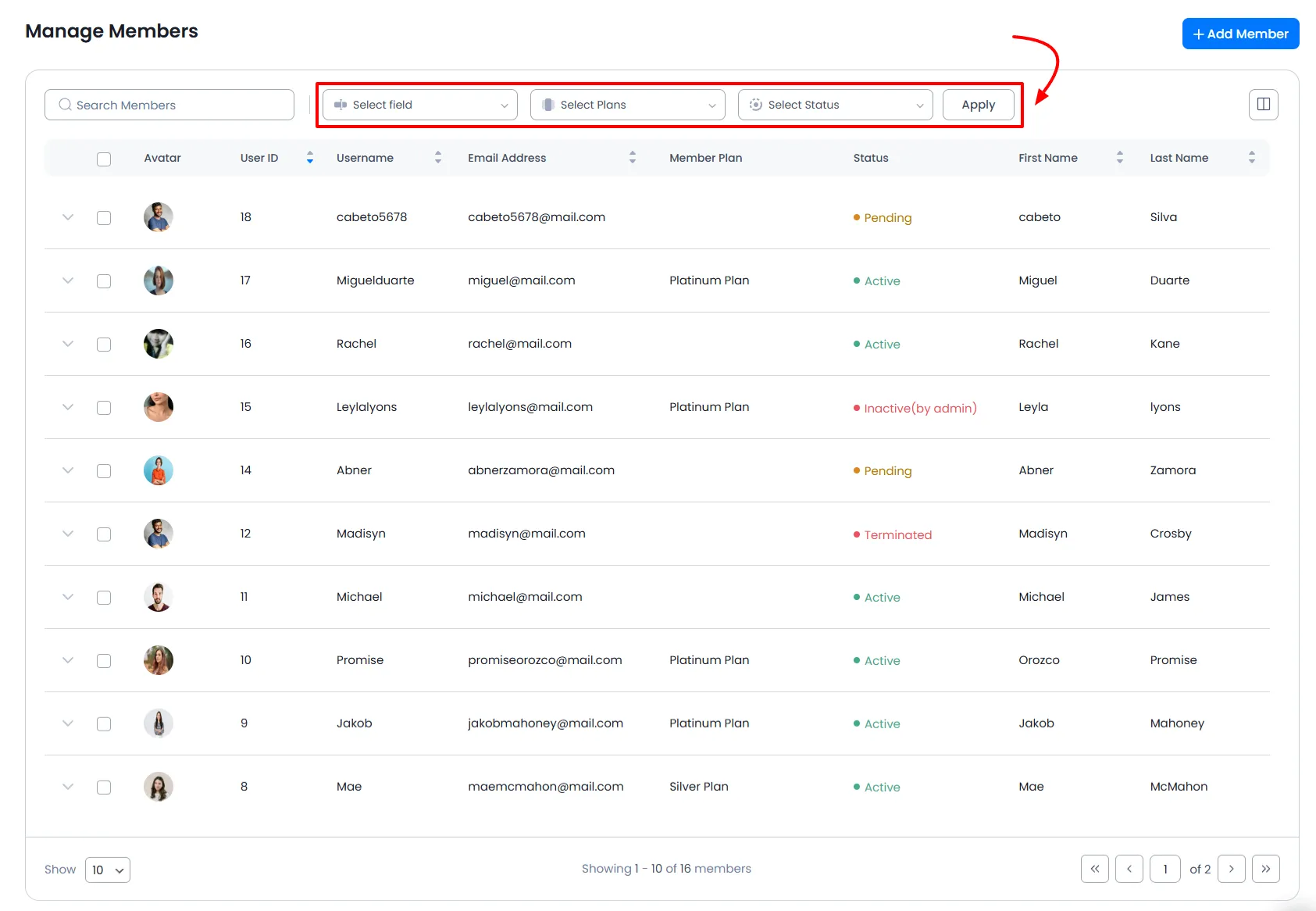
The ARMember Member Management grid includes the following features:
- Member Search – Quickly find specific members.
- Multiple Filtering – Filter members based on their membership plans, member status, and the fields selected.
- Quick Overview – View essential member details at a glance:
- Show/Hide Columns – Customize grid columns as needed. Important Note: You can select up to 8 fields to be shown or hide at the manage member grid.
- Sortable Columns – Sort members by different fields.
- Add New Members Manually – Admins can manually create members.
- Re-order – You can reorder the arrangement of the columns.
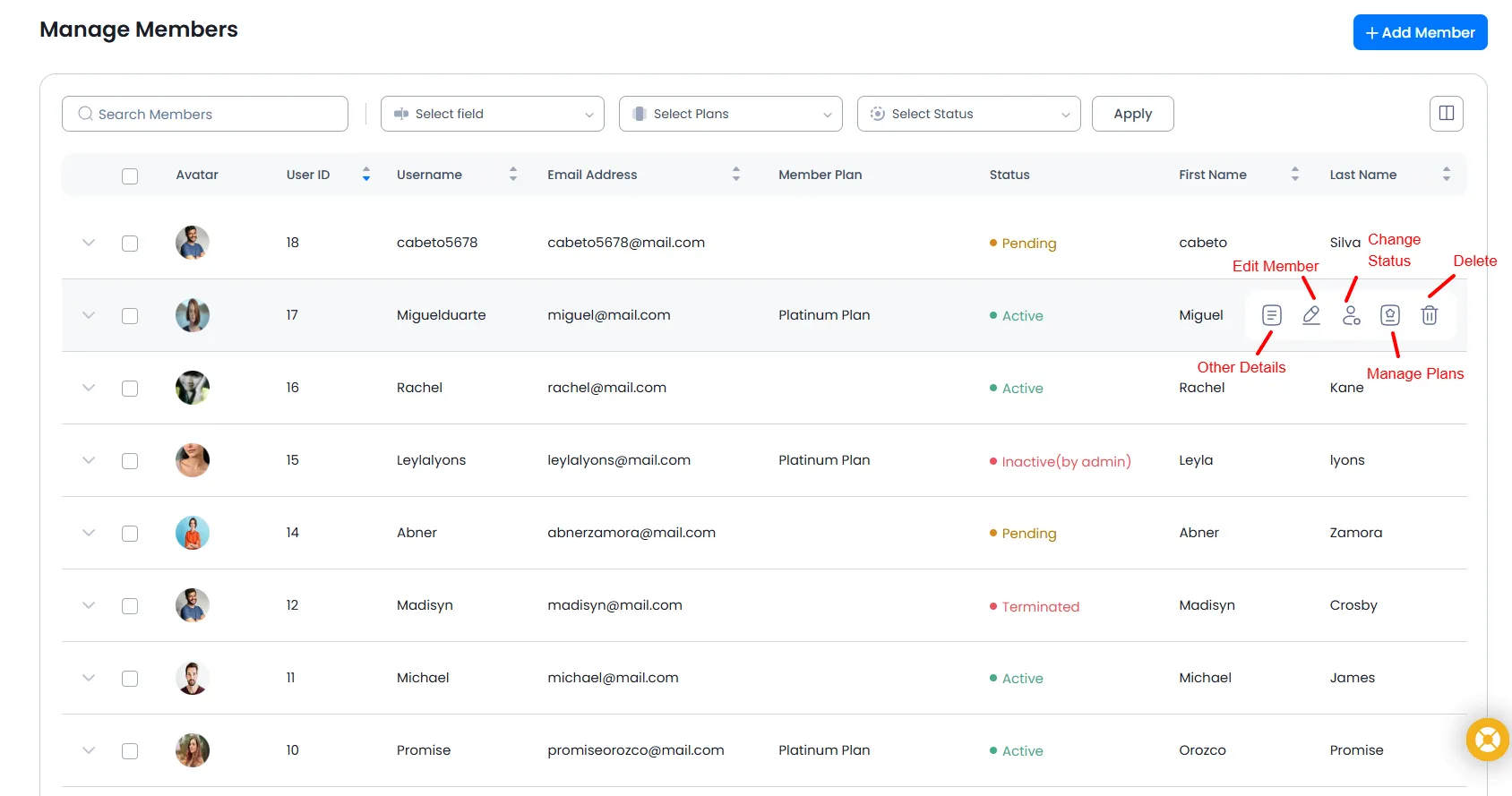
- Row Actions – Have multiple row actions/grid options.
- Other Details.
- Edit member profile
- Change member status.
- Manage Plans
- Delete member.

- Bulk actions – Delete Members, Change Status of members, and Change Members plans (migrate members to membership plans).
Bulk Actions
This option will be helpful when the same action needs to be performed on multiple user rows at the same time.
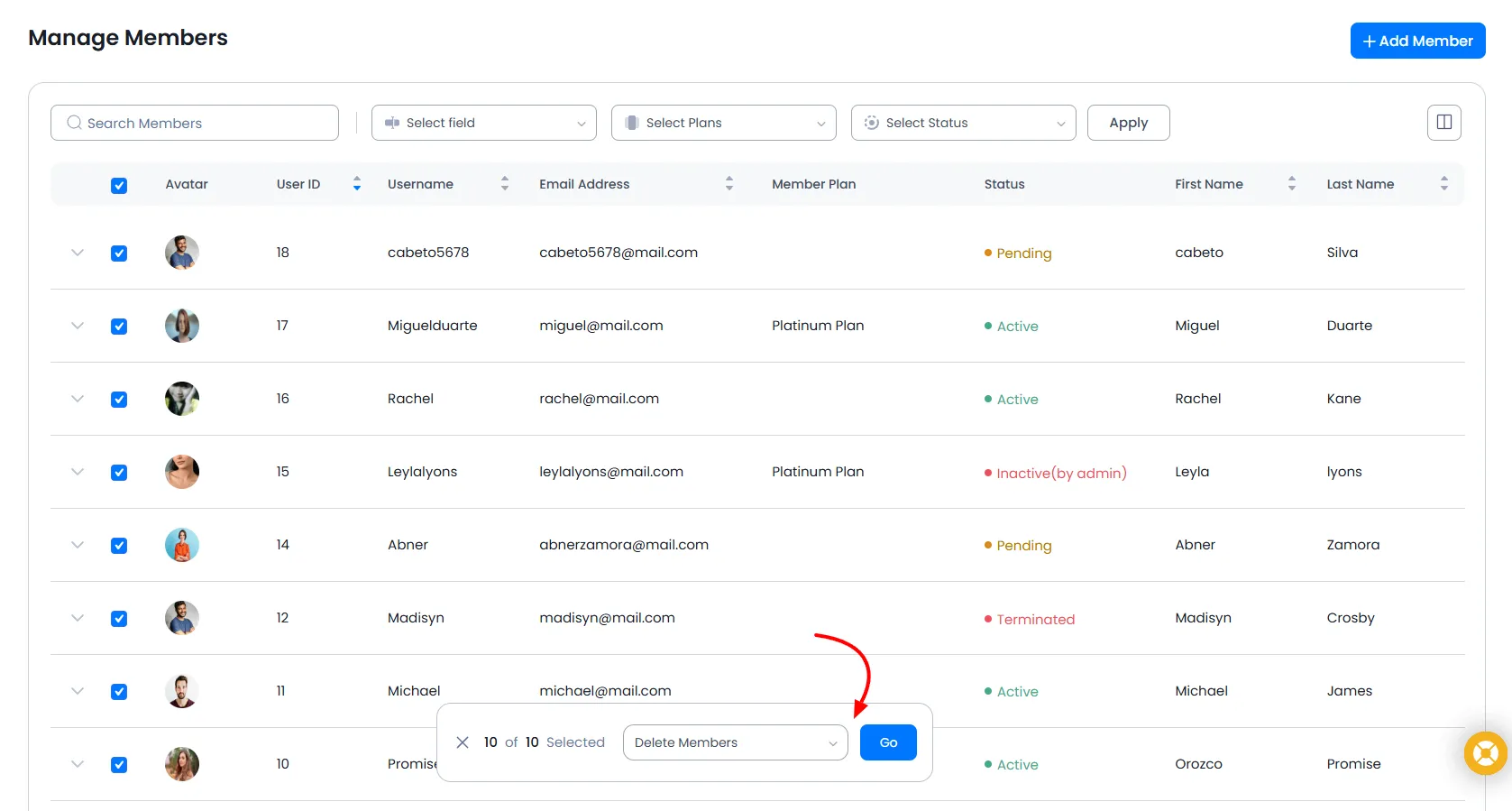
- Delete Members
- Select the checkbox for the members you want to delete.
- Choose Delete from the Bulk Actions dropdown.
- Click the Go button.
The selected members will be permanently deleted.

- Change Status to
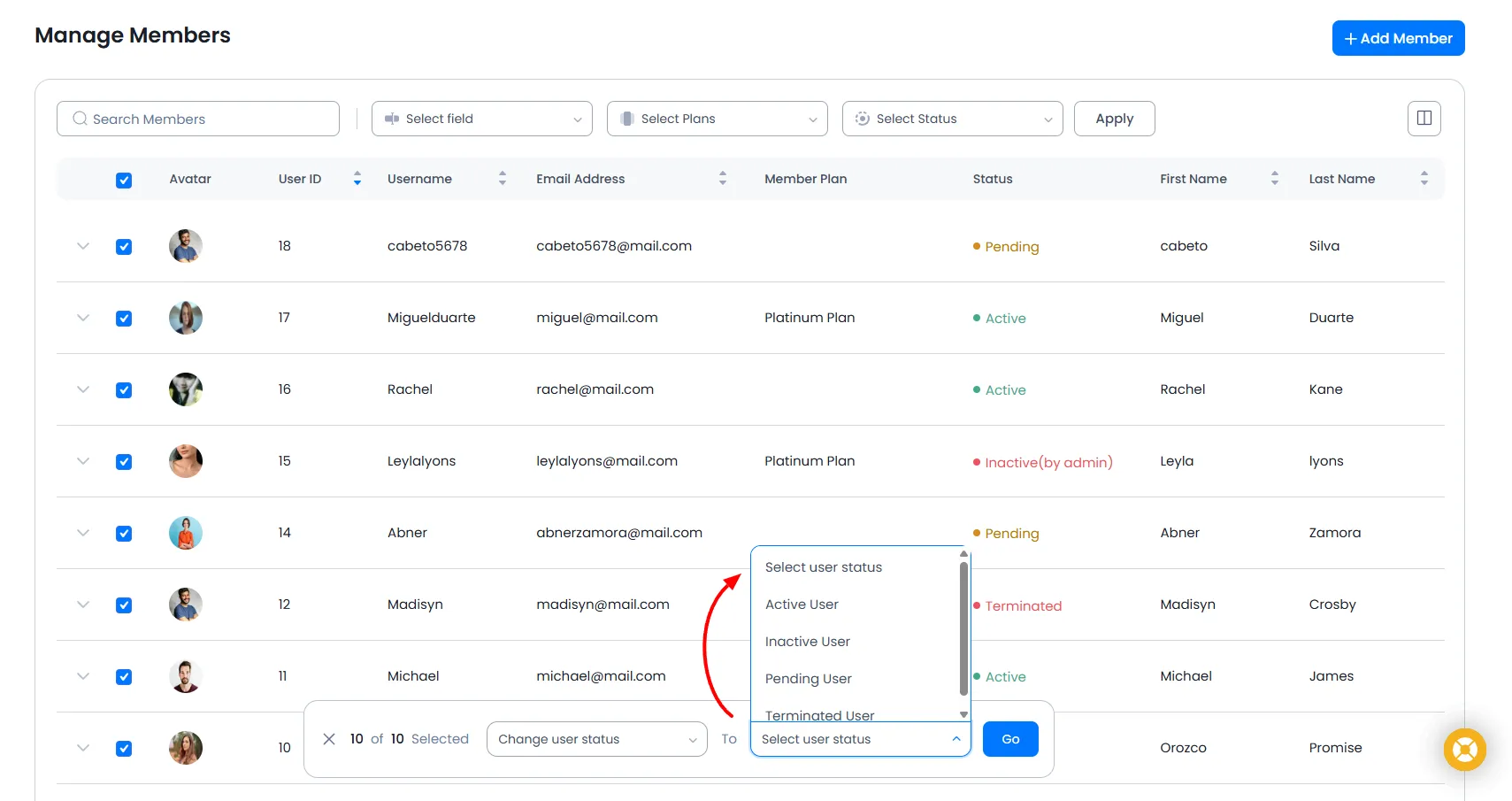
ARMember allows administrators to update the status of multiple members simultaneously.
- Select the members whose status you want to change.
- Choose Change Status To from the Bulk Actions dropdown.
- Select the desired status.
- Click Go.
Available status options:
–
Active User
–Inactive User
–Pending User
–Terminated User
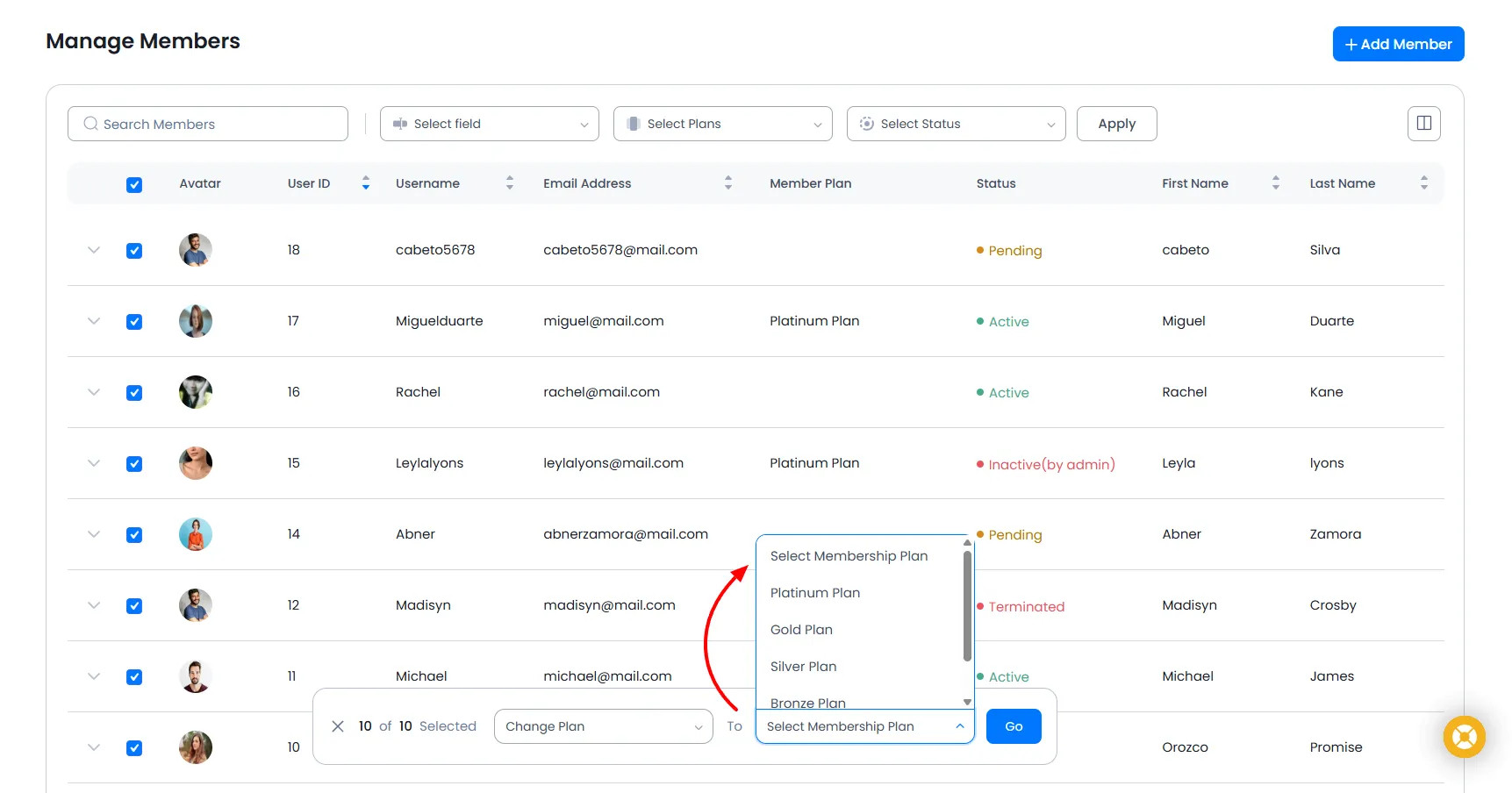
- Change Plan To
- Select the checkbox for the members.
- Choose Change Plan To from the Bulk Actions dropdown.
- Select the membership plan you want to assign.
- Click the Go button.
Administrators can easily migrate multiple members to a different membership plan.
Important Note: When an administrator changes a member’s plan, the Membership History will record it as a New Subscription with the payment type marked as Manual.