

How to integrate Klarna Payment Gateway with ARMember Plugin
Important Note: This add-on will work with ARMember Version 5.6 or higher
This add-on will allow you to take payments on your ARMember membership setup via Klarna Payment Gateway.
This Add-on will add a payment option for ARMember plan with one time payment & plan with a subscription payment.
Steps for Installation and Activation
You can install a plugin in the following two ways. And ARMember – Klarna payment gateway plugin requires ARMember Plugin installed and active.
New installation via FTP
- Download the plugin and extract it. You will find a directory armemberklarna.
- In your WordPress installation directory, upload armemberklarna to
wp-content/plugins/ - Activate the
ARMember - Klarna payment gatewayplugin through thePluginsmenu from WordPress admin panel.
New installation via the WordPress Uploader
- Download Addon.
- Log in to your WordPress admin panel
- Go to
Plugins⇾Add New⇾Upload - Click on “choose file” and browse the download package. When the Addon uploads successfully, click on
Activate Plugin.
Steps to Set up Klarna for Your Website
Let’s setup Klarna Payment Gateway for your website:
-
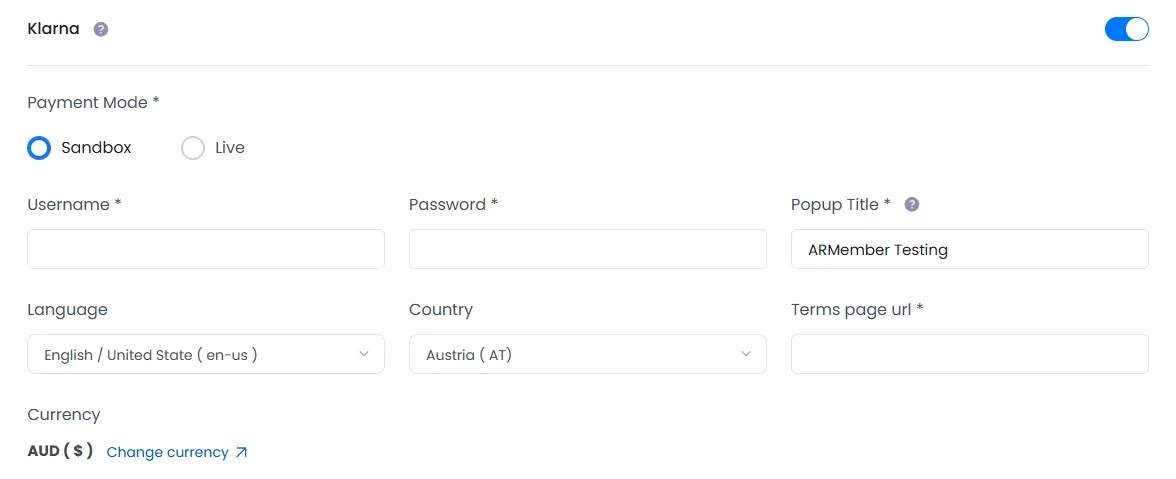
When the plugin is activated then Klarna section will be displayed in
ARMember⇾General Settings⇾Payment Geteways.Please see the below screen.

-
Firstly you need to activate the Klarna payment gateway so you will be able to insert API Keys. For activation click on the active button.
-
If you do not have Klarna account then create Klarna account.
For more information about creating account and creating website on Klarna account Click here.
-
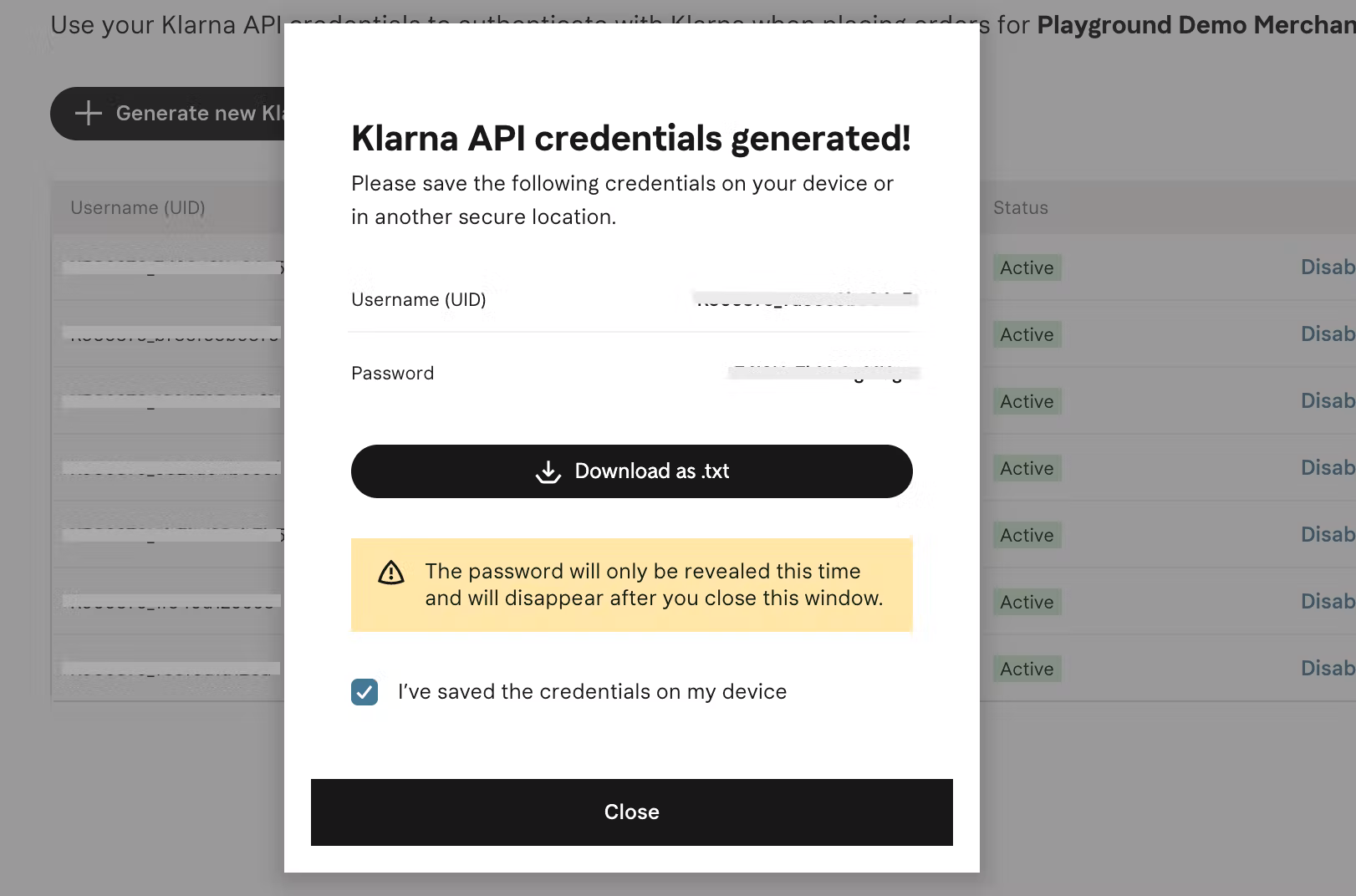
For API Key Login into your Klarna account and click on setting page.
If you do not have Klarna API Credentials then create new Klarna API Credentials.

So in API Credentials you will see a popup and list section.
-
Insert Credentials keys into text boxes of Klarna payment.
-
Click on the SAVE button.
-
You need to set supported currency in Default currency option on
General Settings⇾Generalpage. Because Klarna payment gateway support only AUD, CAD, CHF, DKK, EUR, GBP, NOK, SEK, and USD currency. -
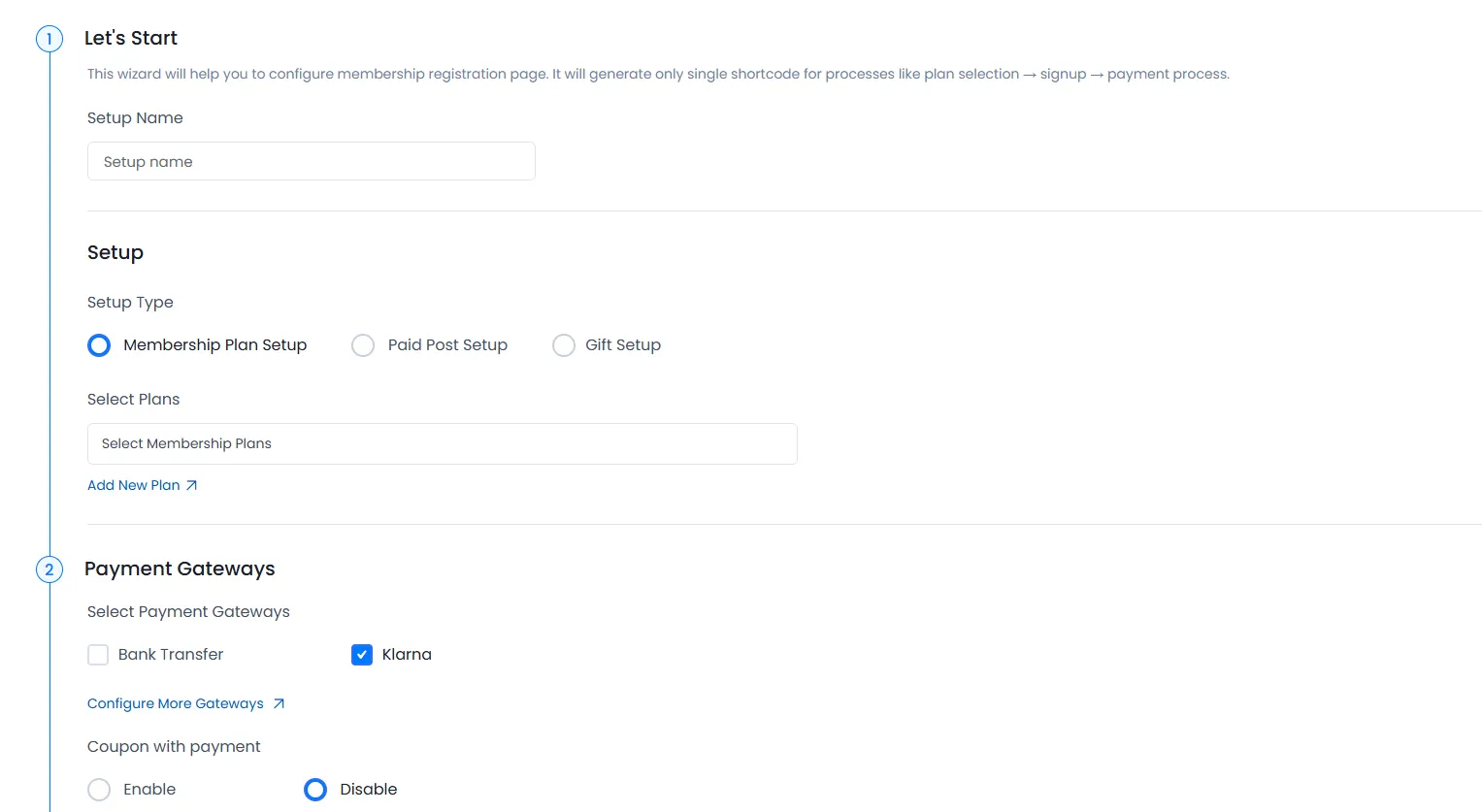
After set up the Klarna payment gateway you will be able to see the Klarna payment in your Plan + Signup Page in ARMember and set it for the plan.
Please see the below screen.

-
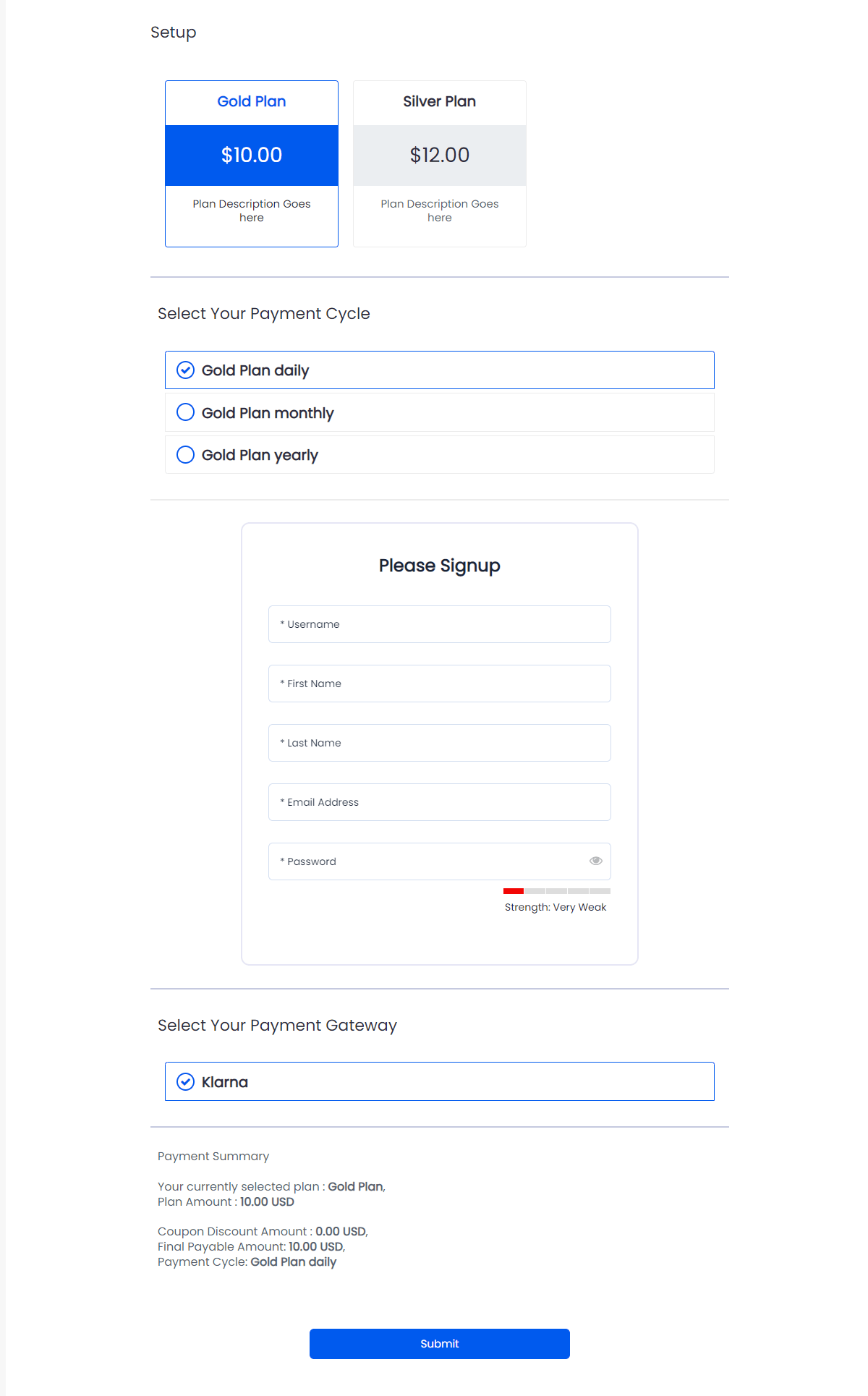
After saving the setup form, you can use the setup form shortcode to the WordPress Post/Page, and it will display like provided below:
Please see the below screen.

-
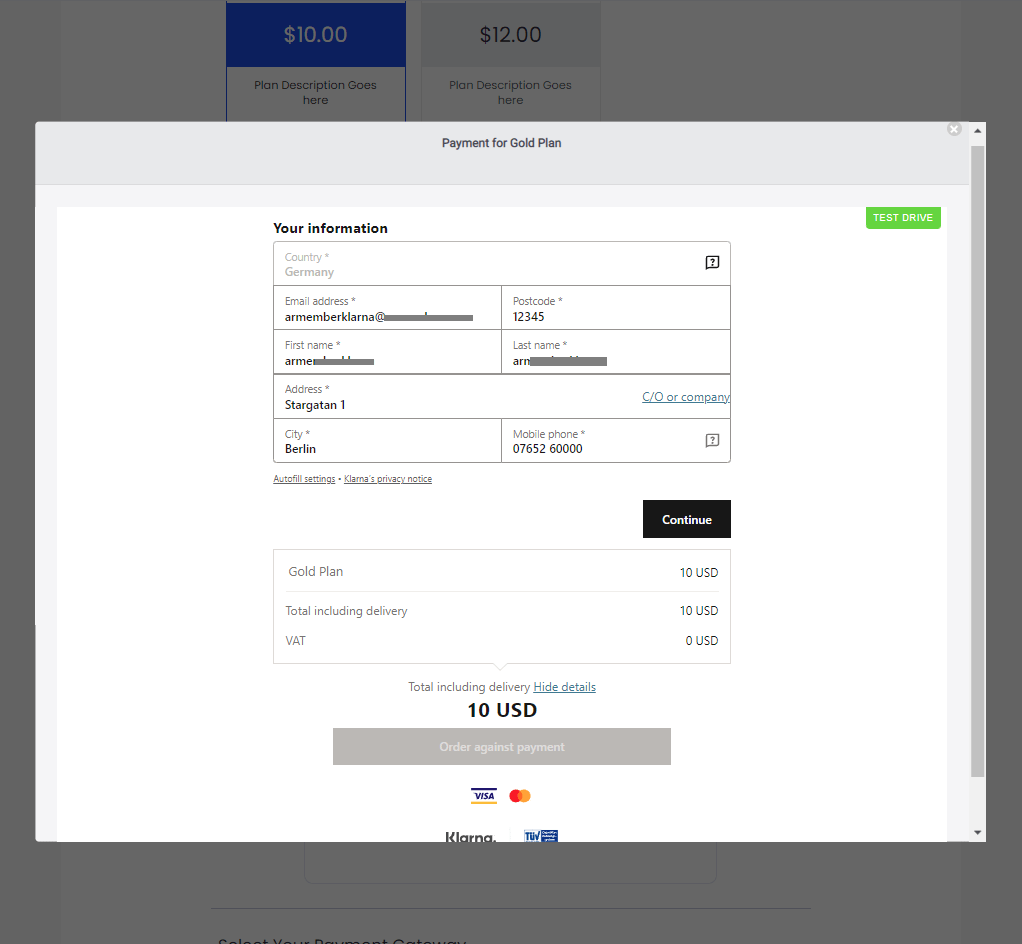
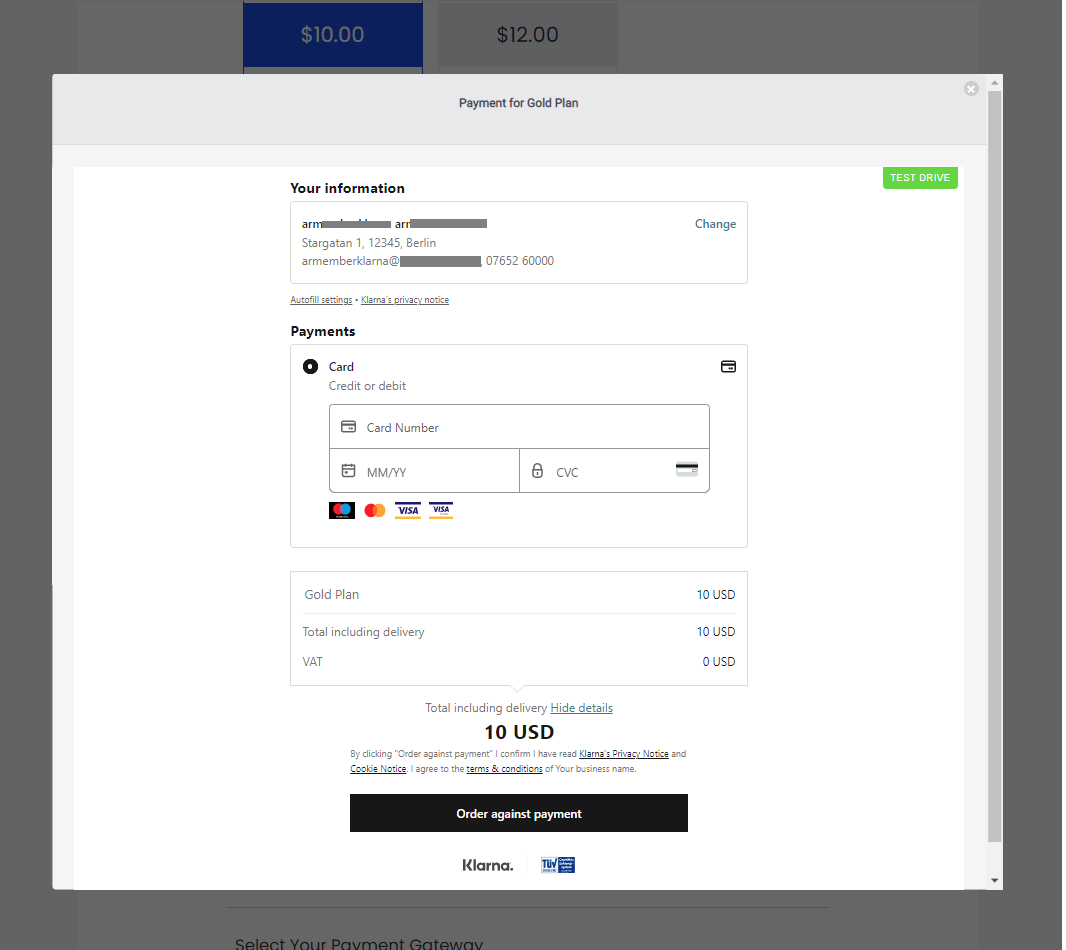
After submit the setup form, Klarna Payment Gateway purchase form will be display inside your website same page.

-
After submitting the setup form, Klarna Payment Gateway purchase form will be display to pay with your available payment methods automatically.

Important Note:ARMember Klarna Payment Gateway addon does not support automatic payment subscriptions/Recurring Payments.