Spam Protection with ARMember
The system allows you to enable spam protection in ARMember with a powerful built-in spam protection system to secure your website’s signup and login forms.
Enable Spam Protection
If you prefer to enable the ARMember spam detection and want users to register or log in with spam verification, you can enable the spam protection feature.
Follow these steps:
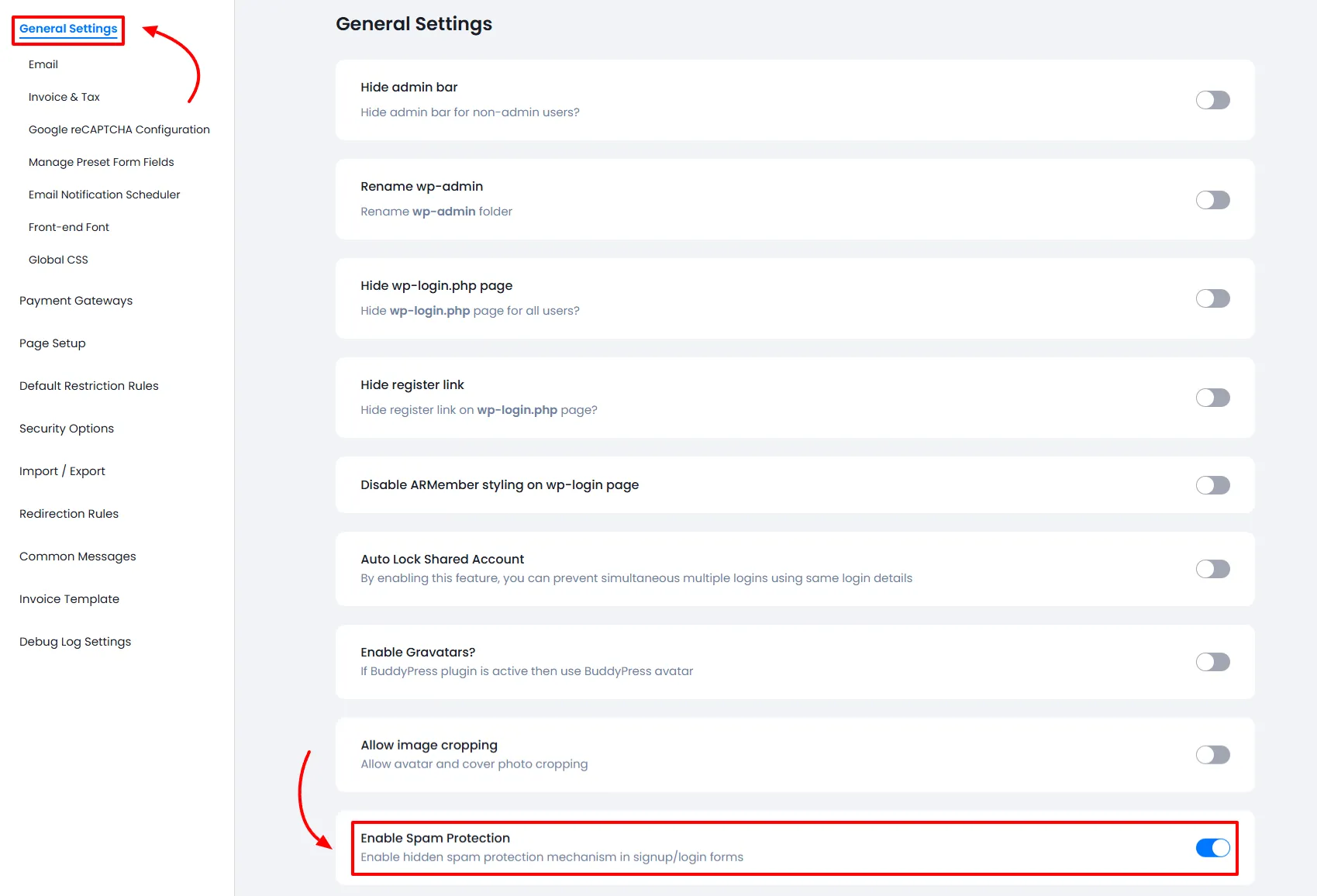
- Go to ARMember → General Settings.
- Find the option Enable Spam Protection.
- Toggle the switch ON.
Once enabled, ARMember will start detecting spam entries, and users will be able to sign up or log in with spam checks.
Detect the Spam Registrations
Our built-in protection system is designed to prevent spam registrations effectively. However, if you ever suspect spam registrations on your website, you can verify where the registrations are coming from.
To do this:
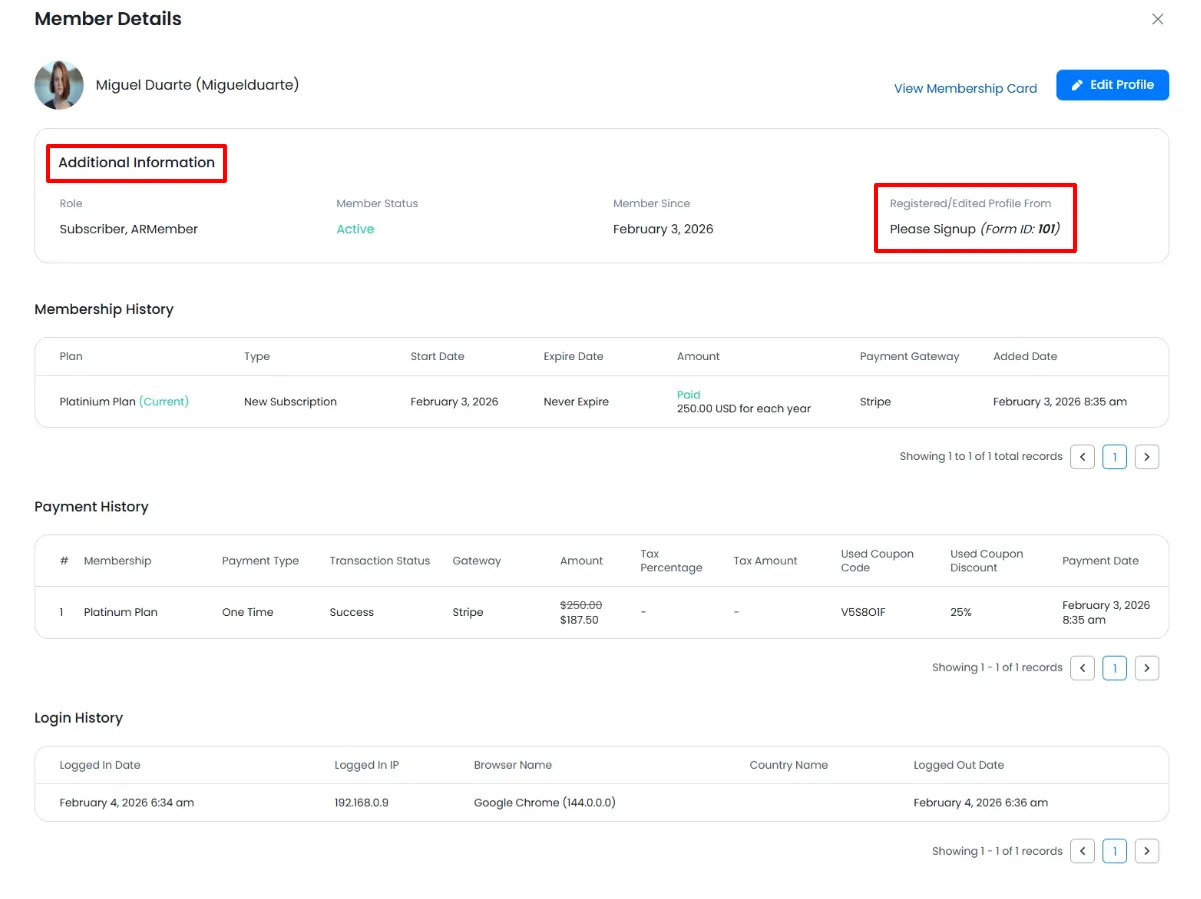
- Go to ARMember → Other Details.
- Check the additional information section.
- Here you will be able to check a field for “Registered/Edited Profile From.”
This will help you identify how users are registering on your website.
Google reCAPTCHA (v3) Integration
ARMember also provides Google reCAPTCHA (v3) integration to help protect your website from spam registrations and abusive activity through ARMember forms.
By configuring Google reCAPTCHA v3, you can add an additional security layer to your signup and login forms.
Configure Google reCAPTCHA v3
To enable Google reCAPTCHA v3 in ARMember, you need to enter the required API key at ARMember → General Settings page.
You can configure the following options:
- reCAPTCHA Site Key
- reCAPTCHA Secret (Private) Key
- reCAPTCHA Theme
- reCAPTCHA Language
How Google reCAPTCHA Works
In the Google reCAPTCHA configuration section, you need to enter the site key and secret (private) key generated from your Google reCAPTCHA account.
If you do not already have these keys, you can create a free reCAPTCHA API key from the Google reCAPTCHA website.
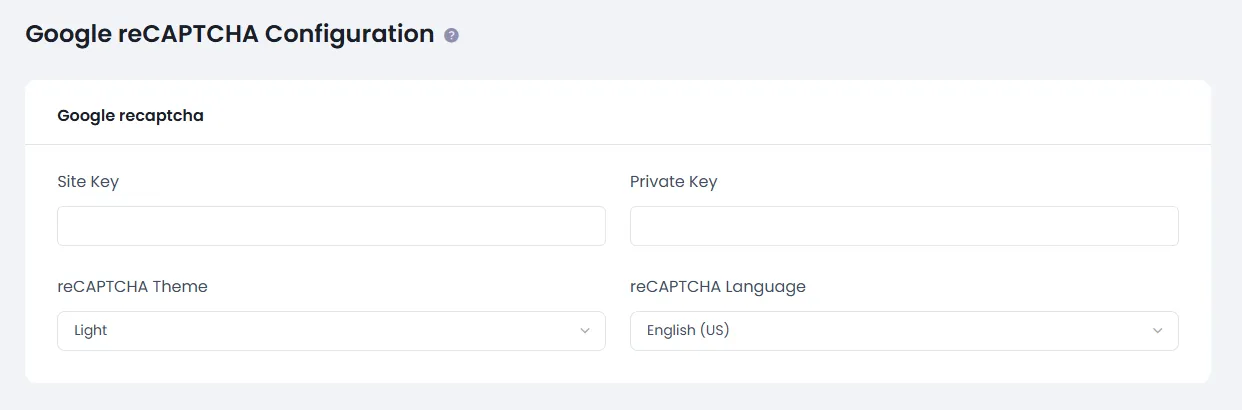
Using Google reCAPTCHA in ARMember Forms
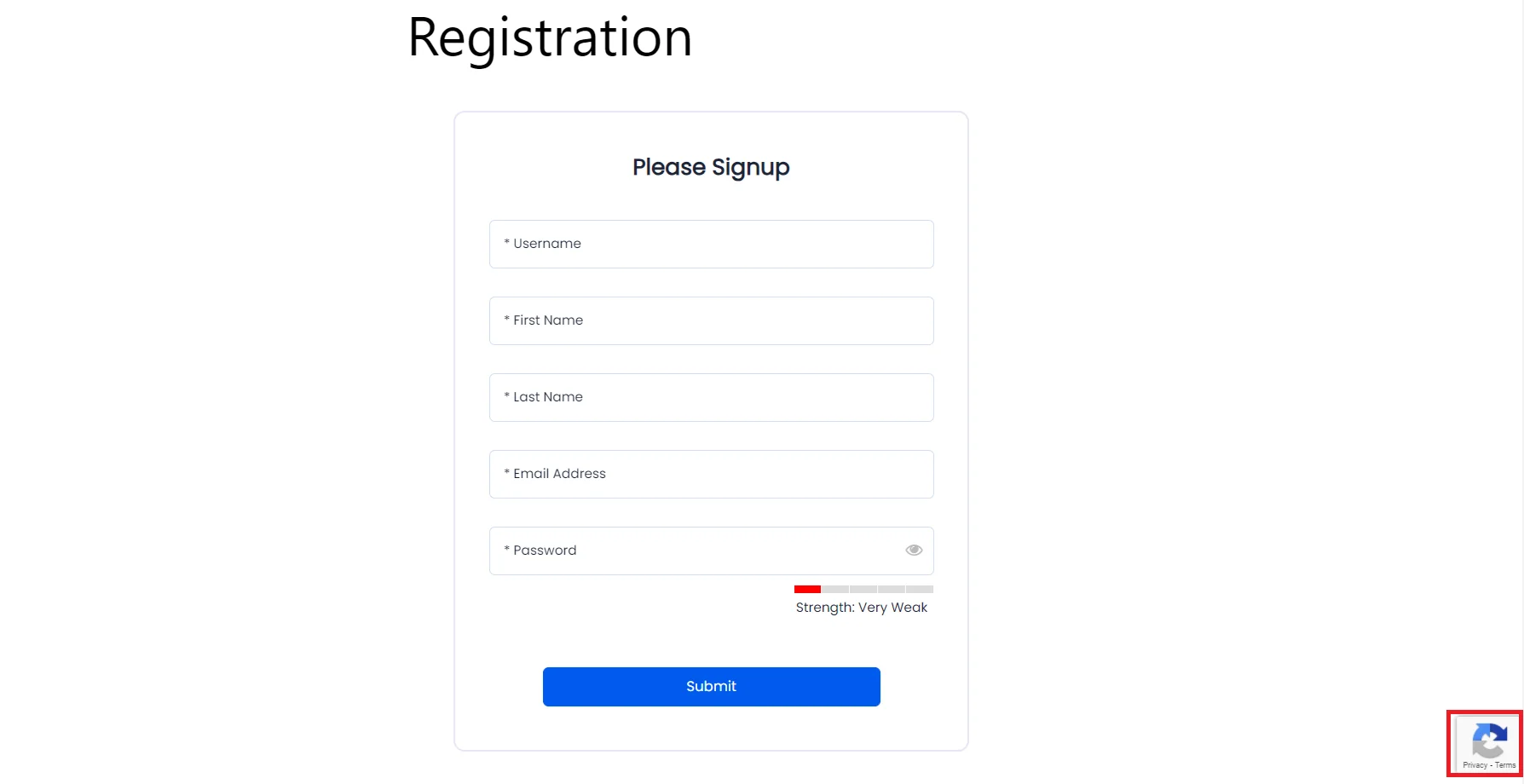
Once the configuration is complete, you have to enable Google reCAPTCHA v3 on your ARMember forms, helping prevent spam registrations and automated submissions.
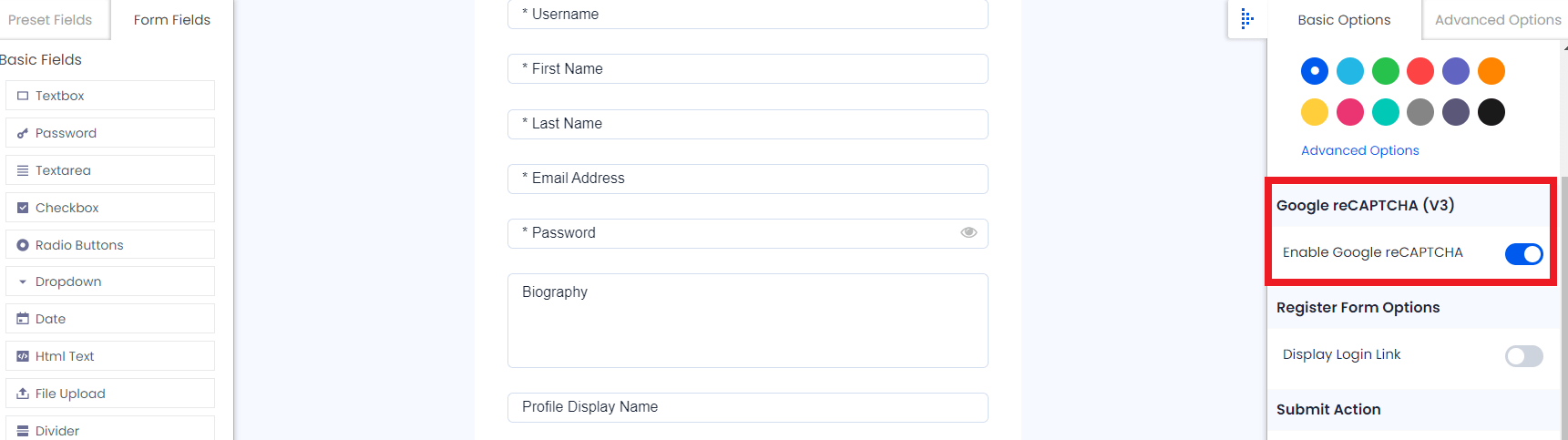
In order to enable this, navigate to the ARMember → Manage Forms page. Here, add/edit any form, and on the right sidebar, you will be able to check a section for “Enabling the Google reCAPTCHA.” Turn on the switch and save the form.