How to Configure & Use SMS Notification Addon with ARMember Pro Plugin
Important Note:This add-on will work with ARMember Version 3.3.3 or grater.
Steps For Installation And Activation
You can install plugin in the following two ways. and ARMember’s SMS Notification addon requires ARMember Membership Plugin installed and active.
New installation via FTP
- Download the plugin and extract it. You will find a directory armembersms.
- In your WordPress installation directory, upload armembersms to
wp-content/plugins/ - Activate the
ARMember - SMS Notification Addonplugin through thePluginsmenu from WordPress admin panel.
New installation via the WordPress Uploader
- Download the plugin.
- Log in to your WordPress admin panel
- Go to
Plugins⇾Add New⇾Upload - Click on “choose file” and browse the download package. When the plugin uploads successfully, click on
Activate Plugin.
Steps to Setup SMS Notification For Your Website
Let’s setup SMS alert for ARMember Addon for your website :
-
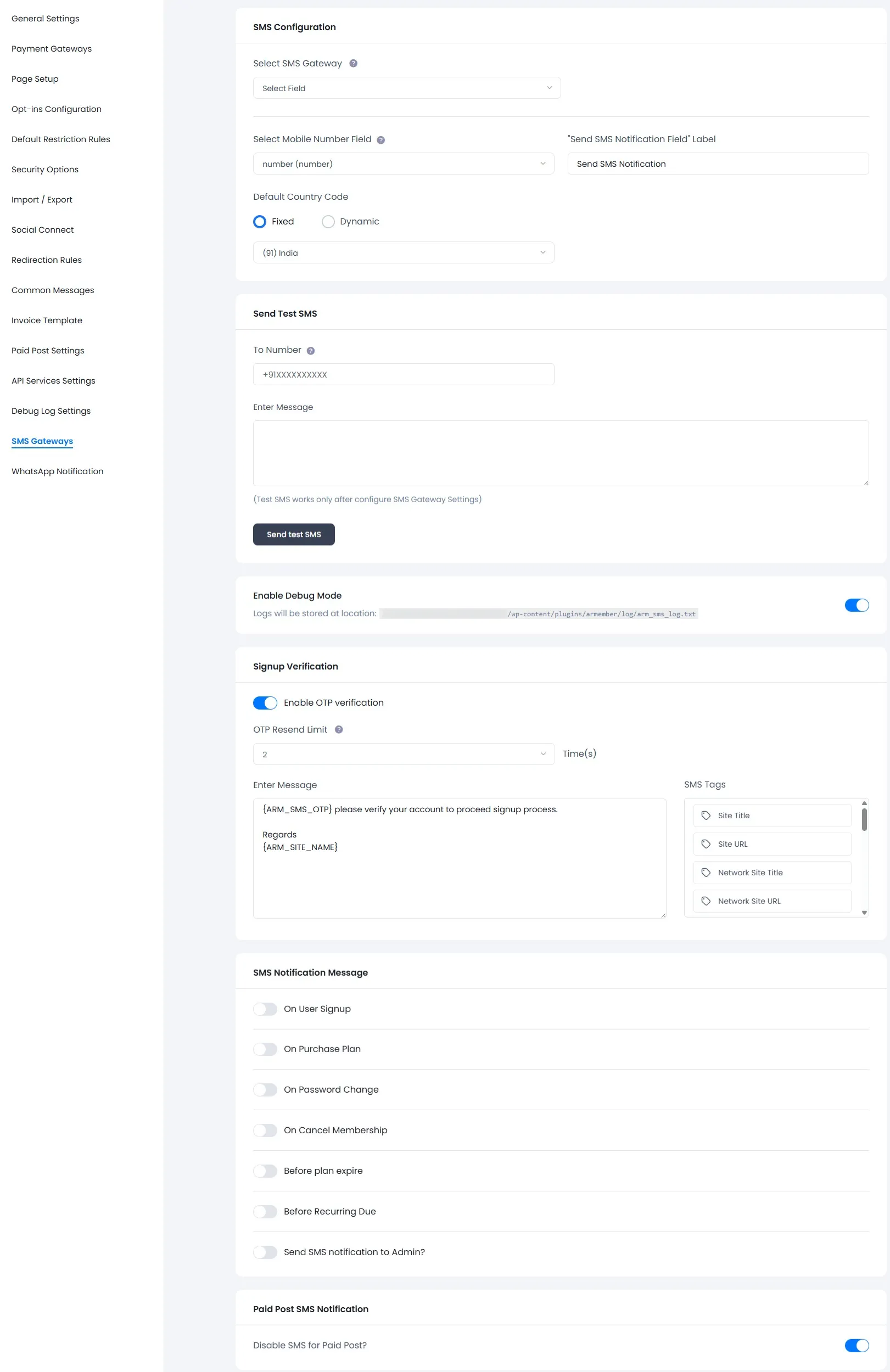
When Addon is activated, SMS Notification section will be displayed in
ARMember⇾General Settings⇾SMS Gateways.Please see below screen.
-
To start sending SMS to users you have to select predefined configured SMS gateway from list or add your custom SMS gateway by choosing “Other”.
Below are the predefined SMS gateways:
- ALCodes
- Bear SMS
- Bulk SMS
- Cheap Global SMS
- Clickatell
- ClickSend
- D7 SMS
- Easy Send SMS
- EngageSPARK
- Exotel
- Experttexting
- EZTexting
- Fast2SMS
- 1s2u
- Message Bird
- Messente
- Movile
- MSG91
- MSG Club
- Nexmo
- Redoxygen
- RingCaptcha
- Routee
- SMS API
- SMS Gateway Center
- SMS Global
- Spirius
- Telerivet
- Telnyx
- Text Local
- Textbelt
- Text Marketer
- Twilio
- Vianett
- Wavecell (8×8)
After selecting SMS gateway you have to feel required fields to activate SMS gateway.
-
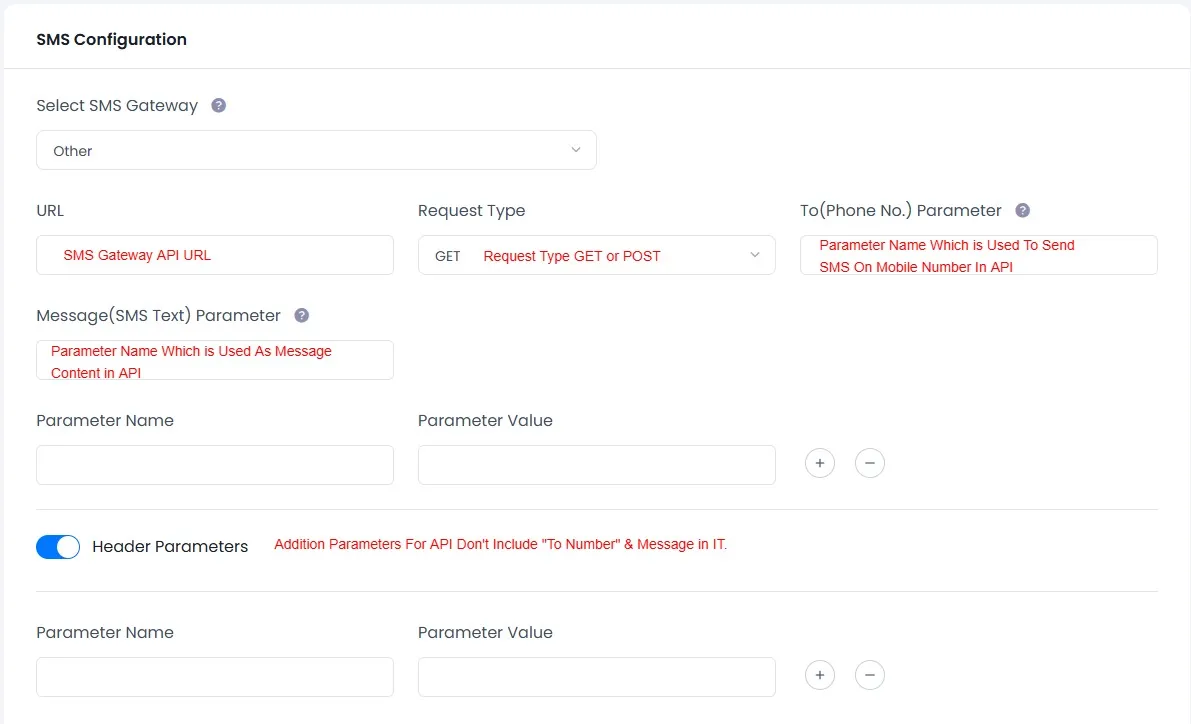
If you want to configure an SMS gateway which is not included in this list then select “Other” option in SMS Gateway and enter required details.
Please see below screen.
-
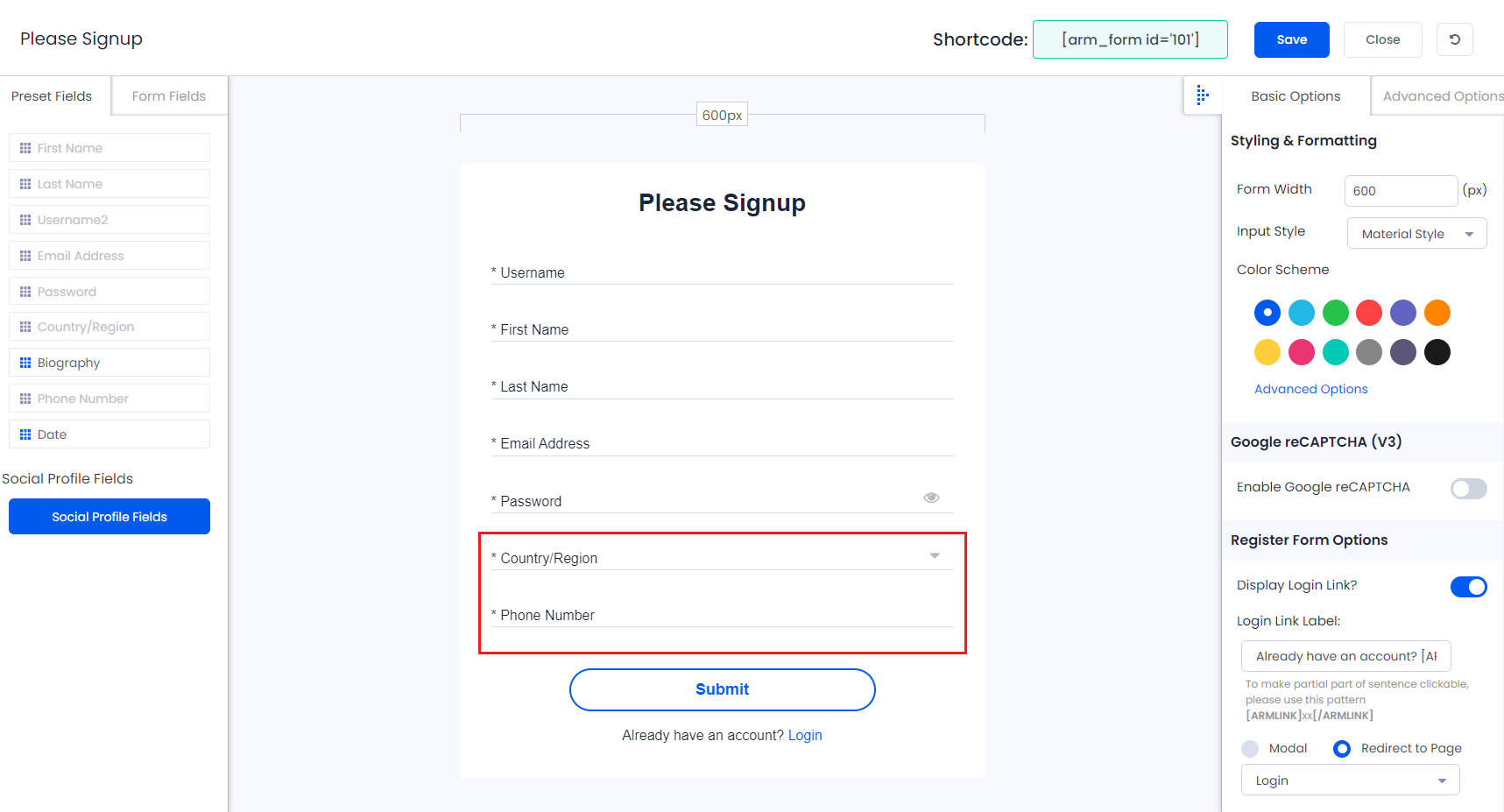
After selecting SMS gateway you have to select Mobile Number Field. If your registration form doesn’t have mobile number field than please create that by
ARMember⇾Manage forms⇾Registration/Sign up forms.Please see screen sort in next point.
If your form doesn’t have mobile number field than this addon will not work.
-
Select whether country code is fixed for all users or based on will be select using the user’s country.
Please see below screen.
If you choose “Dynamic” then “country” field must be existing in your signup form, and its meta key must be “country”.
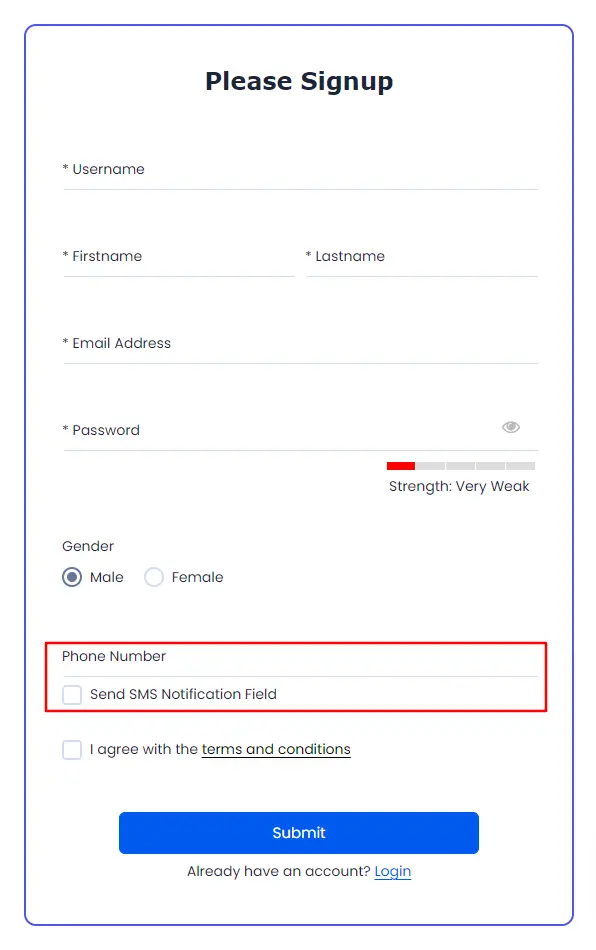
ARMember does provide a facility to allow the customer to select the checkbox whether the members wan the signup SMS to receive to their device or not, if the checkbox is checked then the member will receive the signup SMS, else they will not be able to have the SMS.
-
You can check SMS gateway configuration is correct or not by using Send Test SMS.
Mobile number must be start with country code.
-
By enabling debug mode will start to write status log into file.
-
Enable “Verification through SMS on Signup” to verify users through OTP on signup.
Enter message content which will be used to send to user as message content.
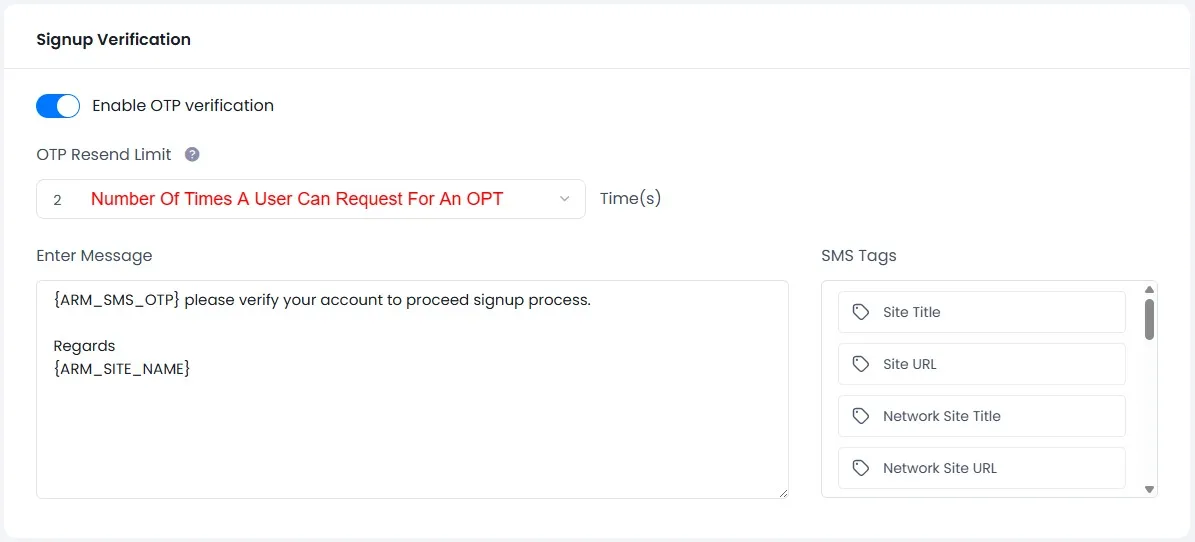
If you enabled this option then your signup form have OTP field. Please see screenshot.

-
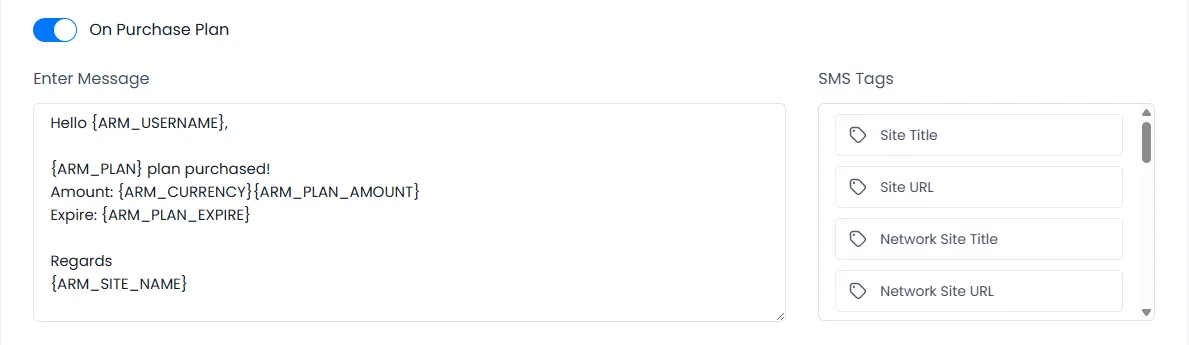
Enable “Notification on purchase membership plan” to send notification when user purchase any Membership plan.
Enter message content which will be used to send to user as message content.
-
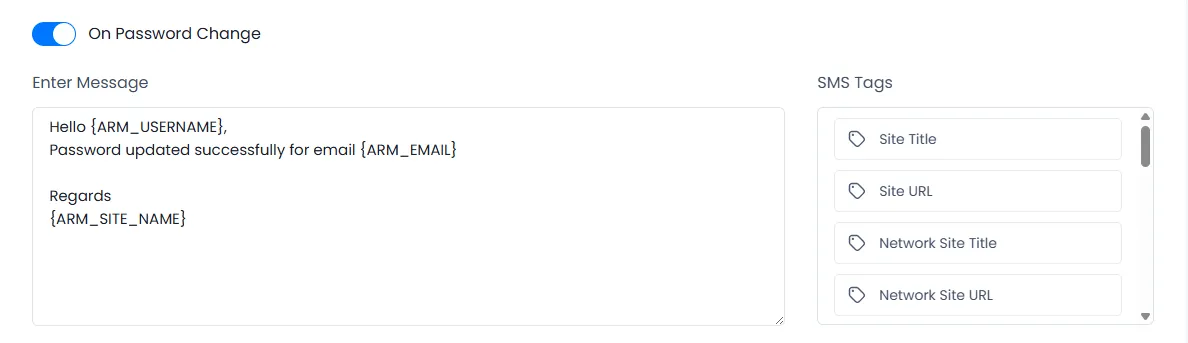
Enable “Notification on Password Change” to notify user when their account’s password is changed.
Enter message content which will be used to send to user as message content.
-
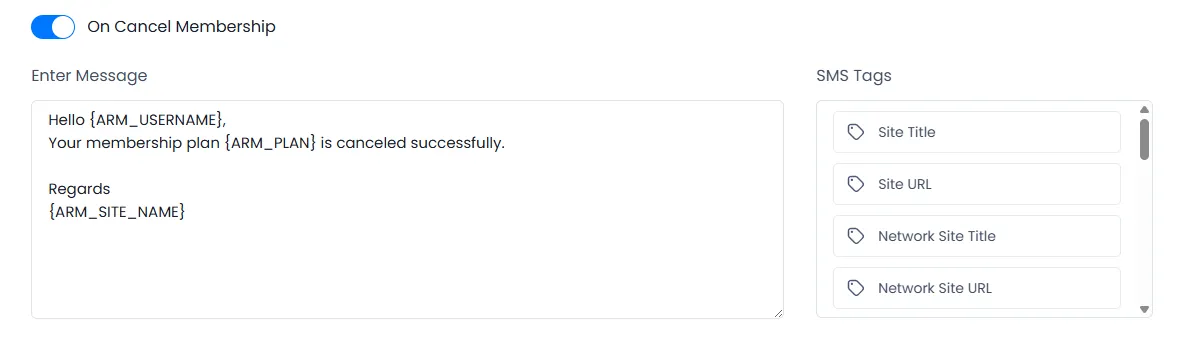
Enable “Cancel Membership Plan” to notify user when their membership plan is cancelled by admin or themselves.
Enter message content which will be used to send to user as message content.
-
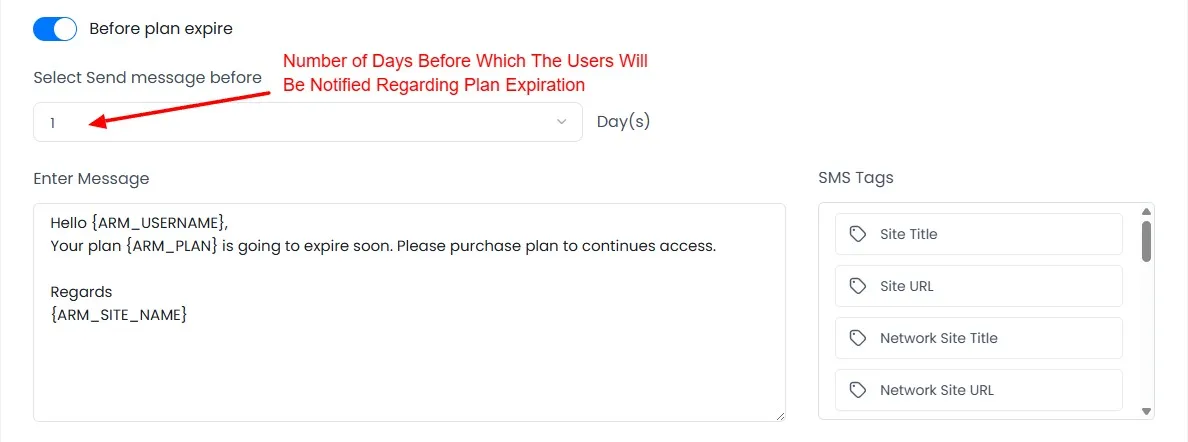
Enable “Before Expire Membership Plan” to notify user when their membership plan will be going to expire.
Enter message content which will be used to send to user as message content.
-
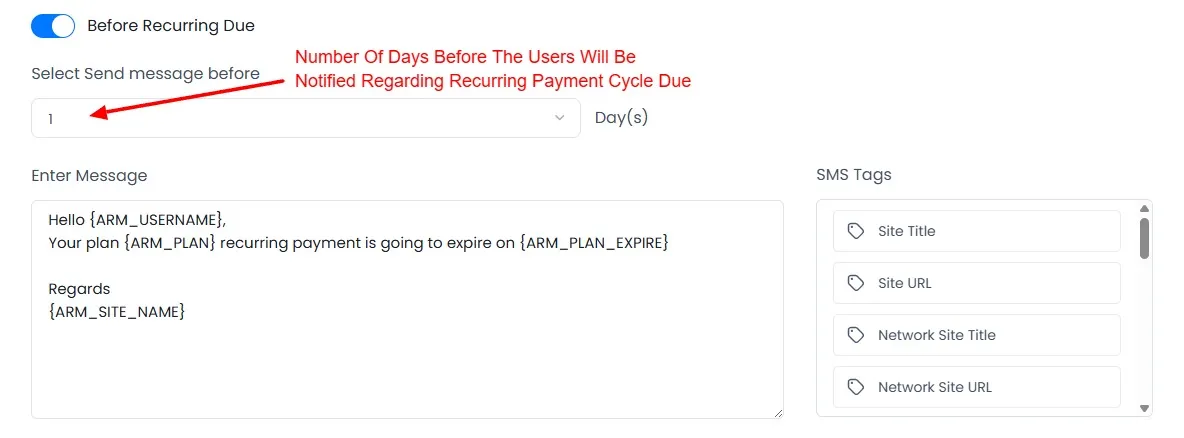
Enable “Before Recurring Payments due (auto & manual payment)” to notify user when their recurring payment will be going to expire.
Enter message content which will be used to send to user as message content.
-
Enable “Send SMS notification to Admin?” to send all above enabled notifications to admin also when any of the event is executed from them.
Enter admin mobile number on which all notification will be executed.
Mobile number must be start with country code.
-
Go to
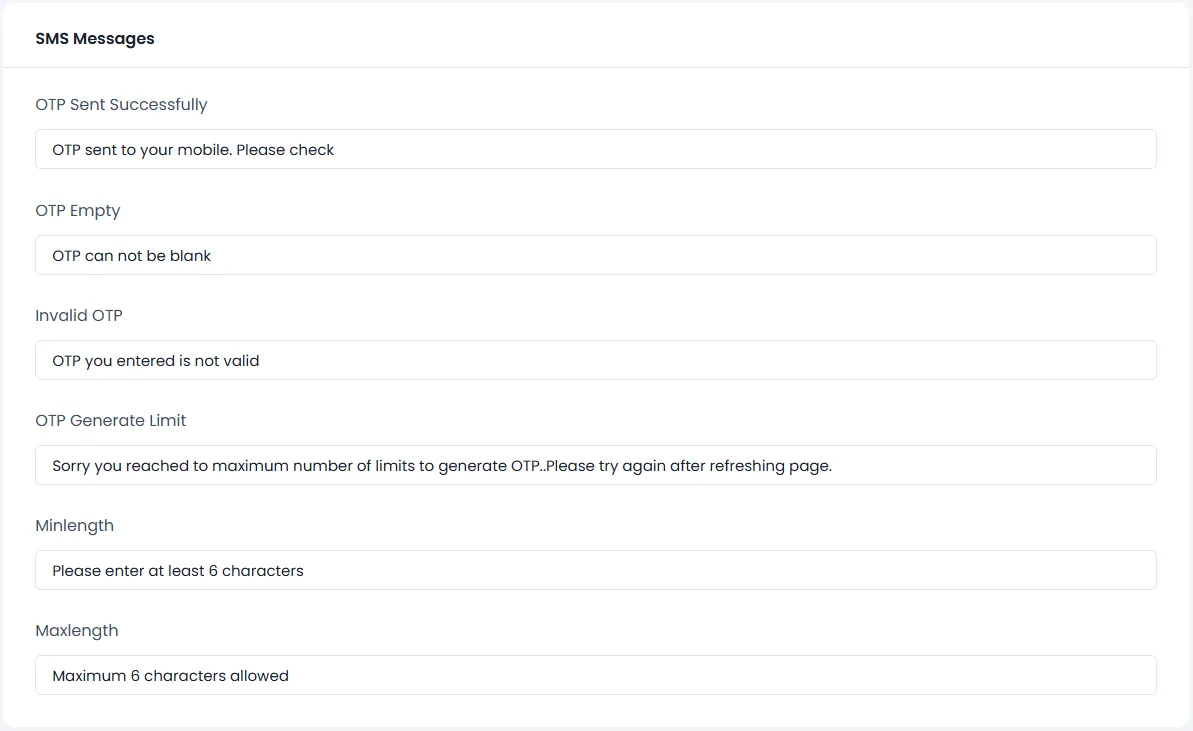
ARMember⇾General Settings⇾Common messagesfor SMS OTP verification messagesPlease see below screen.