How to integrate Paypal Pro Payment Gateway with ARMember Plugin
This Add-on will add payment option for ARMember plan with one time payment & plan with subscription payment.
Important Note:This add-on will work with ARMember Version 1.6 or grater.
Steps For Installation And Activation
You can install plugin in the following two ways. And ARMember – PayPal Pro plugin requires ARMember Plugin installed and active.
New installation via FTP
- Download the plugin and extract it. You will find a directory armember-paypalpro.
- In your WordPress installation directory, upload armember-paypalpro to
wp-content/plugins/ - Activate the
ARMember - Paypal Pro Addonplugin through thePluginsmenu from WordPress admin panel.
New installation via the WordPress Uploader
- Download the plugin.
- Log in to your WordPress admin panel
- Go to
Plugins->Add New->Upload - Click on “choose file” and browse the download package. When the plugin uploads successfully, click on
Activate Plugin.
Steps to Set up PayPal Pro For Your Website
Let’s setup membership for your website :
-
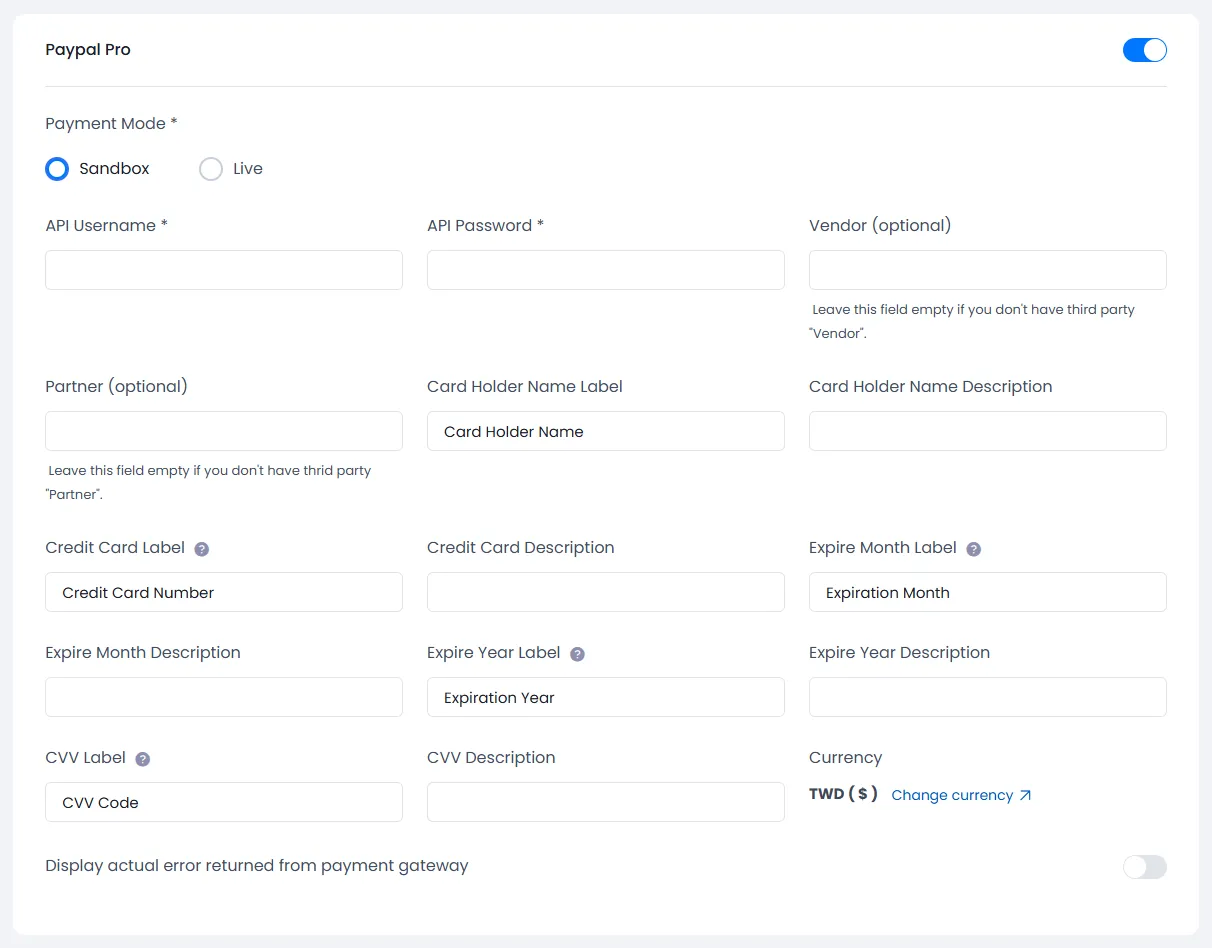
When plugin activated then PayPal Pro section will be display in
ARMember->General Settings->Payment Gateways.Please see below screen.

-
Firstly need to activate the PayPal Pro payment gateway so you will be able to insert API Keys. For activation click on active button.
-
If you do not have PayPal pro account then create Payflow Pro account.
For more information about create account and create website on PayPal pro account Click here.
-
When you sign up in PayPal pro then you will be able to get API Username, API Password, Vendor and Partner detail.
-
Insert API Username into API username textbox, API Password into API Password textbox, Vendor into Vendor textbox and partner into partner textbox.
-
If you want than you will be able to change below field label and description. If you do not set the label then the default label will be display.
- Credit Card
- Expire Month
- Expire Year
- CVV
-
Click on SAVE button.
-
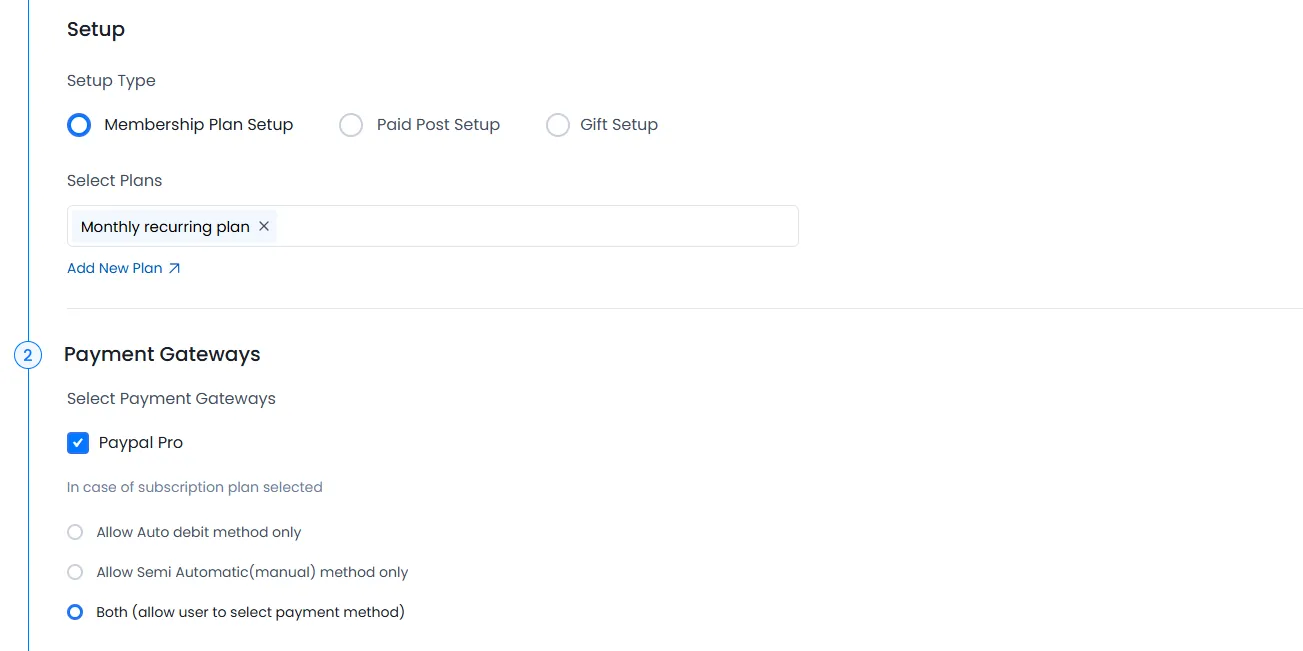
After setup PayPal pro payment gateway you will be able to see PayPal pro payment in your Plan + Signup Page in ARMember and set it for the plan.
Please see below screen.

-
To confirm transaction on PayPal website, you can login with your payflow pro credential.