

How to Use Campaign Monitor Addon for Email Marketing (opt-in) with ARMember Pro Plugin
Important Note: This Addon will only work if ARMember plugin is installed with version 6.9 or higher
Campaign Monitor is an open-source marketing automation software and ARMember – Campaign Monitor Addon is a bridge between Campaign Monitor’s back-end interface and ARMember plugin.
This Addon will allow you to add all users of your membership website into Campaign Monitor Contacts, who will register using ARMember Registration Form.
This Addon does not just add users to Campaign Monitor Contacts but also facilitates you to add users in specific Campaign Monitor List. Also, You will be allowed to add users, who will register from different Sign Up Forms used for different purposes, into in different Campaign Monitor Lists.
ARMember – Campaign Monitor Addon Key Features:
- Easy Installation And Setup
- Easily Create Contact in Campaign Monitor when New User will register using ARMember Registration Form
- Easily Assign New User to particular Campaign Monitor List
- Assign Different Lists to Users who will register using Different Sign Up Forms
- Map a Campaign Monitor field with ARMember form fields to store member data to Campaign Monitor list data.
- Map a Campaign Monitor list with ARMember Membership plan that member purchase from ARMember.
Steps For Installation And Activation
ARMember – Monitor Addon requires ARMember Plugin installed and active. You can install this Addon in following two ways.
New installation via FTP
- Download Addon and extract it. You will find a directory armembercampaignmonitor.
- In your WordPress installation directory, upload armembercampaignmonitor to
wp-content/plugins/ - Activate the
ARMember - Campaign Monitor Addonthrough thePluginsmenu from WordPress admin panel.
New installation via the WordPress Uploader
- Download Addon.
- Log in to your WordPress admin panel
- Go to
Plugins⇾Add New⇾Upload - Click on “choose file” and browse the download package. When the Addon uploads successfully, click on
Activate Plugin.
Steps to Set up Campaign Monitor For Your Website
Let’s setup ARMember – Campaign Monitor Addon for your website :
-
When Addon is activated, the Campaign Monitor section will be displayed in
ARMember⇾General Settings⇾Opt-ins. Please note that opt-ins tab will be displayed only if Opt-ins module is activated under Addons.Please see below screen.

-
If you do not have a Campaign Monitor account then create it.
For Campaign Monitor account click here.
-
To get API Key please refer Campaign Monitor User Guide
-
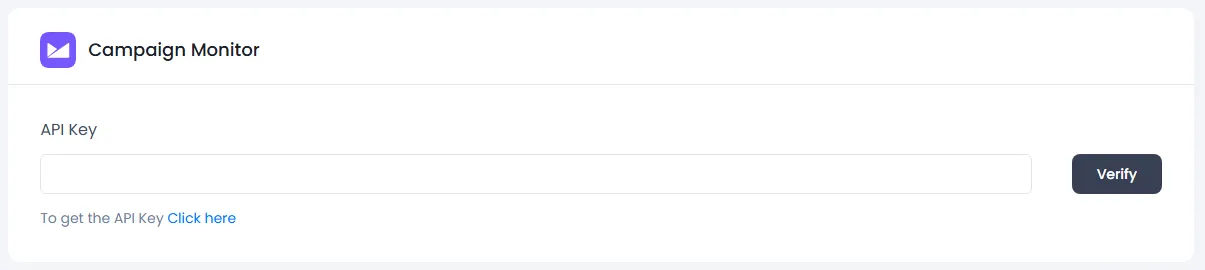
After getting API Key from Campaign Monitor, fill it under Campaign Monitor section in Opt-ins.
Click on Verify link, If verification successes, you can see list of all Campaign Monitor Lists in List Name select box. Select any of the lists that you want to set as default. After that do not forget to click on Save button.
-
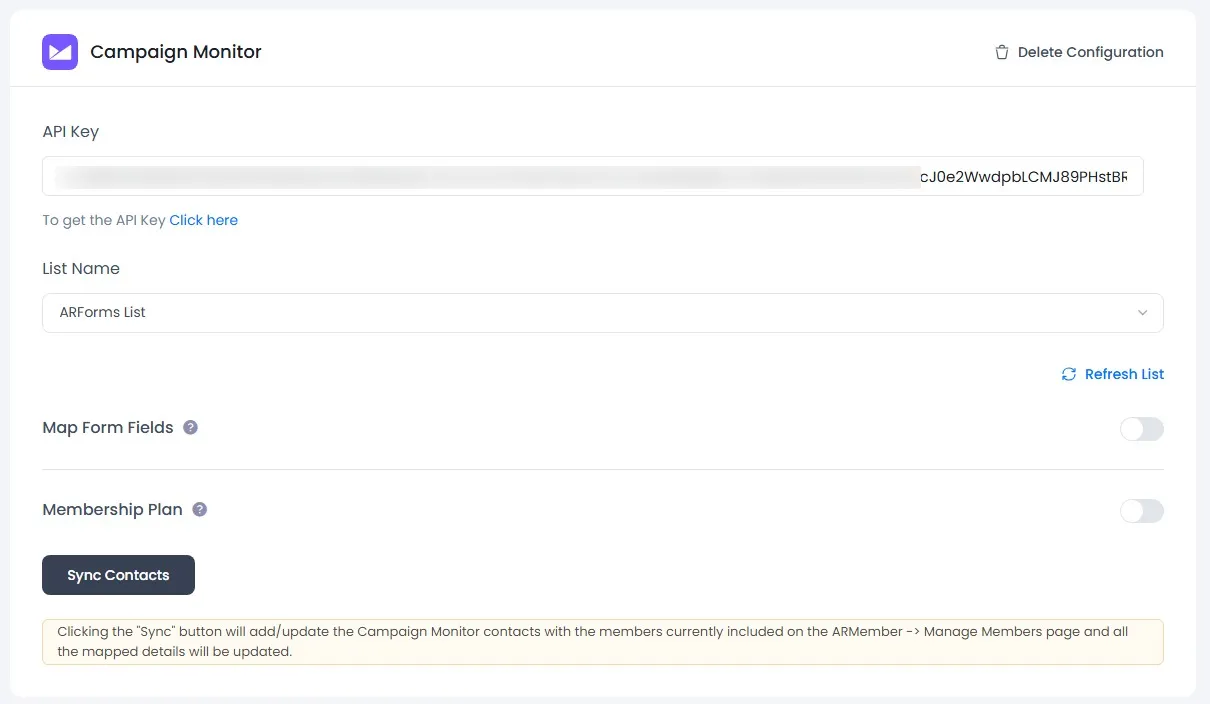
When you connected your account successfully the system will fetch all the list names from your Campaign Monitor account. Select default List name to add subscribers in your account.
Please see the below screen.

-
Now go to
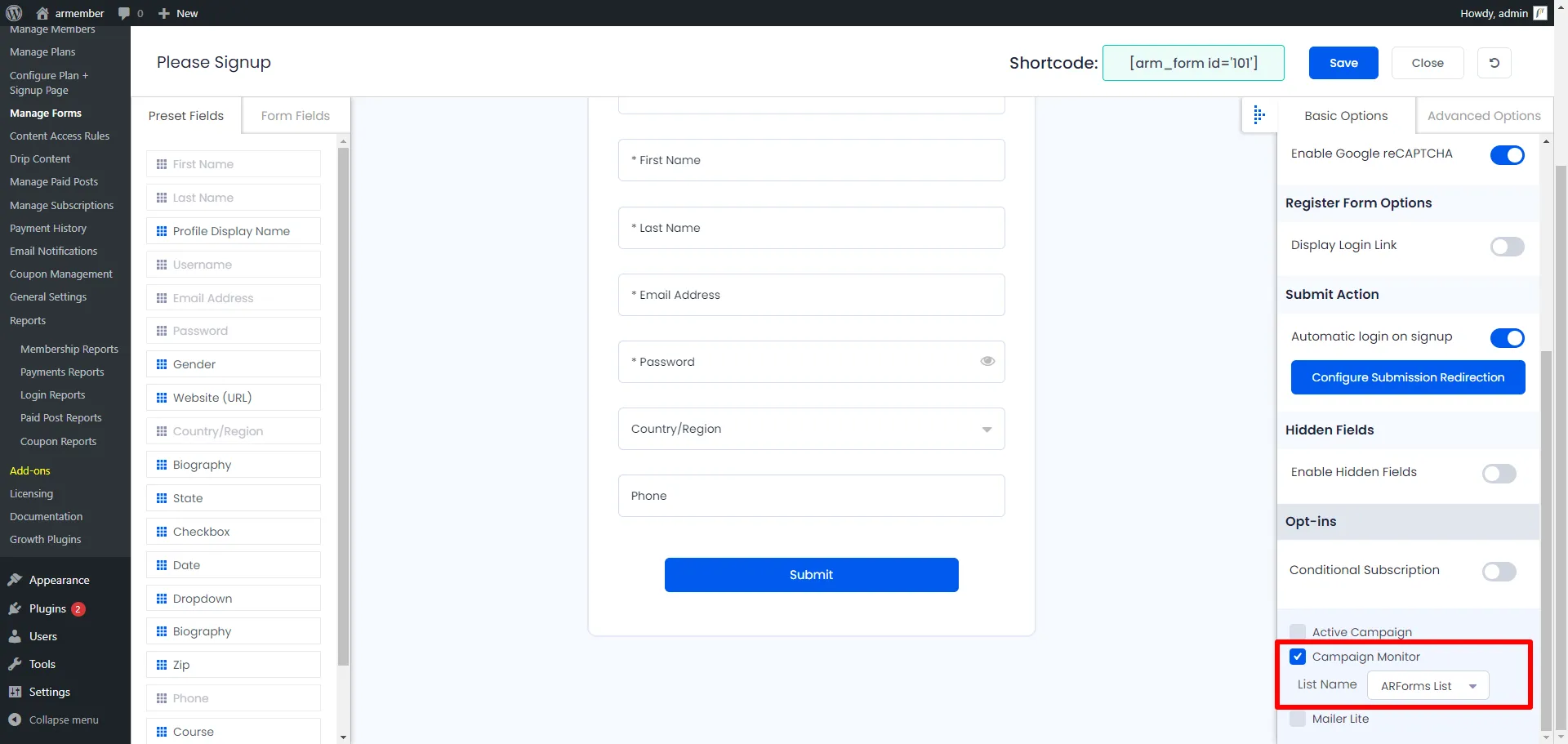
ARMember⇾Manage Forms. Edit your sign-up form. In the right panel, you will see the Opt-ins section. You will see a list of all configured opt-ins with a checkbox. Select checkbox for Campaign Monitor and select List in which you wish to add all users who will register through this sign-up form, in your mail listPlease see below screenshot

-
If your website have more than one Registration Forms for different purposes, you can set different lists for different forms and can manage your users in Campaign Monitor easily.
Click Save Button. Now All is Set.
-
When new user register with ARMember register form contact will add in “Campaign Monitor” with Email Address, First Name and Last Name.
-
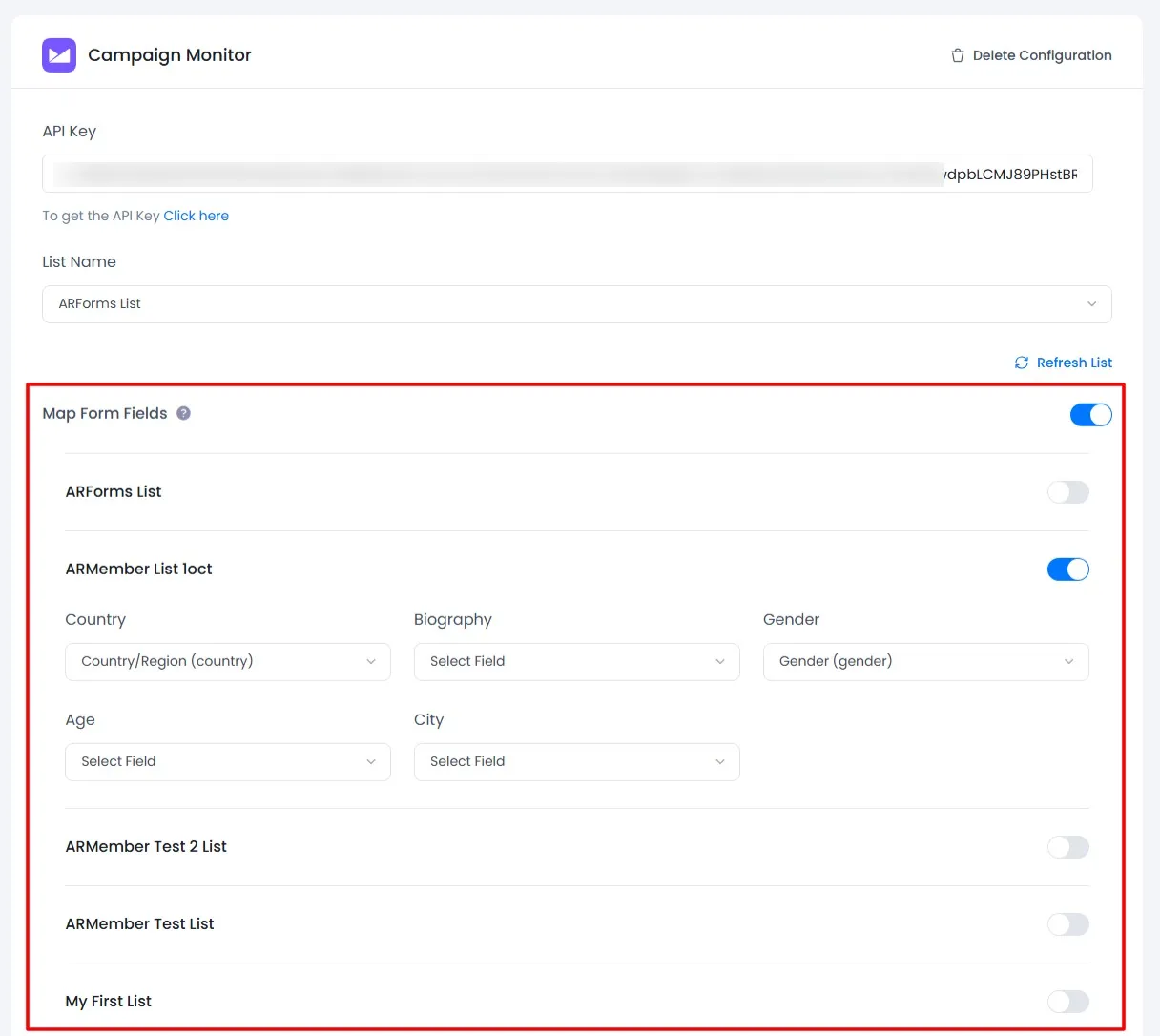
You can map a Campaign Monitor field with ARMember form fields to store member data to Campaign Monitor list data.
Enable
Map Form Fieldsoption in Campaign Monitor opt-ins and after that enable which list you want to map with a field and map a field as per your requirements.Please see below screenshot

-
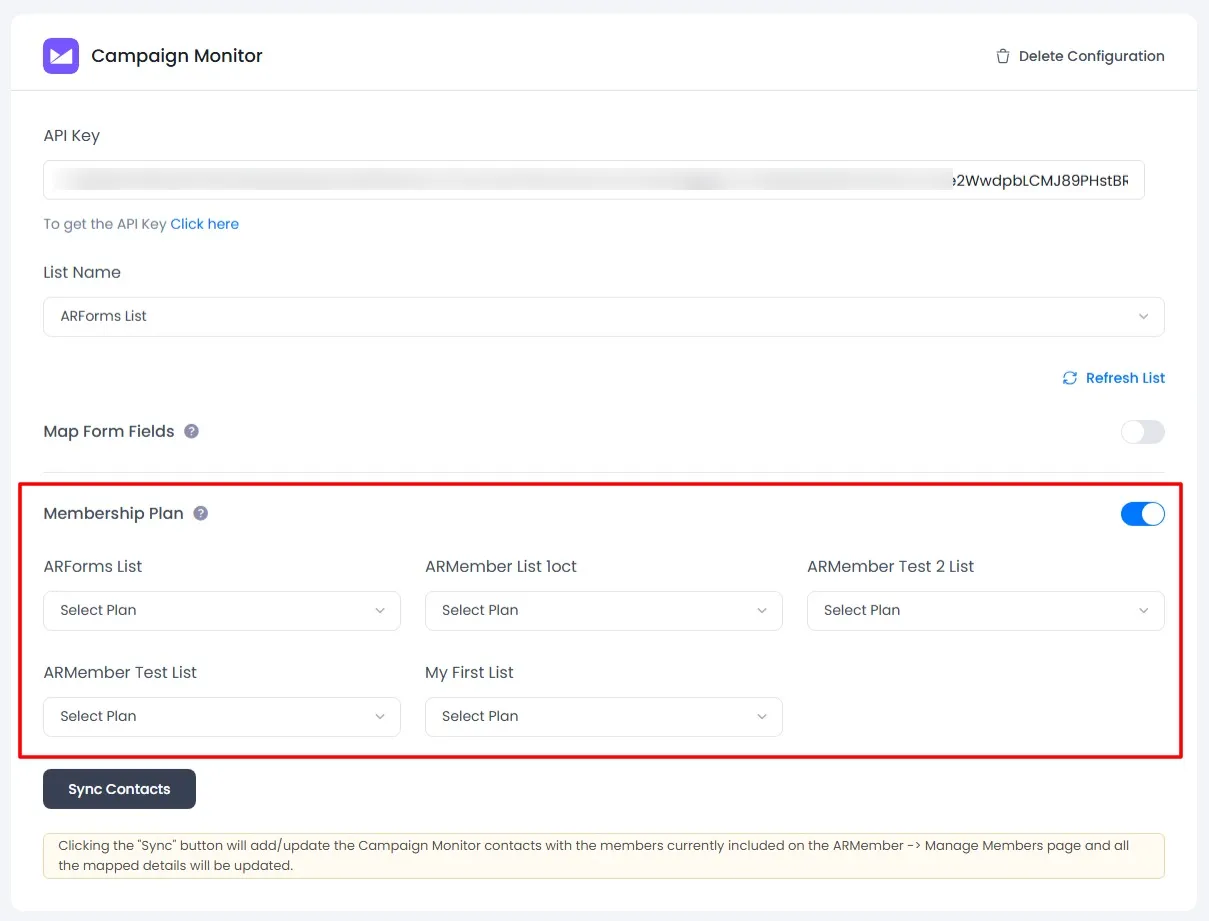
You can map a campaign Monitor list with ARMember Membership plan that member purchase from ARMember.
Enable
Memebership Planoption in campaign Monitor opt-ins and after that select a membership plan that which plan user will be added to specific lists.Please see below screenshot

-
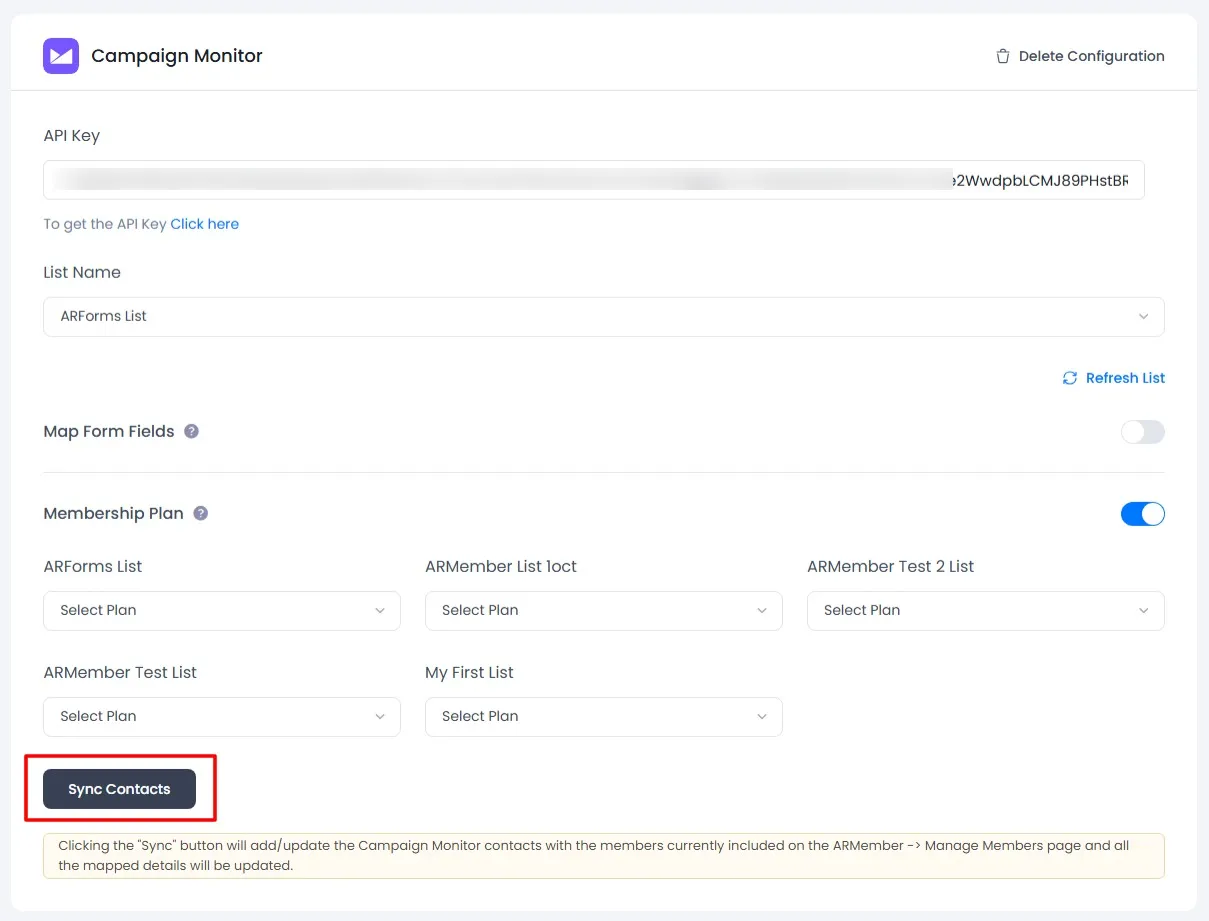
you can sync all your ARMember member into Campaign Monitor subscriber using
Sync Contactsbutton.also you can sync custom field and membership plan with Sync Contact if you have enabled switch
Map Form FieldAndMembership Plan.Please see below screenshot
Opt-in data will be updated on the below provided actions:
- On Simple Register form submission.
- On Purchase Membership Plan.
- On Cancel Membership Plan By Member or admin.
- On Membership Plan End Of Term.
- On Membership Plan Suspended.
- On Membership Plan Change.
- On the Membership Plan Subscription, the Next payment has failed.
- On Subscription Plan recurring payment received.
- On Import Users from the ARMember.
- Admin can Sync Existing member data from Admin Panel to Opt-ins.