Important Note: Mercado Pago Payment Gateway add-on will only work if ARMember plugin is installed with version 6.7 or higher.
You can find this plugin from ARMember ⇾ Add-ons. When this plugin get activated to your site, you will get an additional option in ARMember ⇾ General Settings ⇾ Payment Gateways.
Do settings by filling required details to enable this payment gateway for users.
Important Notes :
-
Mercado Pago Payment Gateway add-on will only work if ARMember plugin is installed with version 6.7 or higher.
-
Mercado Pago supports only free trial with Auto-Debit recurring payment
Mercado Pago supports only daily and monthly with Auto-Debit recurring payment.
Installation & Activation
You can install plugin in the following two ways. And ARMember – ARMember – Mercado Pago plugin requires ARMember Plugin (6.7 or higher) installed and active.
New installation via FTP
- Download the plugin and extract it. You will find a directory armembermercadopago.
- In your WordPress installation directory, upload armembermercadopago to
wp-content/plugins/ - Activate the
ARMember - ARMember - Mercadopagoplugin through thePluginsmenu from WordPress admin panel.
New installation via the WordPress Uploader
- Download the plugin.
- Log in to your WordPress admin panel
- Go to
Plugins⇾Add New⇾Upload - Click on “choose file” and browse the download package. When the plugin uploads successfully, click on
Activate Plugin.
Steps to Set up Mercado Pago For Your Website
Let’s setup ARMember – Mercado Pago payment gateway for your website :
-
When plugin activated then Mercado Pago section will be display in
ARMember⇾General Settings⇾Payment Gateways.Please see below screen.

-
Firstly need to activate the Mercado Pago payment gateway so you will be able to insert Public Key
and Access Token. For activation click on active button. -
If you do not have Mercado Pago account then create it.
For Live / Sandbox account Click here.
-
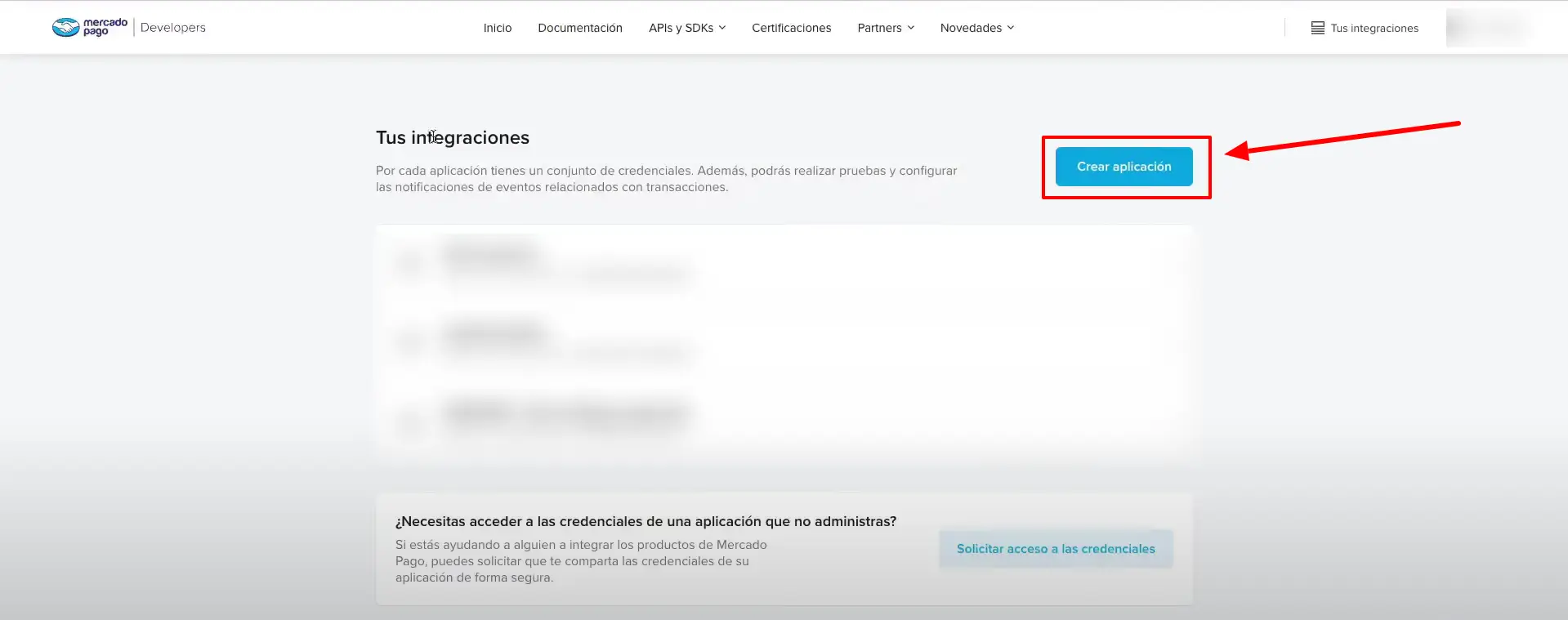
In the Mercado Pago admin panel, access Your integrations and select your application. If you haven’t
created an application yet, please click on Create App and create one.
-
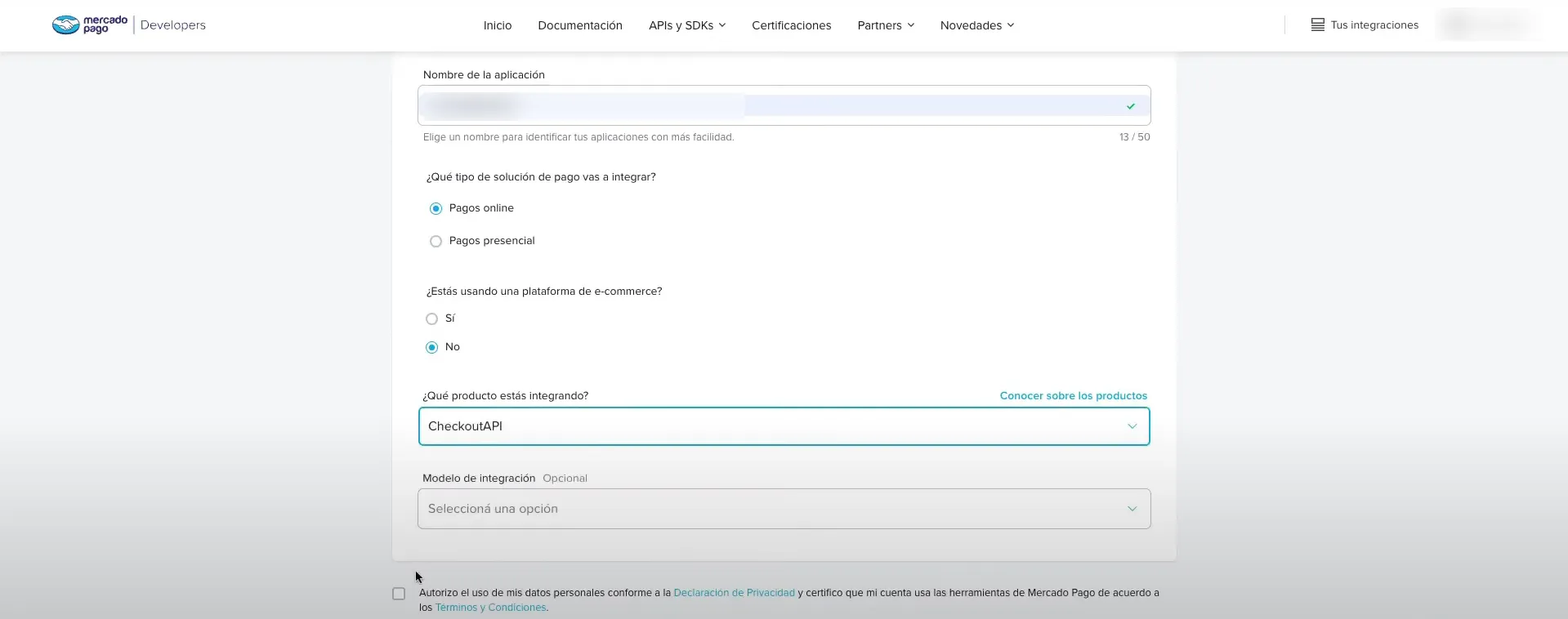
Enter your Application Name.
Please make sure to select “Pagos online” or “Online Payments”
In integration please select “CheckoutAPI”.

-
-
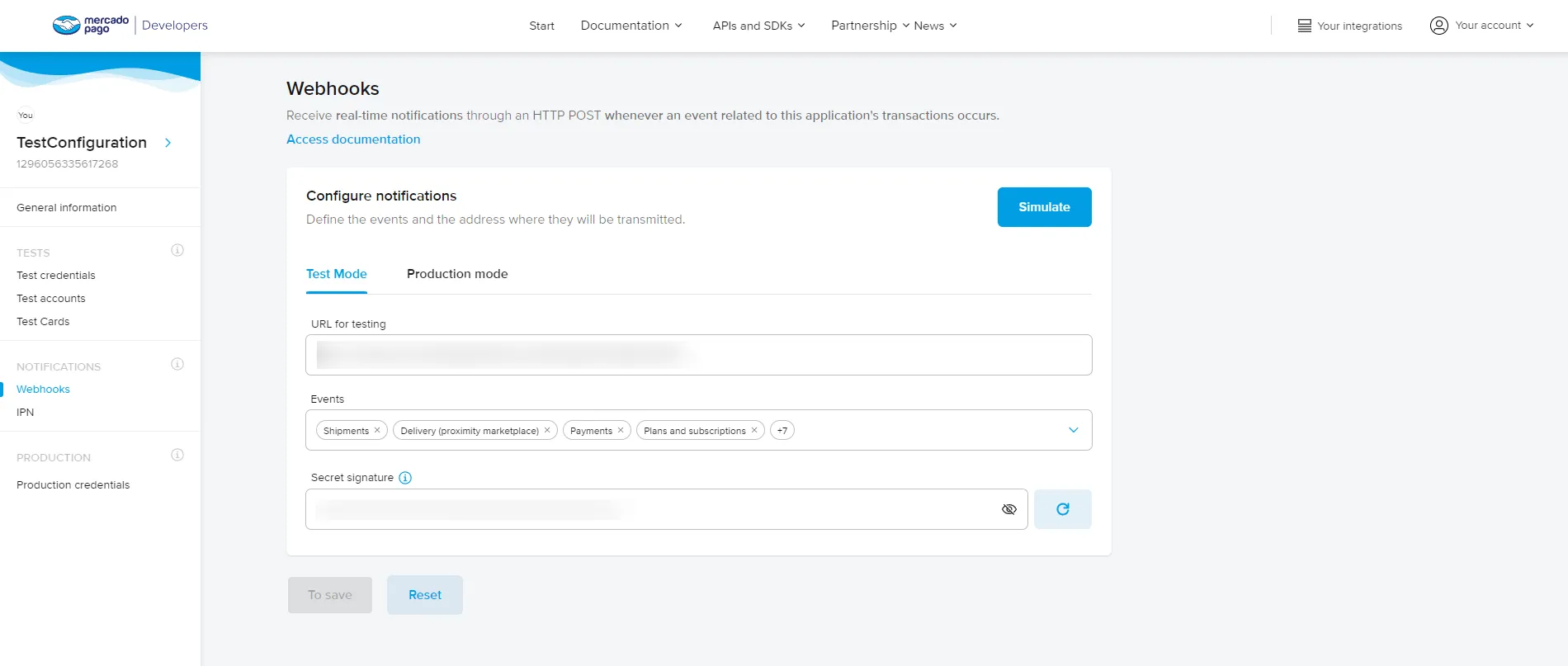
Once the app is created you will be redirected to the app panel where you can find all the details such
as your Public key, Access Token.Now to generate Secret Signature. You can go to Webhook URL and paste the Webhook URL mentioned in
theARMember⇾General Settings⇾Payment.
gatewaysSelect all the events and click on Generate/Simulate. Depending on the mode you choose it is advisable to
Select Production mode for live payments.
-
Add your credentials in ARMember payment Gateway settings and click on save button.
-
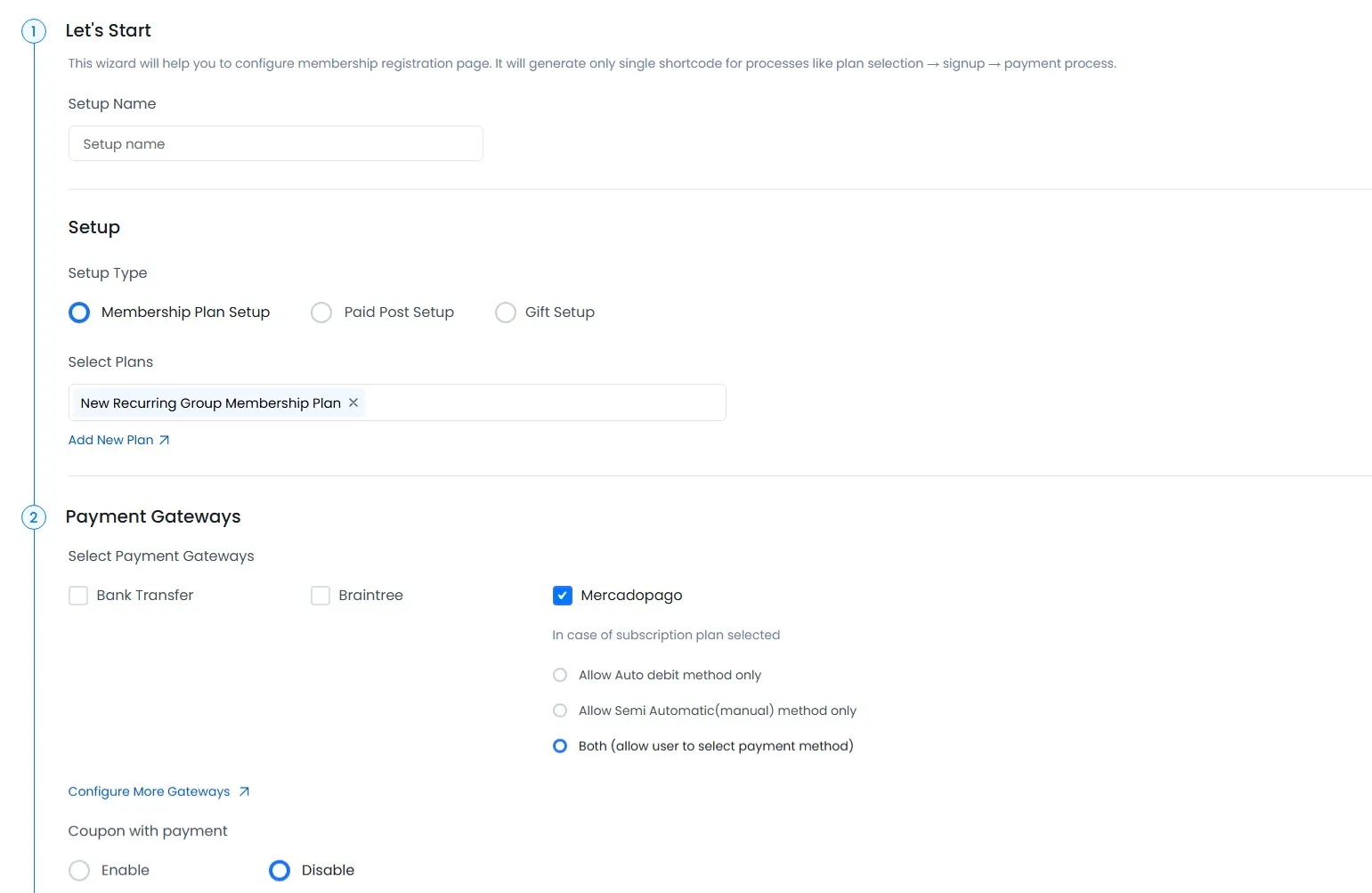
After setup Mercado Pago payment gateway you will be able to see Mercado Pago payment in your Plan +
Signup Page in ARMember and set it for the plan.Please see below screen.

In above screen display all active payment gateway with Mercadopago
-
Mercado Pago support for one time and plan with subscription payment with Mercadopago
-
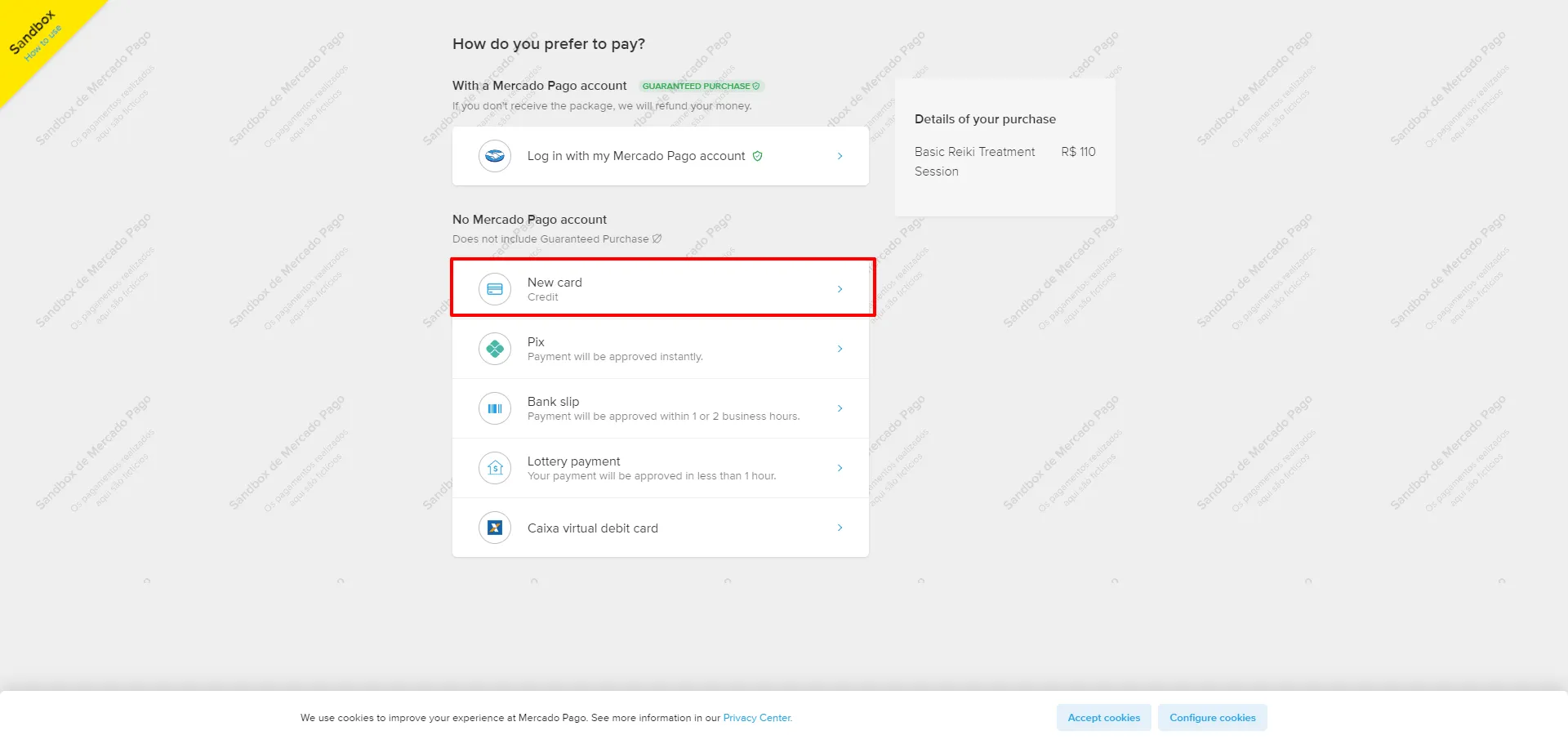
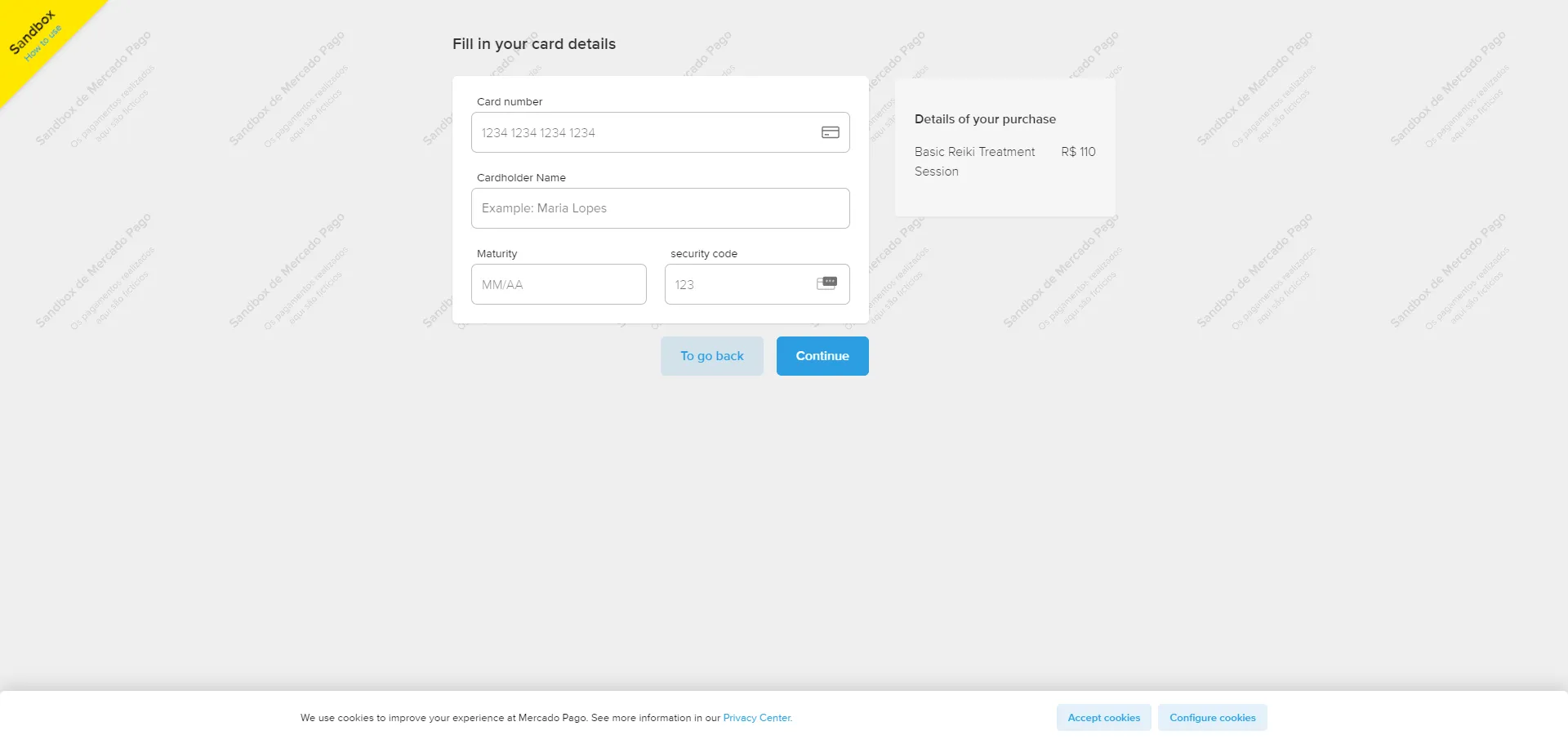
When member submit ARMember setup form then the page will be redirected to Mercado Pago Payment Gateway and
there you can make payment and after successfully proceed payment process, page will be redirected back
to your site.Front end screenshot.