How to Configure Use Digital Download Addon with ARMember Pro Plugin (Latest 2026)
Important:The ARMember Digital Download Addon requires the ARMember plugin version 2.0 or higher to function properly.
The ARMember Digital Download Addon allows administrators to upload downloadable files and control which users are permitted to download them.
Using a simple shortcode, you can quickly create download links and restrict access based on users, roles, or membership plans.
Installation & Activation
The add-on can be installed using either FTP or the WordPress uploader. Ensure that the ARMember plugin is already installed and activated.
Method 1: Installation via FTP
- Download the addon package and extract it.
- Locate the folder armemberdigitaldownload.
- Upload this folder to
wp-content/plugins/your WordPress installation. - Log in to the WordPress admin panel.
- Go to
Pluginsand activate ARMember – Digital Download.
Method 2: Installation via WordPress Uploader
- Download the addon package.
- Log in to your WordPress admin panel.
- Navigate to
Plugins → Add New → Upload Plugin. - Click Choose File and upload the add-on ZIP file.
- Once uploaded, click Activate Plugin.
Steps to Set Up the ARMember Digital Download Add-on for Your Website
You can also activate the add-on from the Admin Panel → ARMember → Addons page.
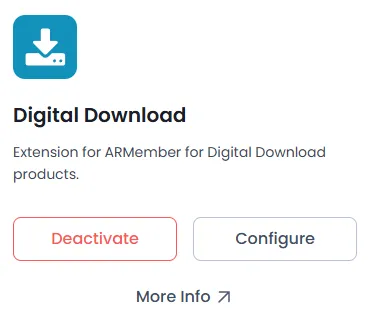
After activating the add-on, new menu options will appear under the ARMember section in the admin panel.
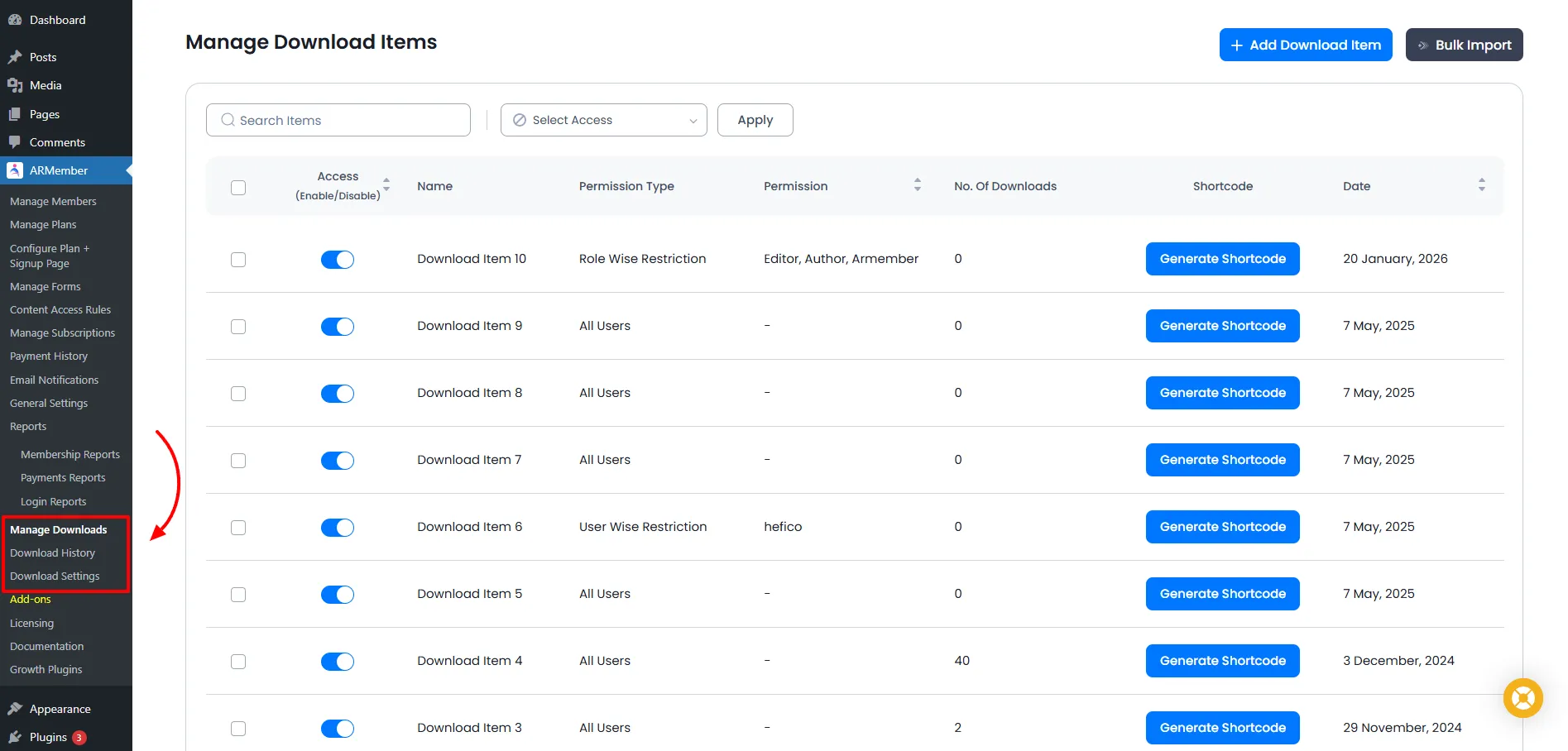
-
Manage Downloads
View and manage all downloadable files and their details. -
Download History
Track download activity including user information, IP address, browser, and date. -
Download Settings
Configure global download behavior and restrictions.
Manage Downloads
The Manage Downloads page displays a list of all downloadable items along with important information such as the following:
- Name
- Permissions
- Total Download Count
- Access Status (Enabled / Disabled)
- Shortcode Generator
- Date Added
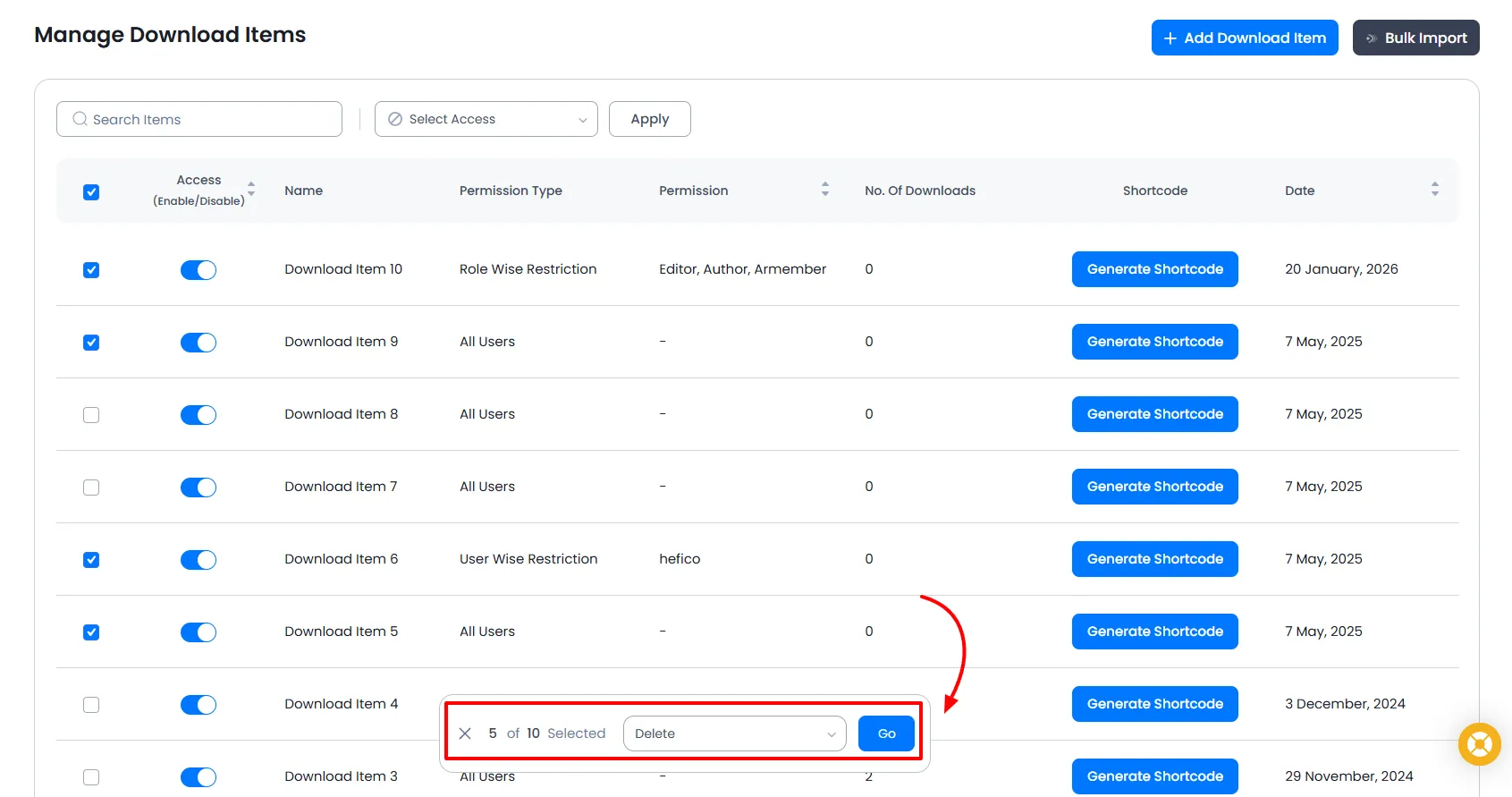
Bulk Actions
Bulk actions allow you to perform the same action on multiple items simultaneously.
- Delete — Remove selected download items.
Row Actions
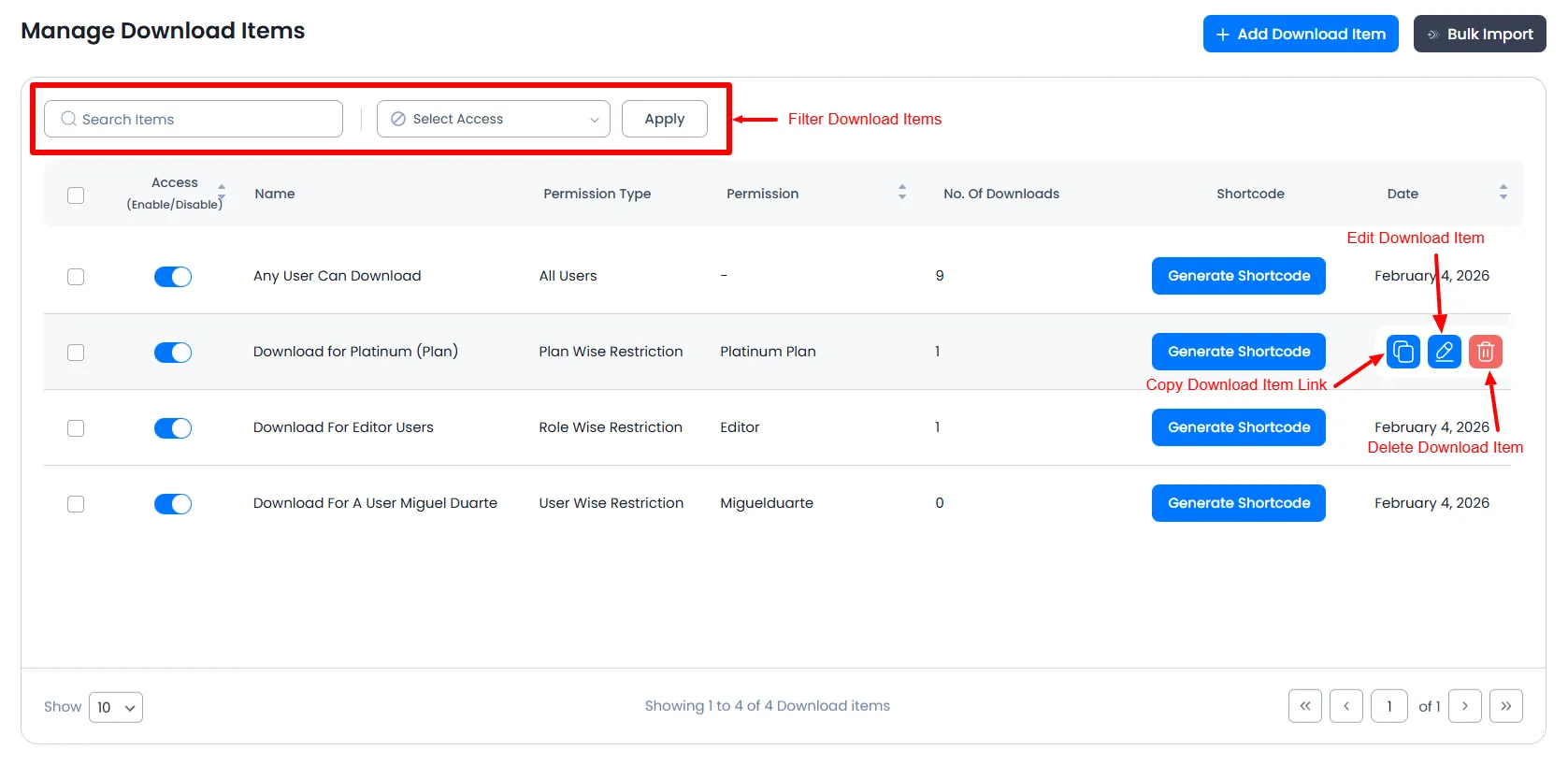
Each download item provides the following actions:
-
Edit
Update details such as name, description, file type, permissions, and tags. -
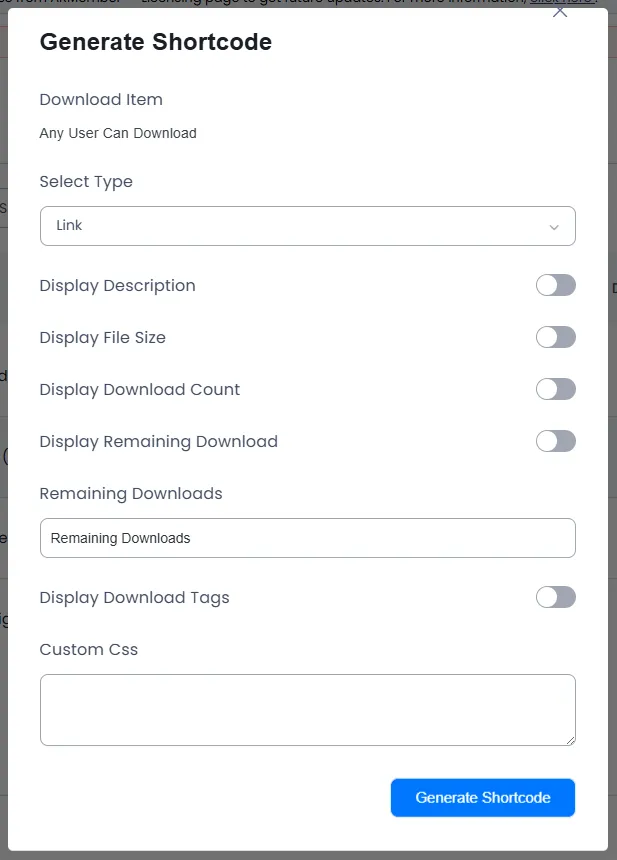
Generate Shortcode
Create a shortcode to display the download link on your site.
You can configure:- Show Description
- Show File Size
- Show Download Count
- Link Type (Link or Button)
- Custom CSS Styling

-
Enable / Disable
Toggle the availability of the download item. -
Delete
Remove the download item permanently.
Search & Filters
Use the search bar and filter options to quickly locate specific download items.
- Filter by Access (Enabled / Disabled)
Add Download Item For ARMember Digital Download Addon
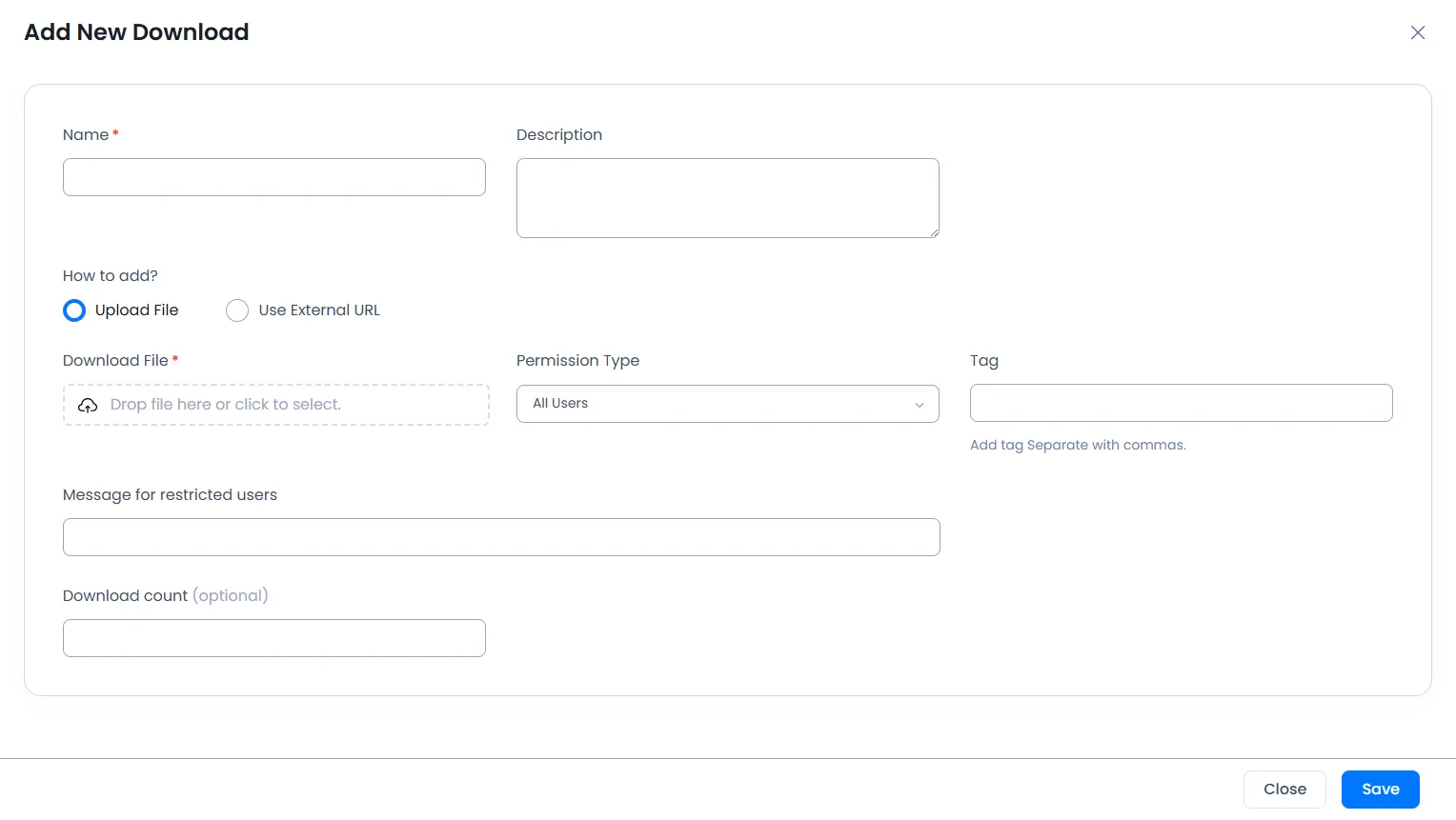
Click the Add Download Item button to create a new downloadable file.
-
Name
Enter the title of the downloadable item. -
Description
Provide a short description explaining the content of the file. -
Download File
You can choose one of the following:- Upload a file from your server.
- Use an external download URL.
-
Permission Type
Control who can download the file:- All Users – Accessible to everyone
- User-Wise Restriction – Allow or deny specific users
- Plan Wise Restriction – Restrict access based on membership plans
- Role-wise Restriction – Restrict access based on WordPress roles
-
Tags
Add relevant tags separated by commas. -
Restricted Message
Custom message displayed to users without permission. -
Download Limit (Optional)
Set a maximum number of times the file can be downloaded.
Bulk Import Downloads at your site
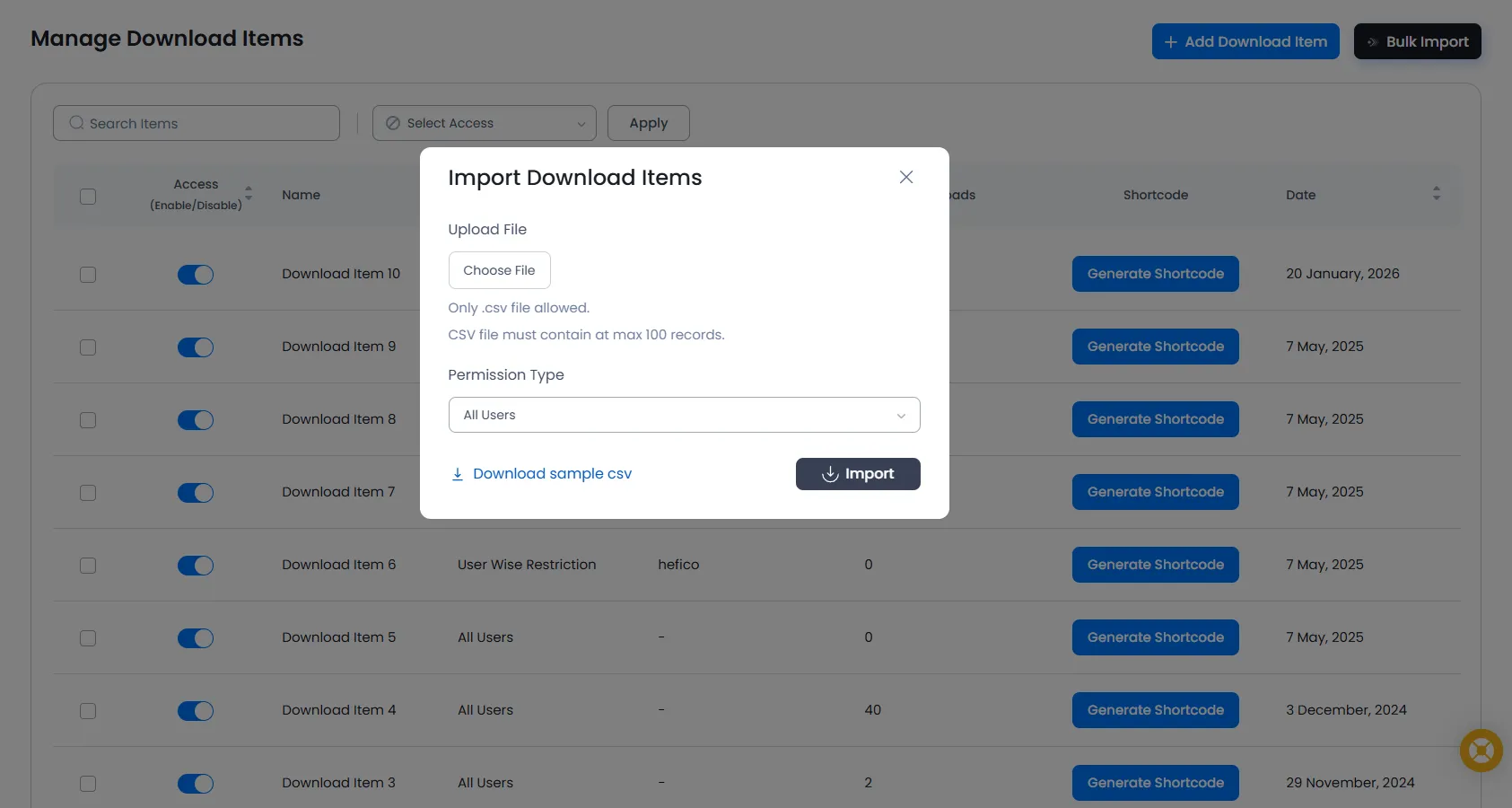
With the ARMember Digital Download Addon you can bulk import the downloads items. In order to import you can navigate to the ARMember → Manage Downloads page.
Here on the top right corner you will be able to check the button to bluk import. Once this button is clicked at that time a popup will appear where in you can select the file to import and for other settings you can set the settings as per your site requirements.
You can also download the Sample CSV file and can change only the data.
Manage Download History
The Download History section tracks all file downloads.
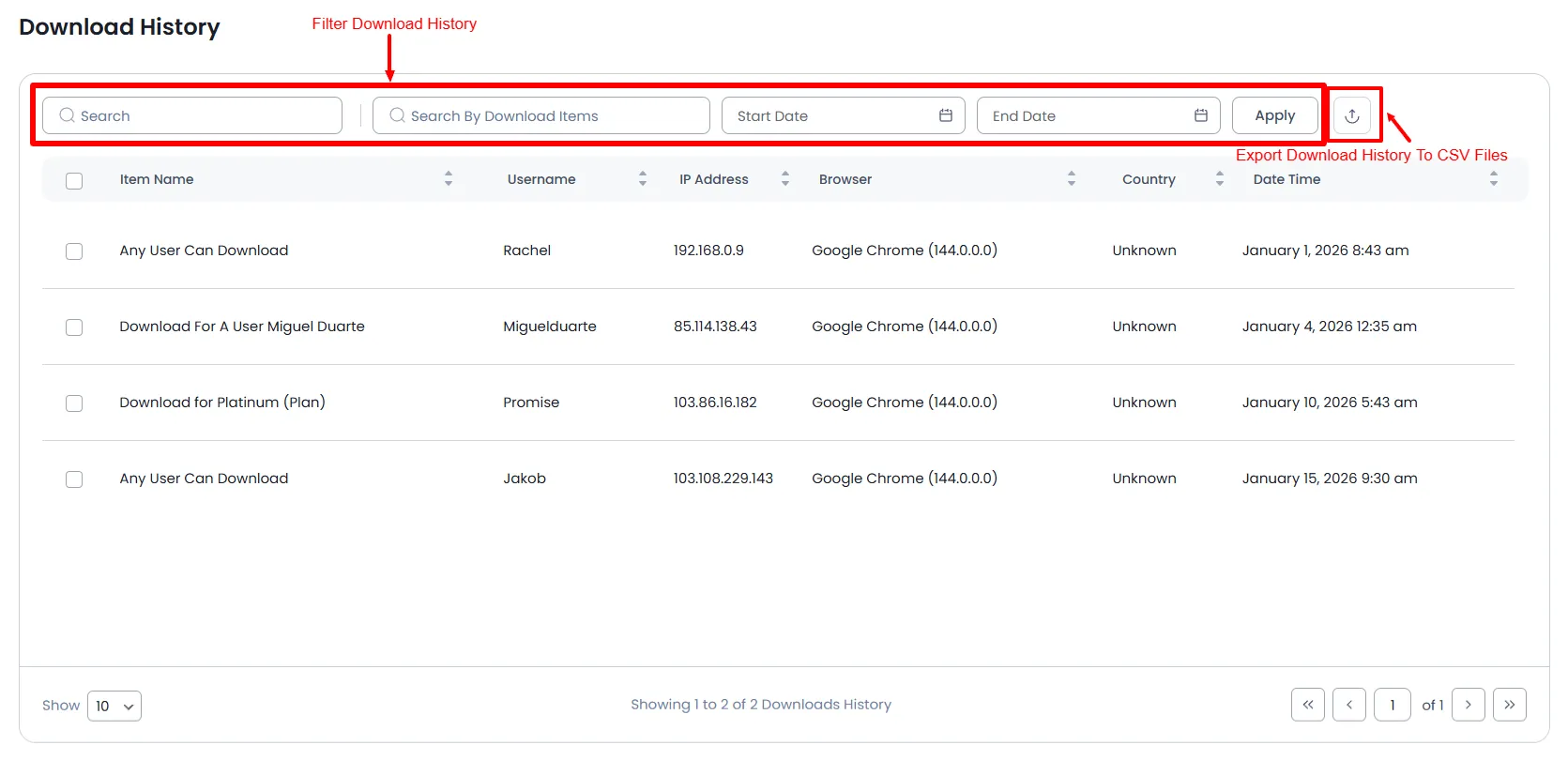
Details recorded include:
- Download Item Name
- Username (if logged in)
- IP Address
- Browser
- Country
- Date & Time
Available Actions
- Delete individual records
- Bulk delete multiple records
Filters
- Filter by Download Item
- Filter by Date Range
Download Settings
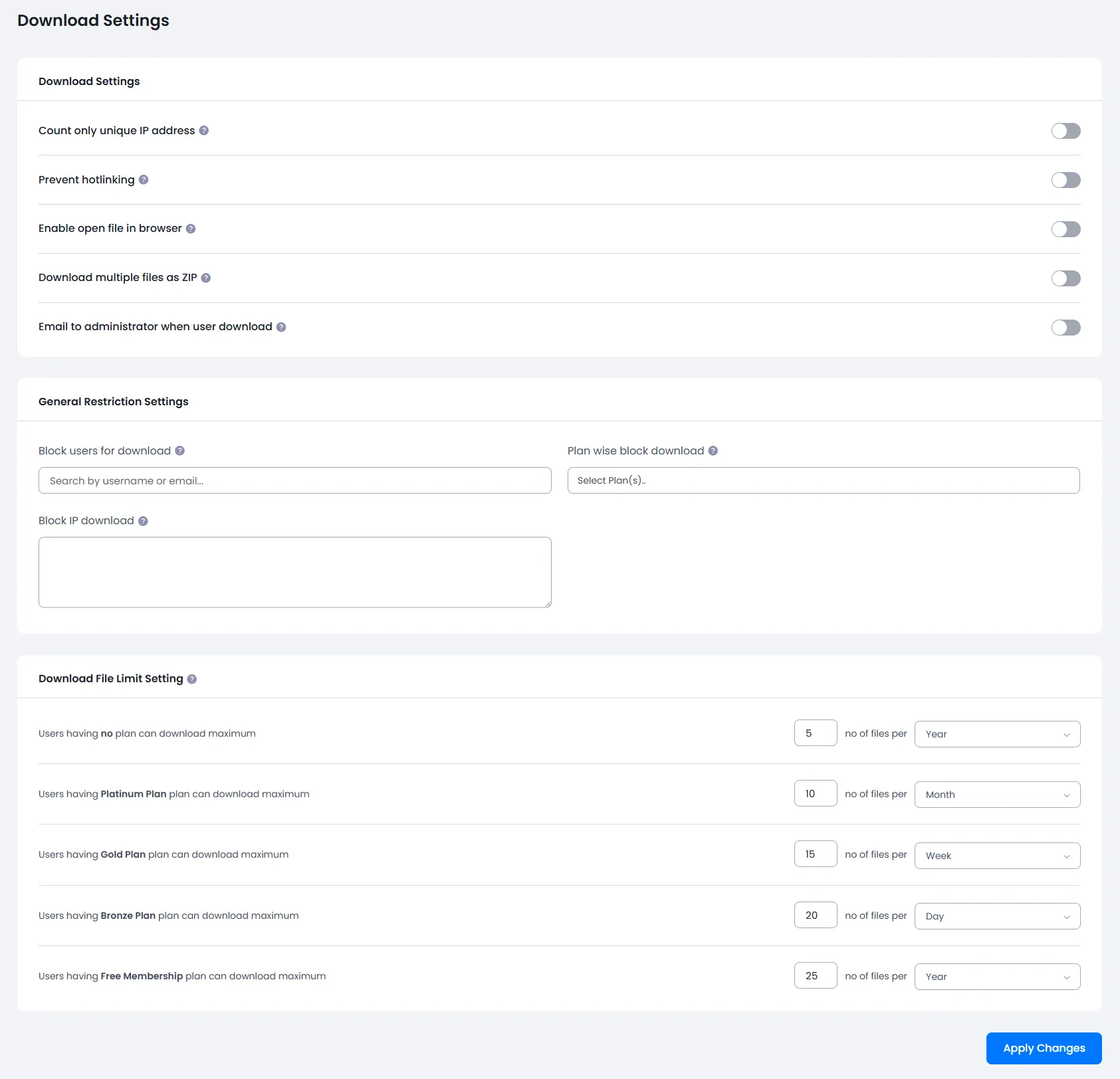
These settings control the overall behavior of downloads on your website.
-
Count Only Unique IPs
Counts downloads only once per IP address. -
Prevent Hotlinking
Blocks downloads if the request does not originate from your website. -
Open File in Browser
Allows specific file types to open directly in the browser. -
Download Multiple Files as ZIP
Combines multiple files into a ZIP archive for download. -
Email Notification
Send an email to the admin whenever a file is downloaded. -
Block Users
Prevent specific users from downloading files. -
Plan Wise Block
Block downloads for users under selected membership plans. -
Block IP Addresses
Prevent downloads from specific IP addresses. -
Download Limit
Restrict the number of unique downloads allowed within a defined time period.
Configure Email Notification
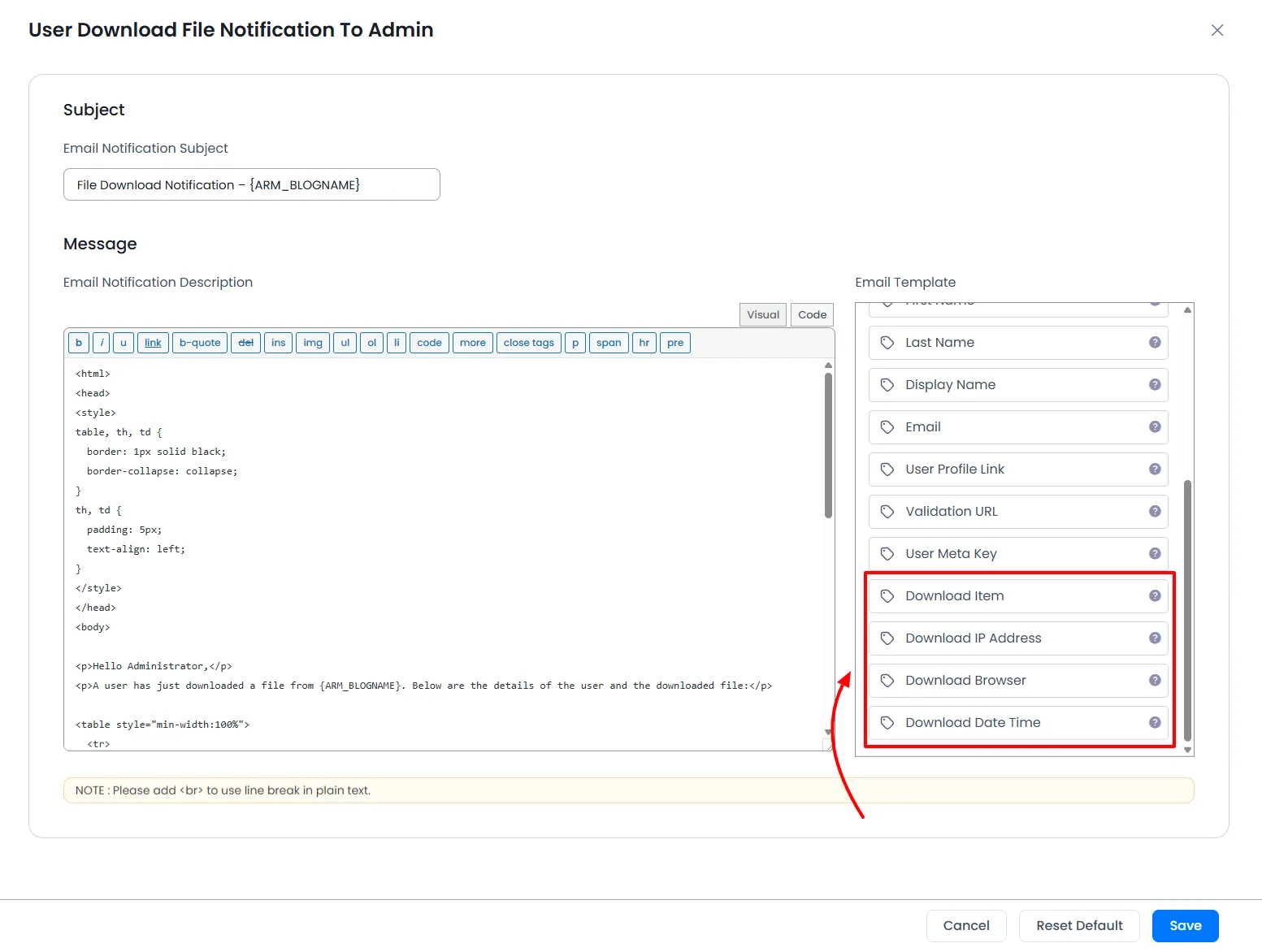
With the ARMember Digital Download Addon, you can configure the email notification to be sent out to the admin. In order to configure this you can navigate to the ARMember → Email Notifications page, here one notification will already appear when the addon is activated.
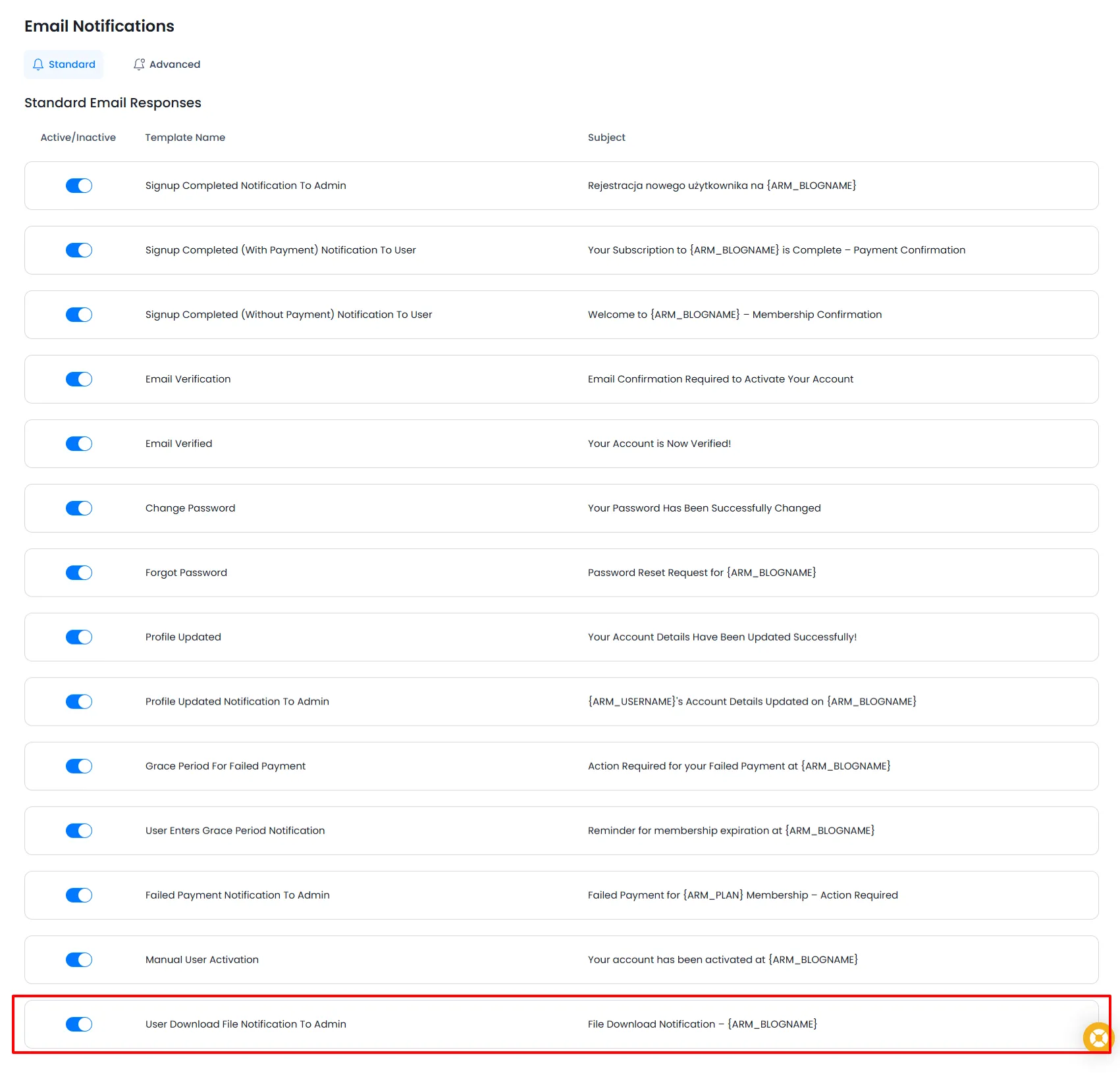
You can modify this mail, by simply clicking on edit icon when you hover on the mail. You can also include the tags for the download to the mail and they will be replaced dynamically as per the item downloaded by the member
Download Shortcodes
In order to add you can use this shortcode [arm_download] and it displays a download item on your website.
| Parameter | Description |
|---|---|
item_id |
ID of the download item (Required) |
show_description |
Display the download description |
show_size |
Display the file size |
show_download_count |
Display total download count |
link_type |
Display as link or button (Default: link) |
css |
Add custom CSS for styling the download item |
How to added the shortcode from the Gutenberg?
In order to add a shortcode from the editor, navigate to the Admin Panel → Pages → Add/Edit Page, here you will be able to search ARMember Membership Shortcode Block
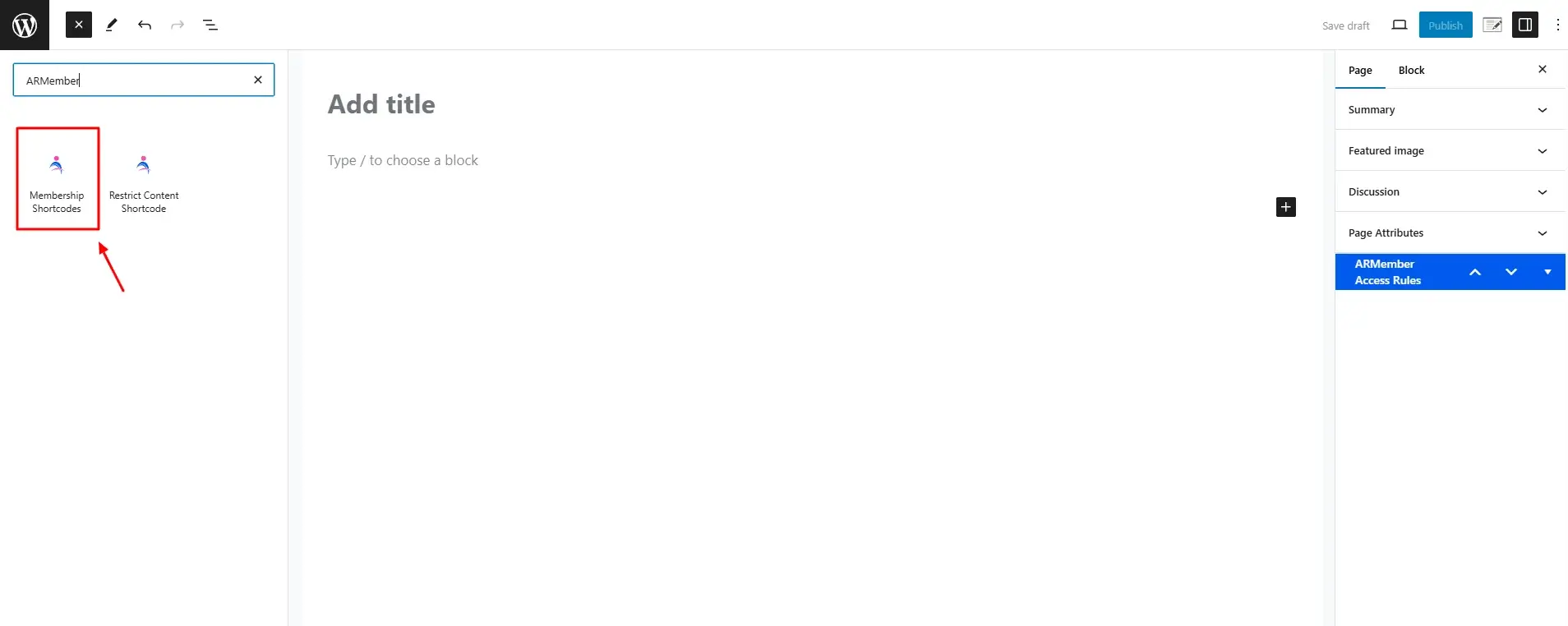
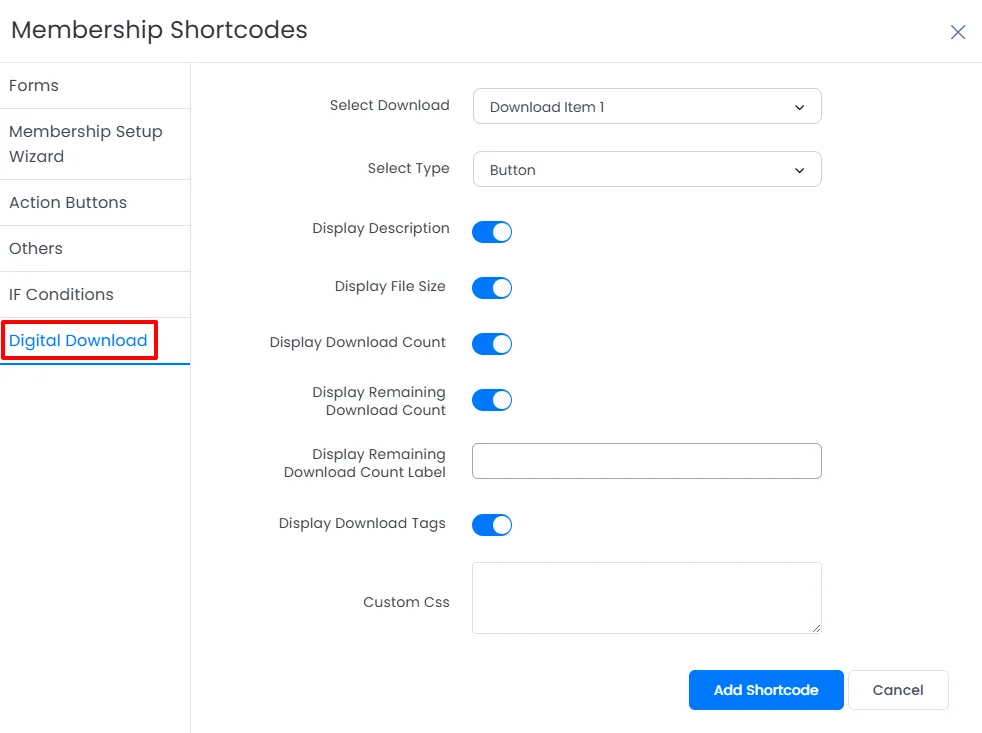
Once you click on it then a popup will appear, click on Digital Download tab.
Here select the downloadable item and enable the options as per your requirements.
FAQ’s
- How to rename a file added to the system?
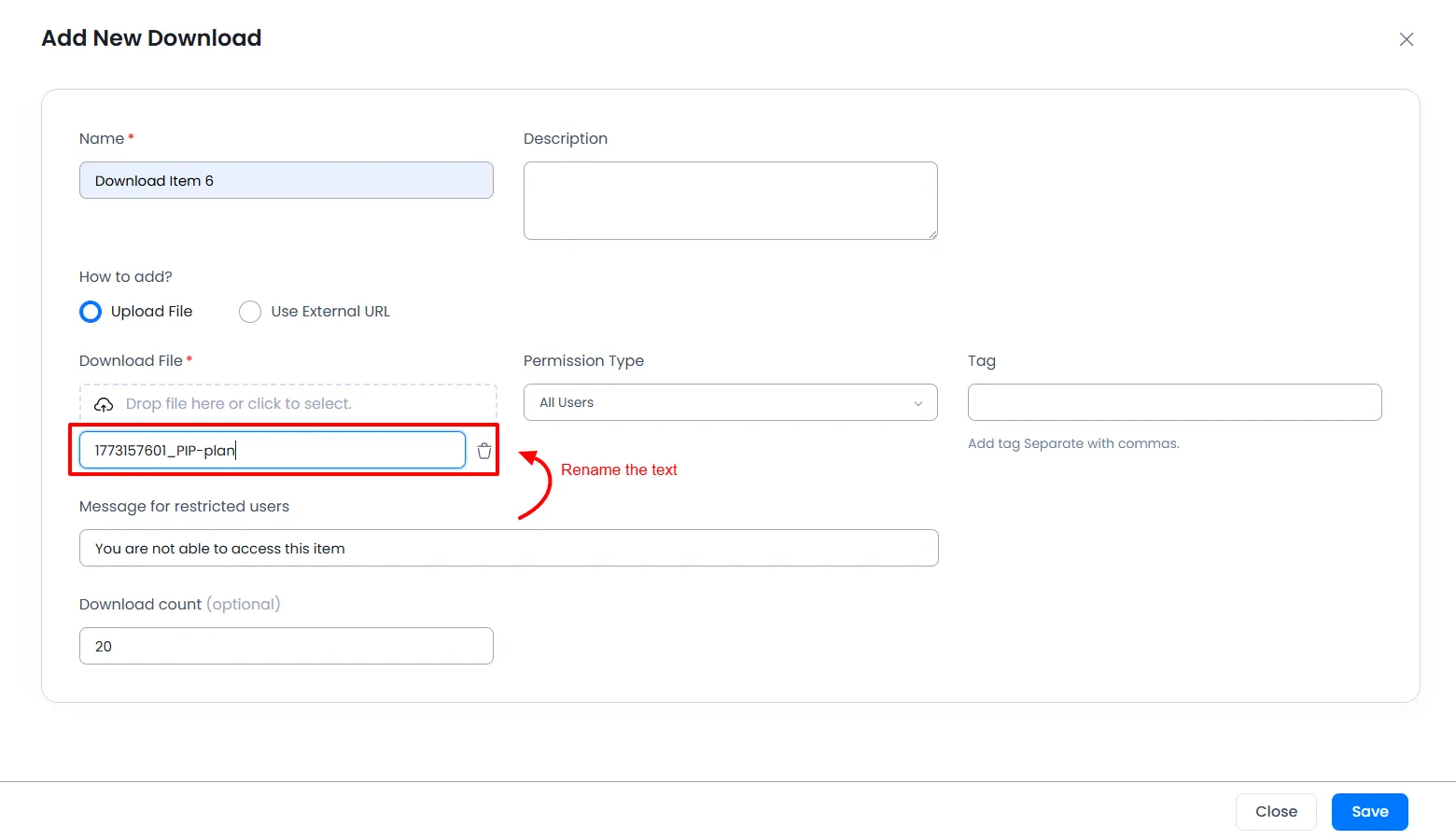
When you add any item for the digital download at the add item page, at that time the system added a random number infront of the file name for security. If you wish to wish to show the original name of the file then you can edit the same by clicking on the field and enter the name as per your choice.

- How many records are allowed while bulk importing?
When you bulk import the download items at that time you can bulk import in total 100 records at one time.