

How to Set Up Drip Content using ARMember Pro Plugin (and Why You Should!)
Please make sure that the drip rule on the page/post certainly works only if the default restriction for that page/post is ON as well as the user’s plan(s) are not allowed access for that page/post at Access Rules.
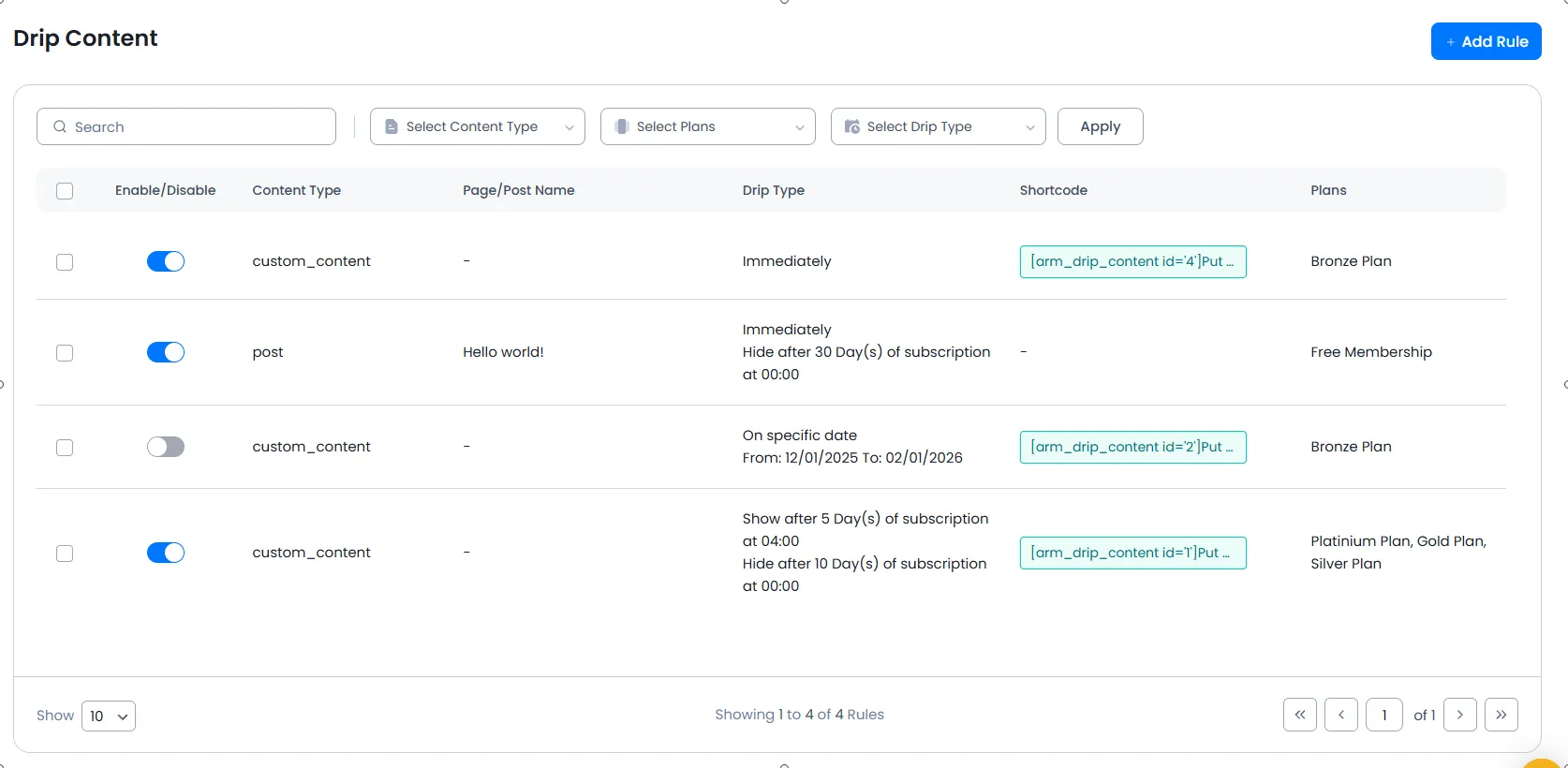
At the Drip Content Tab, you will find a grid listing to manage all drip content with the following columns. Each column is sortable here.
- Status – Provides switch to
ENABLEorDISABLErule. - Type—Post Type of post/page/custom post/custom content.
- Name – Title of Post / Page / Custom Post. (Shortcode in case of
Custom Content) - Drip Type – Drip rule type.
- Plans – Plan names (the rule will be applied to members of these plans).
- Members—Number of matching members who will get affected by the rule.
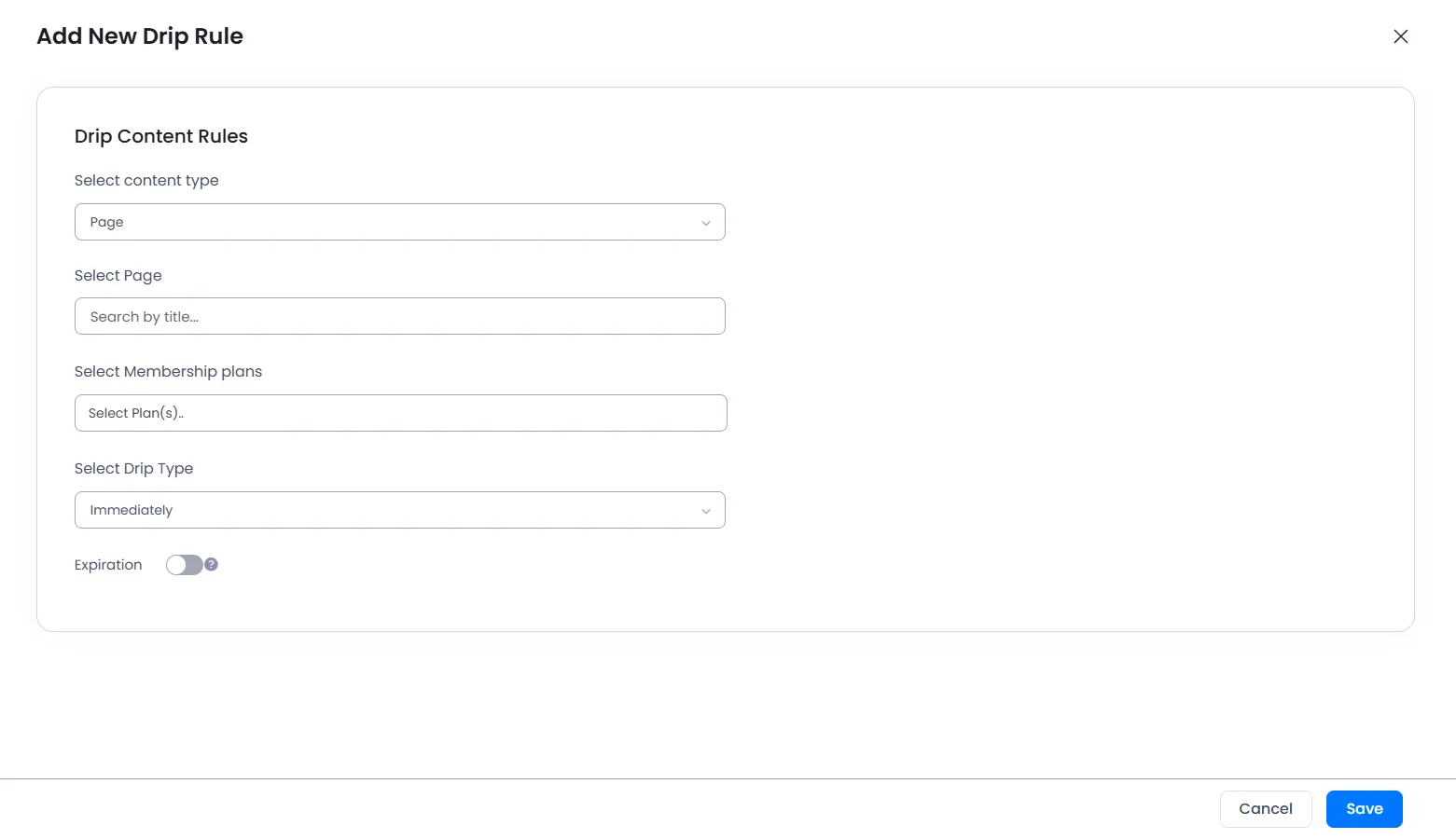
You can create drip rules by clicking on Add New Rule button. Also, you can update an existing rule by clicking on Edit Rule icon.
You can add five types of drip rules:

Immediately
This type of drip rule will be applied directly to selected plan members.
After certain time of subscription
This type of drip rule will be applied to the members of the selected plan after a number of days of their subscription start date.
If a plan has a trial period, it will consider the subscription start date after the trial period ends.
Specific date onward (range)
This type of drip rule will be applied to selected plan members in between the selected date range. If you select From Date & didn’t select To Date, then this rule will be applied starting from “from date” to “infinite time.”
After certain time of post is published
This type of drip rule will be applied to selected plan members after x days of the selected post/page being published.
After certain time, post is last modified
This type of drip rule will be applied to selected plan members after x days of the selected post/page being modified.
Show After
After the drip content is set, you will be able to set the content to be displayed after the specific days, months, or years or along after a specific time to the members after they purchase a membership plan or when a new post is published or modified.
Enable Expiration
Enabling the option for expiration, you will be able to set the exact expiration date and time after which the specific drip content will get hidden.
Hide After
Suppose you have set the drip content to be displayed after 10 days at 01:00 and set the expiration after 2 days at 01:00. Then, after purchasing a membership plan or after a new post is published or modified, the member will be able to view the drip content exactly after 10 days at 01:00.
After that, as the expiration is set to 2 days at 01:00, after accessing the drip content, which is displayed after 10 days at 01:00, the drip content will get hidden exactly 2 days at 01:00 after it is displayed.
So members will be able to view the content after 10 days of subscription, and then the content will get hidden exactly 2 days at 01:00 after the access.
Some common options like bulk actions, a search box, entry row actions, and pagination are available.
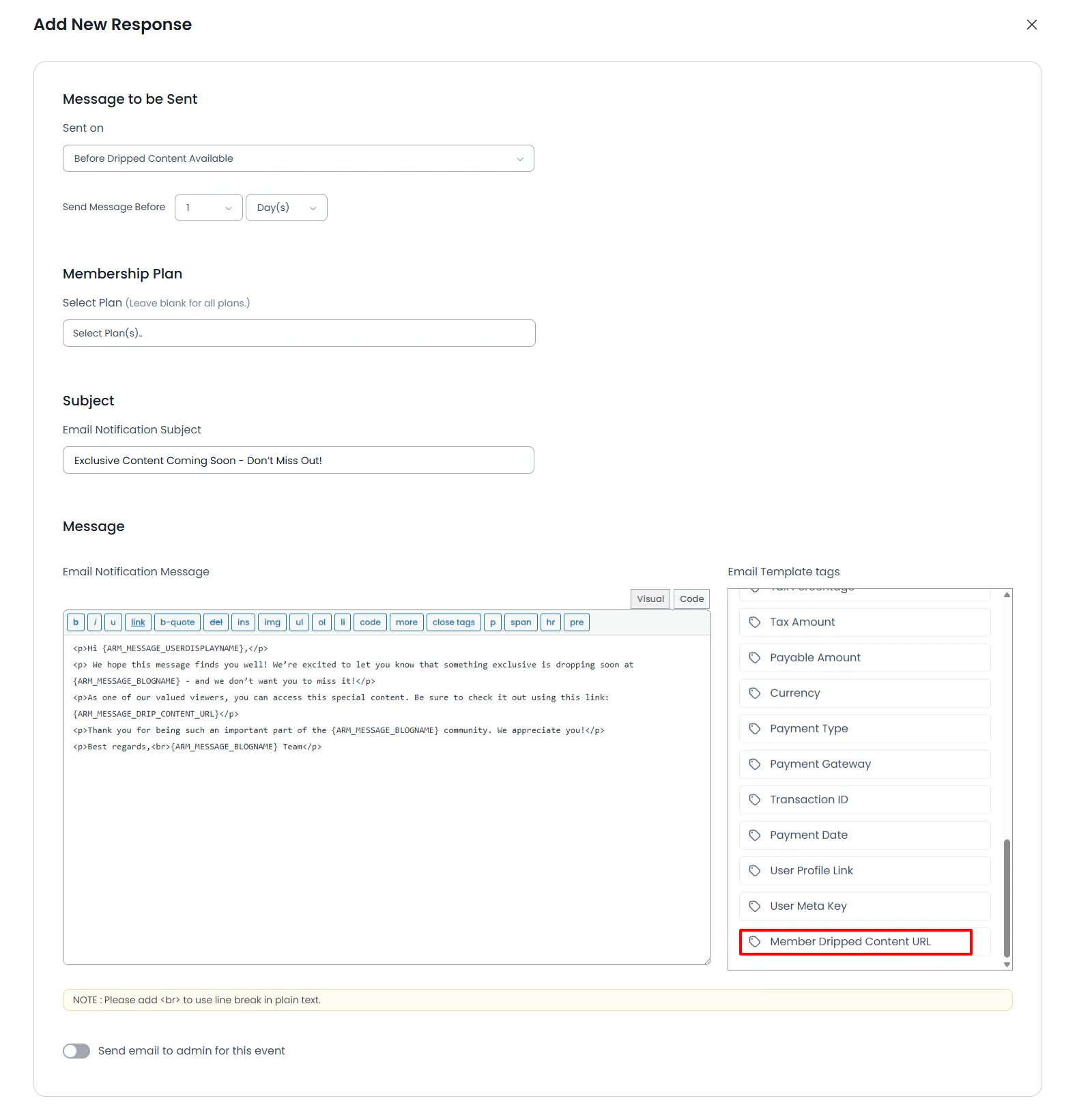
“Before Dripped Content Available” Email Notification for the dripped content.
You can send an email message for “Before Dripped Content Available” from Email Notifications. In order to send a Drip content URL to a user or admin, you can add the “User Drip Content URL” template tag inside the email.
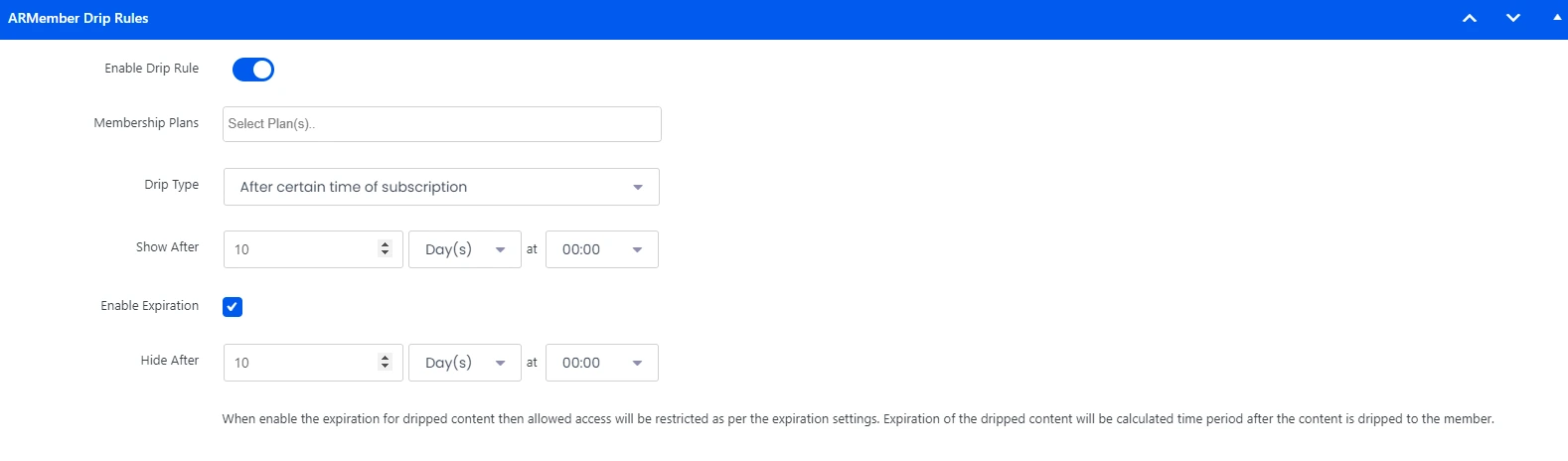
Drip Content Metabox
You will also be able to set the drip rules at the time while adding/editing a new page. While adding/editing a new page, you will be able to view the Drip Content Metabox.
To set the drip rule, enable the switch for Enable Drip Rule, select the membership plan, and choose the drip type, and after that, set the particular page according to the drip type.
For the drip type, after a certain time of subscription, after a certain time of post publication, and after a certain time of post last modified, you will be able to set the start date and the expiration date to schedule the drip rules.
Default Restrictions For Drip Content
When the Drip Content module is activated, at that time you will be able to enable the default restrictions for the Drip Content at ARMember -> General Settings -> Default Restrictions
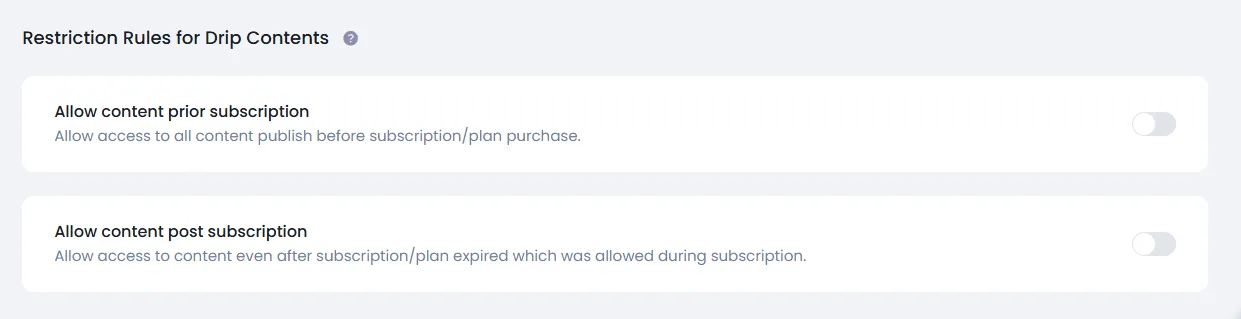
Allow content prior subscription
When the member purchases a membership plan, and if there is any drip rule set from ARMember -> Drip Content, then all the drip rules will get assigned to the members as per the drip rules set to be accessed by a membership plan.
But when the option Allow content prior subscription is enabled, then the members will only be able to access the drip rules that are created after the members purchase the particular membership plans, and the old drip rules before purchasing the membership plans will not be assigned to the members.
Allow content post subscription
When the member’s plan is expired or cancelled, then members will not be able to access the drip rules that are already assigned to the members as per their membership plans.
But when the option Allow content post subscription is enabled and the member’s membership plan is expired or somehow cancelled, then also, members will be able to access all the drip rules that are created at a time and assigned to the particular membership plans.
Sync Dripped Content
Enabling the syncing for the Drip Content, all the members whose plans are expired will be able to access all the drip content that was assigned to them before their membership plan expired.
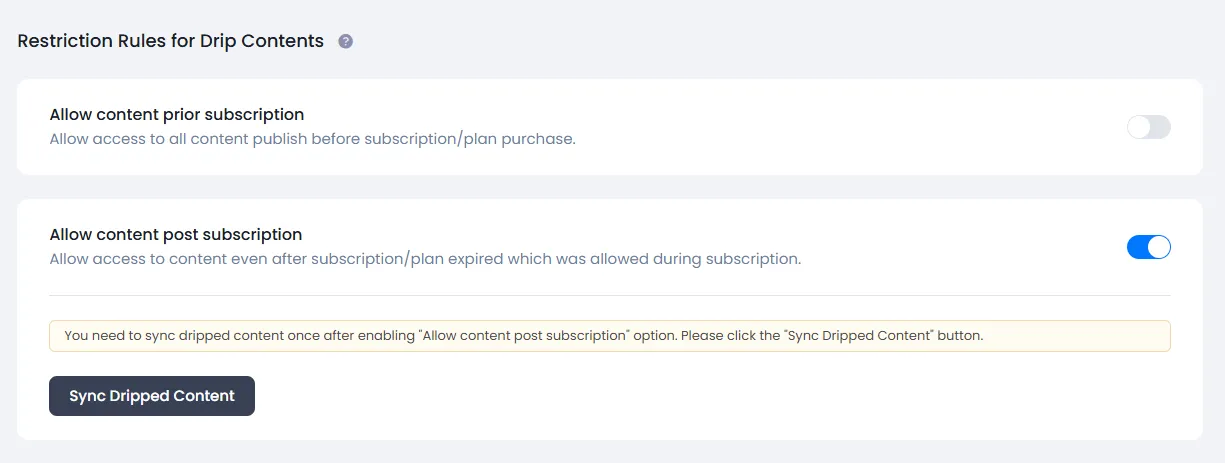
Important Note: The drip rule will only be accessed by the members that were created before their membership plan expired. The new drip rules created after the expiration of the membership plan will not be assigned to the old members and only to the new members.