Introduction and Key Features
- Easy to create and set up ARMember forms
- Create Unlimited Registration Forms, Login Forms, Forgot Password Forms, Change Password Forms and Edit Profile Forms
- Embed forms using shortcode in your site
- Number of ready-to-use form templates are available.
- Ready to use
Drag & Droppreset fields & user fields support - Different form layouts are available.
Font-Awesomeicons Support (For form input fields)- RTL Support
- Color scheme options to customize form layout/design.
- Field Layout & Label Alignment Options
- Popup Form support
- Additional shortcodes
arm_logoutfor Logout,arm_edit_profilefor Edit/Update Profile andarm_social_loginfor displaying social network buttons.
Create and up ARMember forms
ARMember offers pre-built forms with different styles and layouts. In order to check out the forms and customize them, navigate to Admin Panel ⇾ ARMember ⇾ Manage forms page at the admin area.
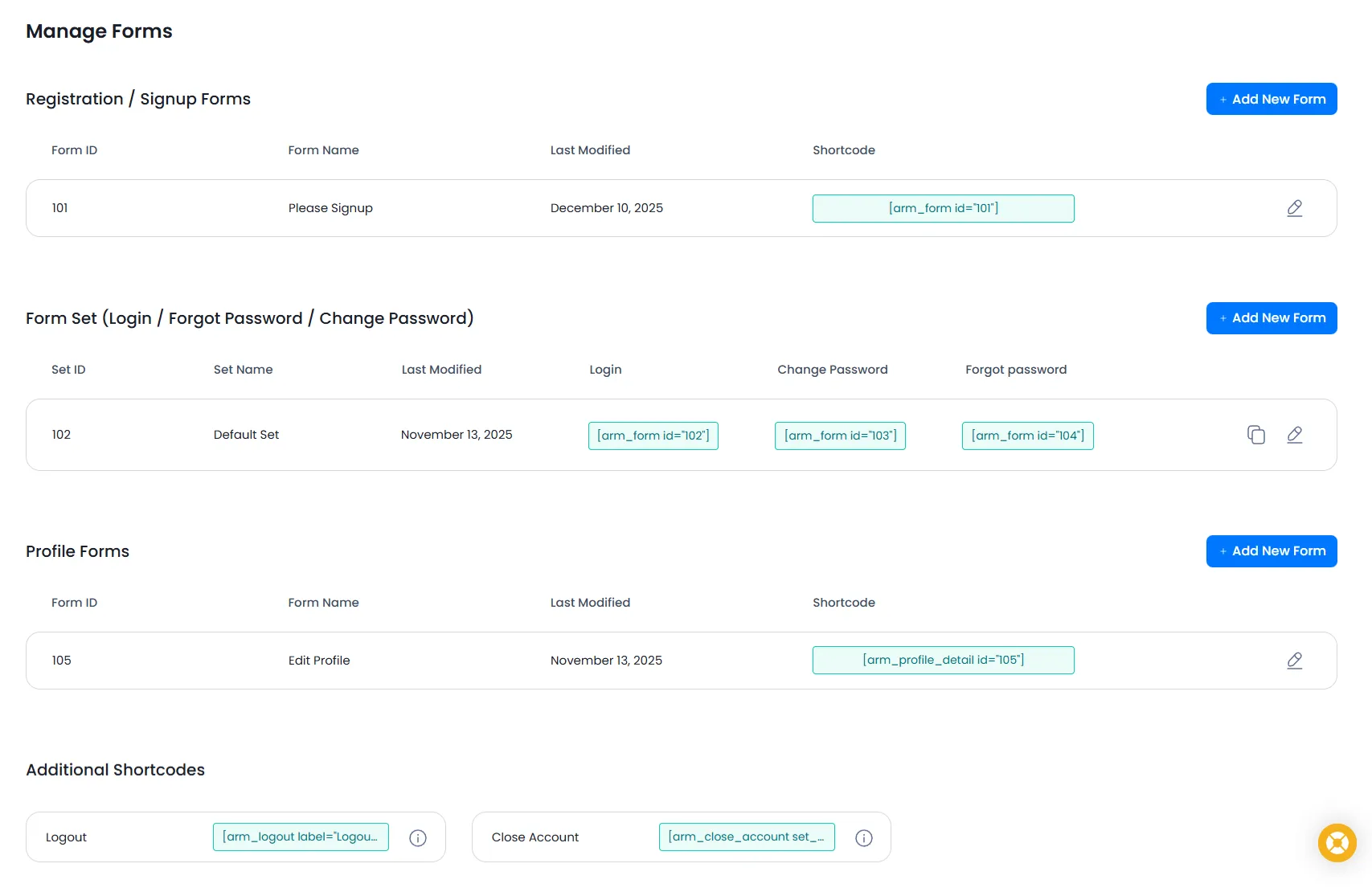
This page allows you to create and modify the forms like registration, login, edit profile, forget password, and change password. Let’s understand each type in more detail.
Signup/Registration
ARMember allows you to create multiple registration forms as per your requirements. So if your site has multiple registrations, then you can create multiple forms separately.
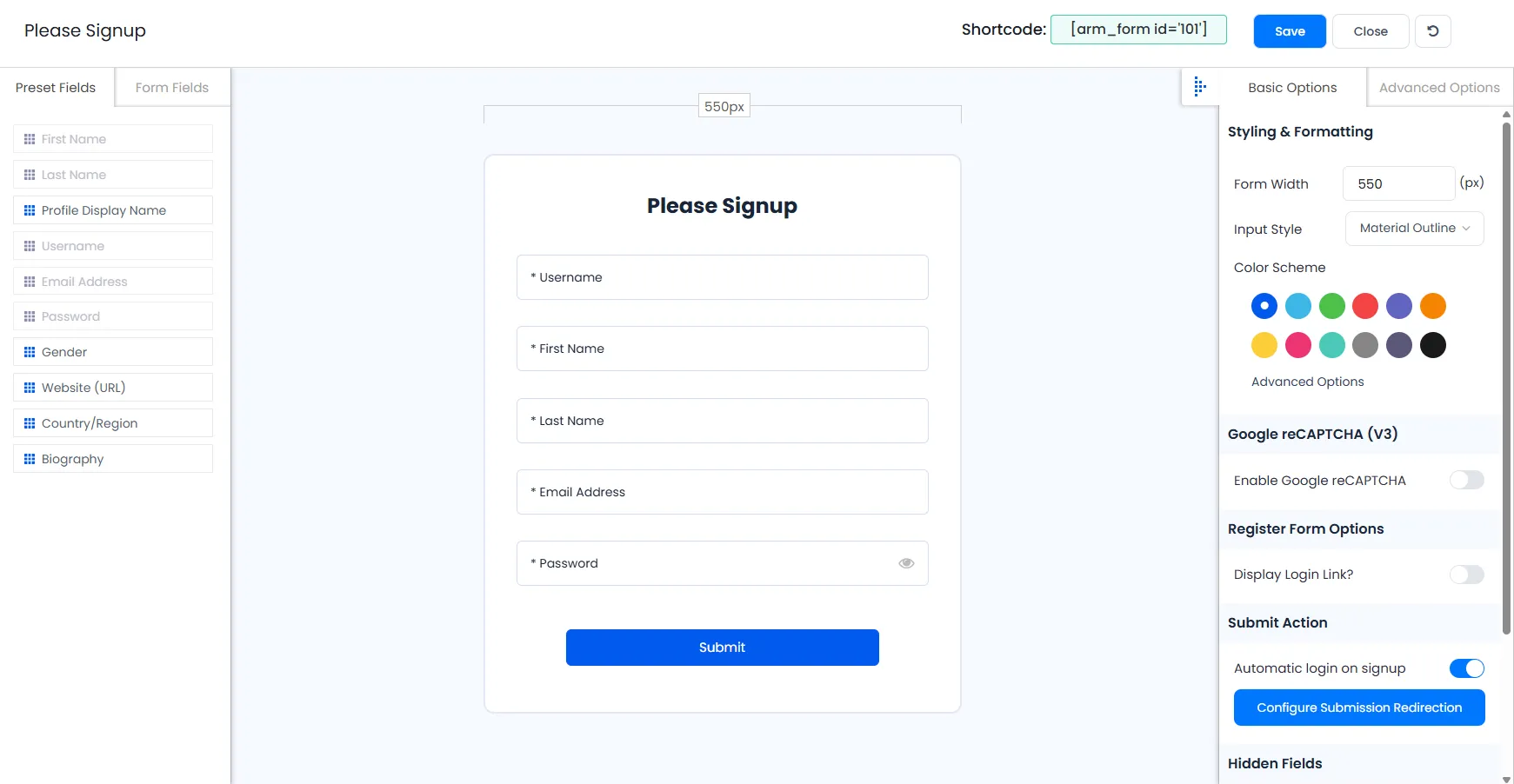
If you are willing to add the signup/registration form as a popup, then you can add the shortcode as under:
example
[arm_form id="101" assign_default_plan="0" logged_in_message="You are already logged in. popup="true" link_type="link" link_title="Click here to open Form" overlay="0.6" modal_bgcolor="#000000" popup_height="auto" popup_width="700" link_css="" link_hover_css="" form_position="center" assign_default_plan="0" logged_in_message="You are already logged in."]Login
For login as well, ARMember offers other style options and multiple fields to add to your form.
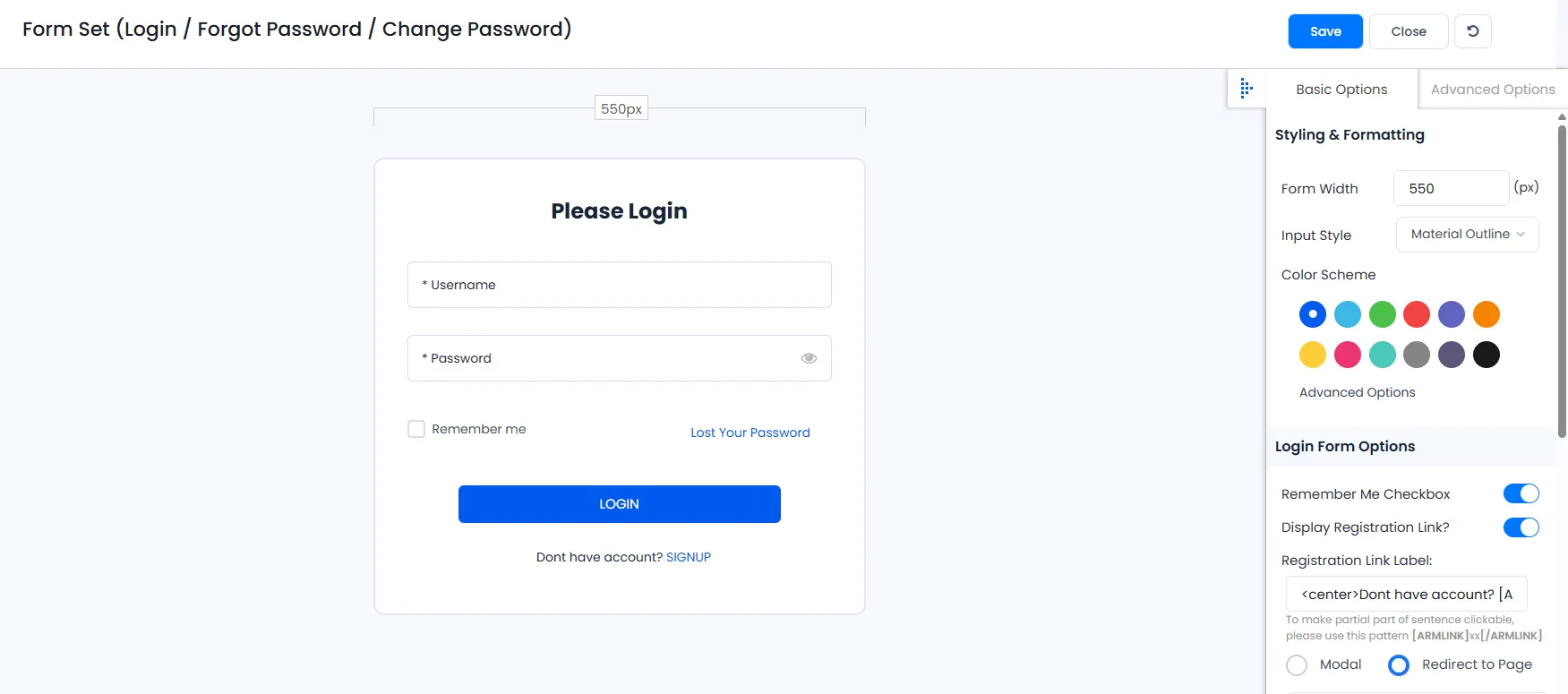
To add the login form as a popup, you can use the below-provided shortcode. Also, you can replace the form_id if you have another login form:
example
[arm_form id="102" assign_default_plan="0" logged_in_message="You are already logged in." is_child="0" popup="true" link_type="link" link_title="Click here to open Form" overlay="0.6" modal_bgcolor="#000000" popup_height="auto" popup_width="700" link_css="" link_hover_css="" form_position="center" assign_default_plan="0" logged_in_message="You are already logged in."]Forgot Password
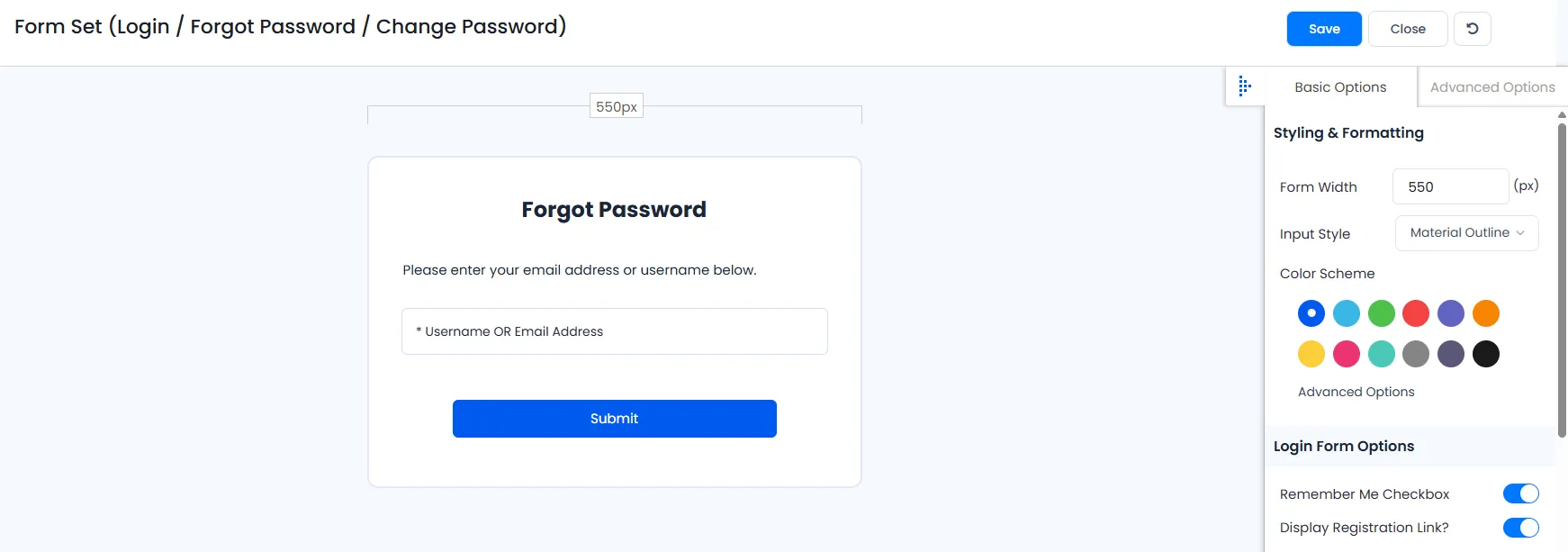
To add the Forget Password form as a popup, you can use the below-provided shortcode. Also, you can replace the form_id if you have another forget password form at the ARMember ⇾ Manage Forms:
example
[arm_form id="103" assign_default_plan="0" logged_in_message="You are already logged in." is_child="0" popup="true" link_type="link" link_title="Click here to open Form" overlay="0.6" modal_bgcolor="#000000" popup_height="auto" popup_width="700" link_css="" link_hover_css="" form_position="center" assign_default_plan="0" logged_in_message="You are already logged in."]Change Password
ARMember does provide a facility to change passwords for all the logged-in members and reset password functionality to non-logged-in members.
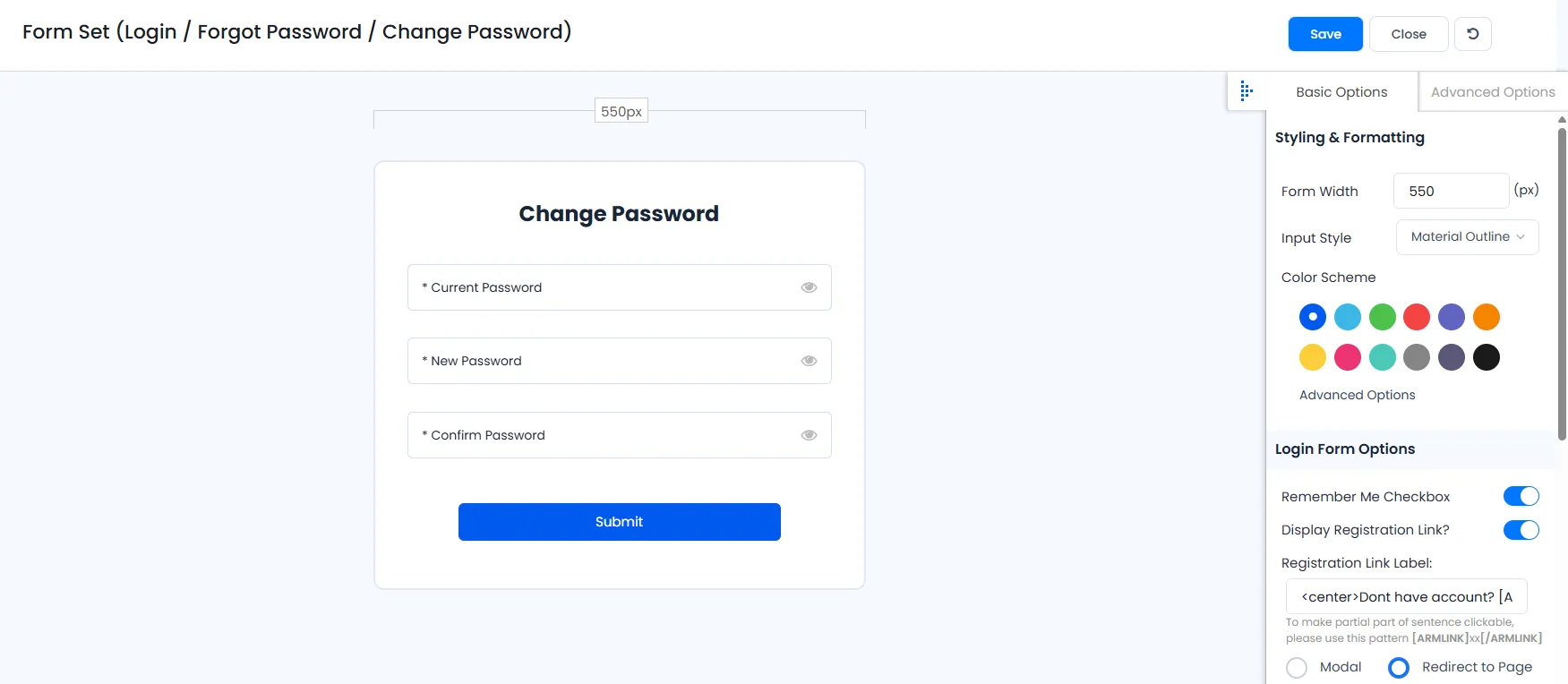
In order to add the Change Password Form as a popup, you can directly use the below-provided shortcode. Also, you can replace the form_id if you have another change password form at the ARMember ⇾ Manage Forms:
example
[arm_form id="104" assign_default_plan="0" popup="true" link_type="button" link_title="Click here to open Form" overlay="0.6" modal_bgcolor="#000000" popup_height="auto" popup_width="700" link_css="" link_hover_css="" form_position="center" assign_default_plan="0" logged_in_message="You are already logged in."]Edit Member Profile
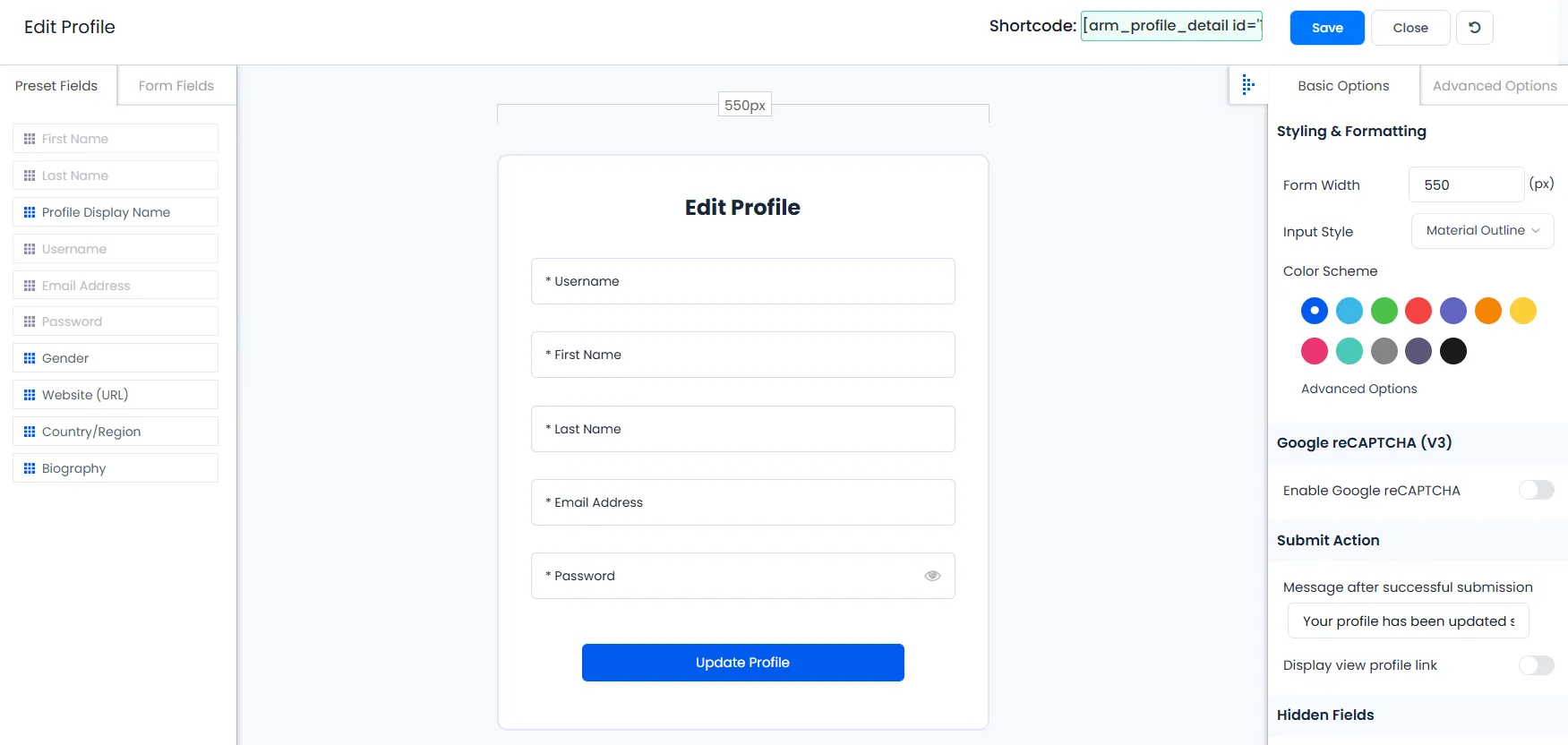
ARMember does come up with the facility to add the edit profile form, and you can create multiple edit profile forms.
FAQ’s
- Why does the Change Password form show the “Current Password” field?
- How to add the popup form shortcode directly to a page?
When a logged-in member wants to change their password, then you can add the change password form shortcode on a page that can be found from the ARMember ⇾ Manage Forms ⇾ Other Forms (Login / Forgot Password / Change Password). When a logged-in member accesses the change password form then they will be asked to enter Current Password through which they are logged in and once the correct password is entered, then the member can proceed to set a new password.
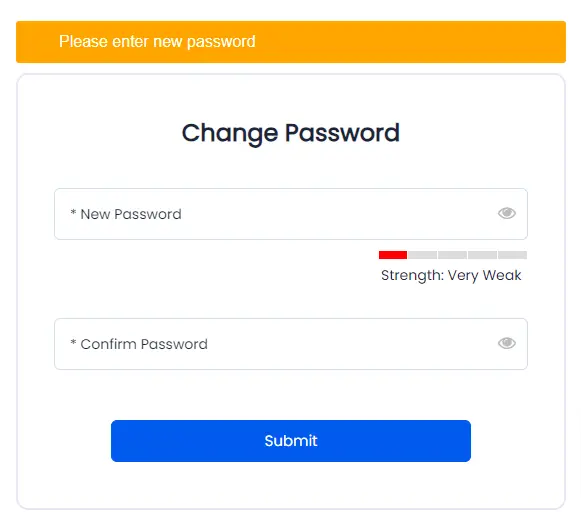
When a non-logged user requests a password through the forget password form, then the form displays New Password the Confirm Password fields only, and the Current Password field will be removed. Check the below-provided screenshot.
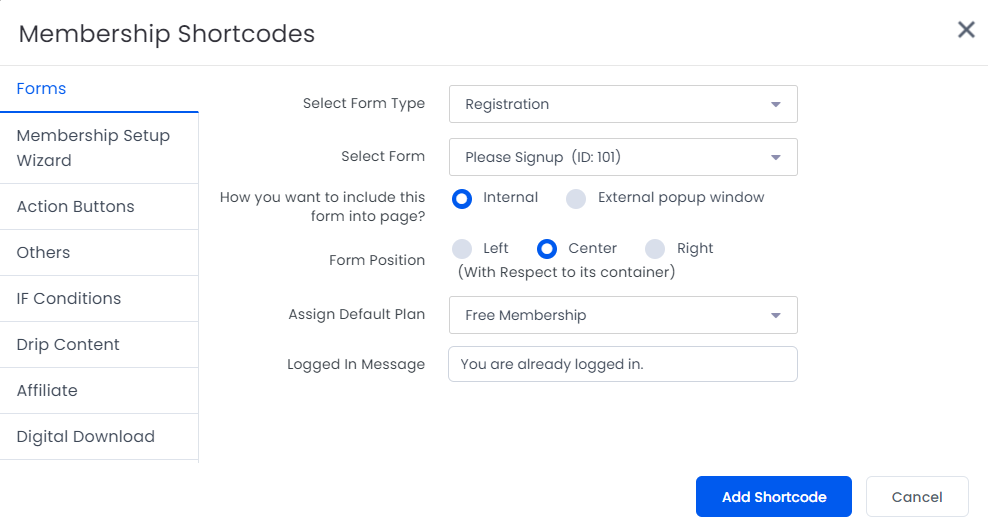
In order to Set up ARMember forms in a popup, you can navigate to the WordPress ⇾ Pages ⇾ Add New Page here and click on the button Membership Shortcodes
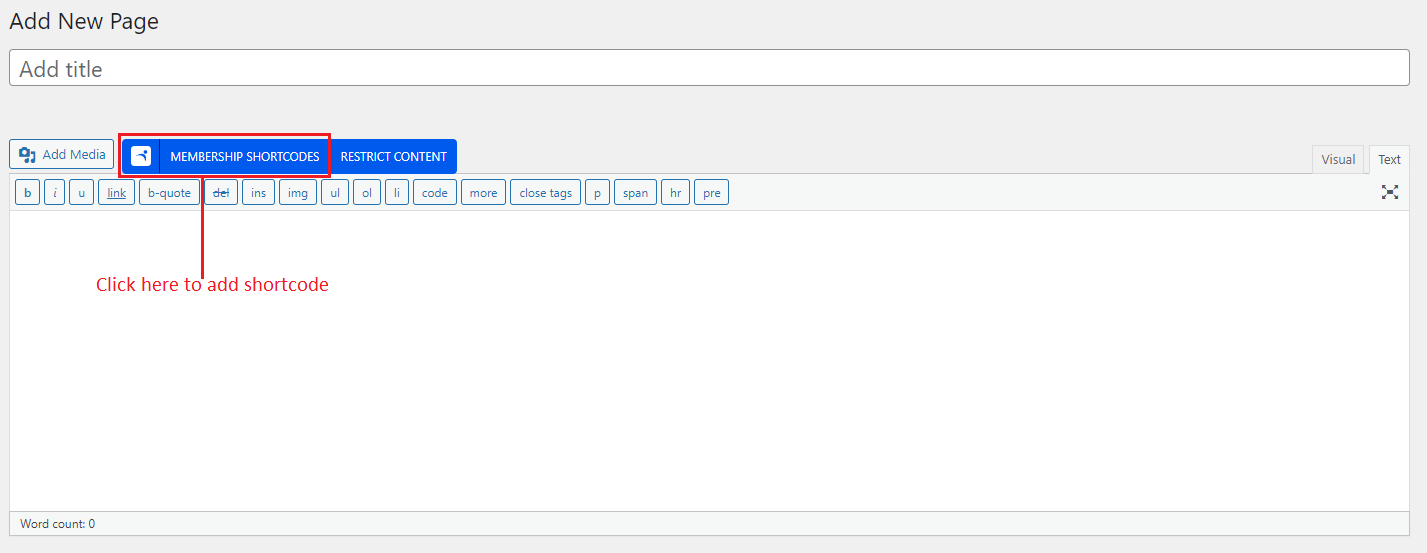
When you hit the Membership Shortcode block, then it will open a popup box that contains Forms a tab; click on it and select any form of your choice.
Once the form is selected then you have a parameter How you want to include this form on page?, where you can select the option External Popup Window and make modifications as per your requirements.