
Overview of the ARMember Cancellation Feedback Add-on
The Cancellation Feedback add-on in ARMember helps you understand why members cancel their subscriptions. When a member attempts to cancel their membership, a popup allows them to select a predefined cancellation reason or choose “Other” to provide their own reason.
You can customize these predefined cancellation reasons and popup labels, add cancellation reasons in email notifications using an email tag, and review submitted feedback from the backend.
In this guide, we’ll show you how to activate the ARMember Cancellation Feedback add-on to gather the common membership cancellation reasons.
Activate the Addon
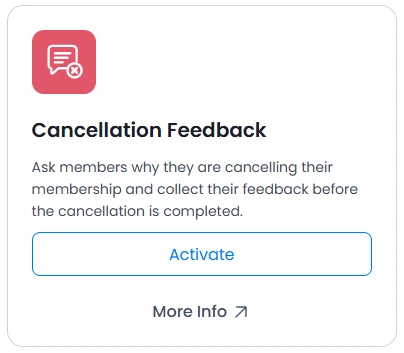
To collect cancellation feedback, you first need to activate the Cancellation Feedback add-on.
- Go to the
WordPress Admin Panel⇾ARMember⇾Addons. - Find the Cancellation Feedback add-on.
- Click on Activate.
Configure Cancellation Feedback Settings
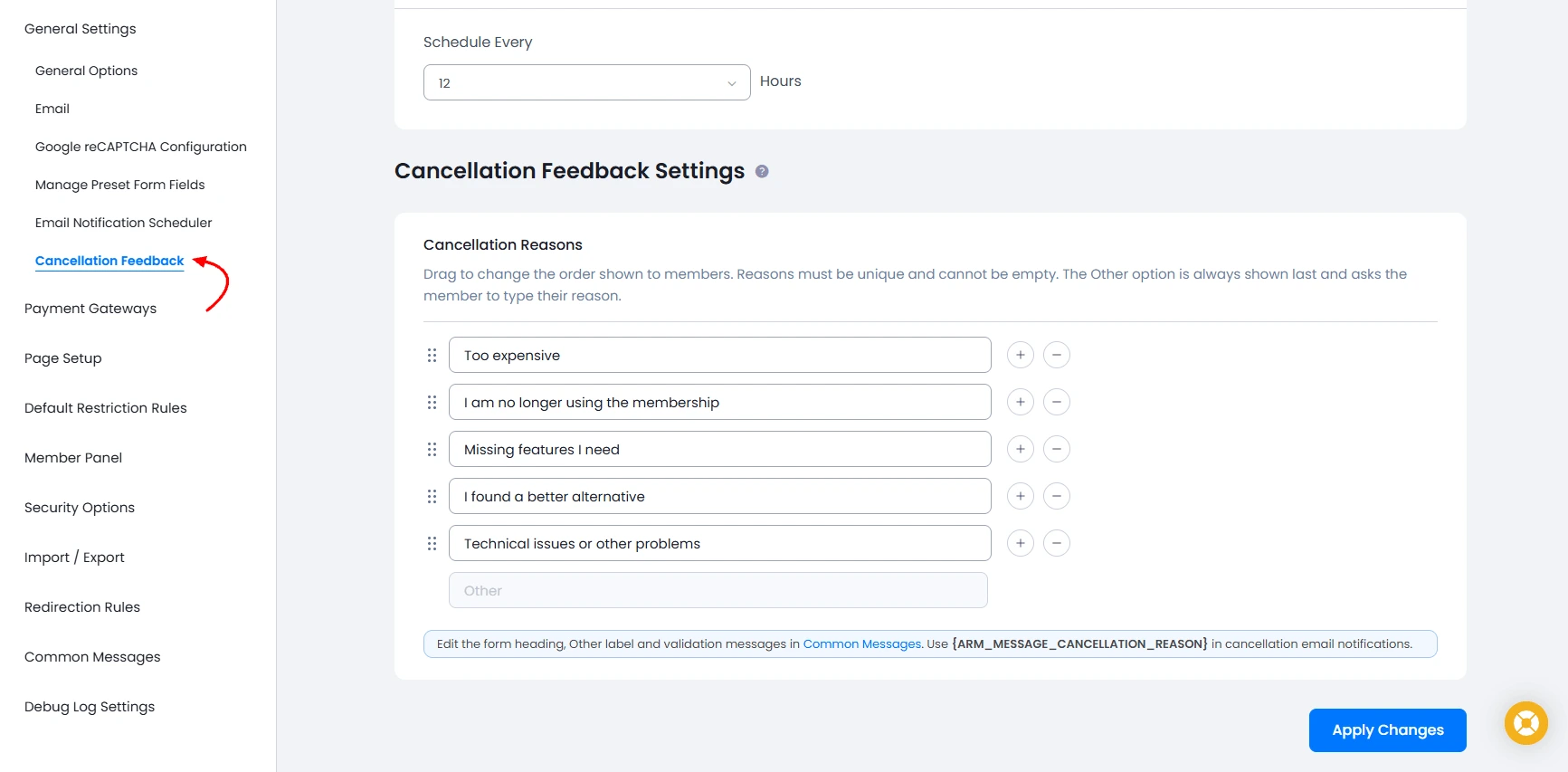
To manage cancellation feedback options, navigate to the ARMember ⇾ General Settings ⇾ Cancellation Feedback section. From here, administrators can configure the cancellation reasons displayed to members when they attempt to cancel their memberships.
Manage Cancellation Reasons
ARMember provides five predefined cancellation reasons by default. Administrators can customize these options according to their membership site’s requirements.
From the Cancellation Feedback settings, you can perform the following actions:
- Add Reasons: Add new cancellation reasons to collect more specific feedback from members.
- Edit Reasons: Customize the available reasons to match your membership services and offerings.
- Remove Reasons: Remove cancellation reasons that are no longer relevant to your membership site.
- Sort Reasons: Rearrange the order in which cancellation reasons appear in the frontend popup.
Organizing cancellation reasons according to your membership plans, pricing, content, and services can help you identify recurring issues and make informed decisions to improve membership site user retention.
Customize the Other Option
ARMember allows you to customize the text displayed for the Other cancellation reason. To change this text, navigate to ARMember → General Settings → Common Messages and locate the Cancellation Feedback Messages section.
When a member selects the Other option in the cancellation feedback popup, ARMember dynamically displays a text area where the member can enter a custom explanation. This allows members to share feedback that may not be covered by the predefined cancellation reasons.
Customize Cancellation Feedback Popup Labels
You can customize the labels displayed in the cancellation feedback popup through the Common Messages settings.
Navigate to the ARMember ⇾ General Settings ⇾ Common Messages and locate the Cancellation Feedback Messages section. Update the labels according to your site’s language and terminology.
Customizing these labels helps maintain consistent wording throughout your membership site and provides members with a clear and user-friendly cancellation experience.
Cancellation Feedback on the Frontend
Once the Cancellation Feedback module is configured, members can submit their reasons when attempting to cancel a membership. This feedback helps administrators understand member concerns and identify opportunities to improve the membership experience.
Step 1: Initiate Membership Cancellation
When a member clicks the membership cancellation link or button, ARMember displays the cancellation feedback popup.
The popup allows the member to select a reason for cancelling their membership from the available options.
Step 2: Select a Cancellation Reason
The member can select one of the cancellation reasons configured by the administrator. These options are managed from the ARMember ⇾ General Settings ⇾ Cancellation Feedback section.
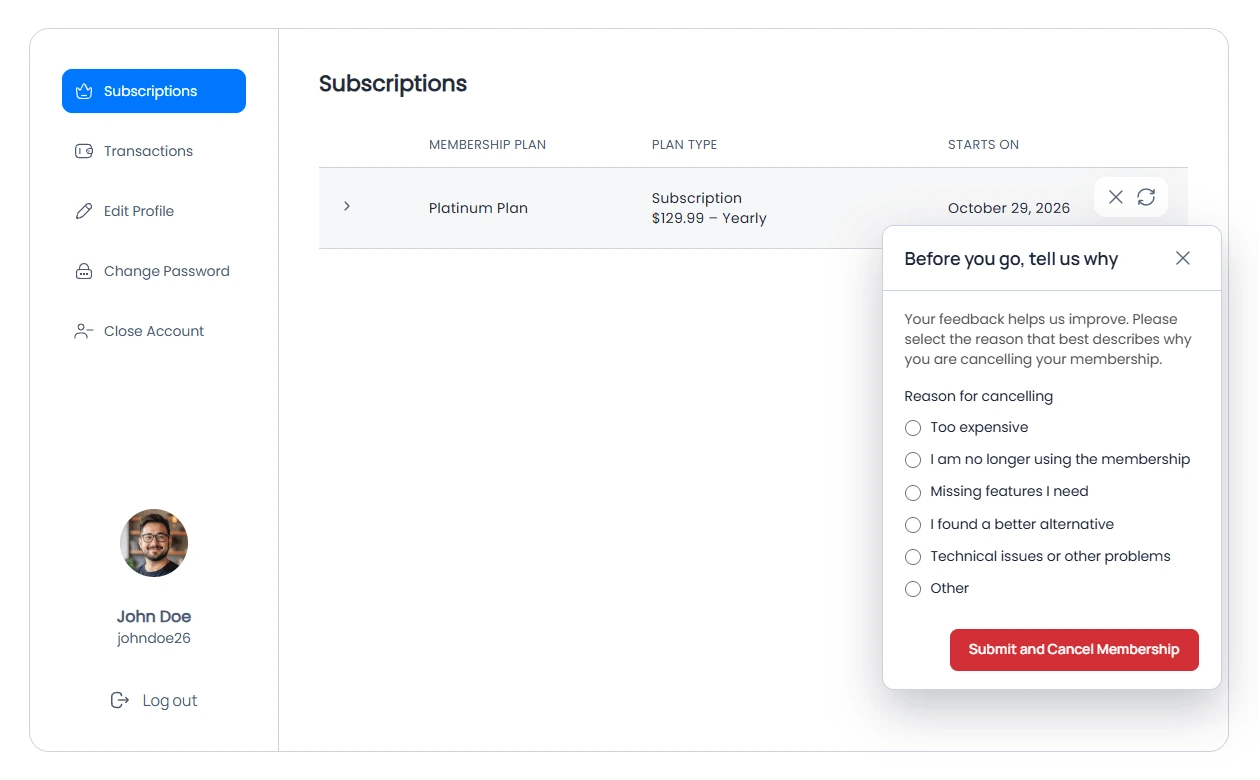
This structured approach helps administrators understand the most common reasons members leave their membership programs.
Step 3: Provide a Custom Cancellation Reason
If the member selects the Other option, ARMember dynamically displays a text area where the member can provide additional details about their cancellation.
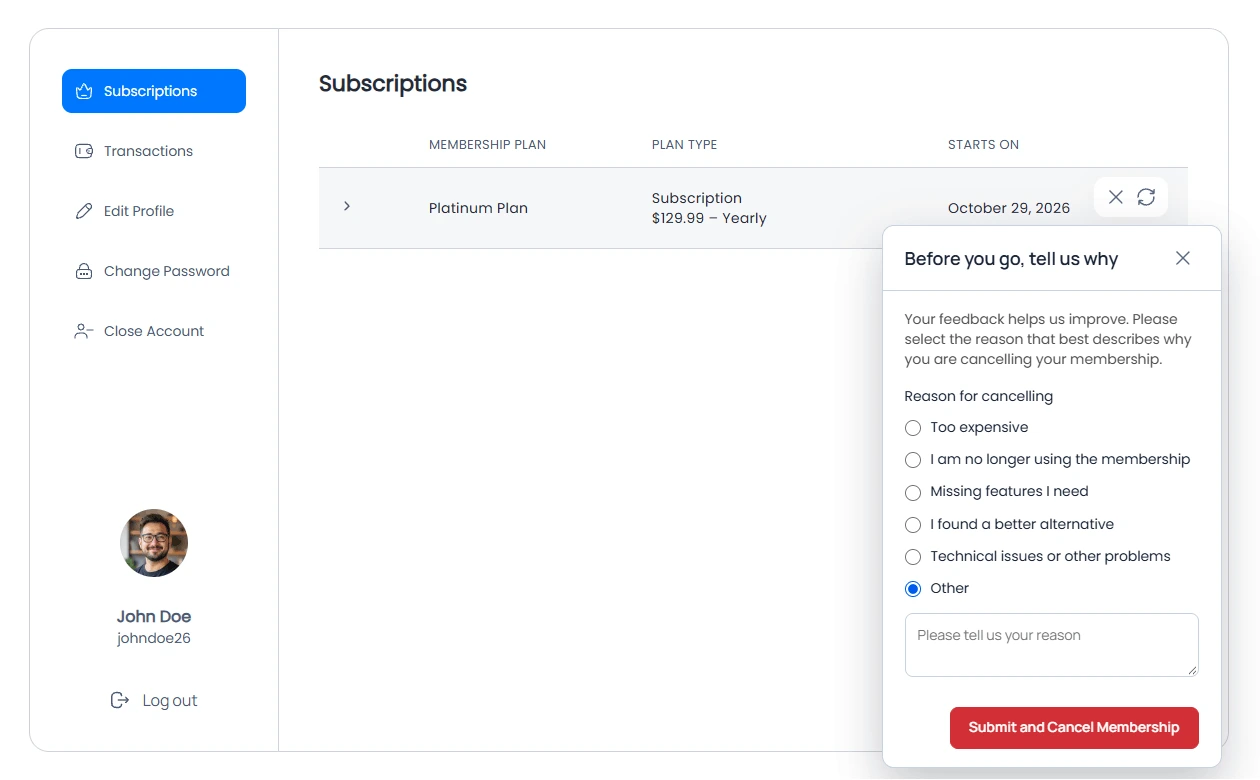
Members can use this field to explain concerns that are not covered by the predefined options, such as membership pricing, missing content, technical difficulties, or other membership-related issues.
Step 4: Submit Cancellation Feedback
After selecting a reason and providing any additional details, the member can proceed using the available action in the cancellation feedback popup.
ARMember collects the submitted feedback so that administrators can review the cancellation reason and use the information to improve membership services and retention strategies.
Email Notifications for Cancellation Feedback
ARMember introduces a dedicated email tag that allows administrators to include the member’s cancellation reason in email notifications. This makes it easier to notify administrators about cancellation feedback and review the reasons members provide when leaving their memberships.
Cancellation Feedback Email Tag
The following email tag is available to display the cancellation reason in an email notification:
{ARM_MESSAGE_CANCELLATION_REASON}When used in the relevant cancellation email template, this tag inserts the cancellation reason submitted by the member.
How to Add the Cancellation Reason to an Email Template
Follow the steps below to configure an email notification containing cancellation feedback:
- Navigate to
ARMember→Email Notifications→Advanced. - Open an existing On Cancel Membership email template or create a new one.
- Edit the email message body according to your requirements.
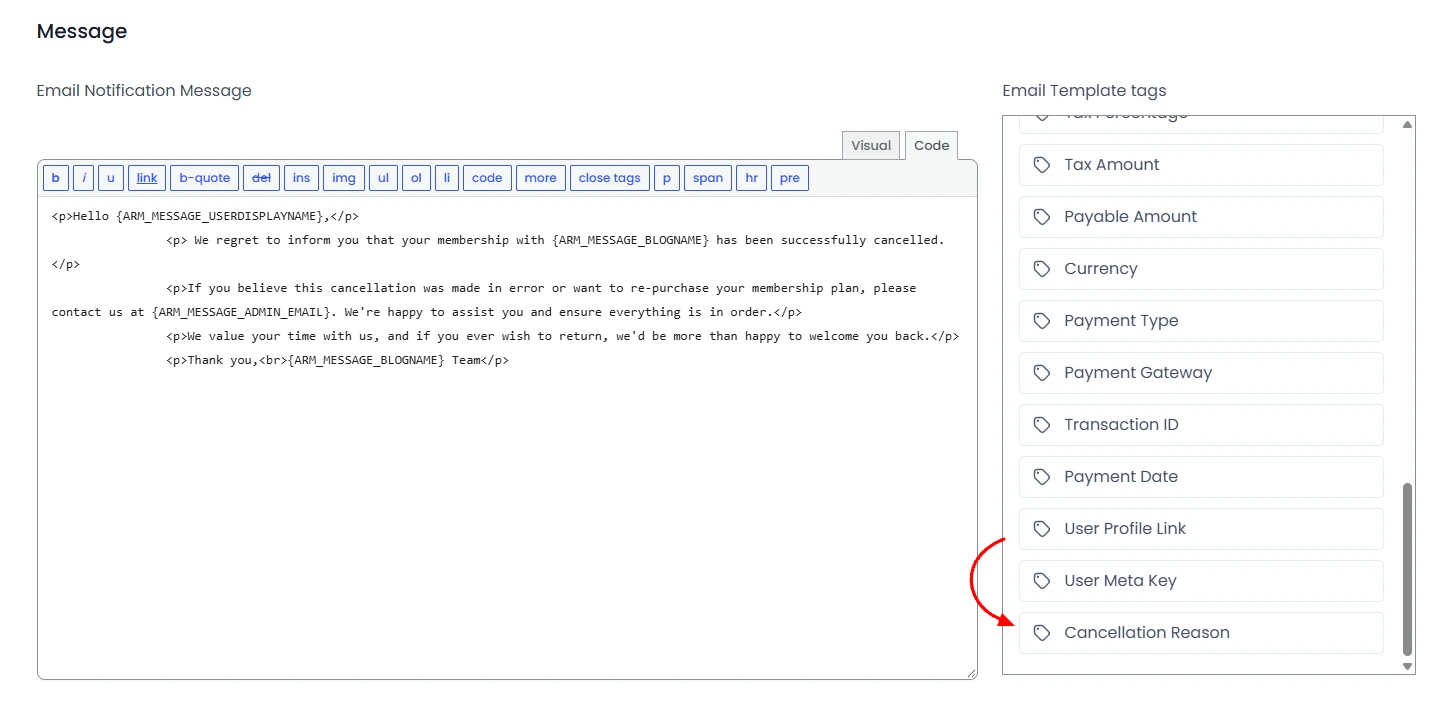
- Locate the Cancellation Reason tag in the Email Template Tags list in the sidebar.
- Click the tag to insert
{ARM_MESSAGE_CANCELLATION_REASON}into the email message body. This tag displays the member’s cancellation reason in the email. - Save the email notification settings.
View and Manage Cancellation Feedback
ARMember allows administrators to review submitted cancellation feedback directly from the Subscriptions page. This makes it easier to understand individual cancellation cases without manually searching through separate records.
Step 1: Navigate to the Subscriptions Page
To view subscription records, navigate to the ARMember ⇾ Manage Subscription ⇾ Subscriptions page.
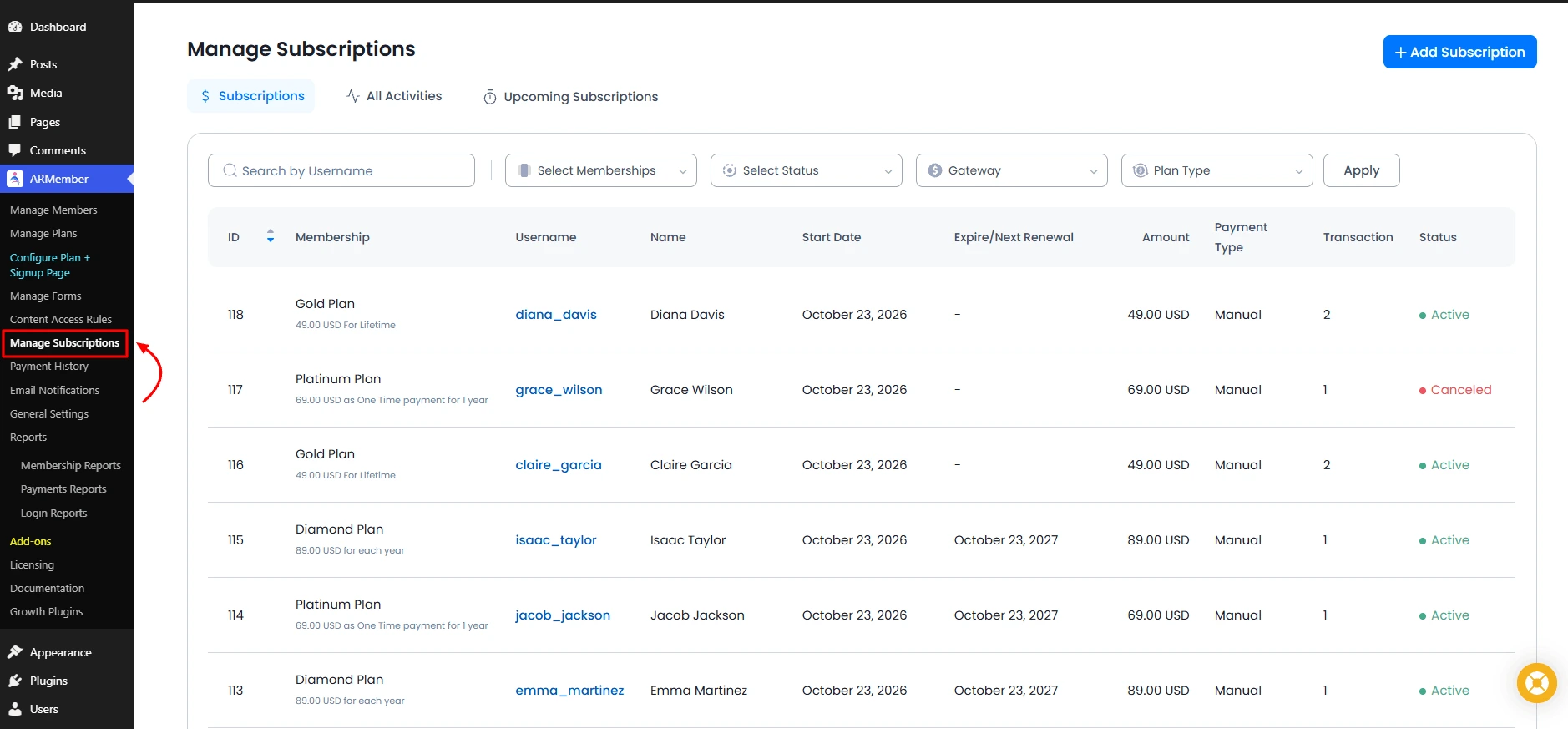
This page displays subscription records, including cancelled subscriptions.
Step 2: Locate a Cancelled Subscription
Find the cancelled subscription for which you want to review the member’s feedback. Hover over the cancelled subscription row to reveal the available row actions.
The Cancellation Feedback action icon will be available for viewing the feedback associated with the cancelled subscription.

Step 3: View the Submitted Feedback
Click the Cancellation Feedback action icon to open the cancellation feedback popup.
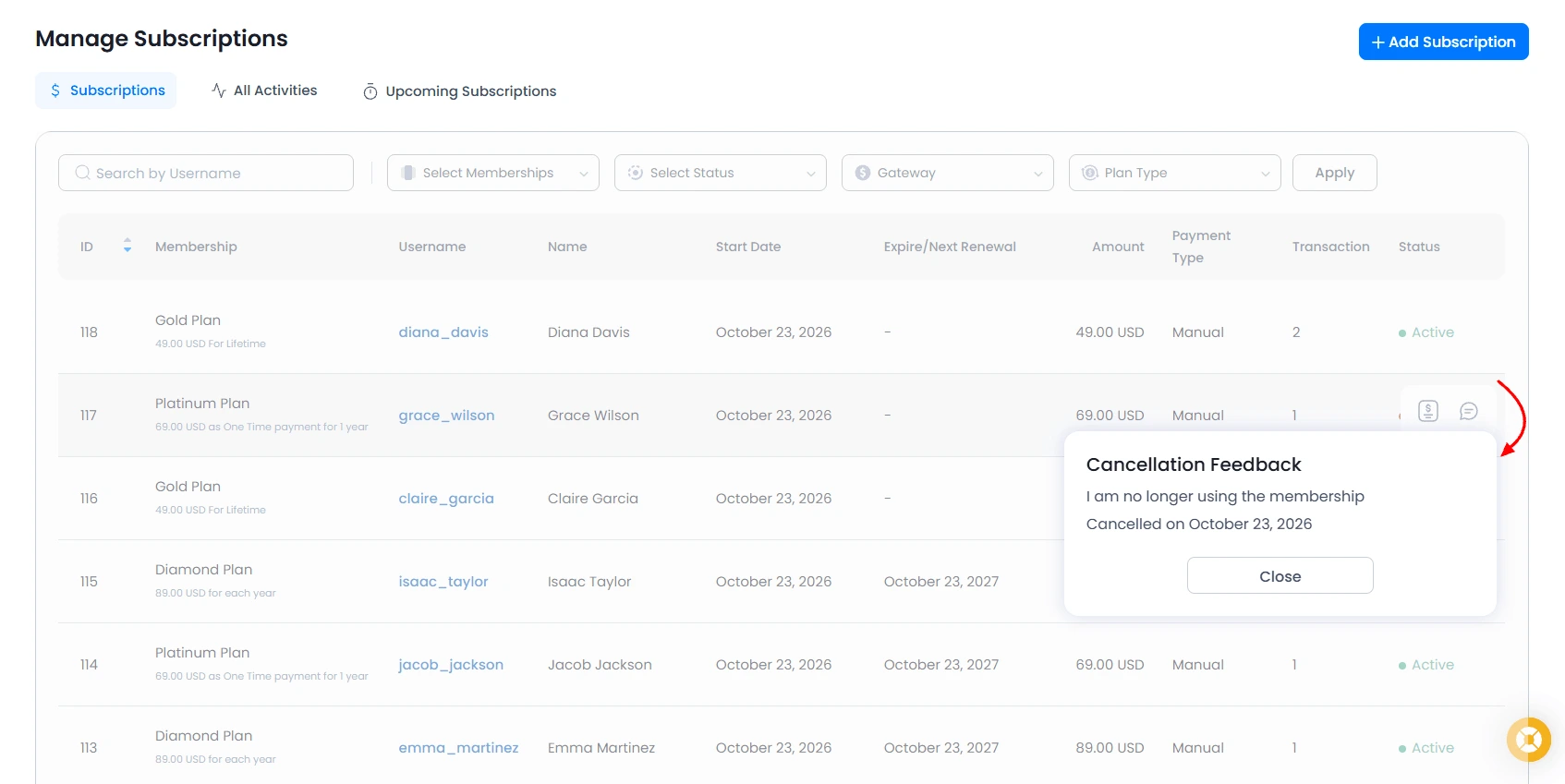
The popup displays the specific cancellation reason provided by the member. Administrators can review this information to better understand why the member cancelled their subscription and identify recurring concerns across their membership base.