
Google Sign-in
In order to get a Client ID for Google, you have to follow the steps given below.
Create Project
- First you have to log in to your Google account in order to create a project.
- Go to the Google Developers Console
- Select an existing project from the projects list, or click NEW PROJECT to create a new project
- After then a dialog box will appear where you have to provide your Project name and a Project ID for your new app and click CREATE.
- On the left side navigation panel, select Credentials under the APIs & Services section
- Select the OAuth consent screen tab, specify the consent screen settings.
- In the Application name field, enter the name of your Application.
- In Support email filed, choose an email address for user support.
- In the Authorized domains, specify the domains which will be allowed to authenticate using OAuth.
- Click the Save button.
- Select the Credentials tab, click the Create credentials drop-down and select OAuth client ID.
- In the Application type section, select Web application.
- In the Authorized redirect URIs field, enter the redirect URL specified at ARMember Google Sign-in Configuration.
- Click the Create button.
After that a dialog box will appear with OAuth client details like Client ID and Client Secret which you need to add Client ID in ARMember Google Sign-in configuration…
For more information please refer to Google documentation
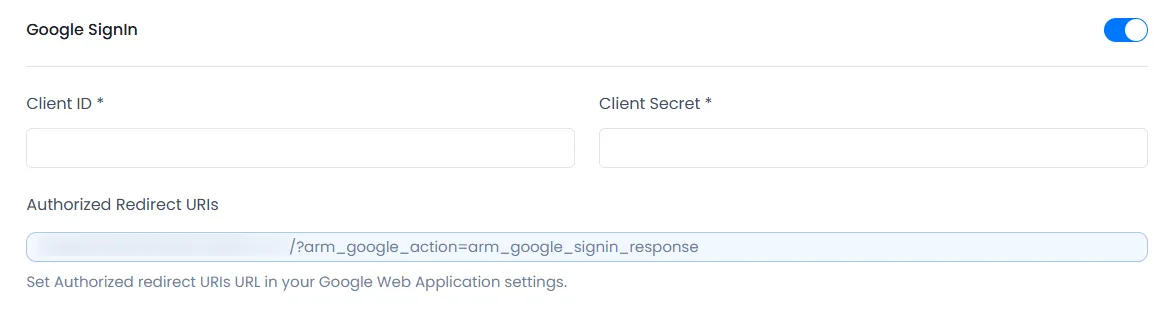
You may get authorized redirect URL from ARMember ⇾ General Settings ⇾ Social Connect ⇾ Google.
Click Save button on Social Connect page.
Once settings are saved, you can use the following shortcode in any page/post to display Login with Google button.
[arm_social_login network="google"]