


The thing is, GA4 is a complex analytics dashboard, and it won’t automatically analyze if ARMember is working well and how exactly your members use it.
However, with the events tracked by the ARMember’s Conversion Tracking add-on, you can try to answer specific questions about how people experience and use your membership site. Do they abandon the registration? Which actions lead to actual purchases? What are your conversion numbers?
The extension provides you with specific triggers, covering the main crucial interactions with the ARMember forms. How to set up ARMember to set events to your GA4 and how to use this data to improve your results? We’re covering all this in this article.
TL;DR: ARMember’s Conversion Tracking add-on helps you track membership purchases, registrations, cancellations, refunds, and other important events in Google Analytics 4. You can use this data to build conversion funnels, identify where potential members drop off, and understand which traffic sources bring paying members.
What You Can Track With Armember
First of all, it’s for measuring the membership purchase journey.
What important events can the add-on send to Google Analytics 4 so that you can analyze them further right in the dashboard?
Here are the ARMember events that you can start with the add-on:
| GA4 event | What it means |
| purchase_form_load | A membership purchase form was loaded. |
| view_item | A membership plan was selected/viewed. |
| begin_checkout | The membership purchase form was submitted. |
| purchase | Successful purchase of a membership plan. |
| new_member_register | Registration of a new member. |
| cancel_subscription | Successful subscription cancellation. |
| refund | A membership refund occurred. |
| member_delete | Member was deleted. |
| expire_membership | A membership subscription expired. |
You can basically categorize these events to answer real-life questions:
- Where their interest is: did someone open a membership purchase form? How many people?
- Intent: was the plan selected and the form submitted?
- Most importantly, conversions: did they make a purchase?
- Retention: cancellations, refunds, expirations.
If you divide your analytics journey into these logical pieces, you can better assess how your membership site is performing and where conversions are happening.
Moreover, GA4 uses the term ‘key events’ for conversions, which are actions you want a site visitor to complete. The add-on has a few events you can consider conversions:
- purchase (the main conversion for a paid plan).
- new_member_register (it’s a conversion if registration is your goal).
- purchase_form_load, view_item and begin_checkout – these are important funnel events that lead to a purchase.
How To Get Started
Step 1: Check your Existing GA4 setup
Log into your Google Analytics and select the property for your WordPress website with the membership system setup.
Check if it’s working, that is, it should already receive data from your website.
For a working Google Analytics 4 installation, no need to create another property or install another tracking tag for the add-on from ARMember.
If you don’t have an account, follow our GA4 setup guide. This will allow you to obtain your GA4 ID and API Secret, which are required to connect ARMember’s add-on for tracking conversions though your membership content.
Step 2: Enable ARMember Conversion Tracking
In WordPress, go to: ARMember → Add-ons → Conversion Tracking and activate the add-on (you should have a working license). After that, go to ARMember → General Settings → General Options → Conversion Tracking Configuration.
Step 3: Get your GA4 IDs
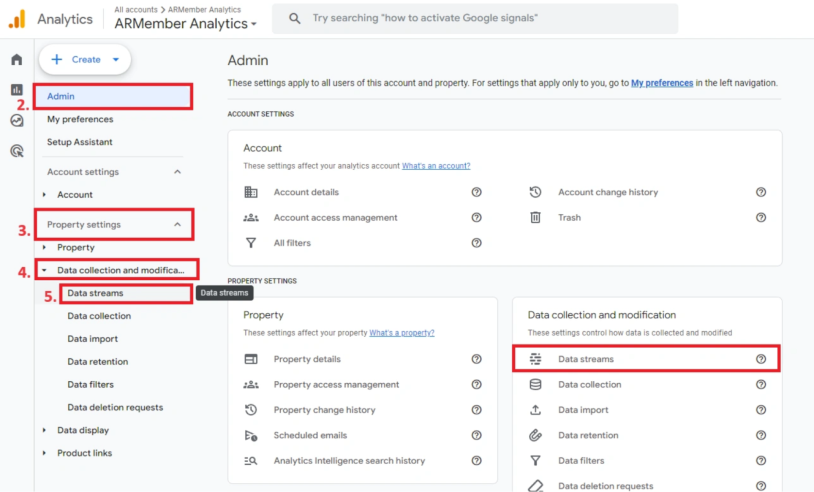
In Google Analytics, open Admin → Property settings → Data collection and modification → Data streams → select your website’s web stream → Copy the Measurement ID and paste into the Google Analytics ID field in the add-on settings.
Next, click Measurement Protocol API secrets → Create → Copy the API secret and paste it into ARMember’s addon settings.

Step 4: Test the events yourself
Open your membership site in a separate browser window and perform a test journey:
- Open a membership purchase form
- Select a plan
- Submit the form
- Complete a test purchase
- Test a registration page
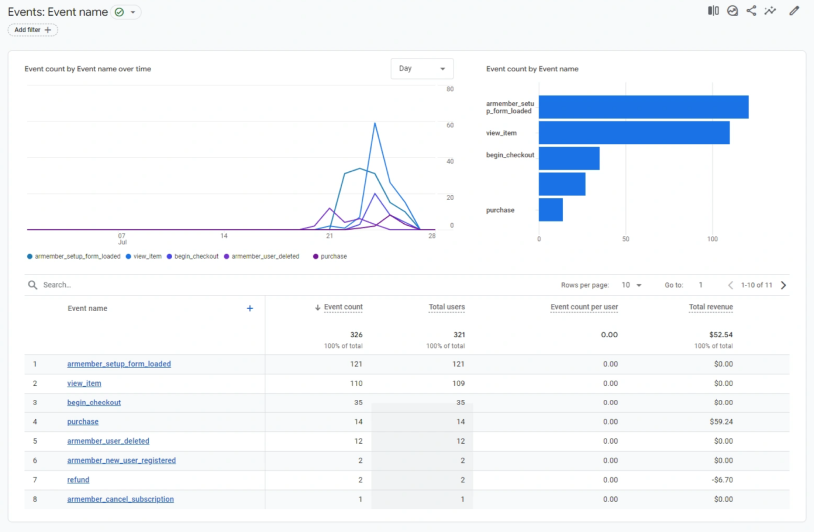
Check the ARMember debug logs under ARMember → General Settings → Debug Log Settings to see the requests and responses for the add-on’s events. Also check GA4’s Realtime and event reports.
ARMember sends the event to Google Analytics, and GA4 processes it but this is not always an instant process. The event may not appear immediately in every report – so give the test some time.
Where To Go In GA4 To See The Results
Your further analysis results very much depend on your skills with GA4!
GA4’s navigation may have different interfaces for property and report customization. The official funnel exploration documentation explains how to build and interpret these sequences.
Here are a few key paths you want to use:
- Reports → Engagement → Events
Find the ARMember events and inspect their event counts and users. This tells you which tracked actions occur and how frequently. This is a nice starting point for basic activity levels and trends. - Explore → Funnel exploration
If you want to understand what makes your potential members to finish the registration and where they may drop out, here you can build a sequence of steps to see how many users progress from one action to the next. It’s a great place to start understanding your conversion rates and possible bottlenecks. - Reports → Acquisition → Traffic acquisition
Understand which channels bring converting visitors – those who finally purchase a membership plan or start a trial. Compare the traffic sources associated with visits, then investigate which sources are associated with membership purchases.
The Most Useful Report: Build A Membership Conversion Funnel
To build a funnel, the events data from ARMember can be truly helpful. You can do that when you already have a specific number of visits over a certain period of time.
| Funnel stage | Conversion | What to investigate |
| Form load → plan selection | Low % means visitors may not find the plans appealing or clear | Are plans clear? Are the benefits easy to compare? |
| Plan selection → submission | Too long or confusing membership forms show lower conversions | Do your forms probably have confusing fields or unexpected costs? |
| Submission → purchase | Payment issues, unexpected costs all may disturb membership purchases. | Are there any barriers for payment completion? |
| Form load → purchase | There may be friction at one or more stages, or visitors may have low purchase intent | Overall purchase journey performance |
How to build this funnel in GA4:
- Go to Explore → Funnel exploration.
- Choose a date range, (e.g. last 30 days).
- Add the first step with the purchase_form_load event.
- Next is logically view_item.
- Add the third step using begin_checkout.
- The final one is purchase.
- Use a closed funnel if you want to count only visitors who start at step 1 and follow all the steps you added.
- Review the number of users at each stage. Did you see many drop-offs?.
Before you do that, you may want to verify the actual event names in your property before configuring the steps. However, note that with ARMember, the begin_checkout event is a purchase form submission, which is not reaching a conventional payment checkout.
What Insights Can You Get About Armember?
What conversions exactly can you see, and how to interpret them with the GA4 data for ARMember? Here are a few suggestions:
Which membership plans sell best?
You can compare purchases by plan, provided the purchase event contains reliable plan identifiers or item parameters. If your GA4 ecommerce was set correctly, item-level reporting uses an items array containing parameters such as item_id and item_name. ARMember’s add-on provides the view_item and purchase events to help you with the process.
With the results, you can improve plan descriptions, change the order of plans, or reconsider pricing.
Do visitors interact with forms but fail to register?
You can compare form loads and successful registrations or purchases.
This might give you a hint whether you need to improve the registration process.
Which traffic sources bring paying members?
Compare acquisition sources with membership purchases and revenue. Then, prioritize the channels that bring paying members.
How does membership retention work?
Track cancellations, refunds and expirations over time, and compare them with new purchases.
Possible action: investigate churn, renewal issues, and refund reasons.
Concluding: Track Membership Conversions with Google Analytics In ARMember
ARMember Conversion Tracking add-on is a great tool to send the correct membership plan data to your Google Analytics. GA4 is responsible for receiving, processing, and reporting that data.
Tracking various types of events with ARMember isn’t helpful with explaining why someone abandoned a form or clicked a button – but show you the stats that you can attribute to the different funnel parts to see what’s working well and what may require additional tracking.
If you ever wanted to learn more about how your prospects interact with the key actions of your membership site, this is a great chance to give it a try and start tracking things.
Related articles:

Share this post


