


In our time and day, changing the technology powering your membership WordPress site by relying on automatic migrators is a must-have. ARMember, a modern membership and subscription plugin, helps you benefit from this easily.
To be more precise, ARMember can import core membership data from Paid Memberships Pro, MemberPress, and Ultimate Membership Pro directly into your ARMember-powered site. The tool can migrate users, membership plans, membership dates, payment history, and content access restrictions.
The best thing is that it makes the scary process of migration an easy and safe task – this is exactly what you want from transferring your data from one plugin to another.
So, what does the process actually look like, and what should you expect when moving to ARMember?
TL;DR: ARMember’s Migration Tool makes it easier to move your membership site from Paid Memberships Pro, MemberPress, or Ultimate Membership Pro. It can migrate users, membership plans, dates, payment history, and content access restrictions.
Why Automatic Membership Site Migration is Better?
Well, doing any monotonous work is mentally overwhelming.
Site migration of such sites may involve time-consuming actions like exporting users, CSV files, adding membership levels anew, matching users to those levels, transferring payment records, etc.
Using automation for big content and people-focused sites like communities and memberships, you’ll, first, save a huge amount of time and, second, will make fewer errors! The more data, the more mistakes – and the more you can automate the process, the smoother the migration to a new plugin like ARMember.
There might be a lot of data attached to a WordPress user on your site built with another membership plugin. For example:
- Active membership plan
- Specific start date and expiration date
- Remaining membership time
- Payment history
- Content access
ARMember Migration Tool extension is designed to transfer these core membership relationships together quickly and securely.
Which Plugins Can You Migrate from to ARMember
The ARMember Migration tool currently supports WordPress migration from three WordPress membership plugins:
- Paid Memberships Pro
- MemberPress
- oltimate Membership Pro
Paid Memberships Pro
Paid Memberships Pro stores membership information about your WordPress users, membership levels, subscriptions, and orders.
The plugin officially supports CSV exports for members and orders, including membership level, subscription, start/end dates, payment-related information, and custom member fields. Large exports can also be processed in the background. With the site migration tool from ARMember, the relevant membership information can be brought into ARMember automatically.
MemberPress
If you want to switch from MemberPress, it has its own fairly sophisticated migration system with separate processes for users, memberships, subscriptions, and transactions.
MemberPress also stores some membership functionality as WordPress custom post types, including memberships, groups, rules, coupons, courses, lessons, assignments, and quizzes.
That is why a plugin-specific migration tool is really useful – it understands that the data isn’t simply a list of users.
Ultimate Membership Pro
Ultimate Membership Pro has its own import/export functionality for users and membership levels – you can export users to CSV, including membership level start and expiration information.
This plugin can also store multiple membership levels, custom fields, orders, payment information, and other membership-specific data.
If you choose to migrate to this plugin, ARMember has an important note: the member role selection option is not shown for UMP because the role associated with the membership plan is migrated as-is. If your existing site allows members to hold multiple membership plans at the same time, ARMember’s Multiple Membership addon should be enabled before migration.
Moreover, if you’re using another membership plugin, the migration to ARMember is not impossible. It’s just that the ARMember extension for this does not provide a direct migration path for that chosen plugin. You may need to use a general import/export process or another migration method.
What Data Exactly Can You Migrate to Your ARMember Site?
Everything that you need to continue as with the old system! The migration add-on can automatically transfer core information for keeping your existing membership system on WordPress.
Users
Your existing members are attached to WP users. This is good news for your members – they don’t need to register anew or be disrupted in any other way.
Membership plans
You can automatically migrate existing membership plans to ARMember (with membership relationships associated with each member) keeping the important dates:
- Plan start dates
- Plan end dates
- Remaining membership time
Payment history
With the migrated users’ payment history to ARMember, you continue tracking important membership records for users, which influences your future marketing and billing.
Content access restrictions
You can optionally migrate existing content restrictions, including:
- Pages
- Posts
- Categories
- Custom post types
You enable this through the Content Access Rules option during migration.
Use this to save significant time if your existing site has hundreds of pieces of members-only content!
Membership behavior
During migration, you can also configure how ARMember should handle the following situations:
- A member cancelling a subscription
- A membership reaching its end date
- A payment failing
As you see, ARMember also allows you to take care of the rules essential for running your program.
The process is not immediate – a site with thousands of members, many plans, and lots of content restrictions may take longer to transfer.
What Doesn’t Migrate Automatically?
What about your membership site can’t you automate when migrating things to ARMember?
The add-on for switching to ARMember helps primarily with membership data and related access information.
- A lot of things on the site are up to the theme’s styles and other plugin dependencies: your WordPress theme, page designs, custom layouts, plugin integrations, email templates, payment gateway configuration, and other site functionality may still require an extra configuration in ARMember.
- Recurring billing records are not supported. If you used recurring / automatic payments with another membership or subscription plugin, those recurring subscriptions become manual payments in ARMember (because of payment gateway limitations).
Just keep in mind that while you can do a lot with ARMember, your membership data can move, but your payment automation may need to be set up again.
What About Content and Website Design?
Migration and website redesign are two different jobs. The Migration addon to ARMember can transfer content access restrictions, but that doesn’t mean it will recreate your entire frontend exactly as it looked with the previous plugin.
Your pages, theme, page-builder layouts, menus, forms, and visual design remain part of your WordPress site. Using the ARMember data migration option, you’re changing membership functionality controlling access to that content.
How to Migrate Your Data to ARMember? Step by Step
First of all, it’s free with the dedicated add-on provided by ARMember. Once you’ve purchased the needed plan with ARMember, you can download the Migration Tool add-on from your account, install it as a plugin on your WordPress site, and then activate from the Add-ons menu in ARMember. Here is how the full process looks like.
Step 1. Back up Your Website
Create a complete backup of your WordPress site for safety reasons (to make sure you have a copy of everything).
Step 2. Install and Activate ARMember
ARMember is the core plugin that must be activated if you use the Migration Tool (ARMember 4.6 or higher is required).
Step 3. Install the Migration Add-on
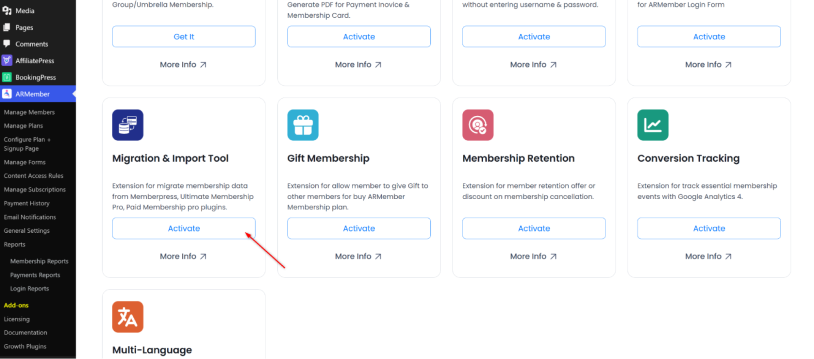
Install and activate the ARMember Migration Tool. Then find it under the ARMember menu.
Step 4. Enable Multiple Membership (optional)
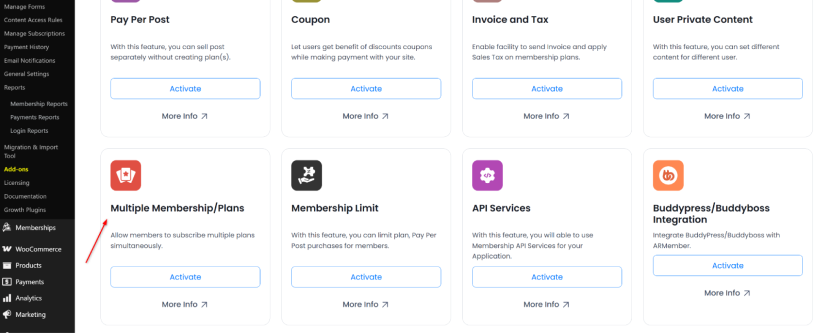
Does your existing site allow one member to have several membership plans at the same time? If yes, enable ARMember’s Multiple Membership add-on.
Step 5. Make Sure the Source Plugin is Available
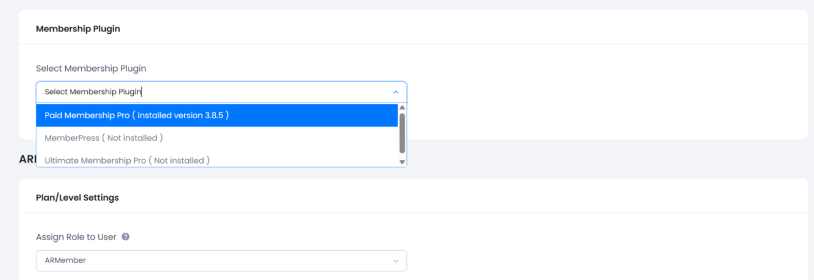
The plugin you make migration from must be active on your WP (Paid Memberships Pro, MemberPress, or Ultimate Membership Pro). The migration screen also displays compatible plugin versions, so check those before starting the process.
In our example, we’re using the Paid Memberships Pro plugin:
Step 6. Choose Your Migration Settings
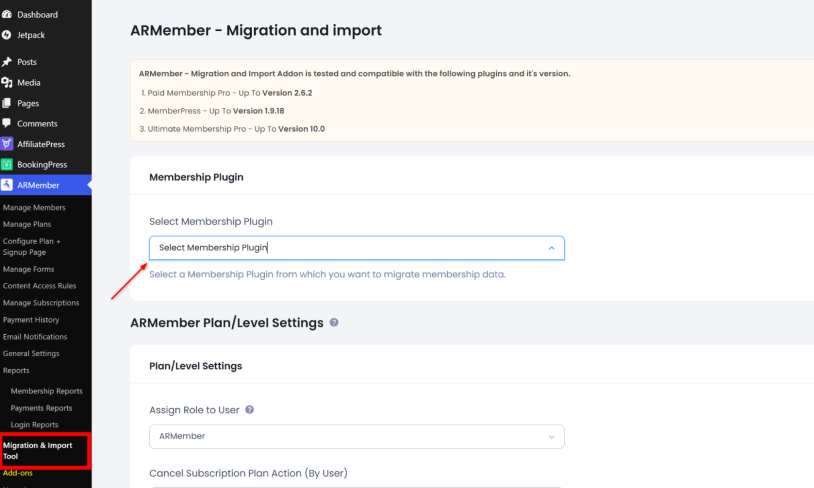
Go to the add-on settings (via Addon > Configure or directly from the main ARMember menu). ARMember will ask you to configure the following options:
- Member role
- Cancellation behavior
- End-of-term behavior
- Payment-failure behavior
- Content Access Rules
If you want to transfer your existing content restrictions, make sure Content Access Rules is enabled.
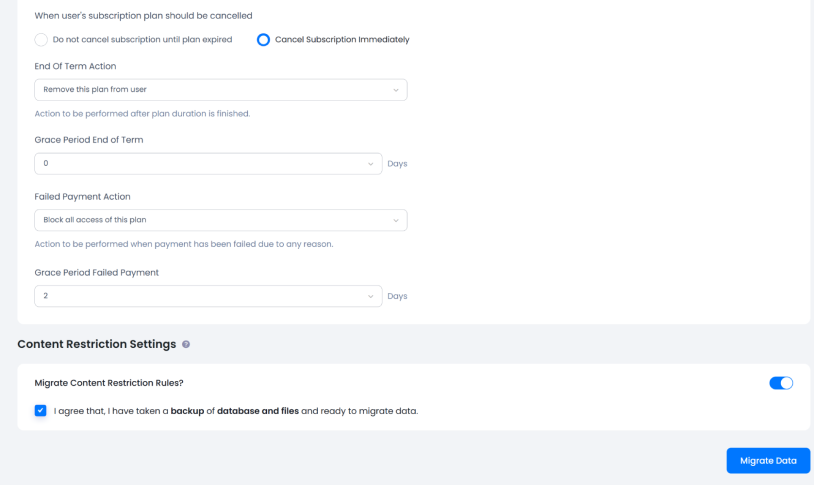
Step 7. Start the Migration
Then, click ‘Migrate Data’. The process may take some time if your site contains a large number of users or membership plans (don’t reload the page).
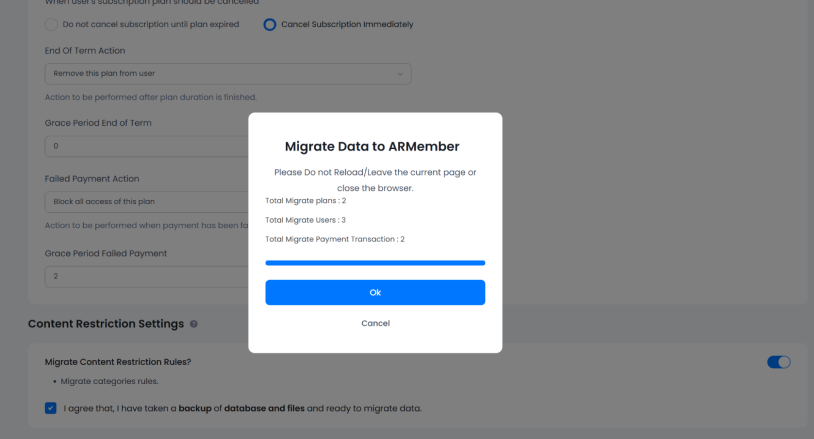
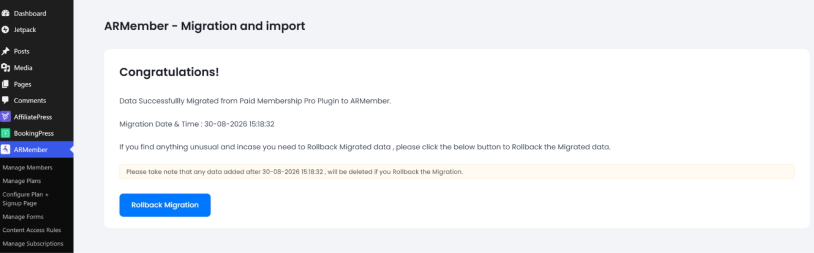
When successful, you’ll be prompted with the relevant message that you can also rollback the changes.
Step 8. Check Your Members and Plans
Make sure to check if everything has transferred correctly – go to the Plans and Users pages to check everything out:
- Membership plans
- Members
- Membership dates
- Access restrictions
- Payment history
Should You Keep Your Old Membership Plugin Active?
The source plugin needs to be available for the Migration Tool from ARMember to read its data.
So, during the migration – definitely yes. After migration, however, you should not delete everything associated with the old membership system right away. We recommend following these steps to be on the safe side:
- Complete the migration and check a few members and their membership statuses.
- Check restricted content.
- Review payment history.
- Test the registration and login experience.
- Test how payments work ARMember.
After such checks, you may want to plan the removal of the old membership plugin.
What About Passwords?
The good news is that membership plugins such as ARMember work with the standard WordPress user system. Your members’ WordPress accounts are different from the membership plugin itself, but migration is intended to preserve the existing member accounts so that they can log in as before.
Still, authentication is definitely a thing to test carefully after migration. If your site uses custom login functionality, social login, two-factor authentication, or other security integrations, those should be checked separately.
The migration tool can take care of much of the heavy lifting, but a successful migration still needs some planning.
Your Final Checklist
Before you start, take a look at our simple checklist.
Before migration:
- Back up the website
- Check ARMember and source-plugin compatibility
- Review your membership plans
- Identify members with multiple memberships
- Review your payment setup
- Decide how recurring subscriptions will be handled
- Check out content restrictions
After migration:
- Check the number of users and membership plans
- Test active memberships
- Test expired memberships
- Check start and expiration dates
- View payment history
- See restricted pages, posts, categories, and custom post types
- Test login and member account functionality
- Test a new membership purchase
- Test cancellation and expiration
Addons From ARMember That Can Help You
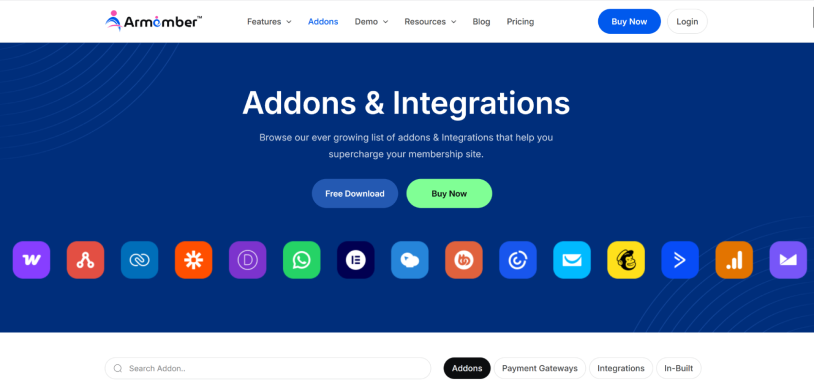
Some of the ARMember add-ons can help you before and after the migration from another plugin:
– Multiple Membership if you want your members to hold several plans simultaneously.
– Content Access Rules helps your page/post/category/custom-post restrictions migrate
– Email integration through add-ons like Mailchimp, ActiveCampaign, Brevo, HubSpot, etc. help you reconnect your automated email campaigns.
– Pro-Rata if members need to upgrade/downgrade memberships.
– Membership Retention to start working on reducing cancellations.
– Direct Login / SMS / WhatsApp if you are looking for optional UX and communication improvements.
Ready to Move Your Membership Site to ARMember?
Change your membership plugin and get the power of ARMember – easily with the automated migration.
If you’re currently using Paid Memberships Pro, MemberPress, or Ultimate Membership Pro, ARMember’s Migration Tool free extension can transfer the core membership data you already have. ARMember automatically takes care of users, plans, membership dates, payment history, and, optionally, content access restrictions.
The biggest thing to plan for is recurring billing – automatic subscriptions are converted to manual payments during migration because of payment gateway limitations.
Overall, the migration can be much simpler with the ARMember’s dedicated add-on. Your membership data already exists. Migration lets you take that existing foundation with you while moving to ARMember!
Related articles:

Share this post


