


Ever wanted to create “limited seats available” memberships on your WordPress site? With the ARMember membership plugin, you’ll get it done in no time.
If you want a simple way to create exclusive membership plans with limited availability, ARMember provides a built-in Membership Limit Addon that lets you control how many times a plan or paid post can be purchased.
This is also useful if you want to limit access to premium memberships, special campaigns or exclusive content. Rather than tracking availability manually, manage everything automatically.
Below, you’ll find all the needed details, from the basics of membership limits to the practical steps needed to set them on your WordPress membership site. Also, we’ll cover real world use cases and important settings you should know before getting started.
TL;DR: ARMember’s Membership Limit Addon lets you limit how many users can purchase a membership plan or paid post. Once the limit is reached, it automatically blocks new purchases and shows the custom message. This way you can create exclusive memberships, VIP programs and limited time offers.
What Is Membership Limit In ARMember?
Membership Limit in ARMember is an in-built addon that lets you restrict the number of members who can buy specific membership plans or paid posts. And after the limit is hit (Defined by you), new enrollments or purchases are automatically blocked.
Thus, here are the things you can do with ARMember Membership Limits Addon:
- Set a fixed number of users for each membership plan
- Control access to premium or VIP membership tiers
- Limit purchases of paid posts or exclusive content
- Create scarcity based offers like limited seat programs
In simple words, membership limits let you control how many people can access or buy a membership plan before it becomes unavailable.
Why Use Membership Limits On Your Membership Site?
ARMember Membership limit Addon gives you a strategic control layer for your complete membership business.
Don’t mistake it for just a technical setting. By default you can offer unlimited access to all members. But with this addon, you can set how many members can join a plan or buy a paid post, shaping the demand, pricing and exclusivity.
In practical terms, membership limits help you move from a “volume based” model to a “value based” membership structure. Here’s why they matter:
- Create real exclusivity: Limited seats naturally increase perceived value and make your membership plans more desirable.
- Control access at grows: As your site grows, you don’t need to manually manage enrollments or track availability.
- Improve offer performance: Scarcity driven plans often convert better because users act faster when spots are limited.
- Support membership level management: Easily define how many users belong to each tier or access level.
- Prevent over enrollment issues: Avoid performance, support or content overload caused by unlimited signups.
- Run structured campaigns: Good for VIP programs, early bird offers or limited time premium access.
From a membership business owner point of view, membership limits are the best way to design intentional growth rather than uncontrolled expansion. In ARMember, this becomes even easier because the system automatically sets these limits, so your membership access rules stay consistent – always.
Things To Know Before Setting Membership Limits
Before you start configuring membership limits in ARMember, it’s important to understand how they work in real scenarios.
A small configuration decision can directly impact user access, sales flow and overall membership structure. Thus here are the key points you should keep in mind:
- Limits apply per plan or paid post: Each membership plan or paid content item has its own separate limit settings.
- Both new purchases and assignments are counted: Every time a user is assigned or buys a plan, it reduces the available limit.
- Renewals are not affected: Recurring renewal cycles typically do not reduce the membership limit count.
- Front-end access depends on availability: Once the limit is reached, new users will not be able to purchase that plan.
- Message settings matter: Users will see a default or custom message when a limit is reached, so messaging should be clear and user-friendly.
- Plan strategy should be defined first: Limits should align with your pricing tiers, audience size, and exclusivity goals.
Speaking from experience, the biggest mistake is treating membership limits as just a number when they should be part of your overall membership level management strategy. This makes sure each of your membership plans has a clear purpose, capacity and growth intent before you set any purchase restrictions.
What You Need To Set Up Membership Limits In ARMember
For tagging along with this ARMember tutorial till the end, you’ll need:
1. ARMember Plugin
ARMember is the core plugin that powers your complete membership site and allows you to create and manage endless membership plans, subscriptions and paid posts.
It comes packed with:
- Over 62+ in-built addons
- 22+ payment gateways
- Advanced content restriction
- Content dripping
- Drag and drop form builder
And the list goes on and on. Just make sure you have the ARMember Pro installed in your WordPress dashboard.!
2. Membership Limit Addon
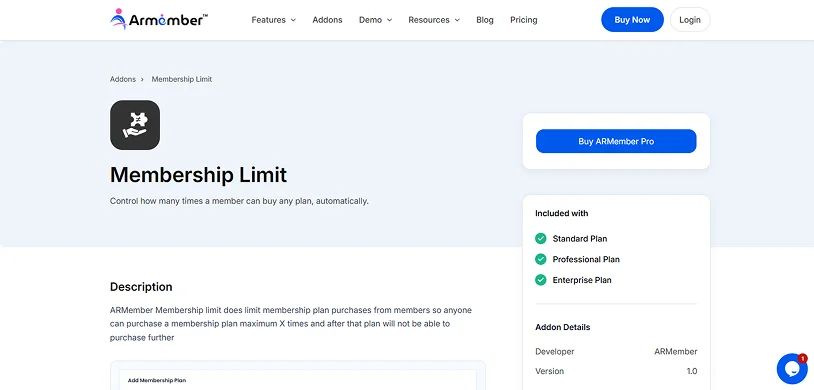
Using the ARMember Membership Limit Addon, you can:
- Set maximum purchase limits per plan
- Restrict availability of paid posts
- Automatically stop purchases when the limit hits
The best part? This add-on is available in all ARMember premium plans so you can get it at no extra cost.
3. Membership Plans or Paid Posts Setup
For using membership limits effectively, you must have set at least one:
- Membership Plan (for subscriptions or access tiers)
- Paid Post (for one time premium content access)
These act as the base items where limit rules are applied.
How To Manage Membership Limits Using ARMember
Step 1: Enable the Membership Limit Addon
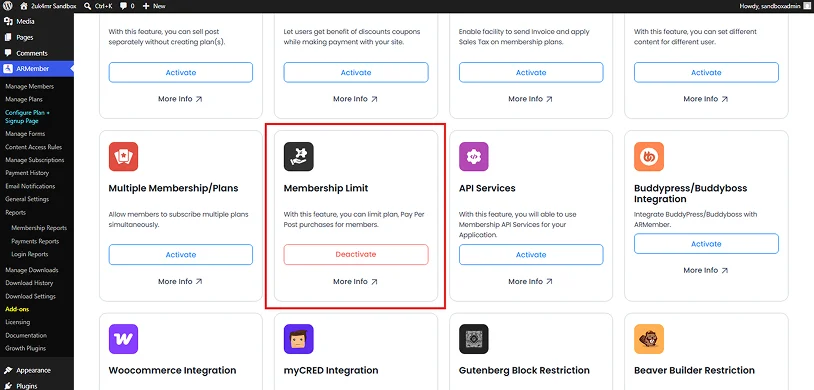
Start by activating the Membership Limit Addon inside ARMember.
- Go to the ARMember → Add-ons page.
- From here, look for the “Membership Limit” Addon inside the In-built Modules section.
- After you find it, just click on the Activate.
After activation, the limit settings will appear inside your membership and paid post configuration panels.
Step 2: Set Membership Limits for Membership Plans
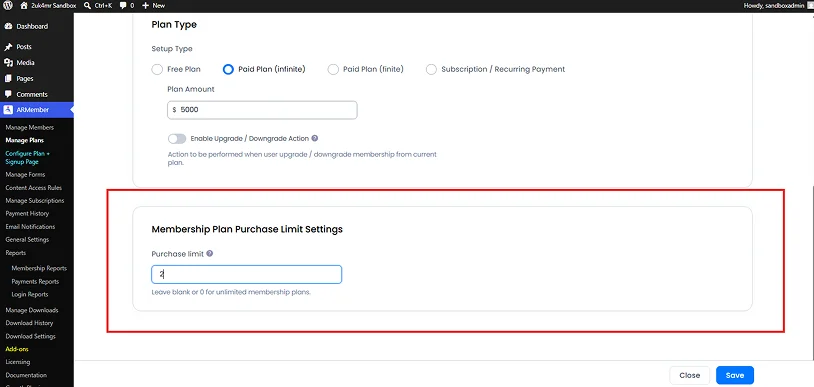
Now set how many members are permitted to join a specific membership plan, and for that:
The membership Limit count will be considered on “New” and “Renew” purchase actions performed either from the admin panel or from the front-end. Also, when members pay for their next “Recurring (Renewal) Cycle” payment the membership Limit count will not be considered. By default, it’s gonna be 0 which means unlimited membership plans.
After the limit is reached, new users will no longer be able to buy or join this plan.
Step 3: Set Membership Limits for Paid Posts
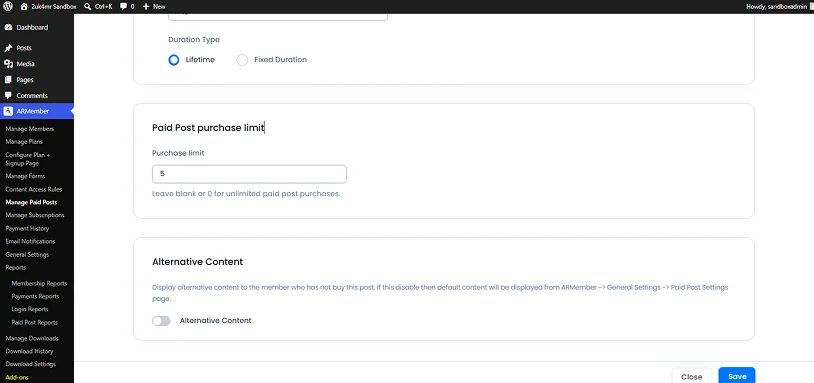
Many site owners use the Membership Limits Addon not only for membership plans but also for restricting access to paid posts and premium resources.
This ARMember addon also lets you control access for individual paid content items which you have created using Pay-per-post feature.
Set membership limit for individual paid posts by:
- First, go to the ARMember → Manage Paid Posts.
- Edit the existing paid post or create a new one by clicking on Add Paid Post.
- Edit the existing paid post or create a new one by clicking on Add Paid Post.
- Set the purchase limit; or leave 0 for unlimited paid post purchases.
- Now hit the Save button to save all changes.
This is useful for limited digital downloads, premium guides or one time exclusive content releases.
Step 4: Customize the Membership Limit Message
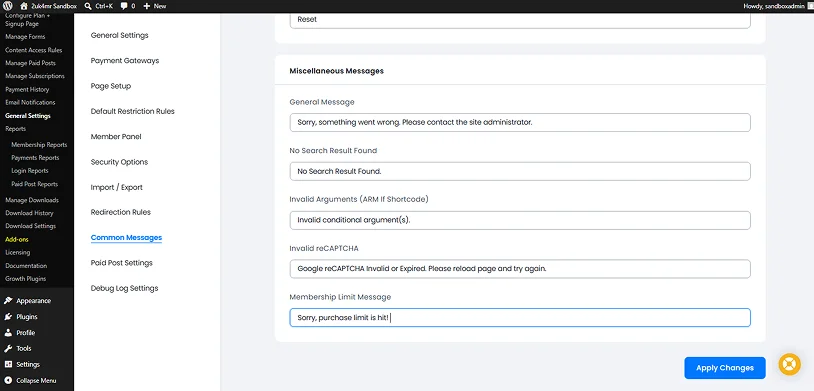
After a limit is reached, users/members should be able to clearly understand why they cannot proceed. Thus:
- Go to the ARMember → General Settings → Common Messages.
- Scrolls down to the Miscellaneous Messages section.
- Update the message for “Limit reached” or “Availability full” scenarios.
- You can customize the Membership Limit Message to:
- Inform users the plan is full.
- Suggest alternative plans.
- Guide them to other available offers.
- Lastly, don’t forget to apply changes.
And…..that’s it! Congrats, you’ve finally set membership limits using ARMember and its Membership Limit Addon which already comes in-built with its set of 62+ addons.
Step 5: Test the Member Experience
Wait…before you hit the “Update” or “Publish”, always be wise to test the full flow as a real user. You can check the following:
- All membership plans look properly on the front end
- Purchase works until the limit is reached
- After the limit is reached, purchase is blocked
- Custom message is shown properly
- Paid post restrictions are set
- Emails and confirmations are triggered correctly
This makes sure your membership access limits work exactly as expected without affecting the your members experience for no reason.
How Membership Limits Work For Your Members
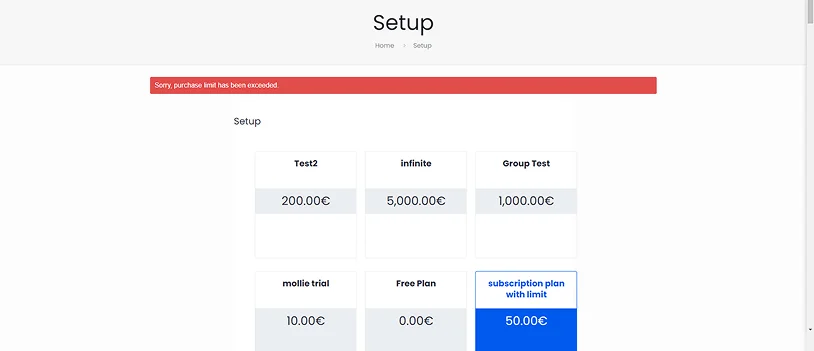
Membership limits control how members interact with your membership plans and paid content on the front end.
From a member’s point of view, the experience stays simple. But behind the scenes, ARMember automatically checks availability before allowing any purchase or access.
When membership limit Addon is set, your members and new users will be able to see the available membership plans and register to join or buy normally. From this stage, the conditional logic of membership limit starts its work.
- If slots for membership plans are available, the process continues and access is granted right away after successful payment.
- If a limit is reached, the system automatically blocks new enrollments for that specific plan or paid post.
At that point, members will see the custom message we have set earlier (or the default one if you haven’t set any). The default message says that the membership plan is no longer available or the limit is exceeded.
This way you can prevent failed checkout attempts, and give clarity to members trying to buy.
For successful members, access is assigned right after purchase. Their membership is activated, content is unlocked and details are shown in their members panel.
Everything happens in real time – automatically, so you don’t have to manage anything manually.
Practical Use Cases For Membership Limits
The ARMember Membership Limit addon allows you to cap the total number of active subscribers on a specific membership plan or paid post.
Here are the most practical ways to put it to work:
Phased Online Courses & Cohort-Based Training
If you sell online courses, you know how tough it is for new members (students) to catch up with the already enrolled ones.
Thus far for fixing this issue, you can set a strict enrollment cap (like of 50 students) or an expiration date for your course membership tier.
If you set a membership limit, the registration closes once you hit the cap. This lets you run tight, live-like cohorts where every student starts and finishes at the same time. It gives you better engagement and course completion rate.
Premium VIP and Concierge Services
Offering 1-on-1 consulting or limited masterminds in your memberships? You only have so many hours in the day to serve your audience.
So here’s how to use Membership limits: Limit the “Platinum Consulting” tier to exactly 10 active members at any given time. This guarantees your current clients get the attention they paid for.
Early Bird Pricing And Scarcity Marketing
We all know, nothing boosts sales like urgency. Thus you can use membership limits to get fence-sitters to take actions.
You can offer a “Founding Member” plan at a discount, but set the purchase limit to the first 100 buyers. After it sells out, that specific plan vanishes from your site, which drives up demand for your higher priced standard membership tiers.
Beta Testing Digital Products
Launching a new premium newsletter, software tool or private community? Most people want a smaller group to iron out the bugs before going mainstream.
So, all you have to do is cap your beta plan at 20 people. It lets you test your ARMember payment gateways, membership limits and drip content on a manageable group.
Concluding: Taking Control Of Membership Access With ARMember
Managing membership limits is a strategic way to decide how your membership business grows, who gets access and when your offers reach its limits.
ARMember Membership Limit Addon is the one you need to take control of how many users or members can join a membership plan or buy a paid post. No need to rely on any manual tracking or external system. This ARMember add-on comes in-built with all premium plans in the set of 62+ addons – at zero extra cost.
This way you can build exclusivity driven offers, manage audience size and maintain consistent control over your membership business.
Related Articles:

Share this post


