


As you know, ARMember is super powerful for membership sites that want to have the best online payment capabilities. You can literally connect dozens of local payment methods with built-in tools and start monetizing your content with ease.
However, testing your ARMember payment setup before going live is strongly recommended. ARMember supports sandbox/test modes for most major gateways like PayPal, Stripe, Square, Mercado Pago, etc. Sandboxes are widely used for testing user experiences and also checking whether the payments go through smoothly. So, you can simulate both approved and declined transactions without affecting live data or accounts.
But the full test is not just about it – there are many more processes happening after the payment that you need to test. Let’s go through the process step by step!
TL;DR: Before going live with ARMember, test your full payment and membership workflow using sandbox/test mode on a staging site. Verify payments, plan activation, recurring billing, emails, protected content access, and webhooks before switching to live credentials.
What You Need To Test In Your Payment Setup
This is a very important point – you should test the entire membership subscription flow, not just whether a payment succeeds. Those can vary but normally include these:
- Payment processing
- Payment registration (on your site and in the payment account)
- Correct membership assignment
- Restricted content access
- Recurring renewals/cancellations
- Failed payment handling
- Emails and notifications
- Triggers for external software (e.g. email subscriptions)
- Webhooks/IPN callbacks
This is a simplified overview – let’s now dig into details.
How To Perform ARMember Payment Setup
The testing process can be performed on the staging site or the live site – but we encourage you to use a staging site before you go fully live.
Why is a staging site (staging subdomain or localhost) a better practice? Sandbox modes used for testing affect all users, test memberships can pollute real data (if you have such on your site), and recurring test subscriptions can build up mess. So, a staging subdomain is safer.
Also note, some webhooks (e.g. from Klarna) cannot reach your local machine directly when you use localhost – unless you expose it publicly and enable HTTPS.
Now, let’s create a test step by step.
Choose A Gateway And Enable Sandbox/Test Mode For It
First of all, it’s important to explain that credentials for sandbox modes should still be generated on the side of the payment gateway. That means, even if it’s a test payment, it’s still possible to test it only if you have an account, copy the required credentials from it, and paste them into ARMember. Those credentials are usually different in real business accounts and for testing purposes (playgrounds) – so, don’t use live keys mixed with test mode.
In ARMember, go ARMember → General Settings → Payment Gateways → Choose and enable your payment gateway.
Usually, you need
- sandbox merchant account
- sandbox buyer account
- test API keys
For example, PayPal supports Sandbox Mode directly, Stripe uses Test API Keys and webhook verification, and Square supports Sandbox credentials.
For test purposes, you can use Stripe test cards in the Stripe developer account, PayPal developer sandbox accounts, or Square sandbox tokens. The testing tokens depend on the payment method you choose.
Get And Use Gateway Test Credentials
So, choose your method, register an account / or log into the account of your preferred payment provider and add the needed details ARMember asks for.
For example, here is how the process looks with Klarna, one of many gateways ARMember supports.
-
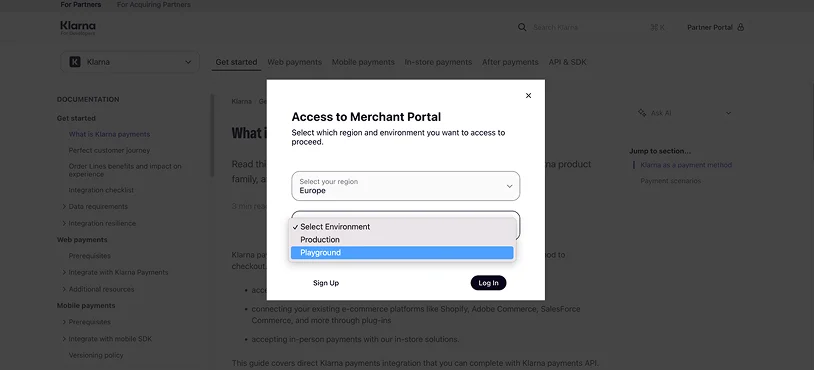
Register a playground account with Klarna.
-
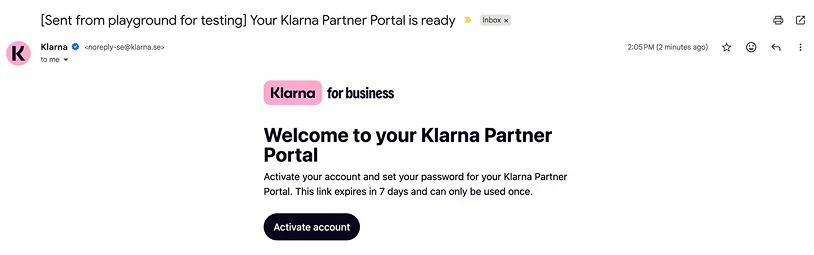
Activate your account by clicking on a link in your inbox (for the email you used for registration).
-
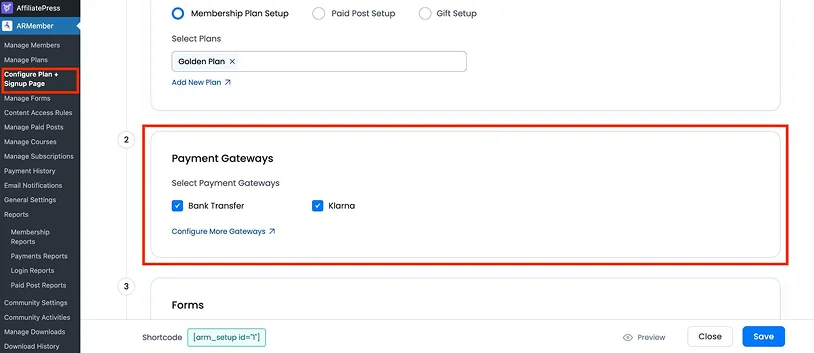
Make sure that Klarna is enabled in the Plan Setup menu (Configure Plan + Setup Page).
-
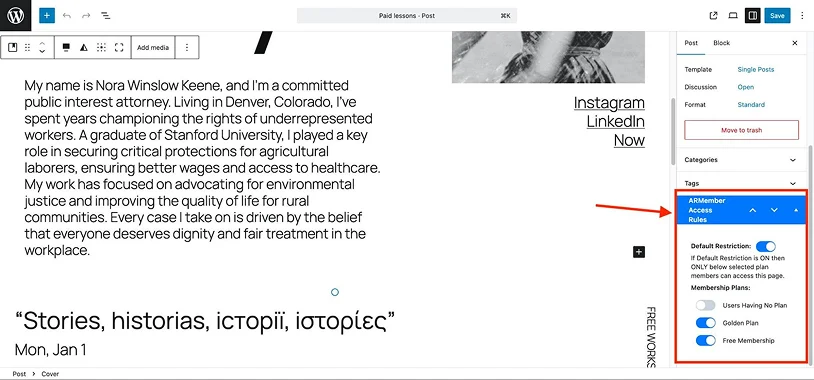
Make sure that pages with paid content are protected with ARMember rules:
-
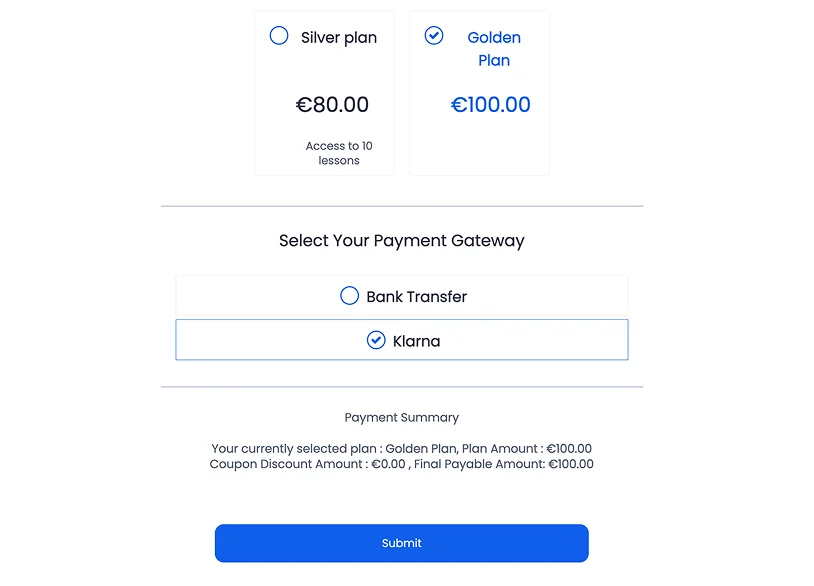
Test how your payment gateway is displayed on the plan purchase page (for either logged in or logged out customers). The plans should be clickable and the needed amount should be generated to send to the payment processor.
- Click ‘Submit’.
- memberships not being assigned
- webhook failures
- pending payments forever
- unauthorized errors
- issues with currency (some gateways only support certain currencies in sandbox/live modes).
- Wrong API credentials
- Wrong environment URL
- Auth header formatting issue
- Mismatch between region and credentials
- Using production credentials against sandbox (or opposite).
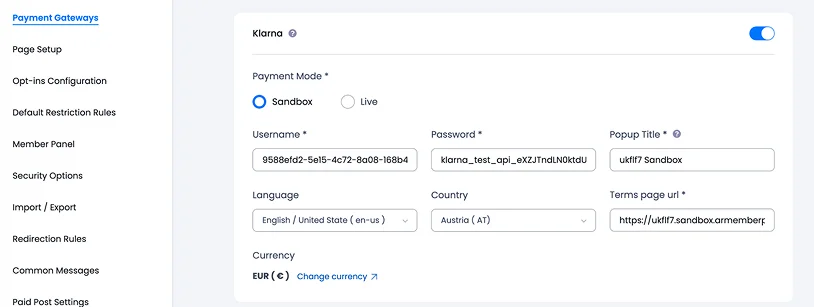
In your Klarna account, generate your API keys (username and password).
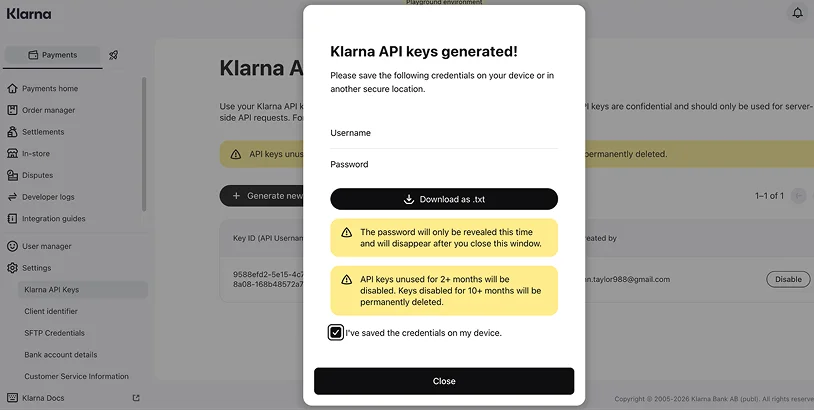
Once you have them, go to ARMember payment gateway settings > find Klarna > turn the toggle on > slick Sandbox > insert your keys > save your changes.
Note – you should test a payment as a customer, because for the logged-in admins this can be restricted in ARMember.
Issues you might experience:
One of the most common 401 Unauthorized issues from Klarna sandbox can mean the following:
Test The Full Signup Flow With A Payment
You may stick to just one membership payment option (e.g. one-time payment) but still it’s better to verify various ARMember methods in case you use any of them in the future.
One-time payments:
- user registers
- payment succeeds
- plan assigned immediately
- confirmation email sent
Recurring subscriptions:
- subscription created
- renewal events work
- cancellation works
- failed payment handling works
ARMember supports:
- automatic recurring
- semi-automatic/manual renewals
- both modes together
Basically, after you’ve submitted a successful test payment through the site as a client, you need to also check in ARMember:
1) the Members menu and their account details: whether the correct plan was assigned to them.
2) Log into their account and check if they can see all the content meant to be protected by a paywall.
3) Check whether they can see all their transactions in the member dashboard.
4) Check whether they received a respective email with login and purchase details.
5) Check whether an admin received a respective email.
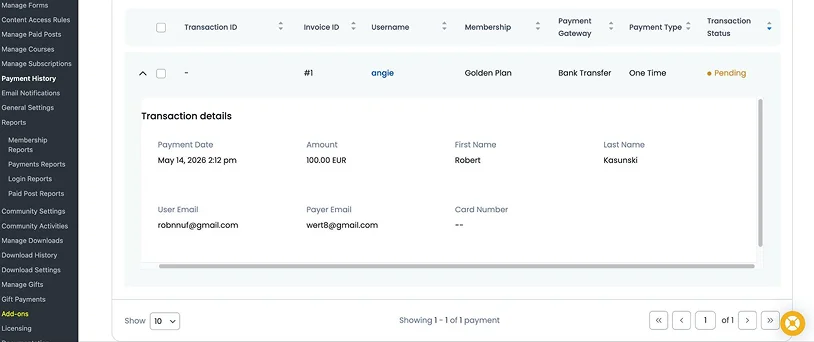
6) Check up the Payment history on ARMember.
We’ll be looking more into this later in the post.
Verify Webhooks/IPN
You might experience “payment succeeded but membership not assigned” issues, which usually come from webhook/IPN not firing, SSL issues, or blocked callbacks / caching/security plugins interfering.
For instance, if you use Stripe, you need to perform webhook verification for Stripe (ARMember helps you do it step by step).
You need to confirm:
- webhook URL is reachable
- gateway receives HTTP 200
- events are actually processed
For Stripe specifically, ARMember expects events like:
- invoice.payment_succeeded
- customer.subscription.updated
- customer.subscription.deleted
- invoice.payment_failed
Overall, many of the test payment failures are related to the wrong configuration, domain name issues, etc. – rather than the payment gateway itself not working.
If your site is not new, you might also have some caching plugins installed. These can break for checkout pages, redirects, and webhook endpoints. For such plugins, you might want to exclude member registration pages, checkout pages and webhook URLs. Security plugins and firewalls like Cloudflare, Wordfence, ModSecurity, etc. can block gateway callbacks as well.
Test Membership Assignment
A successful payment in the gateway dashboard is a big achievement – but it doesn’t always mean that ARMember activated the plan or the user received access.
There are real reports of sandbox payments succeeding while ARMember didn’t auto-assign plans until settings were corrected.
So, on this step, we highly recommend to verify:
- whether the new User Approval is automatic
- payment status becomes “Completed”
- plan status becomes active
- restricted pages unlock correctly.
Test Email Deliverability
You also want to know whether the right emails are triggered by the payment. In ARMember, you can test signup emails, failed payment emails, and renewal notices. Use SMTP and the email address you have access to (basically, walk in the client’s shoes).
Test More Specific Cases
A lot of things depend on what extra add-ons or functionalities you use and enable in the ARMember plugin. You should also test the following things:
– Coupons (100% discounts, free trials, recurring plans with coupons). Zero-dollar flows may bypass gateways entirely.
– Failed payments (cancelled checkout and declined card).
– Newsletter subscription (if you use any extra email services with ARMember, test if the successful payment subscribed members to the needed lists).
– Recurring subscription logic (ARMember supports many membership related things like renewals, cancellations, and upgrading/downgrading plans).
Note that some gateways also behave differently with recurring billing. For example:
- Square does not support auto-debit recurring in ARMember
- some gateways only support manual recurring
- SEPA recurring tests may not fully work in sandbox environments.
Also, SSL is quite often required even for simulated payment environments. Many gateways require HTTPS even in testing. Without SSL, you may get:
- webhook failures
- rejected API calls
- payment redirects breaking.
Recommended ARMember Payment Setup Testing Checklist
Here is a basic checklist for your payment gateway setup testing process:
- Sandbox payments succeed
- Membership activates automatically
- Restricted pages unlock
- Emails send correctly
- Recurring renewals work
- Failed payments behave correctly
- Webhooks are firing
- Cancellation works
- Upgrade/downgrade flows work
- Mobile checkout works
- SSL active
- Live keys swapped in correctly
When everything works as you expect, before you switch live, make sure to do the following:
- replace all test credentials (generate new for production sites in the payment gateway account)
- reconfigure live webhooks
- re-test with a small real payment
- clear caches
- verify cron jobs/webhooks again
Also, keep in mind that a lot of setups work in sandbox but fail live for some specific reasons:
- live webhook URLs differ
- firewall blocks production callbacks
- live account isn’t fully approved yet.
Concluding: Testing Your ARMember Payment Setup Before Going Live
Testing a payment setup can be an error-rich process, especially if you create business and test accounts with payment processors for the first time. Each has its technical requirements and limitations that might not work for your plugin settings.
ARMember, as a WordPress membership plugin, deals with many payment-related processes that are not that simple as in a standard one-payment ecommerce. You might have recurring payments, upgrade/downgrade options, various plans and subscription options, content restriction based on the chosen plan, etc. All these things require an even more time-consuming payment gateway setup testing process.
We recommend first of all checking with the payment provider you choose whether it can handle all your needs, then test the entire membership plan purchase and member registration workflow on a staging site.
However, with the correct credentials and step-by-step checks, you’ll be fully ready to monetize your membership business with online payments.
Related articles:

Share this post


