


WordPress sends several automated emails by default, such as new user registrations, password resets, and admin notifications.
While these emails work out of the box, customizing their content or design isn’t straightforward without the right tools.
So in this article, we’ll show you how to customize WordPress email templates with both default emails and those generated by plugins, using practical and no-code methods.
Customize Default Email Templates in WordPress
When are default WordPress emails sent? How to customize them?

What Are Default Emails, And Why Do They Matter?
There are a few standard WordPress emails common to all sites. For example:
- New user registration emails (sent to the site admin when a new user registers on the site; it usually contains a new username and a notification that a new account was created).
- The new user registration email when a user is added by an admin (comes with a username and a password setup or reset link).
- WordPress password reset / password change emails containing a one-time password reset link.
- Email address change confirmations when a user changes their email address in their profile.
Well, the key purpose of these emails is to keep your system notifications automated.
How Are These Emails Sent?
Out of the box, WordPress sends email using:
- PHP’s built-in mail() function
- Whatever mail service your hosting server provides
So the real path is usually: WordPress → PHPMailer → PHP mail() → server mail agent → recipient inbox or even spam.
This is why default WordPress messages often land in spam and some hosts block mail entirely. WordPress itself does not include an SMTP server, an email service, and any delivery guarantees.
When you install an SMTP plugin, you are replacing the delivery layer, not WordPress itself.
The flow becomes: WordPress → wp_mail() → PHPMailer → SMTP provider (Gmail, SendGrid, SES, etc.)
This overrides PHP mail(), improves reliability, allows authenticated sending, and lets you define a real sender address.
How To Customize Email Templates In WordPress?
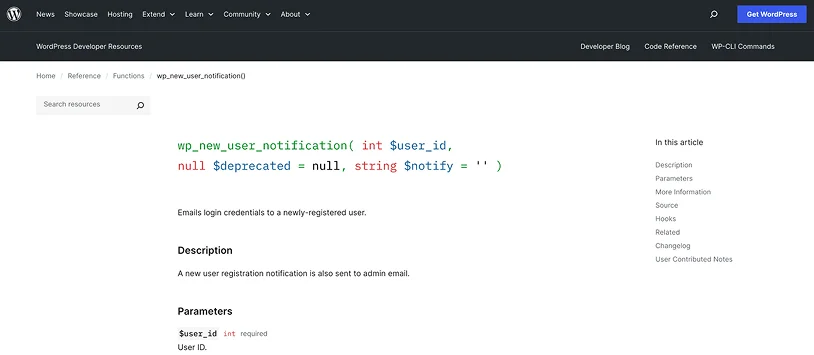
The most user-friendly and trusted way to customize default emails is to use a plugin. It’s easy to deal with for non-techs and normally gives you more capabilities about what you can change in WordPress emails.
Here are a few nice options.
1. Email Template Designer – WP HTML Mail for default email templates: Download
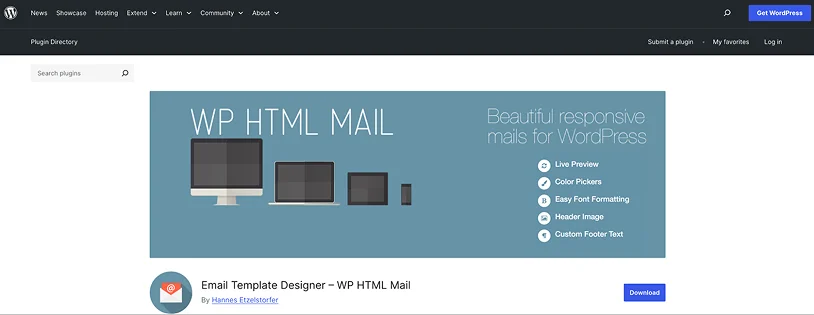
This plugin allows you to edit email templates for many WordPress plugins you might have installed, core emails included. It doesn’t just ‘unlock’ access to WP default emails but also serves a powerful toolkit for customization. Here is what you can do:
- Use professionally designed email templates and a live email editor.
- Customize text, colors, logos, or custom banner images.
- Apply consistent branding across all emails with colors and fonts you need.
- Add legal links, contact details, and company info to the email footer.
- Easily test emails.
Emails you customize with this plugin display correctly across desktop, web, and mobile email clients.
2. Email Customizer – customize default email templates: Download
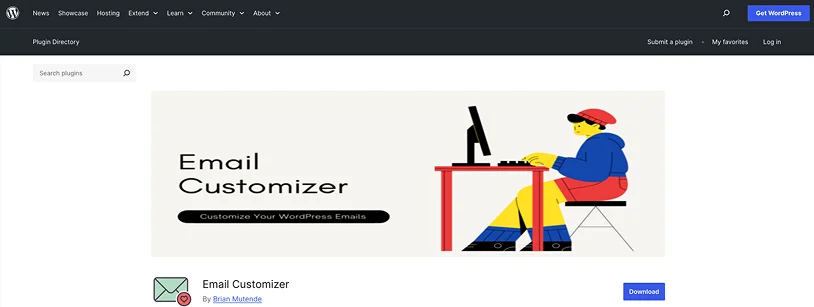
Its main purpose is to turn WordPress’s plain-text system emails into branded, professional HTML emails that match your website’s design.
This plugin for custom email templates in WordPress allows you to have control over colors, fonts, backgrounds, and layout. It also supports custom CSS with inline styling for better email client compatibility.
Moreover, notice that WordPress doesn’t send booking confirmations or order receipts – but your plugins do. For example, WooCommerce or ARMember have their own email templates and settings that you can customize specifically within these plugins.
Plugin-Generated Emails: Example with ARMember
You can easily change the content, layout, logo, or dynamic fields in emails generated by the ARMember plugin if you build a membership or subscription website.
First of all, what types of emails does it send automatically, so that you know what you can edit?
ARMember sends automated transactional emails related to memberships, subscriptions, payments, user actions, and (optionally) paid posts. These emails are triggered automatically by specific events handled by the plugin.
Here are a few examples of such emails:
- New subscription
- Subscription change (user or admin)
- Subscription renewal
- Membership expiration / cancellation / reminder
- Trial period finished
- Before subscription payment due (automatic & manual)
- Before membership expires
- Recurring subscription payment success
There are many more if you use ARMember add-ons or specific features like content dripping. What information can you edit in ARMember email templates?
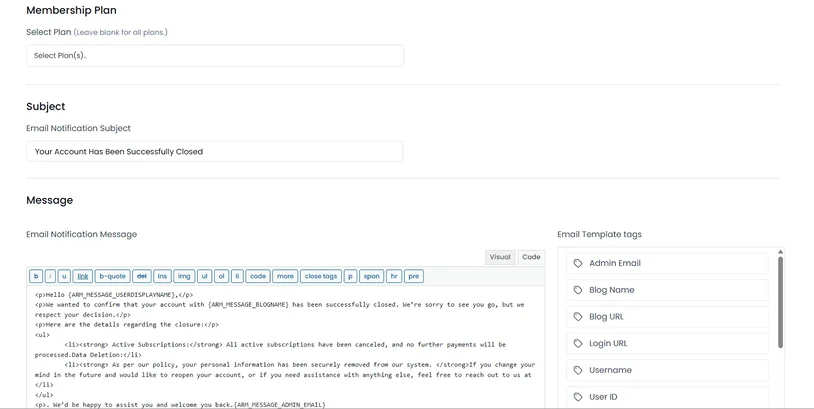
For each automated email, you can customize:
- Email subject
- Email content (HTML templates)
- Text formatting, layout, and structure
- Dynamic variables (e.g. user name, plan name, dates, payment details)
- Timing rules (for “before” notifications like expiry reminders)
- Plan-specific targeting (send emails only for selected membership plans)
ARMember provides an HTML email editor interface, allowing you to visually edit email templates.
Where do you find and configure these emails? Go to WordPress → ARMember → Email Notifications.
Here you can:
- View standard automated emails.
- Click + Add New Response to create custom automated emails.
- Edit existing email templates.
- Assign emails to specific events and plans.
You will unlikely need external tools to customize ARMember email templates.
WordPress Emails You Send with Newsletter & Email Marketing Services
When you need branded emails and more control over design, delivery, and automation, you often turn to newsletter and email marketing services like Mailchimp, Brevo, MailerLite, or ActiveCampaign.
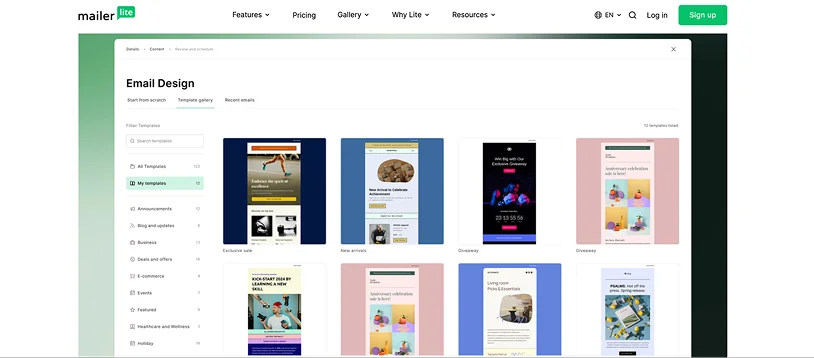
These tools don’t replace WordPress – using newsletter and email marketing services shifts email sending from WordPress to a dedicated platform.
How does this work?
First, the WordPress site is connected to the email service using a plugin or API key. This connection allows WordPress to securely send data, such as user email addresses, to the external platform.
Once connected, such a service can:
- Handle email design
- Store email subscribers
- Send emails
- Manage templates, branding, and delivery.
WordPress in this case acts mainly as the data source, providing email addresses for newsletters lists and audiences you manage in software like Mailchimp.
Email marketing services don’t automatically know who your WordPress users are. Email addresses are added to lists when:
- You have a newsletter signup form and a site visitor submits their email.
- A user creates an account and explicitly opts in.
- A checkout, booking, or contact form sends the email to the service.
- An admin manually syncs users via a plugin.
Normally, there is a specific sort of integration with mailing software that can be available for connection with your plugins. Note that most software setups require user consent before adding them to a mailing list.
How are WordPress emails customized and branded in this case?
Email templates are created and edited inside the email marketing platform, not in WordPress.
You will need to:
- Choose a pre-built template or start from scratch
- Add logos, brand colors, fonts, and buttons
- Customize layouts using a visual drag-and-drop editor
- Insert dynamic content (like names or links)
Once saved, these templates can be reused for:
- Welcome emails
- Announcements and newsletters
- Automated sequences and campaigns.
Final Thoughts
There are many ways to customize email templates in WordPress, depending on which emails exactly you are referring to, what plugins and software you use, and your technical skills. Here are a few common scenarios we’ve looked at:
Default WordPress system emails deal with messages like:
- New user registration emails
- Password reset emails
- Admin notifications
You can customize them via code or with plugins like Email Customizer for WordPress.
For emails generated with various third-party plugins, you can either use the built-in settings for these plugins or install plugins like Email Template Designer to alter default templates even deeper. For the latter, the list of plugin integrations is normally limited to popular names like WooCommerce.
If you use email marketing tools like Mailchimp, you can customize certain email templates there: WordPress collects users and triggers events, while the third-party service is responsible for design, branding, delivery, and automation.
Related articles:

Share this post


