




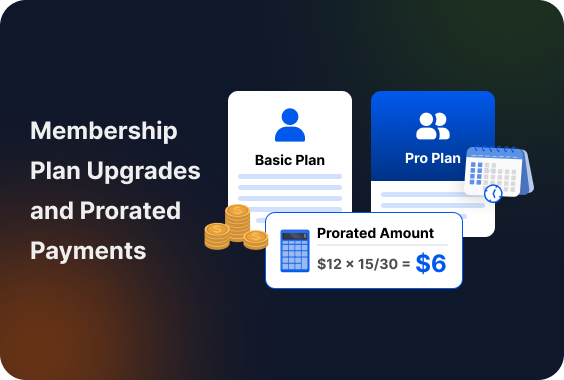
Are your members often asking you to help them upgrade their memberships without having to pay the full price of a new plan? Or, vice versa, downgrade but don’t lose the value of a current plan? Then what you need is to implement prorated automatic charges on your membership site. Then, they won’t need to ask each time – because such an option will be available automatically at hand.
In this tutorial, we’re showing that it’s possible – and easy!
The ARMember membership plugin for WordPress can automatically calculate the prorated amount based on your chosen cost-based or time-based method. This will help you manage subscription changes with easier and crystal-clear payment experiences.
There are many pain points where the ARMember plugin with its specialist plugin for pro-rated payment calculations can help. Let’s begin with them.
TL;DR: Prorated billing lets members upgrade or downgrade their WordPress membership plans without paying the full price again. With ARMember’s Pro-Rata add-on, you can automatically calculate charges using cost-based or time-based methods, manage billing cycles, and display transparent payment summaries. This makes subscription changes fairer and easier for both members and site owners.
Which Problems Does The Armember Pro-Rata Addon Solve?
Giving you an option to set automatic prorated calculations for your membership plans, ARMember ships with two methods:
- The new plan’s price minus the previous one (based on the plan cost).
- Based on the used portion of a plan and how much time remains.
This is the main goal you might be looking for with prorated membership billing: don’t charge your members the full price of a new plan once they want to switch to another subscription.
You can use the plugin for various upgrade and downgrade cases:
- Infinite membership plans
- Finite membership plans
- Recurring subscription plans
You are free to choose if a plan change is instant or after the existing plan expires (your plan type and settings decide).
You may also want to reset the subscription billing period after an upgrade. For example, if a member upgrades on June 20, the new subscription can start its billing period from June 20, not the previous renewal date.
This is a killer feature to control how billing cycles work after a plan change.
Payment transparency? Also supported by ARMember. With the help of a shortcode tag (more on this later), you can show the prorated amount in the payment summary so that members can fully understand their benefits.
Pros And Cons Of The Add-On
So, with the add-on and ARMember, you have these pains solved:
- No incorrect charges when switching plans because the calculations are automatic.
- No confusing upgrade/downgrade rules thanks to clear methods (time or plan-based).
- Fewer members complain that they have unexpected charges.
- Automation that leads to easier subscription management.
However, there are a few limitations to know about as well:
- The add-on calculates prorated amounts but refunds must be handled through your payment provider.
- Automatic recurring payment support is limited to specific gateways. So, you can use the capability (recurring payment with pro-rata) with PayPal, Stripe, PayPal Pro, and Paddle.
What About Refunds, Coupons, And Taxes?
There are some additional nuances about other important billing aspects on your WordPress membership website:
- Refunds
The Pro-Rata add-on doesn’t establish a full automatic refund policy for unused subscription time. You need to manage them through your payment gateway. - Coupons
The Coupon add-on fully integrates with the prorated membership billing set via the Pro-rata add-on from ARMember. - Taxes
No worries about the tax fees included into your prorated billing of the downgrading/upgrading options.
The Tax add-on calculates prorated amounts alongside taxes.
Let’s quickly sum up: this add-on for proportional billing won’t manage the entire billing, refund, or accounting management cycle for your subscription/membership business, but by carefully taking care of the subscription proration, it guarantees that some of the key client’s payment expectations are met.
How To Use The Armember Pro-Rata Add-On For Membership Upgrades
To show you how things work, we’ll focus on one common scenario: a member has already paid for a membership plan but wants to upgrade to a more expensive plan before their current subscription expires. With the help of the aforementioned extension, ARMember can calculate a prorated amount.
Before anything else, make sure ARMember Pro is installed and activated! For our scenario to work, you also need to have at least two paid membership plans, and a supported (for automatic prorated recurring payments) payment gateway in place.
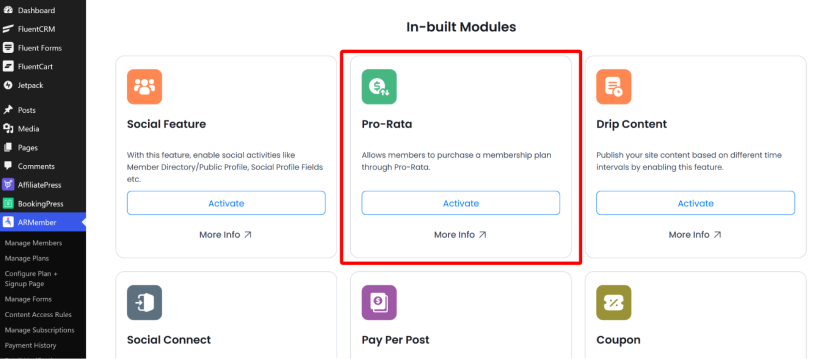
Then, install and activate the Pro-Rata Integration add-on (from the Addons menu or by downloading it from your ARMember account).
1. Choose Your Method
Once the add-on is activated, set up its workflow via ARMember > General Settings > Pro-Rata Configuration.
ARMember enables you to choose between two calculation methods:
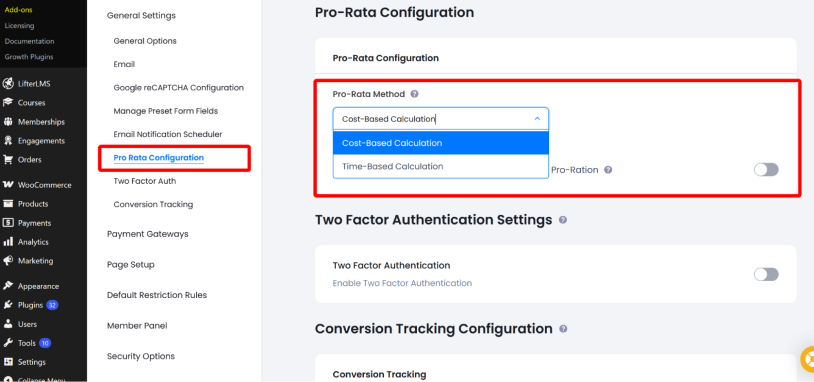
- Cost-based calculation
Choose it when you want members to pay the price difference between their old and new plans (without relying on unused days in the plan). For example, a member currently has a plan worth $40 and wants to upgrade to a plan worth $70. In this case, they pay only $30 to upgrade. - Time-based calculation
For you, if you need to calculate the value of the unused portion of the current membership and deduct it from the prorated cost of the new plan.
For example, a member has purchased a 30-day plan for $300. After using it for 15 days, they decided to upgrade to a $600 subscription per month.
The member pays $150 for the remaining 15 days (the new plan), not the new monthly price of $600. The next renewal is the $600 subscription price.
2. Configure The Subscription Billing Period
In the same Pro-Rata Configuration add-on menu, you’ll see an option to enable Reset Billing Period (to specify when the billing cycle of the new subscription starts).
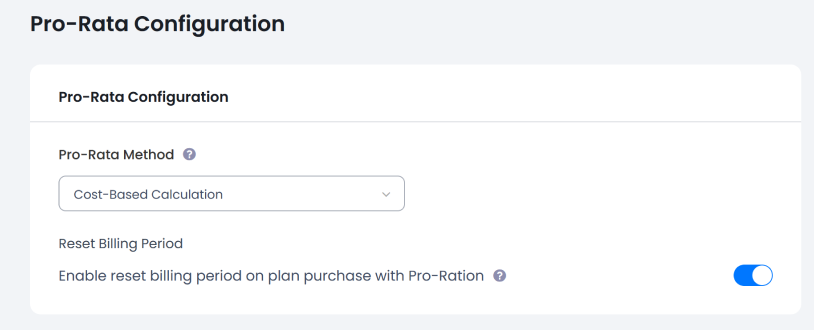
For example, your member purchases a monthly subscription on May 7, with the next renewal scheduled for June 7. On June 4, they upgraded to a more expensive subscription. In this case, you can create different scenarios:
- Reset billing period enabled
- Reset billing period disabled
How to choose? It’s a choice between whether you want to preserve members’ original renewal dates or start a completely new billing cycle whenever they upgrade. This option works when the upgrade plan is a subscription plan.
3. Configure Membership Plan Upgrade Rules
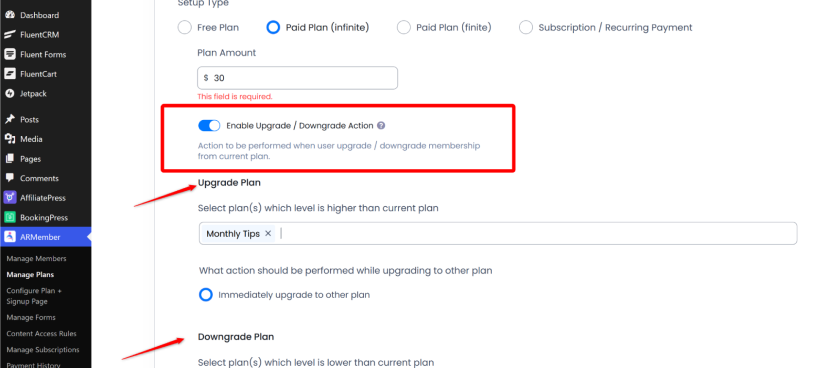
Now you need to tell ARMember which plans members can upgrade to and when the changes should take effect.
- Go to ARMember > Manage Plans
- Open the needed membership plans
- Find the Upgrade/Downgrade settings
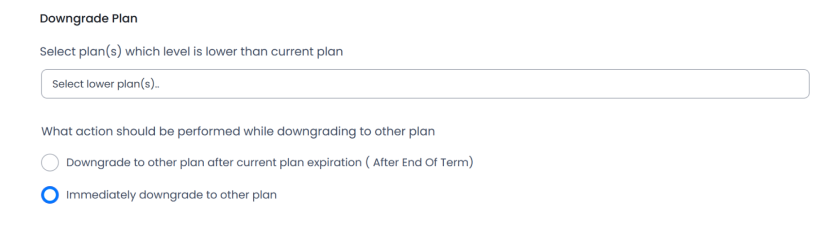
- In the Upgrade Plan section, select the plan alternatives to the current plans.
- Choose when the upgrade should take effect.
There are two alternatives:
- Immediate (as soon as purchased)
- After the current plan expires (starts after the existing plan expires)
Note that the Multiple Membership add-on cannot be activated alongside Pro-Rata.
4. Display Prorated Amounts In Payment Summaries
To display to members how much they need to pay when upgrading, use shortcodes from ARMember:
[PRO_RATA_AMOUNT]
This is how it’s added:
- ARMember >Configure Plan + Signup Page.
- Open the setup form used for your membership plan purchases.
- Find payment summary (under Forms).
- Add [PRO_RATA_AMOUNT] to the payment summary content.
- Save it.
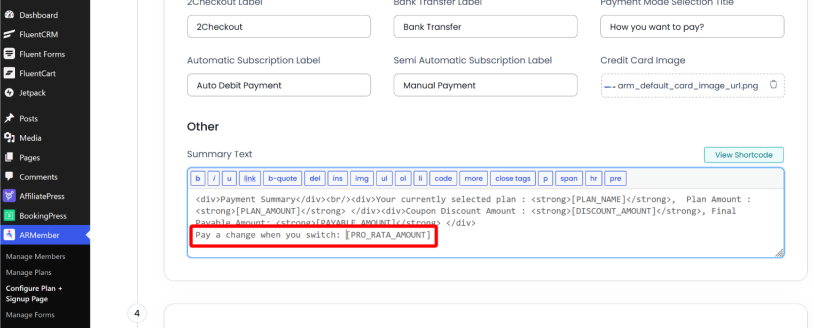
You can combine it with other available payment summary tags, such as:
- [PLAN_NAME] – membership plan name.
- [PLAN_AMOUNT] – plan price.
- [PRO_RATA_AMOUNT] – prorated amount.
- [DISCOUNT_AMOUNT] – applied coupon discount shortcode.
- [TAX_AMOUNT] – tax amount.
- [PAYABLE_AMOUNT] – final amount to charge.
Just to remind you, the settings for prorated membership billing are customized globally under General Settings and upgrade rules are configured for individual membership plans. Also, when using the [PRO_RATA_AMOUNT] shortcode, you help members understand their payment so that we highly recommend doing so.
Concluding: How to Manage Membership Plan Upgrades With Prorated Payment Calculations
The purpose of prorated membership billing delivered by the ARMember’s addon is quite specific: automatically calculate the amount a member should pay when upgrading or downgrading a membership plan, taking the previous plan’s price or remaining subscription time into account.
What can you expect for your membership business to change when you add this feature to your ARMember workflow? Quite practical things:
- Fairer subscription upgrades and downgrades: no full prices for a new plan.
- Flexible billing calculations: you simply choose between cost-based and time-based proration.
- More control over subscription changes: set up immediate or end-of-term plan changes and adjust billing periods.
- Clearer payment summaries: members can see the prorated amount and take their action with peace in mind.
Related articles:

Share this post


Subscribe Newsletter
Never miss any of our tips, tricks, and news, Subscribe now!