



A subscription based membership site enables you to turn your WooCommerce store into a membership site where customers pay on a recurring basis to gain access to exclusive benefits. You could use it to sell premium content, run online courses, offer member only discounts or build a private community. It’s a great way to generate a regular income stream.
WooCommerce provides a very flexible base for this sort of business, you just need the right tools to handle the memberships, the automated recurring payments and the restriction of access to the premium content. You can absolutely build a site that makes it easy for people to join up, manage their membership and get access to the benefits.
In this guide you’ll learn how to plan the full membership workflow, install the tools you need, create a recurring plan, protect member content, set up renewals and then test the customer journey prior to launch.
TL;DR: You can build a subscription-based WooCommerce membership website using ArraySubs to manage recurring payments, membership plans, protected content, and exclusive member benefits. Set up subscription products, configure access rules and payment renewals, and let customers manage their subscriptions through the WooCommerce My Account portal.
Choose the Right WooCommerce Subscription and Membership Plugin
Before you go any further with the technical bits, pick a plugin that will be able to support both the way you charge your customers and the benefits you’re going to give them. There are a number of subscription and membership plugins available for WordPress, all of which have different levels of payment gateway support, content restriction, customer self service, renewal recovery, integrations and pricing.
When comparing plugins, check whether each option provides:
- WooCommerce-native products, checkout, orders and customer accounts
- Manual and automatic renewal options for your preferred payment gateway
- Flexible rules for content, products, downloads, discounts and member roles
- A customer portal for viewing plans and performing allowed subscription actions
- Clear handling for failed payments, pauses, cancellations and expiry
- Documentation, reporting, and room to expand as the membership grows
Using separate plugins for billing, memberships, content restrictions and customer management can work but can also lead to overlapping settings, duplicate records, additional costs and a lot more integration testing. An integrated solution is generally much easier to set up and support.
For this guide we’re using ArraySubs as it brings together recurring WooCommerce products, membership access rules, protected content, customer self service and renewal management in one integrated workflow. It’s a very solid solution for a store that wants to be able to manage subscriptions and memberships without having to piece together a number of disparate plugins.
No plugin is automatically the best fit for every website. Before committing, verify that ArraySubs supports your required payment gateway, renewal method, customer actions, integrations, and access rules. The following sections show how to evaluate and configure it for a practical WooCommerce membership website.
What Is a Subscription-Based WooCommerce Membership Website?
A subscription membership website combines two related systems:
- Subscription billing controls the amount, billing interval, next payment date, trial, signup fee, renewal method, and payment status.
- Membership access controls the pages, products, downloads, discounts, roles, or other benefits a customer receives while eligible.
For example, a customer buys a Premium Learning Membership for $19 per month. WooCommerce handles the product, cart, checkout, order, taxes, coupons and customer account. ArraySubs creates the recurring subscription record and applies access rules that unlock the lesson library while the membership is active.
Keeping billing and access connected but configurable makes the site easier to manage. You can change a protected page without changing the price, create annual and monthly plans that unlock the same library, or stop access when a subscription reaches the status defined by your policy.
Benefits of a Subscription Membership Business
A subscription membership business has a number of advantages, from the obvious benefit of generating recurring revenue to the benefit of building long term customer relationships. The right membership model can be a powerful tool in delivering ongoing value to your customers and creating further opportunities for sustainable business growth.
Predictable recurring revenue
Renewing memberships can create a much more stable revenue base than one-off sales. You can estimate your future income from active plans whilst still taking into account new sign ups, cancellations and failed payments.
Higher customer lifetime value
A good membership gives you a reason to stay. Rather than just making one purchase, a happy member will continue to pay and will get ongoing value.
Stronger customer relationships
Courses, private communities, resource libraries, service retainers and subscription boxes all create a series of repeat interactions. Those interactions in turn allow the business to learn what the members want and to improve the offering over time.
Controlled delivery of digital and physical benefits
Membership rules can unlock certain pages, downloads, products, discounts or permissions. A recurring product can also be a box, a maintenance plan, a consultation package or some other service which is delivered on a schedule.
More efficient support
A clear My Account section enables the customer to view their plan details and make use of the actions you’ve enabled. Self service obviously reduces the number of standard inquiries we get about renewal dates, payment details, pauses and cancellations.
Choose Your Membership Model Before Installing Plugins
Start by defining what the customer pays for and what happens after payment. Common models include:
- Content membership: premium articles, lessons, videos, templates and downloads.
- Community membership: private forums, groups, events or coaching calls.
- Digital product club: recurring access to software, licences, design assets and resource packs.
- Discount membership: special prices, member only products, purchase limits and/or shipping benefits.
- Service subscription: maintenance, consulting, support or recurring deliverables.
- Subscription box: physical products delivered on a weekly, monthly or seasonal basis.
Just write down the recurring price, the billing interval, the trial, the signup fee, the member benefits, the cancellation policy, the access rules and the failed payment policy. That becomes the specification for the technical implementation.
What You Need Before You Start
To set up your WooCommerce membership site properly you need to have the right tools and work out how your membership plans are going to work. Here’s what you need:
- A WordPress website with administrator access
- WooCommerce installed and configured with currency, taxes, emails, checkout, and My Account pages
- ArraySubs installed and activated
- A clearly defined monthly, quarterly, or annual offer
- Content, products, downloads, discounts, or services reserved for members
- A payment gateway suitable for the intended renewal method
- A test customer account and a non-live payment method
- A recent site backup or staging copy
Decide how paused, cancelled, expired, pending and failed payment subscriptions should impact access. These rules should be consistent with the terms as presented on the sales and checkout pages.
Why Use ArraySubs for a WooCommerce Membership Website?
There are loads of WordPress subscription/membership tools out there. The right one is going to be the one that fits in with the architecture of your store, your payment method and your customer journey. ArraySubs is a very good option if you’re running a WooCommerce store as it keeps your product catalog, your checkout, your orders, your coupons, your customer accounts, your subscription records and your access rules all in one flow.
With ArraySubs a standard WooCommerce product can be turned into a recurring plan. Member Access rules can then be used to link that plan to roles, discounts, shop access, URLs, post types, downloads, comments and purchase limits. Content Gate can be used to protect whole pages or specific sections of a page. The WooCommerce My Account area provides subscribers with a very familiar place to go to manage their plans.
The free core covers recurring products, subscription records, manual renewal invoices, the customer portal and member access tools. Automatic renewal is gateway dependent and will also depend on the ArraySubs edition that you have installed.
ArraySubs Pro adds in a number of premium workflows including automatic gateway payments, advanced reports, store credit, checkout customisation and further recovery/account controls. Please have a look at the current feature and gateway documentation prior to selecting an edition.
How the Complete Workflow Fits Together
The complete process connects WooCommerce payments, ArraySubs subscription management, and member access in the following way:
- The customer buys a recurring WooCommerce product.
- WooCommerce creates the initial order and takes the checkout payment.
- ArraySubs creates a linked subscription with its billing schedule and status.
- Member Access rules assess the customer and then award the benefits that have been promised.
- Renewals, cancellations, pauses, expiry or payment failure will update the subscription state.
- Access rules respond to that state in accordance with the store policy.
- The customer can use their My Account to view the details and carry out the permitted actions.
Step 1: Install WooCommerce and ArraySubs.
First thing first, install & activate WooCommerce. Then set the store settings such as currency, checkout, shipping and at least one payment method.
- Next, go to Plugins → Add New Plugin and search for ArraySubs
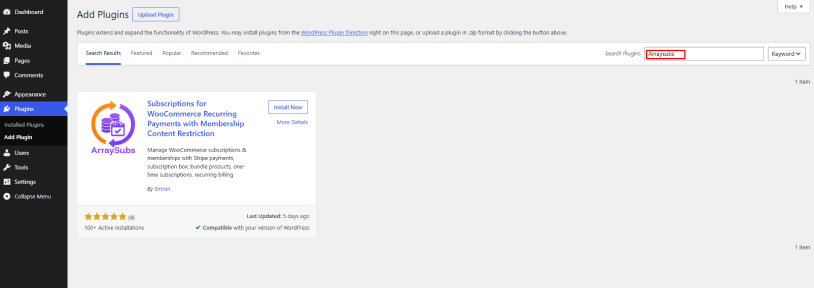
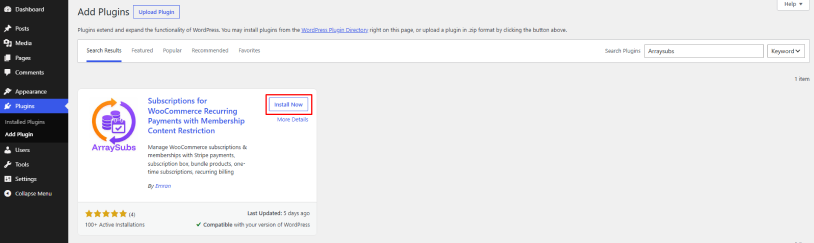
- Find ArraySubs in the search results and click Install Now
- After the installation is complete, click Activate to enable ArraySubs
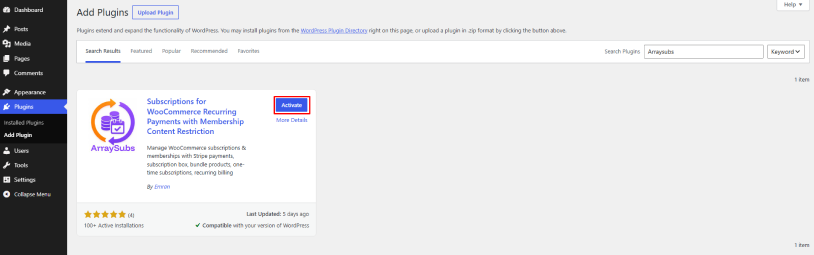
After activation, a new ArraySubs menu appears in the WordPress dashboard – this menu contains subscription management, member access, content protection, reports, settings and setup tools.
Step 2: Run the ArraySubs 1-Minute Setup
Open ArraySubs → 1-Minute Setup. This screen groups the first configuration into three practical tasks:
- Subscription settings define store-wide behavior.
- Subscription product opens the recurring-product workflow.
- Set up payments to connect a payment method for renewals.
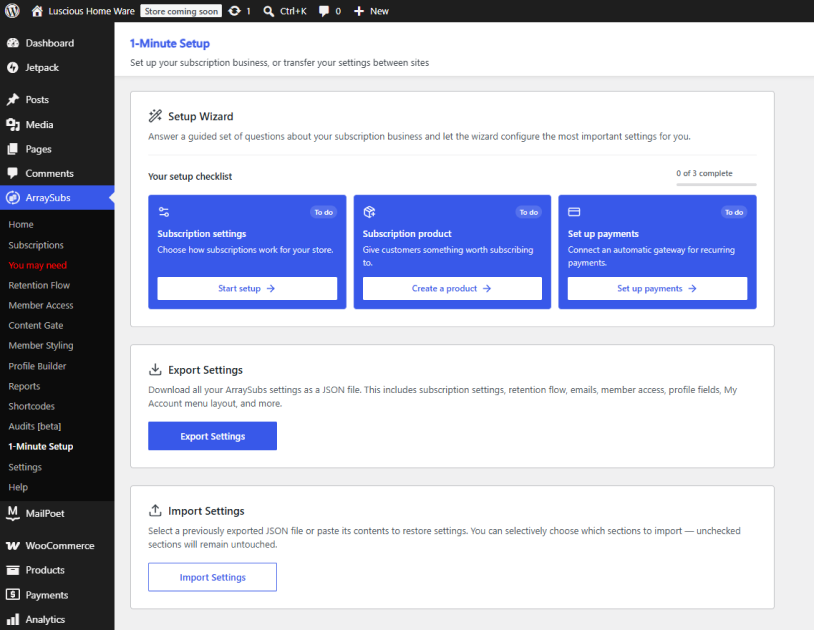
Open the guided setup and choose the business profile that best matches the offer, such as membership or community, digital content, SaaS, services, or a physical subscription box. Review each recommended answer. A wizard can accelerate setup, but the final rules must match the promise on your sales page.
The wizard does not replace the remaining work. You still need to create the product, define precise access rules, configure the payment gateway, write customer messages and test all key statuses.
Step 3: Configure the General Subscription Rules
Go to ArraySubs → Settings → General. These controls determine how subscription products behave in the cart and in the customer account.
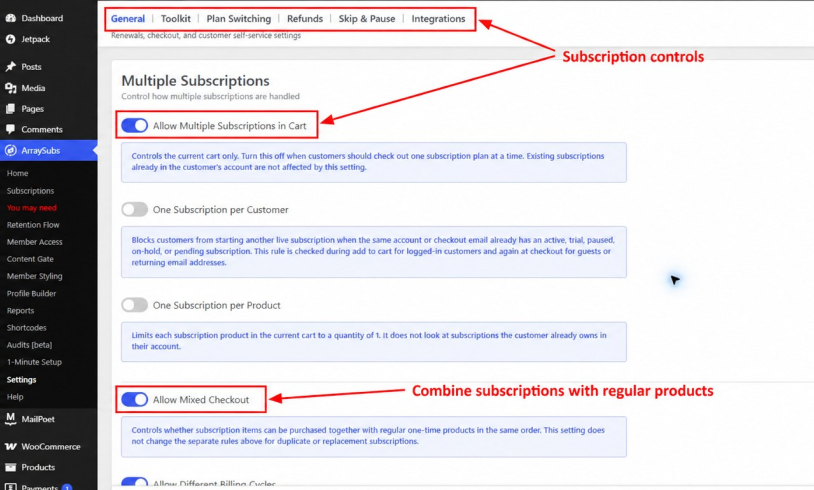
Consider each option in the context of the offer:
- Allow Multiple Subscriptions in Cart lets customers buy multiple plans in a single checkout.
- One Subscription per Customer is useful when every account should hold only one active membership.
- One Subscription per Product prevents a customer from purchasing the same plan more than once.
- Allow Mixed Checkout lets a recurring plan and a one-time product share the same checkout.
- Trial, renewal, pause, and customer-action settings control what members can do and when billing changes.
For a first launch, keep the rules easy to explain. One clear plan and one billing path are easier to test than many combinations of trials, fees, variations, and renewal schedules.
Step 4: Create the Membership Subscription Product
Go to Products → Add New. Give the plan a benefit driven name (e.g. Premium Monthly Membership). Add a short description, a full list of benefits, a product image and the regular price.
In Product data, select Simple product and then select Subscription [AS]. ArraySubs then shows you the Subscription Billings [AS] tab and a billing shortcut below the regular price.
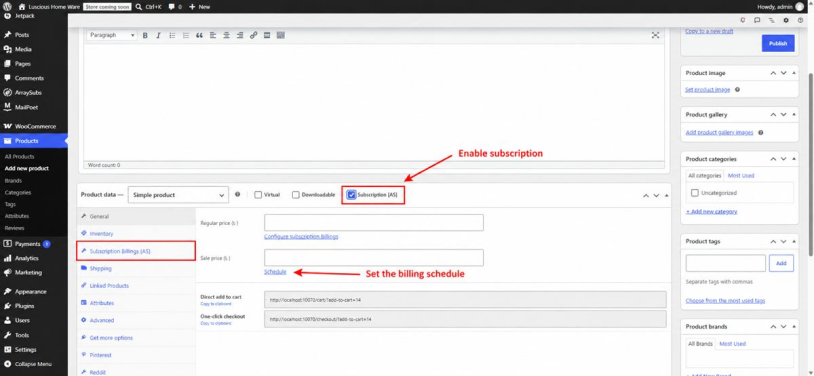
Configure the main billing fields:
- Billing period: day, week, month or year.
- Billing interval: the number of periods between charges.
- Subscription length: the number of periods prior to the plan expiring (or unlimited in the case of an ongoing membership).
- Trial length and period: the introductory period prior to normal billing.
- Signup fee: an optional one-off enrolment or setup fee.
The WooCommerce regular price becomes the amount charged on new subscriptions. Existing agreements will generally have the amount that was captured at the point of purchase so changing the product price at a later date shouldn’t be seen as a way of re-writing those earlier subscriptions.
Publish the product and check the front end. The price should be unambiguous as to both the amount and the billing period. Any trial, signup fee, fixed term, renewal or cancellation terms should be clearly stated in the vicinity of the Add to Cart button.
Should you create monthly and annual plans?
Monthly plans reduce the upfront commitment, annual plans can be better for cash flow and retention. Only create both if the difference is meaningful to the customer and you can test each path. You can use separate products or supported variations but every plan must be linked to the correct access rules, emails, price and renewal.
Step 5: Grant Member Benefits with Access Rules
Recurring billing does not automatically create a complete membership experience. The plan must be connected to the benefits promised on the sales page.
Go to ArraySubs → Member Access. Choose the rule type that represents the benefit, then click Add New Rule.
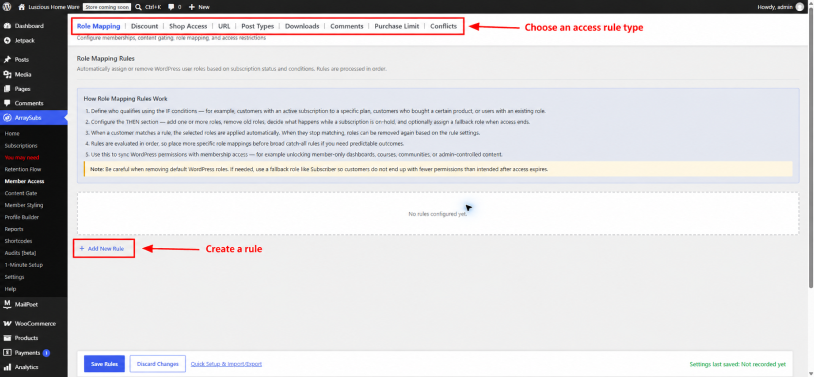
Most access rules follow the same logic:
- IF identifies the eligible customer, such as someone with an active or trial subscription to Premium Monthly Membership.
- TARGET identifies the page, product, post type, URL, download, or other resource.
- THEN sets the result, such as assigning a role, granting a discount, permitting a download, or blocking access.
- SCHEDULE can delay a benefit when content should be released gradually.
Use descriptive internal names such as “Premium plan – lesson library access.” Start with a small number of specific rules and test them individually before combining several conditions.
Add Member Discounts, Products, or Shipping Benefits
A membership can offer more than private content based on the available rule types and store configuration. Active members may get product discounts, access to a private catalog, purchase limits, special downloads or other WooCommerce benefits.
Keep every perk traceable to a rule. If the plan promises 10% off selected products, document which products qualify, whether sale items are included, and which subscription statuses receive the discount.
Step 6: Protect Complete Pages or Selected Content
Now, time to open the ArraySubs → Content Gate, and pick a protection method that best-fits your page builder and the desired customer experience.
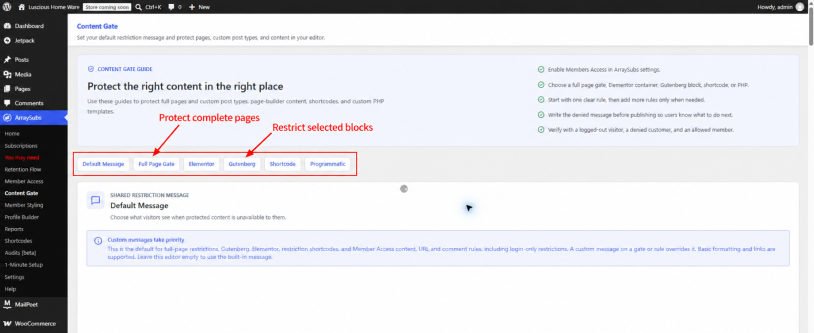
Use full-page protection for a private lesson, archive, dashboard, resource library, or download page. And, when the public sales content should remain visible but premium videos, files, buttons, or lesson sections require membership, use block or container protection.
Moreover, write a useful denied-access message and tell the visitor whether to sign in, renew, or purchase the correct plan, and include the appropriate link. This turns a dead end into a clear next step.
Step 7: Configure Payments and Renewals
Return to ArraySubs → 1-Minute Setup and choose Set up payments, or open WooCommerce → Settings → Payments. Enable the gateway you intend to use, connect its account, and configure its test mode before accepting live orders.
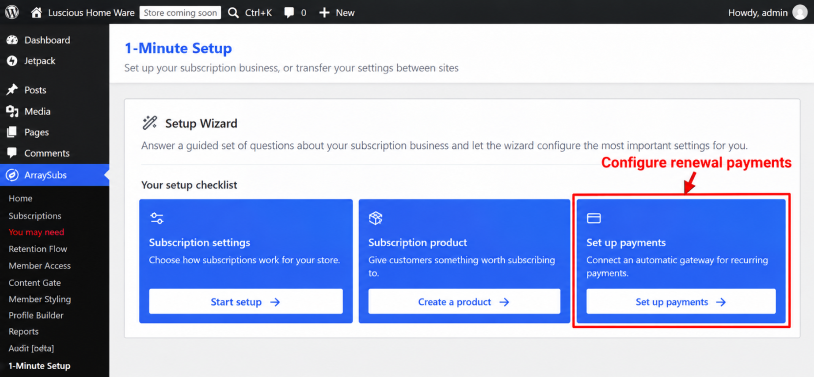
Manual renewals can use ordinary WooCommerce payment methods because the customer returns to pay the renewal order. Automatic renewals require a gateway and configuration that can securely charge the saved payment method again. Support differs by provider, country, payment method, account, and plugin version, so verify the exact gateway capability for your store.
Don’t forget to test the initial checkout payment, subscription creation, next payment date, renewal order, successful renewal, failed payment, retry or recovery path, customer emails, payment-update link and access changes after each outcome.
Payment failed and payment received should appear as separate timeline events when they are separate attempts. A failed renewal followed by a successful retry tells staff what happened and explains any temporary status or access change.
Step 8: Build the Customer Self-Service Portal
ArraySubs adds a Subscriptions area to the WooCommerce My Account page. Customers can review plan details and use the actions permitted by the store configuration.
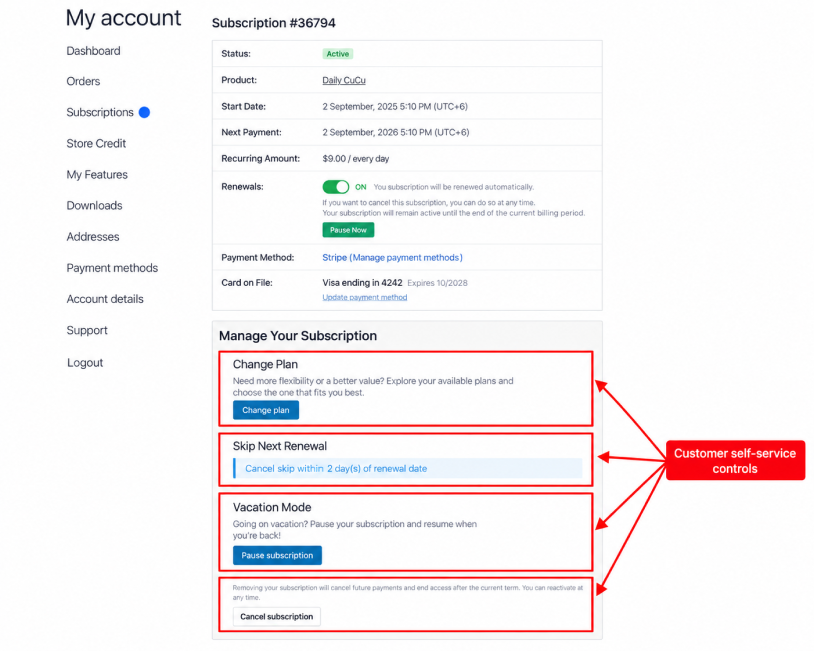
Depending on the installed features and settings, customers may be able to see the next payment date, update a payment method, renew, skip a renewal, pause service, switch plans, or cancel. Enable only the actions supported by the business policy and explain their effects clearly.
Use the same language on the product page, checkout, emails, My Account, and cancellation flow. If the sales page says Pause membership, use the same phrase everywhere.
Step 9: Test the Complete Subscription Lifecycle
Create a test customer and place an order via the real storefront flow. Remember, a successful first payment is only the beginning. Always confirm that checkout creates both the WooCommerce order and the linked ArraySubs subscription.
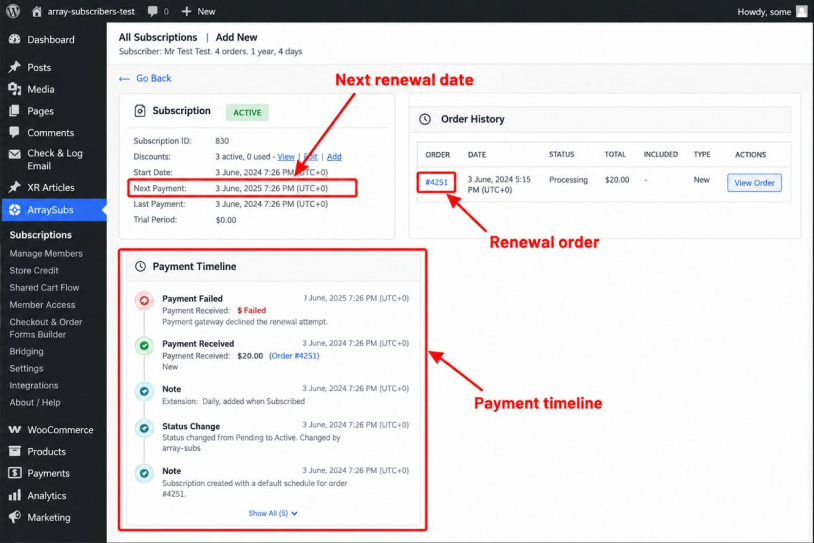
Follow the subscription through each state used by the business:
- Pending: setup or payment has not finished
- Active: billing and access are operating normally
- On hold or paused: billing or service is temporarily interrupted according to store rules.
- Cancelled: future renewals have stopped
- Expired: the planned subscription term has ended
Use this pre-launch checklist:
- The product page states the recurring price, billing period, trial, and signup fee
- Checkout creates both an order and a subscription record
- The status and next payment date are correct
- Active and trial members receive the intended benefits.
- Paused, cancelled, expired, pending, and unpaid customers receive the intended access
- The gateway creates or processes a renewal correctly
- Failed payments follow the configured recovery path
- Confirmation, renewal, and payment-failure emails contain accurate links
- The customer portal displays the correct actions
- Staff can find the subscription and understand its timeline
Best Practices for a Successful WooCommerce Membership Website
Make the recurring terms obvious
Show the amount, interval, trial, signup fee, renewal behavior, cancellation policy, and applicable taxes before checkout. Clear terms reduce disputes and build confidence.
Sell a defined outcome
Avoid describing the offer only as access. Explain what members receive and how often: new lessons every week, a private community, monthly downloads, support sessions, member prices or exclusive products.
Deliver value on a schedule
Create a simple content or benefit calendar. Members are more likely to remain subscribed when they know what arrives next and when it will be available.
Keep access rules understandable
Use descriptive names and document what each rule protects. Test one condition at a time before adding AND/OR logic or content-drip schedules.
Offer useful self-service controls
When the business model allows it, let customers update payment details, pause, skip, change plans, or cancel without contacting support. Explain the consequence of each action before the customer confirms it.
Monitor failed payments and churn
A failed renewal does not always mean the customer wants to leave. Use clear emails, payment-update links, appropriate retries and a reasonable grace period.
Back up and test before major changes
Export settings or create a backup before changing many rules. Test updates in staging when they affect billing, checkout, access or renewal behavior.
Conclusion
Building a subscription-based WooCommerce membership website requires a complete customer journey. The recurring product must connect to the right benefits, renewal method, account controls, emails, and access behavior. Each status and payment event should produce a predictable result for both the customer and store team.
All in all, WooCommerce offers a solid commerce foundation and ArraySubs connects recurring products to subscription records, member access, protected content, and customer self-service. Start with one well-defined offer, test the full lifecycle and expand only after the first plan works reliably.
Related Articles:
- 6 Best WooCommerce Subscription Plugins for 2026
- How to Sell WordPress Membership Subscriptions through ARMember and WooCommerce
- 10 Essential Features for Building a Private Online Community With WordPress
FAQs
Can WooCommerce sell recurring memberships?
Yes. WooCommerce supplies products, cart, checkout, orders, taxes, coupons, and customer accounts. ArraySubs adds recurring schedules, subscription records, access rules, content protection, and subscriber management.
What is the difference between a subscription and a membership?
A subscription defines how and when the customer is billed. A membership defines what the customer can access. A recurring product can activate membership benefits, but billing and access remain separate parts of the setup.
Do I need ArraySubs Pro to start?
The core plugin covers the essential recurring-product, subscription-record, account-page, and member-access workflow. Pro adds advanced capabilities.
Can customers manage their own subscriptions?
Yes. ArraySubs adds subscription pages to WooCommerce My Account.

Share this post


