


Looking to show visitors a preview of your premium content on WordPress? Like the one prompting them to subscribe with beautiful content teasers?
Awesome, because in the bigger picture, content teasers are a great conversion and membership acquisition tool! Many big newspapers and publishers are doing exactly this with paywalls.
They not only protect your premium content but also help you boost sales more professionally and ethically.
Overall, it can smoothly bridge the gap between free access and paid membership.
In this WordPress + ARMember tutorial, we’re explaining how to let visitors see just a part of your articles, lessons, or media content – and then prompt them with functional content lockers.
Here is what you will be able to do for your membership site:
- Demonstrate premium value before asking for payment.
- Enjoy smaller friction around subscribing (people know what they are unlocking!).
- Create curiosity and urgency.
- Turn regular readers into members (the subscription prompt at the point of highest interest is very enticing!).
- Support a freemium/content-gating strategy.
TL;DR: The ARMember Locker add-on lets you protect premium WordPress content and shows your visitors a teaser before asking them to log in, register or subscribe. You can control how much content visitors see, customize the locker, and apply restrictions globally or to specific sections of a page.
What is the Locker Add-on?
The ARMember Locker add-on lets you restrict content and encourage visitors to log in, register, or choose a membership plan to access it. Like in this example below created with ARMember.
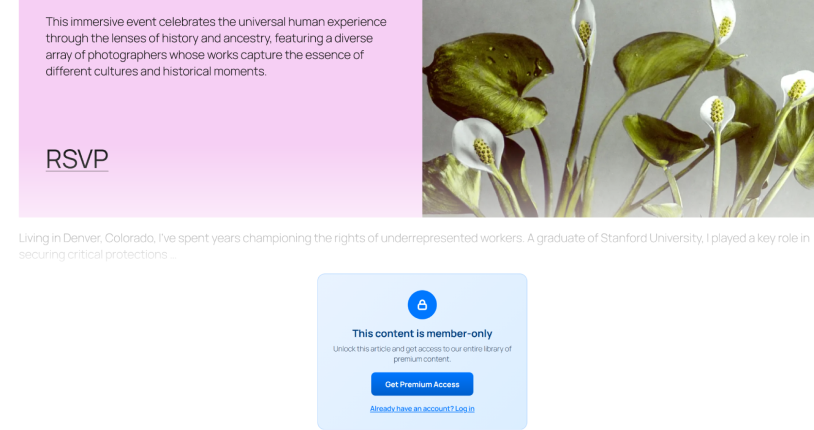
There are actually two different ways to use the add-on:
- Restrict an entire page/post globally and sitewide. This is configured with the Locker add-on settings via the locker and restriction under ARMember → Content Access Rules. No shortcode is needed.
- Restrict only a specific part of a page/post. Use the Restrict Content shortcode for scenarios like “free intro → locked premium section → rest of page”.
Now, we’re walking you through the main settings.
Setting up the ARMember Locker Add-on
You can either hide the restricted content completely or show a preview before displaying a content locker.
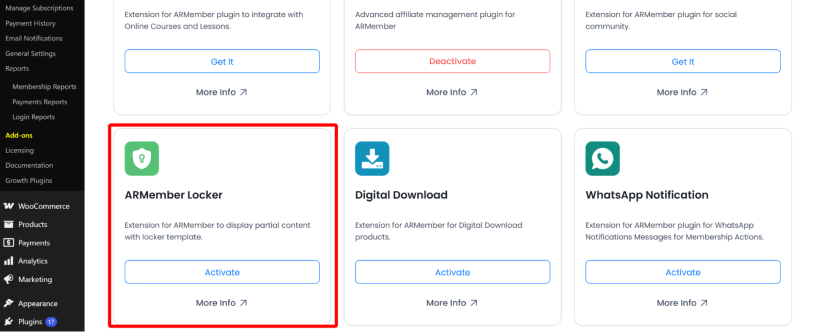
To use the feature, activate the Locker add-on from the Add-ons menu (you might need to download it first from your account).
1. Choose How Restricted Content Should Appear
In ARMember, open General Settings → Default Restriction Rules.
If the add-on is successfully installed, you will find Content Access Rule Type. In this menu, you curate exactly what your visitors see when they land on the page that is locked.
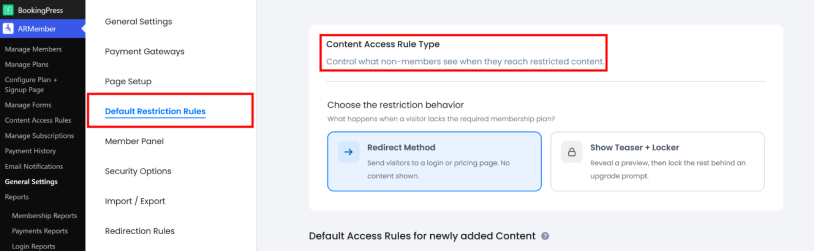
Select one of the following settings for this:
-
Redirect to Restricted Page (locker only)
Visitors who try to access restricted content are redirected to the restricted access page configured in ARMember. They won’t see any content at this stage.
You may want to use it for members-only articles. A visitor clicks the article but is immediately sent to your membership page.
-
Show Teaser + locker
Use this option for visitors who need to see a preview of the restricted content before making any payments or subscriptions. A content locker is exactly the feature that asks them to log in, register, or purchase a membership plan. Basically, they will see partial content before it is locked.
A basic example is a recipe website could show the ingredients and the first few steps of a recipe. Then, the site visitors see a locker asking to become a member / purchase the complete recipe.
If you choose a locker, then you need to customize it.
2. Customize the Content Locker
On the next step, decide how your locker looks. ARMember provides you with 12 ready-made locker templates.
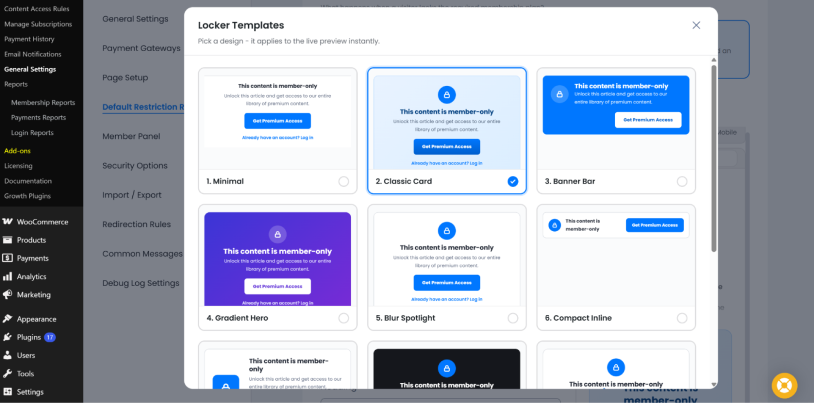
Which one matches your website and taste? Select one to apply it. There is a live preview that helps you see the result and make the right choice.
The locker can be used to communicate what the visitor needs to do next, for example, ‘unlock this article’ or ‘sign in or become a member to continue reading’.
There is also a special template, Template 12, where you can then add your own HTML in the Text/HTML editor and customize the structure and content for a fully tailor-made experience.
3. Decide How Much Content Visitors Can Preview
For the ‘Show Teaser + Locker’ option, you can control how much of the content is visible before the restriction appears. This way, you allow visitors to read e.g. the first 100 words of a premium article and entice them to unlock all.
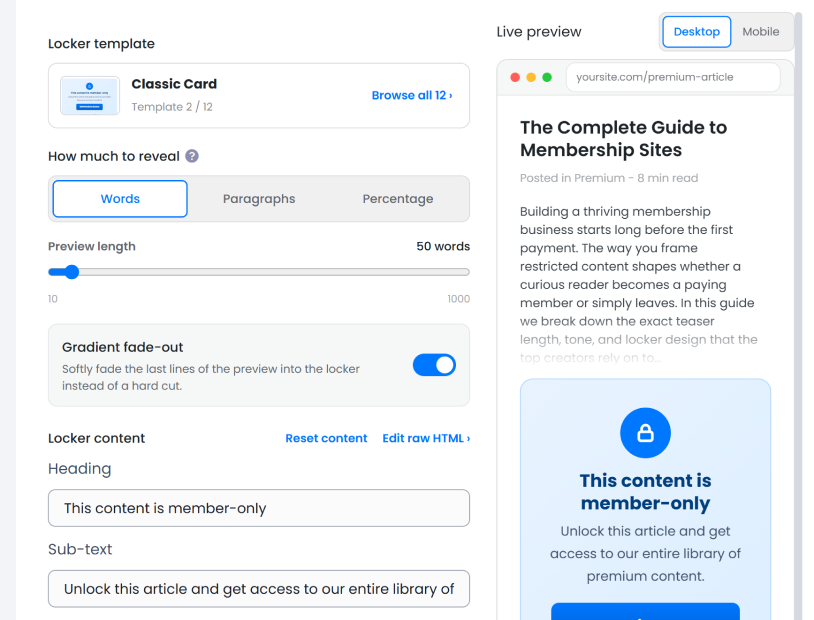
The limit for a teaser can come in different shapes:
- Words (show the first X words)
- Paragraphs (the first X paragraphs)
- Percentage (show a specific percentage of the content)
The main locker text in the template, including buttons and button actions, can be updated as well. Moreover, you may have one or two buttons. For each, you may just add a link to the page where the site visitors can subscribe – or even insert the ARMember shortcode for a one-page experience, so that they are not redirected anywhere.
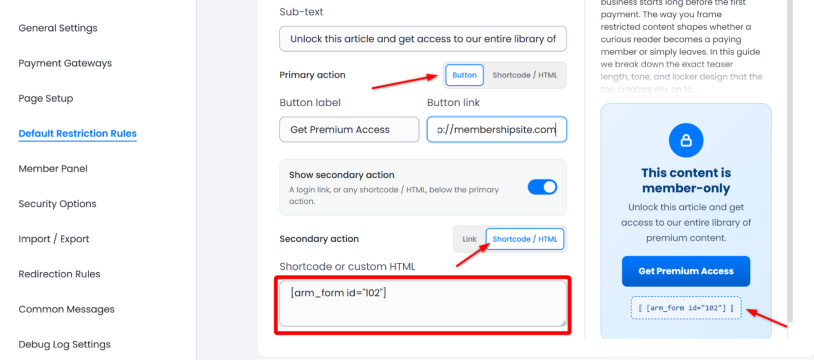
For example, you can insert the registration right with the locker instead of referring the reader to an external site page.
Another UX advice – add a smooth transition to your locker by enabling the ‘Gradient Fade-Out’. This will add a nice fading effect between the visible preview and the locker.
4. Apply the Restriction to Newly Added Content
After configuring the locker, in the same Content Access Rules menu, you can create or edit a restriction for all future content you add. To customize it, select the Page, Post, or Custom Post Type that you want to protect.
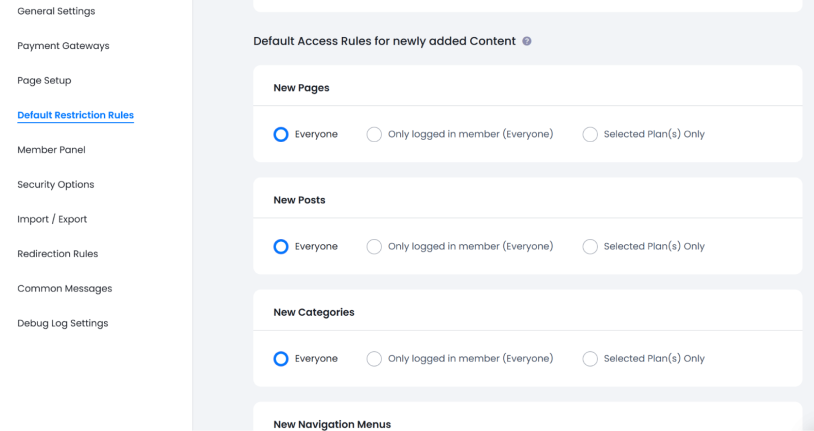
You can use restrictions to control access for different types of visitors:
- Logged-in users
- Non-logged-in users
- Members with specific membership plans
The Locker template is displayed only on content that has been restricted through ARMember > Content Access Rules.
5. Optionally Lock Only Part of a Page or Post
Some of your structured content may display only the introduction (e.g. the first lesson in the course to everyone while wrapping the remaining lessons in a Restrict Content shortcode). Visitors then see the first lesson as a preview and the locker where the remaining lessons begin.
You can also use the ARMember Restrict Content shortcode when you want to lock a specific section (not an entire page or post).
For this, go to ARMember → Add/Edit → Page/Post. Use the Restrict Content shortcode using the block editor or even the Classic WordPress editor.
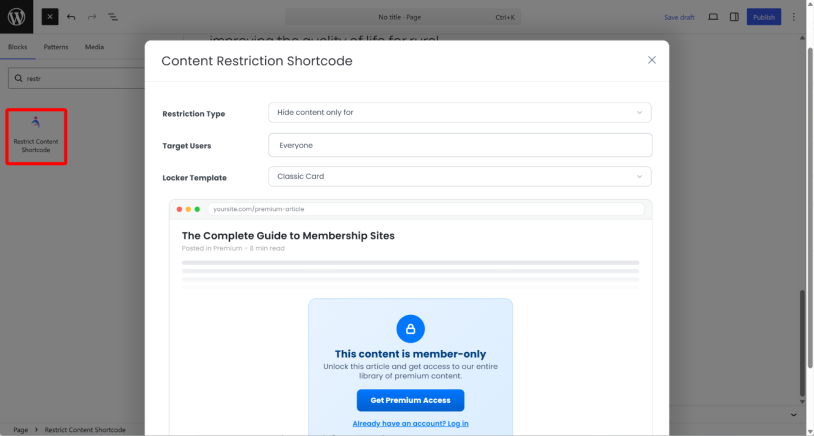
The options of the shortcode are pretty much the same:
- Choose whether the selected content should be shown or hidden for the targeted users.
- Select the audience (logged-in users, non-logged-in users, or chosen membership plans).
- Design of the locker template.
- Save and preview the page before publishing.
Also, don’t forget to take a look at the higher-level settings and make sure that the ARMember access rules settings have the relevant plans chosen.
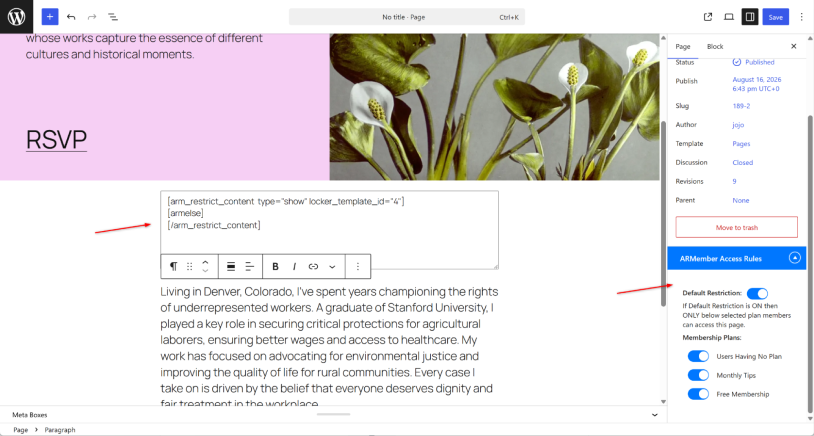
The Locker Addon works with popular WordPress editors like Elementor, Bricks, or Divi.
To sum up on locking your premium content on WordPress with ARMember and its Locker add-on, here is a quick setup overview:
- Choose the restriction (fully hidden content or with a content teaser)
- Customize your locker
- Set the preview amount and apply the restriction
- For individual page content locking, add a shortcode and publish a page
Why ARMember’s Locker Add-on Helps You Sell Premium Content
Think strategically: content lockers and premium content teasers are between content restriction and membership conversion. The restriction protects premium content, and the preview helps sell access to it.
With ARMember, you can use its powerful add-on called Locker. As its name suggests, the Locker extension helps you add a premium content teaser either globally to all your content or to specific members or specific pages, or even individually to posts and pages by simply inserting a customized shortcode or block inside individual content parts. Add this powerful plugin to your WordPress membership site and see your content sell better than by offering blind paywalls.
Related articles:

Share this post


