


If you’ve ever handed over a WordPress site to a client and watched their eyes glaze over, you’re not alone! The default WordPress dashboard might feel intuitive to us as developers but for most non-tech business owners, it looks more like a maze of menus, widgets, and “What does this even do?” like things.
That first wave of confusion can instantly shake their confidence in the site you’ve just delivered. And before you know it, your inbox is filling up with basic support questions that all stem from one thing: the dashboard feels overwhelming.
Why Use WordPress Dashboard Plugins?
From experience, when clients log into their new WordPress site for the first time, they’re often greeted by a wall of menus, meta boxes, and hard terms like “Permalinks”. Instead of feeling empowered, they feel unsure, and that hesitation matters.
Thus, this complexity creates anxiety and invites mistakes. A client might deactivate a critical plugin, avoid updating content altogether, or send you a flurry of “Can I click this?” messages just to be safe.
That’s exactly where a strategic WordPress dashboard plugin earns its place.
These plugins allow you, as the developer, to hide the not required settings and surface only what the client actually needs. You can rename “Posts” to “Articles,” remove distracting dashboard widgets, and even present a clean, branded login screen that feels intentional.

Thus, this focused environment does two key things: It builds immediate trust by showing a polished and purposefully built system that drastically reduces the common support messages. For everyone involved, a streamlined dashboard means a more confident client and a more sustainable, low fuss website in the long run.
Introducing WordPress Dashboard Plugins to Make This Possible
1. WP Adminify
WP Adminify is my go-to plugin for dashboard customization. It’s not just about hiding things; it’s about rebuilding the admin area to serve your client’s specific workflow. Think of it as a way to give clients a dashboard that feels built just for them, removing the clutter of WordPress features they’ll never use.
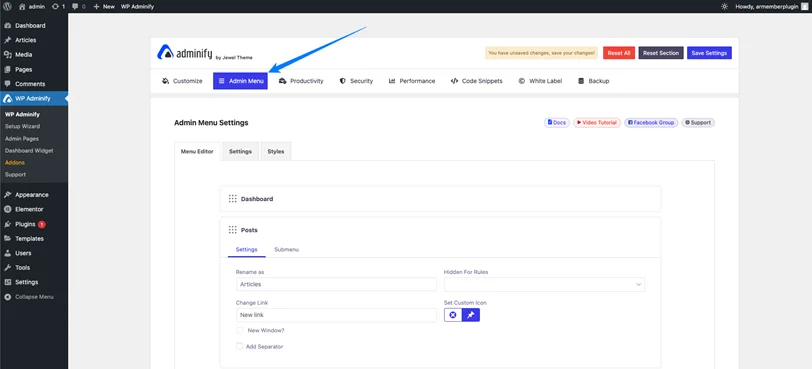
A standout feature is the Admin Menu Editor. This lets you logically rename, reorder, and hide any menu item.
Let’s say, for a restaurant client, I may simply rename “Posts” to “Menu Items” and hide “Comments” completely. So this simple change aligns perfectly with their mental model, making navigation smooth instead of confusing.
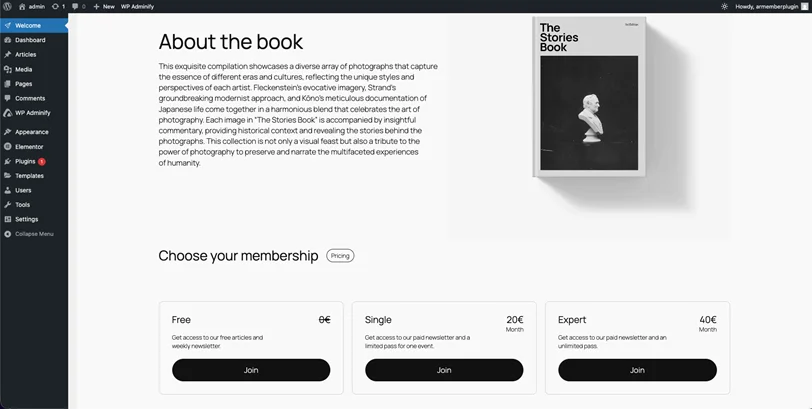
The Custom Admin Pages feature is a game-changer for first impressions. You can create custom dashboard pages with a branded welcome page containing helpful instructions, video links, or your contact information. It turns a generic homepage into a useful onboarding tool.
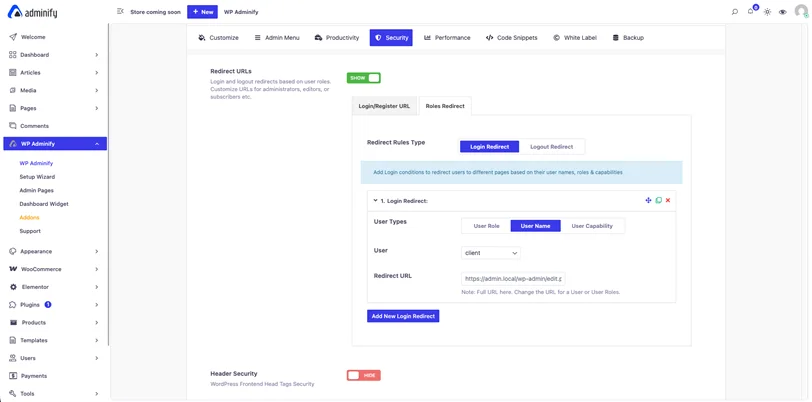
For security and a seamless feel, you can change the login URL + User Redirect is invaluable. You can set specific users (like your client) to land directly on their most-used page, like the “All Products” screen, instead of the dashboard.
It’s a small touch that makes the system feel smart and purpose-built. The best part is WP Adminify has a custom UI customization feature too. You can take a look at the following screenshot of the Custom WordPress UI by WP Adminify.
The media folder feature is also notable for clients who upload lots of images. The default media library becomes a mess quickly. But if your client is a photographer or real estate agent, this can easily keep everything organized with folders.
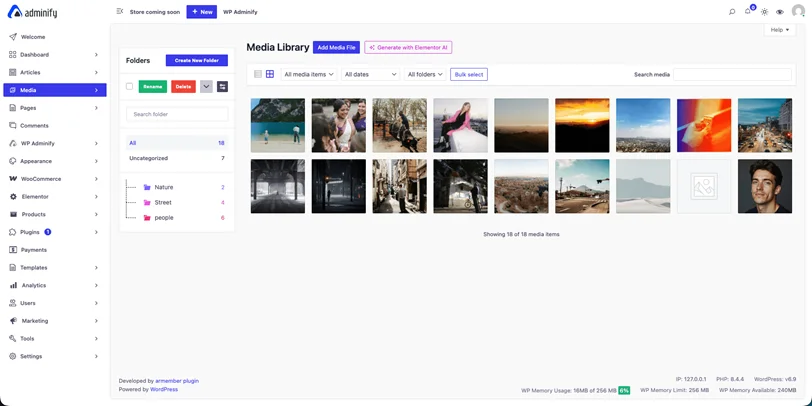
Why It Impresses Clients: WP Adminify shows you’ve considered their day to day experience. Thus, it makes them feel like they have a custom business tool, not just a website.
2. Loginfy
A client’s experience starts before they even reach the dashboard. It starts at the login screen. Loginfy lets you transform the default WordPress login into a branded experience that feels like a seamless part of the client’s website, not a generic gateway.
The plugin offers 16 custom login design templates to start from. This means you’re not building from scratch; you can pick a clean, modern layout and customize it in minutes. It removes the “this is a WordPress site” feeling, replacing it with a professional & owned brand experience right away in just a minute.
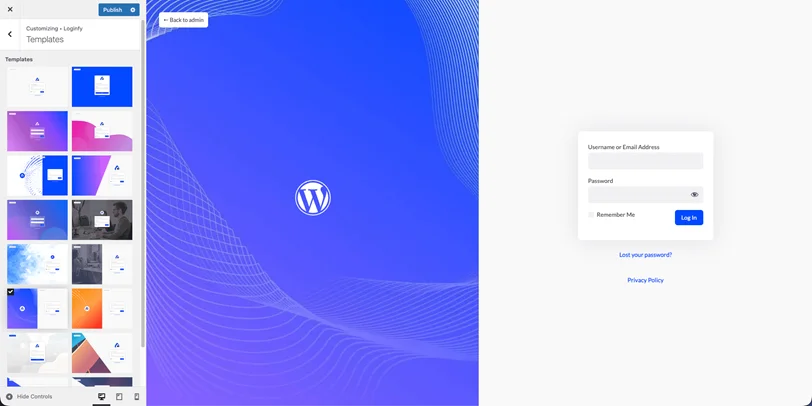
With Login page logo & background customization, you can match the login screen to the client’s website branding easily with no designer hassle. Furthermore, adding their logo and a relevant background image makes the transition from their site to the admin area feel much smoother.
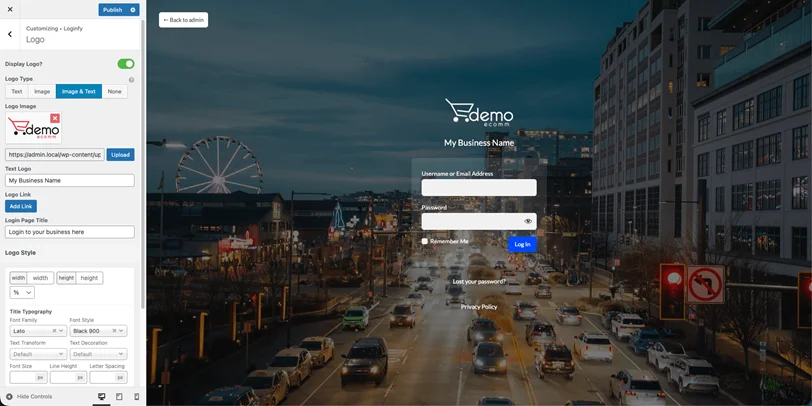
Beyond the 16 templates, Loginfy provides 100% customization ability over every element like colors, fonts, fields, and buttons. You can also remove unwanted items from the login page, for example, the “Remember Me” checkbox, language switcher, or “Back to Website” link to create a minimalist, focused entry point.
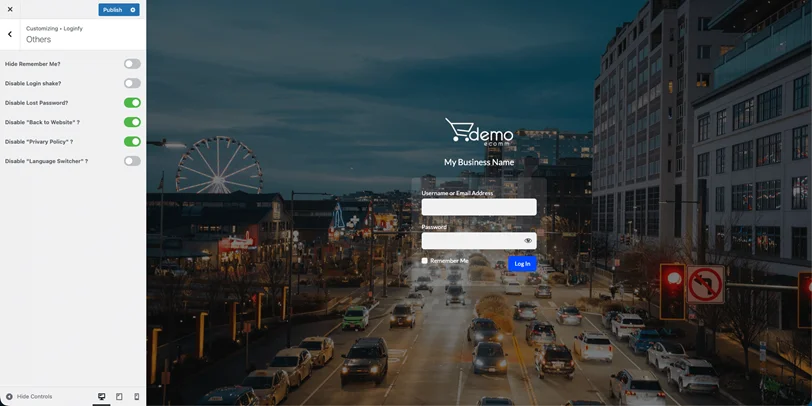
Why It Impresses Clients: A branded login page makes sure their online presence looks picture-perfect, professional and managed. It eliminates that slight uncertainty of “am I in the right place?” and builds confidence before they’ve even typed their password.
3. Admin Bar Editor
The WordPress admin bar is that black strip at the top of the screen when logged in. For clients, it’s often a source of accidental clicks and confusion, with links to areas they should never touch. Admin Bar Editor gives you precise control over this often-overlooked space.
The core functionality is reordering & hiding admin bar items. I almost always hide items like “Updates,” “Comments,” and “New” for my clients. This prevents them from accidentally clicking into a complex settings area or getting unnecessary notifications, simplifying their view to just the essentials.
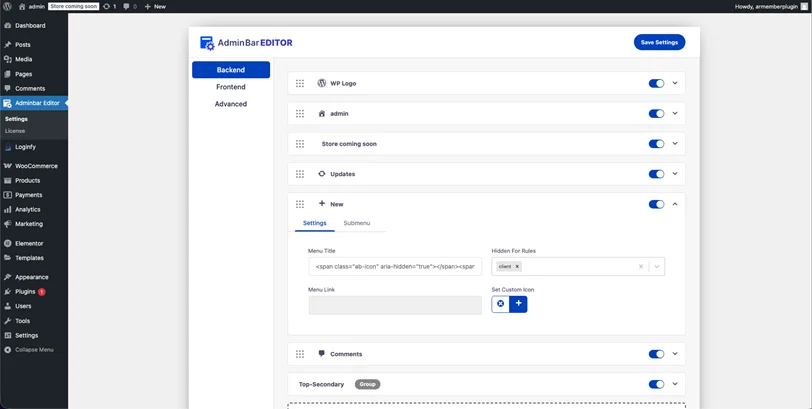
You can also add custom admin bar items. This is perfect for adding a one-click link to their most frequent task, like “Add New Blog Post” or “View Analytics,” right at the top of every screen. It turns the admin bar from a nuisance into a helpful shortcut toolbar.
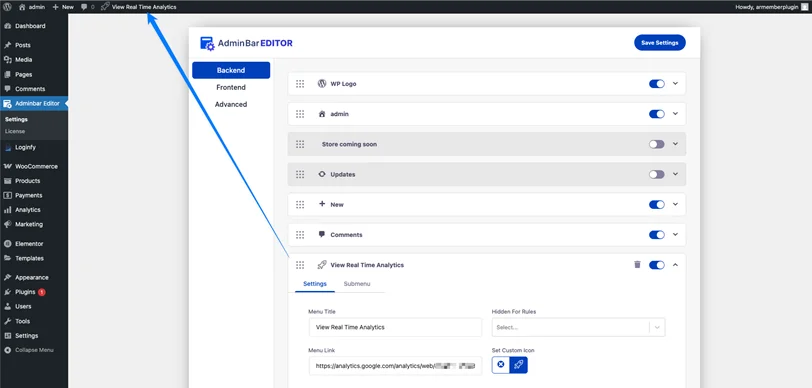
Crucially, you can set up Role-Based Admin Bar Control. Your site editor might see a few more tools than an author, while a shop manager sees e-commerce shortcuts. Everyone gets an interface suited to their job.
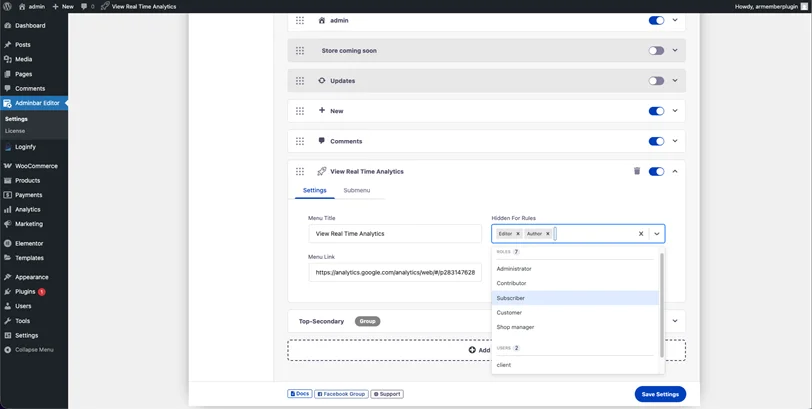
Why Clients Like It: A simple admin bar leaves no room for errors. Clients love the clean top-of-screen view and find the custom shortcuts you add incredibly handy. It’s a little change that makes the entire backend feel less cluttered and easier to navigate.
4. Rolemaster Suite
When a site has multiple users, like a content team or a client’s internal staff, tight access control isn’t optional. Rolemaster Suite lets you create and manage user roles with far more precision than WordPress’s default settings.
The standout feature here is Custom Role Management. Instead of handing someone the standard Editor role (and hoping they don’t break anything), you can create a role like “Content Manager.” They can publish posts and moderate comments, but they’re completely locked out of pages, settings, and anything that could impact the site’s structure.
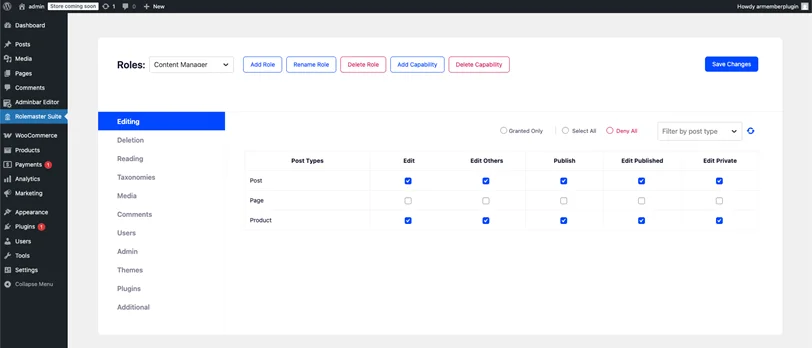
Why It Makes the Site Professional: This level of control is what separates a pro-built site from an amateur one. It shows the client you’ve thought about their team structure and long-term management. Also, handing a site with perfectly configured roles makes your clients feel more secure as well as makes your ongoing support easier.
5. WP Spotlight
Sometimes, impressing a client is about speed and modernity. WP Spotlight adds a command palette (like Spotlight on Mac or CMD+K in modern apps) to the WordPress admin. It allows users to search for and launch any admin page, post, or setting instantly.
The Quick Search & Command Feature means a client doesn’t need to remember if a setting is under “Settings > General” or “Tools.” They can simply press Option +S (MAC) or Alt+S (Windows), type “permalink,” and jump straight there.
It’s a massive time-saver for both you and the client. It offers a personal key bindings option too. To set key bindings, you need to open Spotlight search in Dashboard > Type key bindings. Now simply set up your personalized shortcut keys here and that’s it!
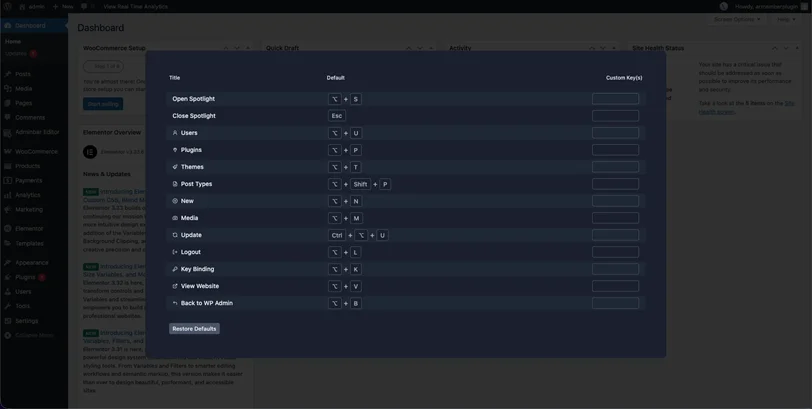
The workflow & productivity benefits are significant. Finding a specific page among hundreds, opening the media library, or creating a new post becomes a near-instant action. It eliminates the need to crawl through menus and makes even a complex site feel fast and responsive.
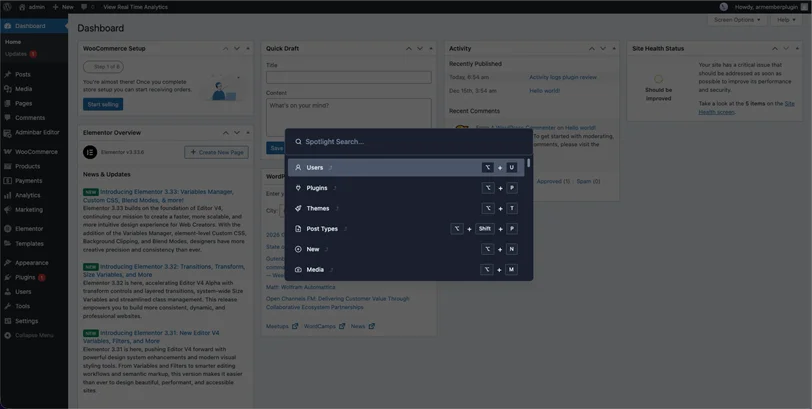
Why It Feels Premium: While it is common in high end software such as Slack, Figma, Notion, it is rare in WordPress. Thus, adding it makes the backend feel surprisingly modern and powerful. Clients love the “wow” factor of the quick search, and it genuinely makes them more efficient.
How to Choose the Right WordPress Dashboard Plugin for Clients?
You don’t need every plugin for every client. Everything and every choice of plugin depends on their setup and how you want to work.
For a simple business website like a solo consultant or local shop, clarity should be the top priority. Start with WP Adminify to clean up the dashboard and simplify menus, then add Loginfy for a polished, branded login experience. Together, this setup resolves most issues and problems with just a very little configuration.
For content teams like blogs, magazines, corporate sites, control and efficiency are key. Rolemaster Suite is non-negotiable for safe user management. Pair it with Admin Bar Editor to give each role a tailored toolbar, and consider WP Spotlight to speed up the editorial team’s daily tasks.
For agencies and freelancers who manage many client sites, consistency and speed matter the most in their workflow. Thus, make sure to choose one or two core plugins like WP Adminify and Loginfy and standardize your setup. Create reusable profiles or templates within these plugins to deploy your proven, client friendly configuration on every new site in minutes.
Final Thoughts
The real goal of using WordPress dashboard plugins isn’t to impress clients with features; it’s to do the opposite.
Hide the complexity, surface only what matters and present it in a way that feels intuitive and trustworthy. That kind of experience shows you’ve built more than a website; you’ve built a practical tool for their business.
Spend an hour customizing the dashboard, and the payoff is huge: fewer support requests, more confident clients, and a smoother working relationship. When clients log in and feel in control, not overwhelmed, they immediately recognize the value you’ve delivered.

Share this post


