


If you run a membership site, backups are not optional. They protect member data, payments, access rules, and the day-to-day changes that keep your site running.
That is why BlogVault is worth a close look. A membership site is active in ways a basic content site is not. New users register. Existing members log in. Payments come through. Access levels change. Course progress updates. Email automations fire based on member actions. Your database changes often, and sometimes constantly.
That means a weak backup setup can leave dangerous gaps.
If your site backs up once a day, but your site processes signups and subscription events all day, then any crash can leave you with missing orders, lost user changes, or support problems. A restore that is too old can also create confusion for members who paid but no longer have access.
This is why backup frequency, database accuracy, and restore speed matter more for membership sites than for regular blogs.
It also means you should not rely only on your host backup. Host backups are useful, but they are not always fast to restore, not always granular, and not always easy to access under pressure.
If your membership site uses ARMember or a similar setup, the risk is similar. You need a backup system that works well with a fast-changing database.
TL;DR: BlogVault is a reliable off-site backup and restore solution for high risk WordPress sites such as membership platforms. It stands out for easy restores, staging, and migration support, but comes at a higher price than basic backup plugins.
Setting Up BlogVault
Setup is fairly simple. That matters because backup tools should not create friction before they create protection.
Here is how the process works in practice.
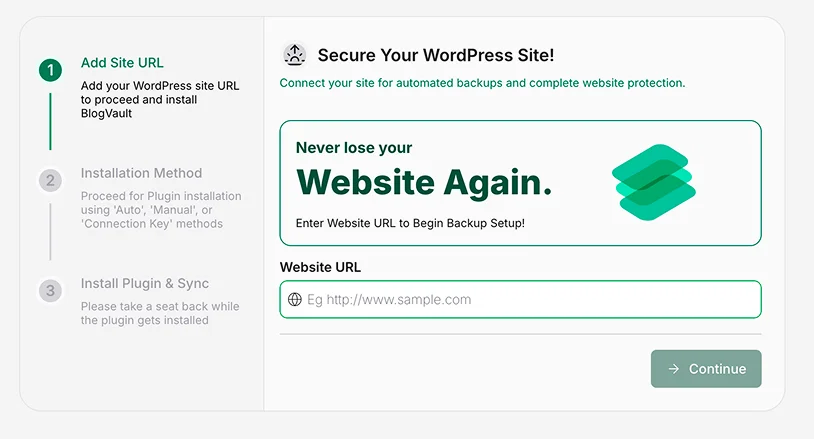
- Start by creating your BlogVault account and adding your website details. You connect the site from the BlogVault dashboard, not only from inside WordPress.
- Install the BlogVault plugin on your WordPress site and connect it to your account. This part is quick. The plugin acts as the bridge between your site and the BlogVault service.
- Let the first backup and site sync complete before you judge the experience. Large sites can take time, especially if they have years of media uploads, a large database, or many plugins. That delay is normal.
- Check the dashboard carefully once the first sync is complete so you understand where backups, restores, staging, and migration are located. The layout is clean, but first-time users should spend a few minutes exploring it.
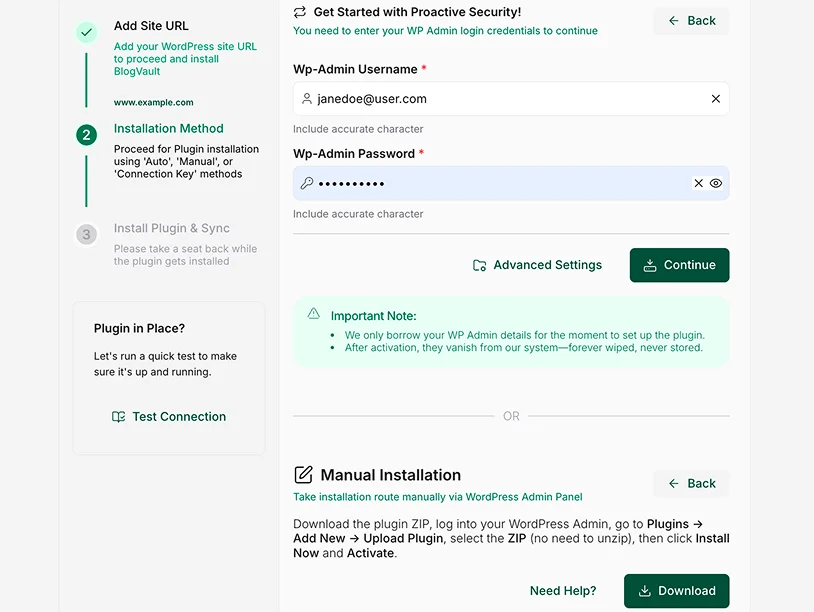
Note: You can install the backup plugin manually, or let BlogVault install it for you automatically. If you choose the automatic option, you only need to enter your wp-admin credentials. BlogVault does not store your username or password. It uses them only to complete the installation.
The setup flow is easier than many backup tools that ask you to configure remote storage manually. That is a real plus.
At the same time, there is a small learning curve. The plugin starts inside WordPress, but much of the real management happens in BlogVault’s external dashboard. Some users will like that because it keeps backup management separate from the live site and your site’s servers. Others may need a little time to adjust.
A practical tip here. Do not wait for an emergency to learn the dashboard. Open the restore and staging areas before you need them. A backup tool is much easier to use when you already know where things are.
Key Features
Features only matter if they help when something goes wrong. BlogVault covers several key areas well.
1. Off-Site Backups That Feel Safer
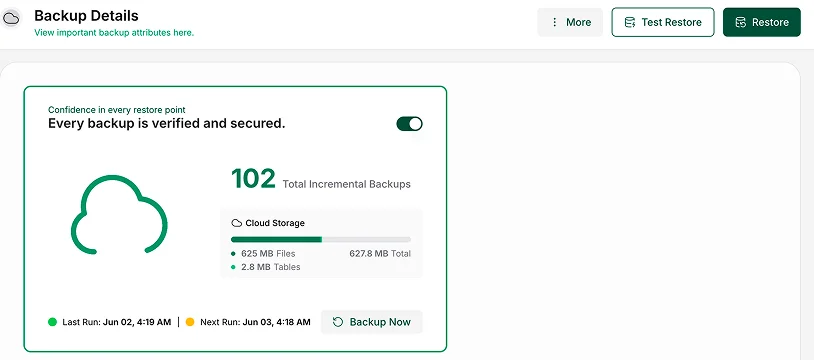
Your backups are stored outside your hosting account. If your server fails, your host has a serious problem, or your site gets damaged badly enough that the local environment is not reliable, your backup still exists in another place.
That separation improves your recovery options.
A useful tip here. Always confirm how recent your latest backup is before making major site changes. Even with automatic backups running, it is smart to check the status before plugin updates, theme edits, or payment changes.
2. Automatic Backups
BlogVault automates backups well. That sounds basic, but reliability matters more than novelty here.
You do not want your backup routine to depend on memory. Most site owners get busy. Backups should keep happening without effort.
For sites with more activity, BlogVault also offers support for dynamic backup handling on suitable plans. This is especially important for stores and sites with frequent database changes.
3. One-Click Restore
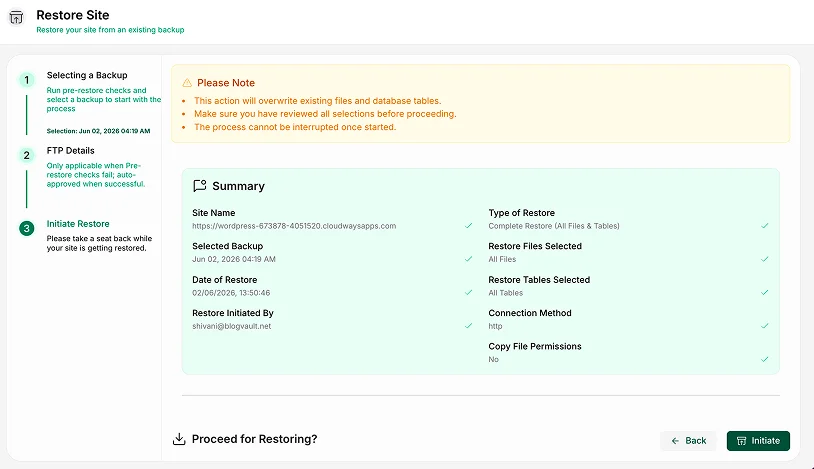
A backup is only useful if the restore process is clear and dependable. BlogVault does a good job here. The restore flow is simple enough for non-technical users, which matters when you need to act fast.
BlogVault also lets you test restores, which is a useful feature to have. That gives you a safer way to check whether your backup works as expected before you need it in a real emergency.
That does not mean you should restore carelessly. Before any restore, make sure you know what point in time you are going back to. Restoring the wrong backup can create a second problem right after the first.
A practical tip: Keep a short note of major site changes and update times. If something breaks, that note helps you pick the right restore point faster.
4. Built-In Staging
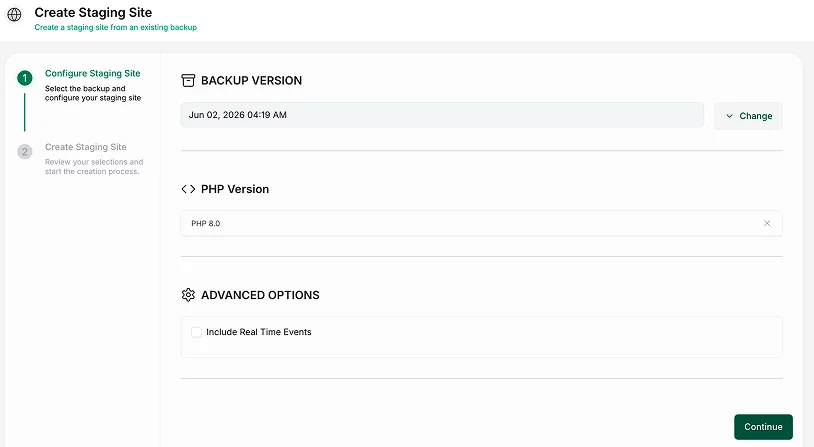
You can create a test copy of your website, try updates there, and see if anything breaks before touching the live site. For membership sites, this matters a lot. Plugin conflicts are common when you combine a membership plugin, payment tool, page builder, LMS plugin, and email integrations.
Membership sites often depend on more than one plugin working together. A backup plugin and a staging area can reduce the risk of breaking signups, access rules, or paid content after an update.
Testing changes first reduces the chance of public problems.
There is nuance here. A staging site is not a perfect copy of every live condition. Payment gateways, webhooks, email triggers, and third-party API connections may not behave the same way in staging. So yes, staging is helpful, but it still requires careful testing.
5. Migration Tool
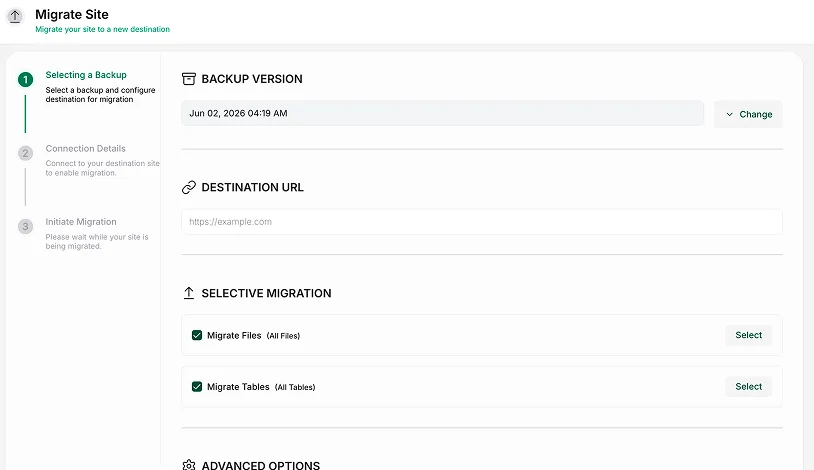
If you need to move hosts, move a membership site to a better server, or clone a site before a redesign, the migration flow is easier than many alternatives. This can save time and reduce stress when a host change is already enough work.
That can be useful if you are moving an ARMember site to a new host or rebuilding a membership setup on a better stack.
A warning here is simple. Always check domain settings, SSL, email delivery, payment callbacks, and member login flows after any migration. A successful site move does not mean every connected service is working as expected.
What I Liked About BlogVault
BlogVault has a practical feel to it. That is one of its biggest strengths.
It Is Designed Around Recovery, Not Only Backup Creation
Many backup tools are fine when everything works. The real test is what happens when your site breaks. BlogVault seems built with that moment in mind. The restore experience is strong. The backup history is clear. The system feels focused on getting you back online with less confusion.
That makes a real difference for membership sites, where downtime affects users, payments, and support all at once.
The Restore Experience Is Better Than Many Competing Tools
This point deserves emphasis because it answers a common question. Will this actually help when things go wrong?
In our testing, BlogVault handled the restore side better than many cheaper tools. The process is more guided, clearer, and less stressful than what you get from many basic plugins.
That matters if your ARMember setup includes paid plans, restricted content, and active member accounts. A cleaner restore flow lowers the chance of compounding the problem.
The Feature Mix Fits Serious Websites Well
Backups, staging, migration, and site monitoring work well together. If your site earns from memberships, subscriptions, courses, or premium content, that combination makes sense.
A cheaper plugin may cover one part of the problem. BlogVault covers more of the workflow around site safety.
It Feels Dependable
This point is harder to measure, but it matters. Some plugins feel light. BlogVault feels more substantial. The dashboard, backup system, and restore process all point in the same direction. It is built to reduce risk.
That said, dependable does not mean effortless. You still need to know your plan, review backup status, and test your process before a real problem hits.
But Let’s Be Honest. BlogVault Isn’t Cheap
This is the part many readers care about most.
BlogVault is not a budget backup plugin. If you want the lowest-cost option, this is probably not it.
The real question is not whether it is cheap. The real question is whether the cost makes sense for your site type.
For a membership site, the answer may be yes. If your site handles signups, payments, recurring subscriptions, and protected content, the cost of downtime can exceed the cost of the plugin very quickly. Lost sales, confused members, support work, and emergency fixes add up fast.
For a small content site with little change and no revenue attached, the pricing may feel harder to justify.
That difference matters. A tool can be too expensive for one site and reasonable for another.
There is another nuance here. BlogVault is easier partly because it is more managed. If you enjoy building your own backup system with custom storage and manual control, BlogVault may feel less flexible than a more technical setup.
So yes, the price is a real drawback for some users. It is just not a universal drawback.
A Few Limitations You Should Know Before Buying
BlogVault is strong, but you should know the weak spots before you commit.
The Dashboard Lives Partly Outside WordPress
This is not a flaw for everyone, but it is a change in workflow. Some users prefer handling everything inside the WordPress admin area. BlogVault sends much of the management to its own dashboard.
That setup can feel cleaner once you get used to it. It can also be genuinely helpful in a crisis. If you are locked out of wp-admin, an external dashboard gives you another way to access your backups and start recovery without wasting time trying to get back into WordPress first.
Still, if you dislike switching interfaces, take that seriously.
Pricing Will Rule It Out For Some Sites
There is no way around this. For personal blogs or very small sites, BlogVault can feel like too much tool for too much money.
That does not make it bad. It means the fit is not universal.
Feature Access Depends On Your Plan
This is a practical warning. Do not assume the feature you want is included by default. Review the plan details closely. This matters even more if you expect malware scanning, advanced monitoring, or dynamic backup support.
Is BlogVault Good for Membership Sites?
In many cases, yes.
Membership sites have more moving parts than standard WordPress sites. The setup is often dense. You may be running a membership plugin, checkout tool, payment gateway, email platform, LMS plugin, user role rules, and page builder all at once. That creates more room for conflicts and more pressure when something breaks.
If your site uses ARMember with payment add-ons, protected content, subscription rules, email tools, and custom pages, your backup needs are closer to an eCommerce site than a simple blog.
BlogVault fits this environment well because its main strengths map to the real risks.
- It keeps backups off-site.
- It makes restoration easier.
- It gives you staging for safer testing.
- It helps with migration if your host setup needs to change.
Those points matter because membership site problems tend to be expensive in messy ways. A broken login page can trigger support tickets fast. A failed checkout can block revenue. A bad update can remove access for paying members. A restore that takes too long can damage trust even if the site comes back.
There is one caution worth adding. BlogVault is a strong backup layer, but it is not the whole safety plan. Membership sites should also monitor payment events, test login flows after updates, and check access rules after major plugin changes.
Backups help you recover. They do not prevent every issue.
Is BlogVault Worth the Money?
For a revenue-generating membership site, it may be.
For a simple site with low change frequency and little business impact, maybe not.
That is the honest answer.
The decision comes down to risk. If your site earns money, handles member access, stores active user records, or depends on stable uptime, the value of reliable backups goes up quickly. If your site is mostly static, the value changes.
This is also where user experience matters. A plugin that saves money upfront but creates confusion during a restore is not always the better choice. BlogVault charges more, but part of what you pay for is a smoother recovery path.
A useful tip before buying. Map the cost of one serious site failure against the cost of the plugin. Include lost revenue, support time, and repair work. That comparison often makes the decision clearer.
Final Verdict. Should You Use BlogVault?
BlogVault is a capable backup plugin with strong restore tools, off-site backups, and useful extras like staging and migration. For ARMember membership site owners, it is easier to justify on active sites with real revenue and frequent database changes than on small, low-risk websites.
Related Articles:
- BookingPress Review: The Best WordPress Booking Plugin?
- How to Build a Website with a Free WordPress Membership Plugin
- ARMember Year in Review 2024: Major Updates and Achievements
FAQs
Is BlogVault good for ARMember sites?
Yes, BlogVault can be a good fit for ARMember sites because it handles backups, restores, and staging well. It makes more sense when your ARMember site has active users, recurring payments, and protected content.
Does BlogVault store backups off-site?
Yes, BlogVault stores backups off-site on its own infrastructure. That gives you a separate recovery option if your host has a serious issue.
Is BlogVault better than host backups?
BlogVault is better than host backups for recovery control and backup independence. Host backups are still useful, but they should not be your only backup plan.
Is BlogVault worth the price for a membership site?
BlogVault may be worth the price for a membership site if downtime would affect revenue, access, or support. The value is less clear for small sites with low risk and little activity.
Does BlogVault work for WooCommerce and dynamic sites?
Yes, BlogVault works for WooCommerce and other dynamic sites on suitable plans. You should still check plan details carefully because feature access can vary.
Is BlogVault easy to restore from?
Yes, BlogVault is easier to restore from than many basic backup plugins. You still need to choose the correct restore point so you do not roll back too much site data.
Is BlogVault the cheapest backup plugin?
No, BlogVault is not the cheapest backup plugin. It is priced more for users who want off-site backups, guided restores, and extra site management features.

Share this post


