


Dark mode is no longer a “nice to have” feature; it has become a standard part of modern user experience across operating systems, browsers, dashboards, and mobile apps. As users spend more time online, visual comfort and accessibility play a much bigger role in how long they stay engaged.
For WordPress websites, this shift is especially important. Content-heavy blogs, online communities, and membership platforms often involve long reading sessions, frequent dashboard usage, and repeat visits. In these scenarios, dark mode can reduce eye strain, improve accessibility, and create a more polished, modern interface that users expect in 2026.
This guide takes a neutral, editorial approach to comparing the best WordPress dark mode plugins in 2026. We’ll look at how each option performs in real-world use, focusing on user experience, flexibility, performance impact, and practical features, so you can choose the right solution for your site without guesswork or hype.
Why Dark Mode Matters for Modern WordPress Websites
As web usage continues to grow across devices and time zones, visual comfort has become a critical part of user experience. Dark mode helps reduce eye strain by lowering screen brightness and minimizing glare, making it especially valuable for users who browse at night or spend long periods reading on-screen content.
Beyond comfort, dark mode supports better accessibility for users with light sensitivity or visual fatigue. When implemented correctly, it improves readability and contrast, helping websites align with inclusive design best practices. These accessibility improvements often translate into longer session durations, as users are more likely to stay engaged when the interface feels comfortable and easy on the eyes.
Dark mode also contributes to a professional, modern UI that users increasingly expect. This is particularly important for content-heavy websites such as blogs, membership portals, online learning platforms, and community dashboards.
What to Look for in a WordPress Dark Mode Plugin
Not all dark mode plugins are built the same. While many tools promise a darker interface, the real value lies in how well they integrate with your site’s design, performance, and user experience. Before choosing a plugin, it’s important to evaluate a few key factors that determine whether dark mode will genuinely improve usability or create new issues.
1. Toggle-Based vs. Automatic Dark Mode
Dark mode plugins typically work in one of two ways:
- Automatic mode: Activates dark mode based on the user’s system preferences
- Toggle-based mode: Allows users to manually switch between light and dark modes
For most websites, a toggle-based option offers greater flexibility and control, ensuring users can choose what works best for them at any moment.
2. Theme & Page Builder Compatibility
Seamless compatibility is essential. Poor compatibility can lead to broken styles, unreadable content, or inconsistent layouts. A reliable dark mode plugin should work smoothly with:
- Popular WordPress themes.
- Page builders like Elementor and Gutenberg.
- Custom layouts, dashboards, forms, and member-only pages.
3. Performance & Optimization
Performance should never be an afterthought. Overly heavy implementations can harm user experience, Core Web Vitals, and SEO. A high-quality dark mode plugin should:
- Be lightweight.
- Minimize scripts and CSS overrides.
- Preserve fast page load times.
4. Accessibility & Customization
Accessibility is where great plugins stand apart. Look for features such as:
- Proper contrast handling for readability.
- Custom color controls.
- Image and background adjustments.
These options ensure dark mode remains inclusive while allowing it to align with your brand identity, not feel like a bolted-on feature.
Best WordPress Dark Mode Plugins in 2026 (Compared)
With the growing demand for user-friendly experiences, dark mode plugins have become essential tools for WordPress site owners in 2026. To help you choose wisely, we evaluated each plugin based on real-world usage, compatibility, performance impact, and flexibility, including free and premium options so you can find the right fit for your project or budget.
Below, you’ll find a selection of the most popular and reliable dark mode solutions available today.
| Plugin | Auto Dark Mode | Manual Toggle | Dashboard / Logged-In Support | Customization | Performance Impact |
| Darkify Dark Mode | ✅ | ✅ | ✅ | High | Low |
| WP Dark Mode | ✅ | ✅ | Partial | Medium | Medium |
| Dark Reader | ✅ | ❌ | Limited | Low | Medium |
| Dusky Dark Mode | ❌ | ✅ | ❌ | Low | Low |
| Dark Mode Toggle | ❌ | ✅ | ❌ | Minimal | Very Low |
1. Darkify Dark Mode
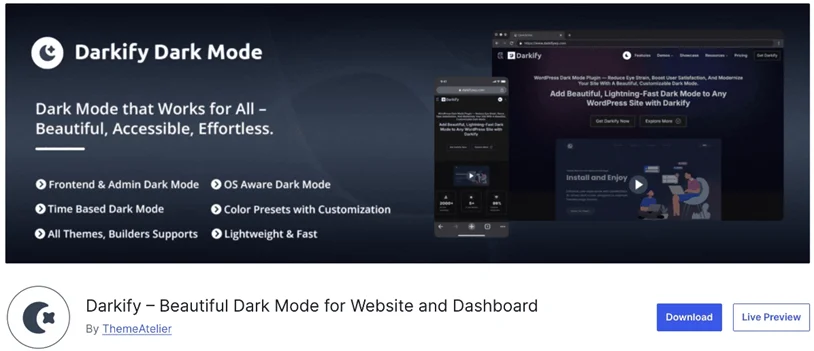
Darkify Dark Mode is a flexible WordPress dark mode plugin designed to add both automatic and toggle-based dark mode to websites. It allows you to enable dark mode based on user preference, system settings, or manual toggles, making it suitable for a wide range of use cases.
One of Darkify’s strengths is its broad compatibility. It works smoothly with most WordPress themes and page builders, and it applies consistently across frontend pages, dashboards, and logged-in membership areas. This makes it especially useful for membership platforms, online courses, and WooCommerce stores where users spend extended time inside account pages and dashboards.
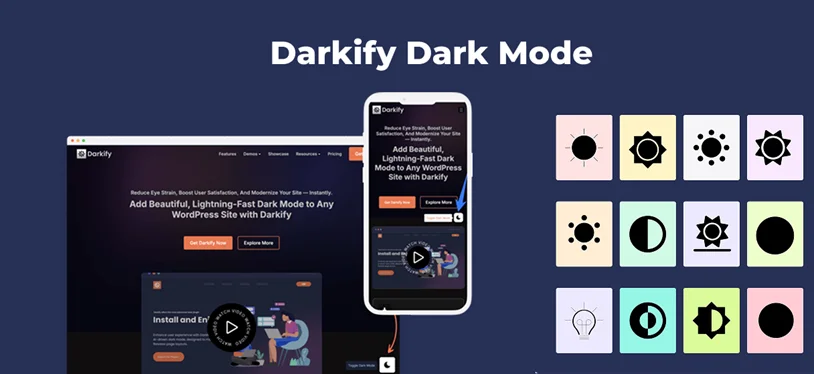
Darkify also offers custom controls for colors, images, and contrast, helping ensure readability and accessibility. You can fine-tune how dark mode appears without altering theme files or core layouts. Overall, Darkify is a practical option for WordPress sites that want to offer a modern dark mode experience while maintaining control, performance, and accessibility.
2. WP Dark Mode
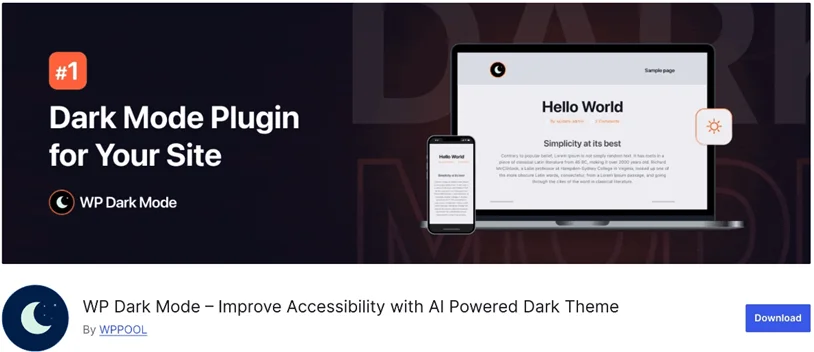
WP Dark Mode is one of the most popular dark mode plugins on WordPress.org, with a large user base and active development history. Its popularity makes it a common starting point for site owners who want to experiment with dark mode without a complex setup.
The plugin supports automatic dark mode detection, allowing it to switch based on the user’s system preferences or browser settings. This helps create a more seamless experience for visitors who already use dark mode at the OS or device level, without requiring manual changes.
WP Dark Mode also includes widget and shortcode options, making it easy to place dark mode toggles in headers, footers, or sidebars. While customization options are solid, deeper styling controls and advanced use cases may depend on premium features, making it best suited for general-purpose WordPress sites that want a balance between ease of use and functionality.
3. Dark Reader
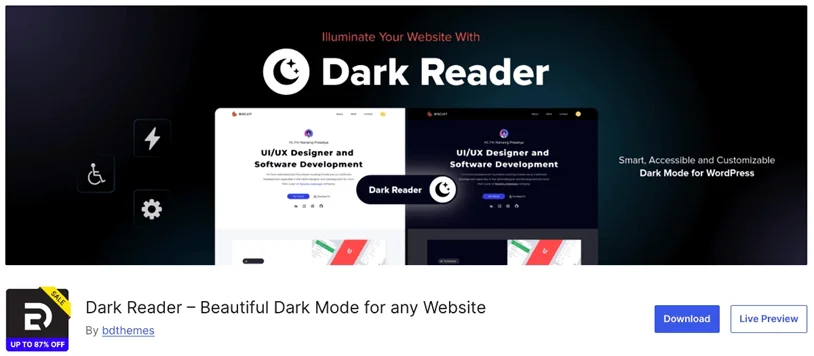
Dark Reader for WordPress takes a browser-inspired approach to dark mode, similar to the Dark Reader browser extension. Instead of relying on theme-specific styles, it dynamically transforms page colors to create a darker appearance.
This simplicity is both its strength and its limitation. On the positive side, Dark Reader works with minimal configuration and can apply dark mode across many themes. However, this comes with a tradeoff between simplicity and control. Because the plugin relies on automated color conversion, site owners have fewer options to fine-tune colors, contrast, or branding elements compared to more customizable dark mode plugins.
As a result, Dark Reader is best suited for users who want a fast, low-effort dark mode solution and are comfortable with limited customization, rather than those who need precise control over dashboards, member areas, or design consistency.
4. Dusky Dark Mode
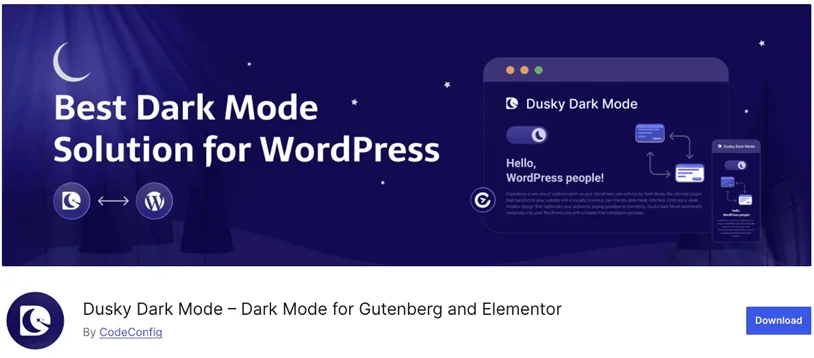
Dusky Dark Mode is a lightweight option designed for WordPress users. The plugin focuses on core functionality, making it easy to install and activate with minimal impact on site performance.
It provides basic toggle functionality to switch between light and dark modes manually. This straightforward approach works well for smaller sites or blogs that don’t require advanced styling or deep integration with themes and plugins.
However, Dusky offers limited customization compared to more feature-rich dark mode plugins. Color controls, contrast adjustments, and support for complex layouts or dashboards are minimal. As a result, it’s best suited for users who prioritize simplicity and performance over fine-grained design control or advanced use cases.
5. Dark Mode Toggle
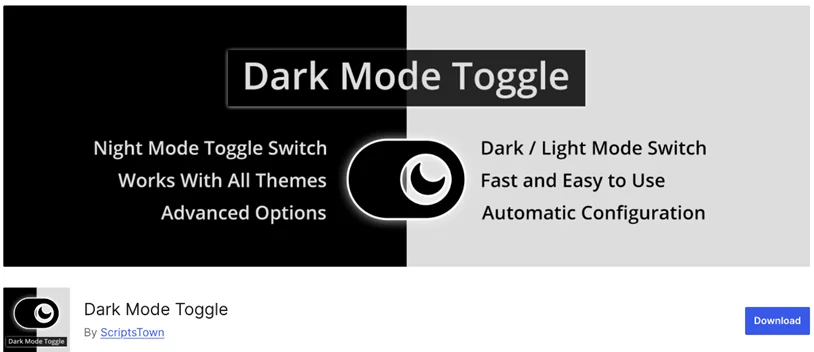
The Dark mode toggle plugin focuses on minimal setups, offering a simple switch that lets users toggle between light and dark modes. This plugin is easy to configure and lightweight, making it appealing for basic WordPress websites.
They’re often enough for small blogs or informational sites where dark mode is a convenience feature rather than a core part of the user experience. If the goal is simply to offer visitors an optional dark interface without deep customization, then this plugin can get the job done.
However, Dark mode toggle plugin usually lack support for dashboards, member-only pages, advanced styling controls, and accessibility adjustments. For membership platforms or content-heavy sites, more flexible dark mode solutions are typically a better fit.
How to Enable Dark Mode on WordPress for Free (Step-by-Step)
Adding dark mode to your WordPress website doesn’t require custom code or theme modifications. With the right free plugin, you can enable dark mode in just a few minutes and give visitors the option to switch between light and dark views.
Step 1: Install and Activate Darkify
First, install and activate the plugin from the WordPress plugin repository. Go to Plugins > Add New and search for Darkify Dark Mode.
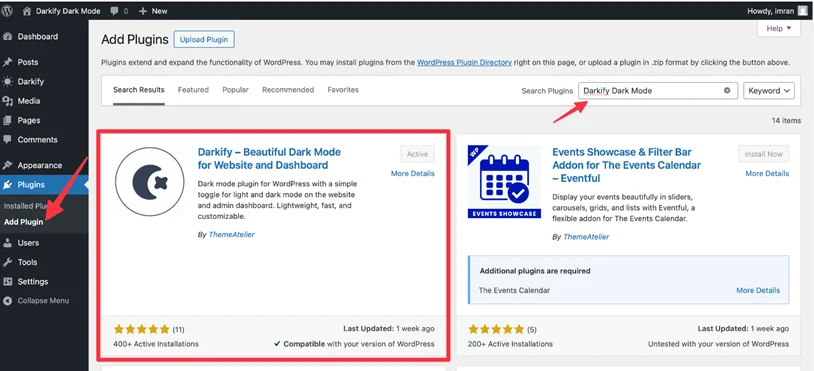
Once you find the plugin, click Install Now, then Activate. Darkify will be enabled instantly, and you can start configuring dark mode without any additional setup.
Step 2: Enable the Dark Mode Toggle
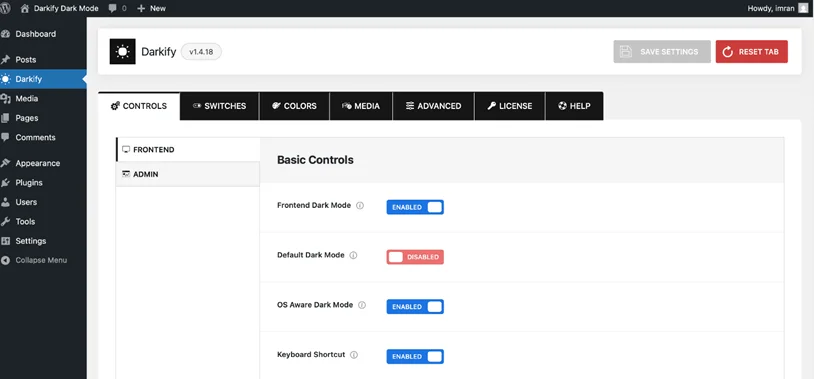
After activating Darkify, you’ll be automatically redirected to the Darkify settings page.
By default, Darkify enables a floating dark mode toggle that appears at the bottom-right corner of your website. From the settings panel, you can:
- Enable or disable the dark mode toggle.
- Choose how dark mode is triggered (manual toggle or OS-based).
- Control where and how the toggle appears (floating button, menu option, etc.).
You can keep the default setup for a quick launch or fine-tune the behavior to match your site’s design and user experience.
Step 3: Test Dark Mode on Frontend & Logged-In Pages
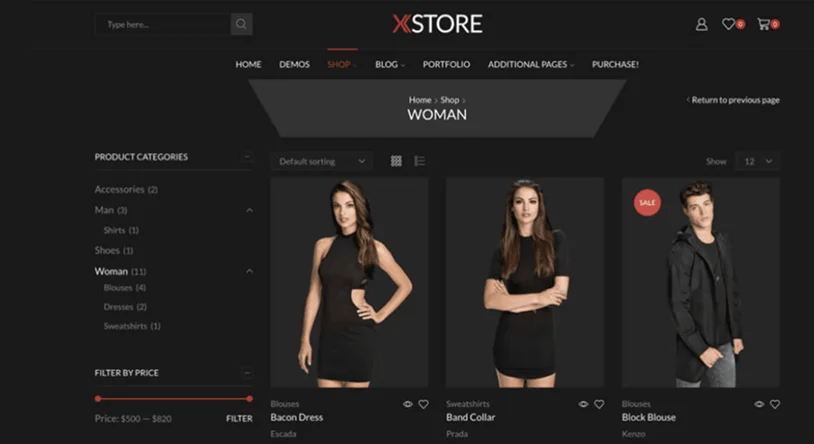
Once dark mode is enabled, test your website by switching between light and dark mode using the toggle. Make sure to test dark mode across key areas, including
- Public content pages (posts, pages, landing pages),
- Login and registration pages,
- Logged-in areas such as dashboards, profiles, or member-only sections,
Pay close attention to text readability, background contrast, buttons, and icons. This quick review helps ensure a consistent and comfortable experience for users before going live.
Step 4: Adjust Colors for Readability (Optional)
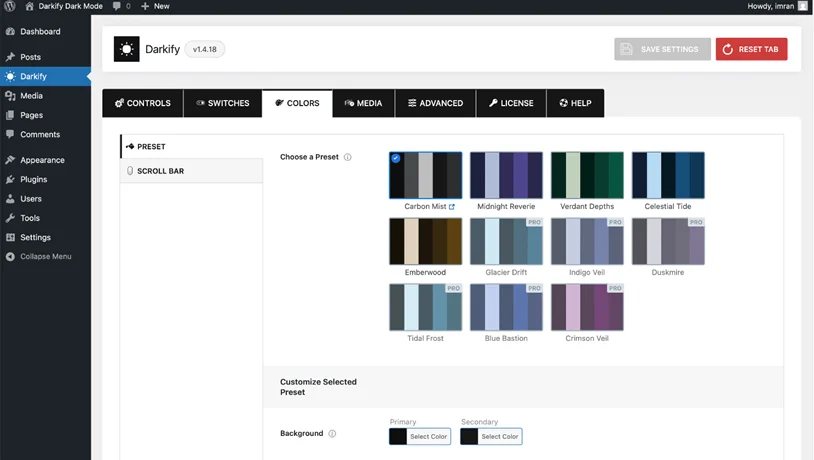
If needed, fine-tune the dark mode colors to ensure optimal readability across your site. You can:
- Adjust background and text contrast.
- Ensure buttons, links, and form fields remain clear.
- Refine colors for specific sections or elements.
After making changes, save your settings and recheck both light and dark modes to confirm a consistent experience.
Common Mistakes to Avoid with Dark Mode Plugins
While dark mode can significantly improve user experience, poor implementation can create more problems than it solves. Avoiding a few common mistakes will help ensure dark mode actually benefits your WordPress site.
Mistake 1 – Forcing dark mode on all users. Not everyone prefers a dark interface, and some users like light mode for accessibility reasons. Providing a toggle gives users control and prevents frustration.
Mistake 2 – Ignoring contrast ratios. Dark backgrounds require carefully chosen text, link, and button colors to remain readable. Low contrast can make content difficult to read and negatively impact accessibility.
Mistake 3 – Not testing member-only pages and dashboards. It is another critical oversight. Dark mode should be consistent across login screens, profile pages, forms, and restricted content. Membership sites, in particular, require extra attention in these areas.
Mistake 4 – Overloading scripts. Poorly optimized dark mode plugins can add unnecessary JavaScript or CSS, affecting performance. Choosing a lightweight solution and monitoring site speed ensures dark mode enhances the experience without slowing your website down.
Final Thoughts: Choosing the Best WordPress Dark Mode Plugins in 2026
Dark mode has evolved into a meaningful user experience feature that can improve usability, accessibility, and engagement. For sites, dark mode can reduce visual fatigue and contribute to longer, more comfortable sessions.
It’s important to remember that not all dark mode plugins work for all. Popularity alone also doesn’t guarantee the right fit. The best choice depends on factors like performance, customization options, and support for logged-in areas.
By focusing on your site’s specific needs rather than trends, you can choose a dark mode plugin that enhances your platform in a practical, long-lasting way.
You May Also Like:
- 8 Best WordPress eCommerce Plugins for Your Site 2026
- 15 Best AI Plugins and Tools for WordPress in 2026
- 7 Best WordPress Community Plugins for 2026
Frequently Asked Questions About WordPress Dark Mode Plugins
Are WordPress dark mode plugins safe?
Yes, reputable WordPress dark mode plugins are generally safe to use when downloaded from WordPress.org or official developer websites. As with any plugin, it’s important to choose one that is actively maintained, well-reviewed, and compatible with your current WordPress version.
Do dark mode plugins slow down websites?
Well-built dark mode plugins are lightweight and have minimal impact on performance. However, poorly optimized plugins that add excessive scripts or styles can affect page speed. Choosing a performance-friendly plugin and testing your site after activation helps avoid slowdowns.
Can dark mode work for membership dashboards?
Yes, but not all plugins support this properly. For membership websites, it’s important to use a dark mode plugin that applies styles consistently across logged-in areas, including dashboards, profile pages, and restricted content. This ensures a seamless experience for members.
Is dark mode good for accessibility?
Dark mode can improve accessibility for users who are sensitive to bright screens or experience eye strain. However, accessibility depends on proper contrast, readable text, and thoughtful color choices. When implemented correctly, dark mode can complement accessibility best practices rather than replace them.
Should dark mode be automatic or optional?
In most cases, offering dark mode as an optional toggle is the best approach. Some users prefer automatic dark mode based on system settings, while others want full control. Allowing users to choose creates a more flexible and inclusive user experience.

Share this post


